1Your role
Most providers have the Physician role. It opens every clinical page: your schedule, charts, notes, care plans, labs, prescriptions and refills.
Nurse practitioners and PAs usually have the Nurse / NP / PA role. It can’t sign prescriptions until an owner switches on Sign & send prescriptions for it in Settings → Roles & Permissions. After that, everything here about prescribing applies to you too.
3When you sign in
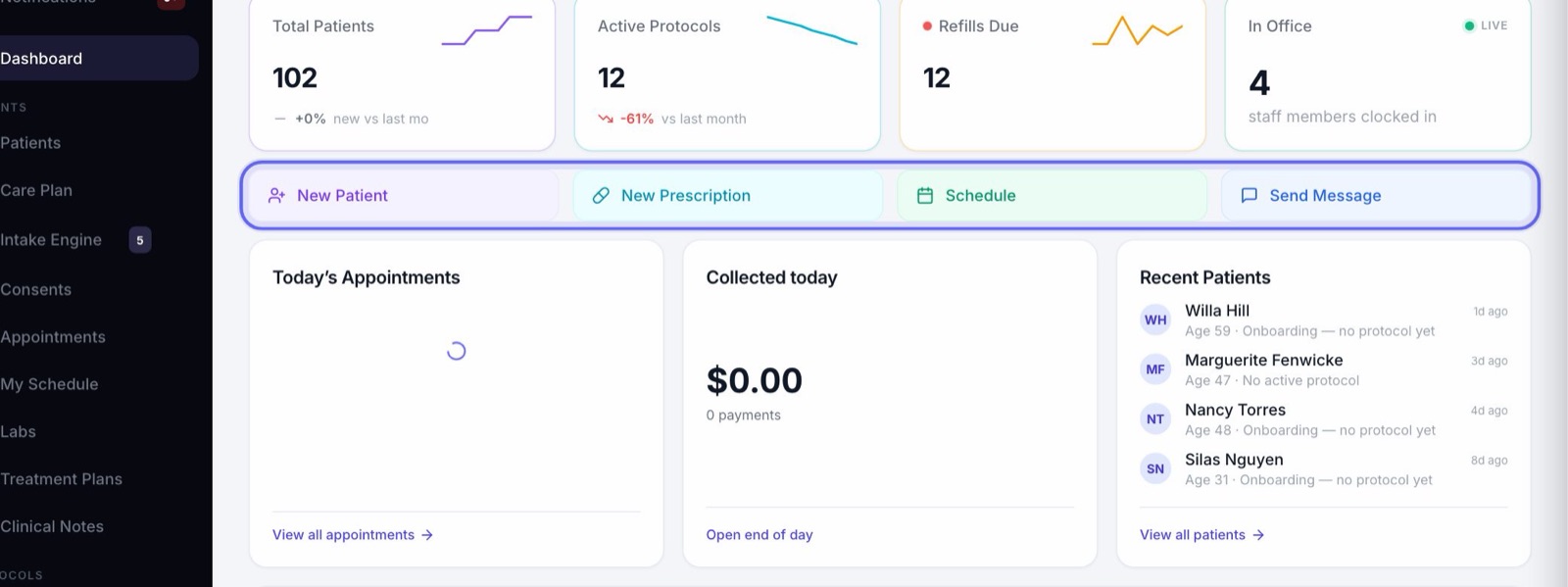
- 1You land on the Dashboard. Your numbers are My Patients, Active Protocols and Refills Pending.
- 2Under Quick actions, New Prescription starts a prescription when your plan includes e-prescribing.
- 3The Operations Queue holds refills to approve, patients falling behind, and protocol renewals.
- 4The first time, a welcome offers the tutorial. It shows only the pages your role uses.
4Your day on My Schedule
- 1Open My Schedule. Only your visits are listed, in time order.
- 2When the front desk checks your patient in, a bar at the top tells you they’re waiting. Press Open visit.
- 3Press Start visit, or Join Telehealth Call for a video visit. Both open an hour before the visit.
- 4When you’re done, press Check out. Once it’s over, Book follow-up books the next one.
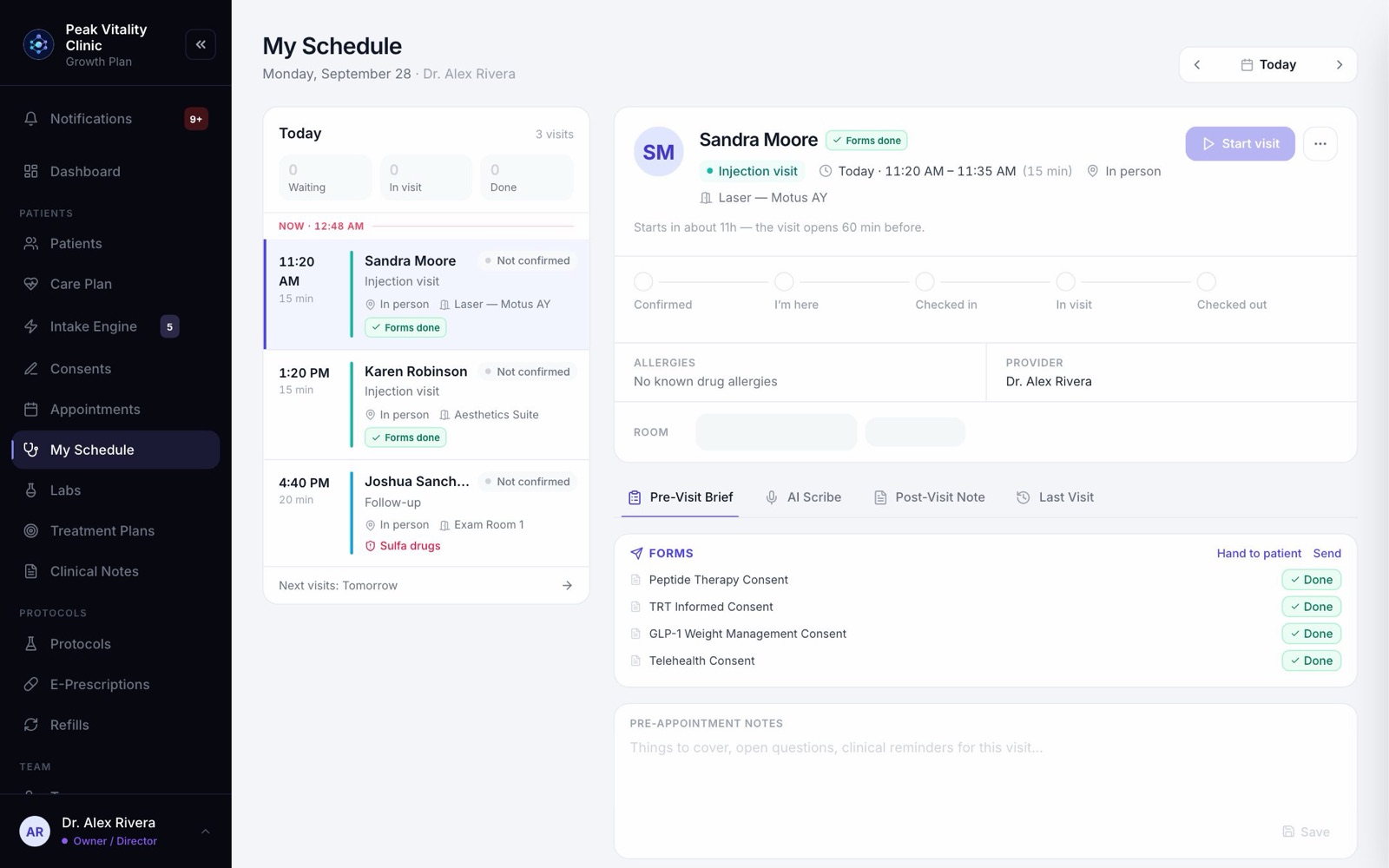
If My Schedule says you’re not set up as a clinician, ask an owner or manager to tick Sees patients for you on Team.
5Before you go in
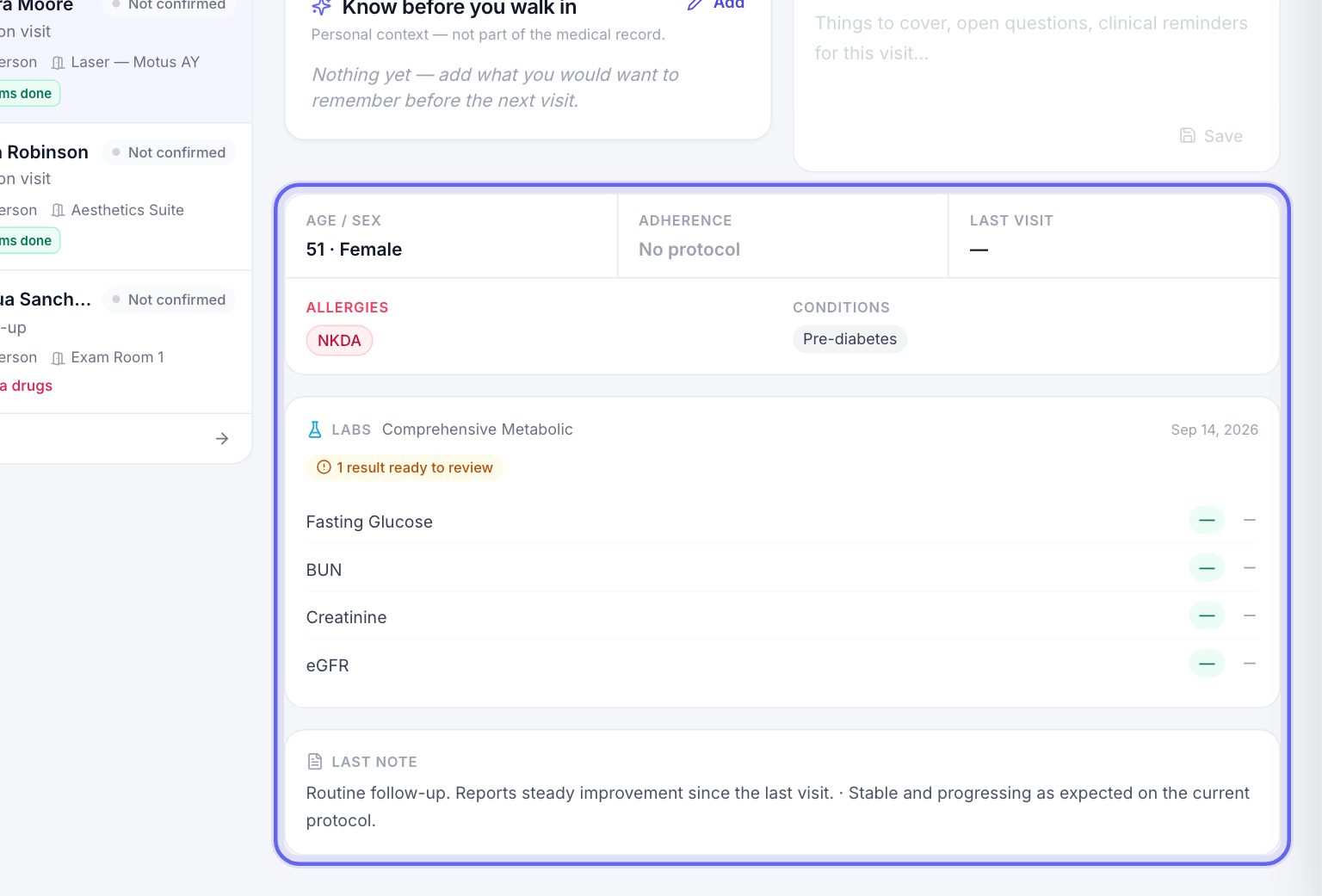
The Pre-Visit Brief tab has what to read first: alerts, allergies, conditions, the patient’s protocol, their latest labs and refills running low.
The Forms card shows which forms are signed and which are still out, with Send now for anything missing.
6The visit note
- 1On an in-person visit, the AI Scribe tab records the visit and drafts the note, once the patient has agreed.
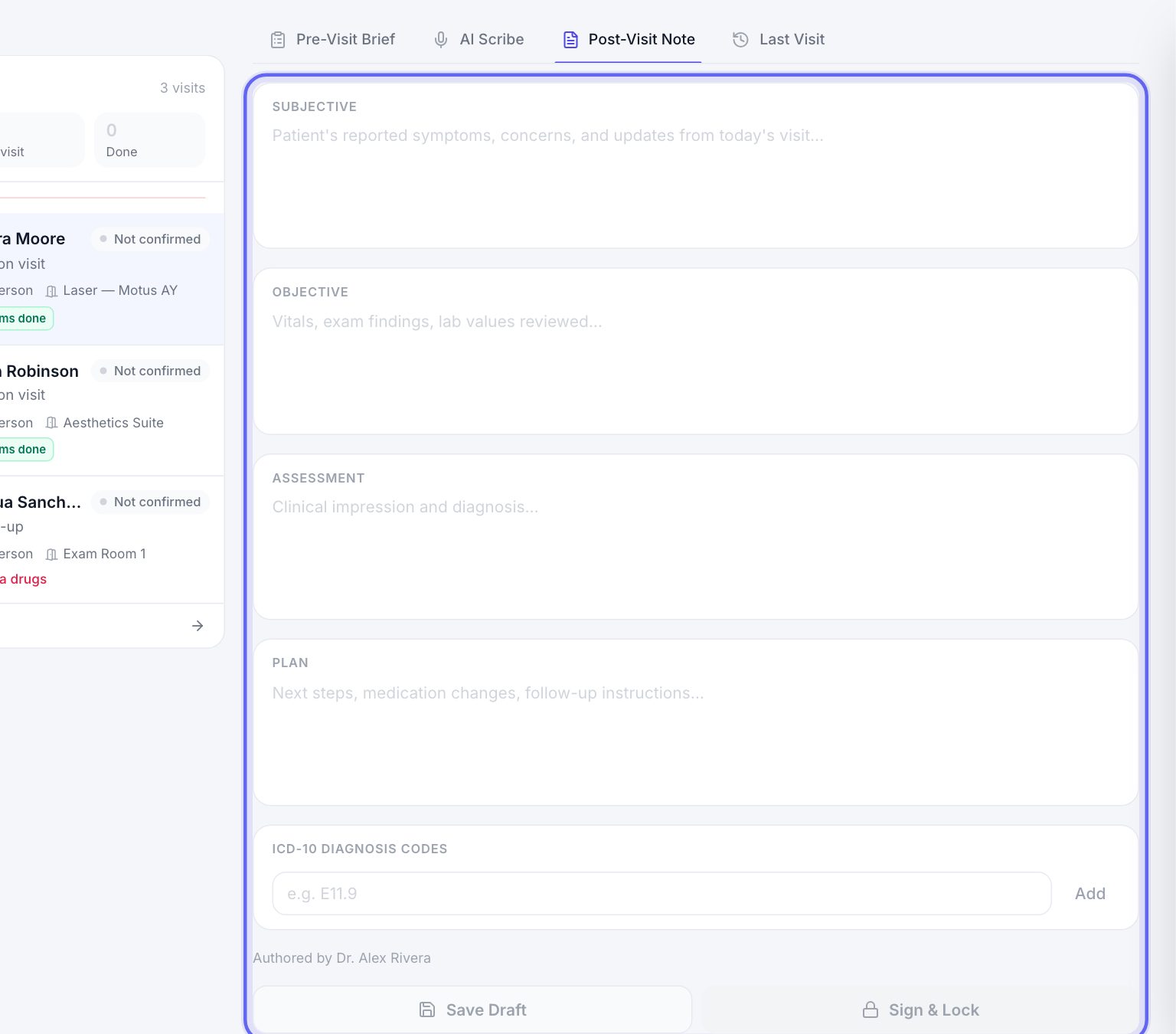
- 2Write the note on Post-Visit Note. Add diagnosis codes under ICD-10 Diagnosis Codes.
- 3Save Draft keeps it open. Sign & Lock makes it final and marks the visit completed.
- 4Every note for every patient is also on Clinical Notes. A change to a signed note is added as an amendment.
7The patient’s chart
- 1On Patients, All Patients is the whole clinic. My Patients narrows it to the patients assigned to you.
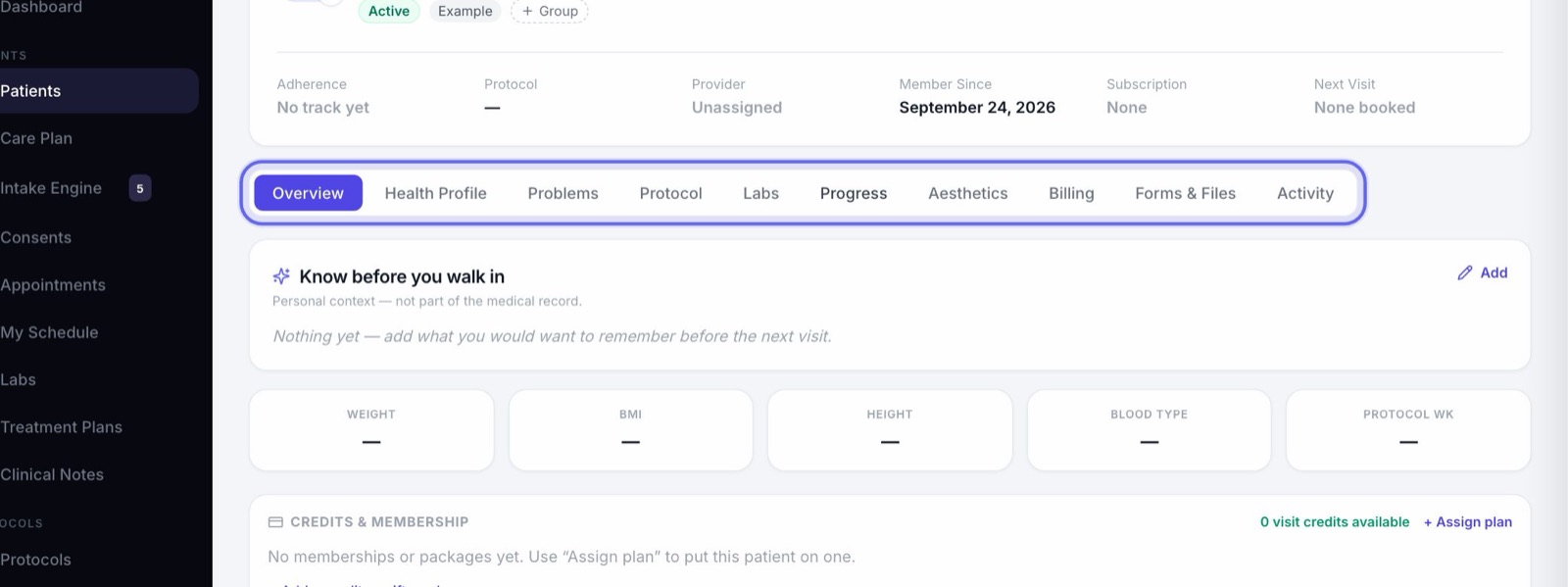
- 2Click a patient to open the chart. You see every tab: Overview, Health Profile, Problems, Protocol, Labs, Progress and the rest.
- 3To put a patient on a plan after a visit, use Care Plan. It walks you from picking the patient to a signed plan in their app.
8Write a prescription
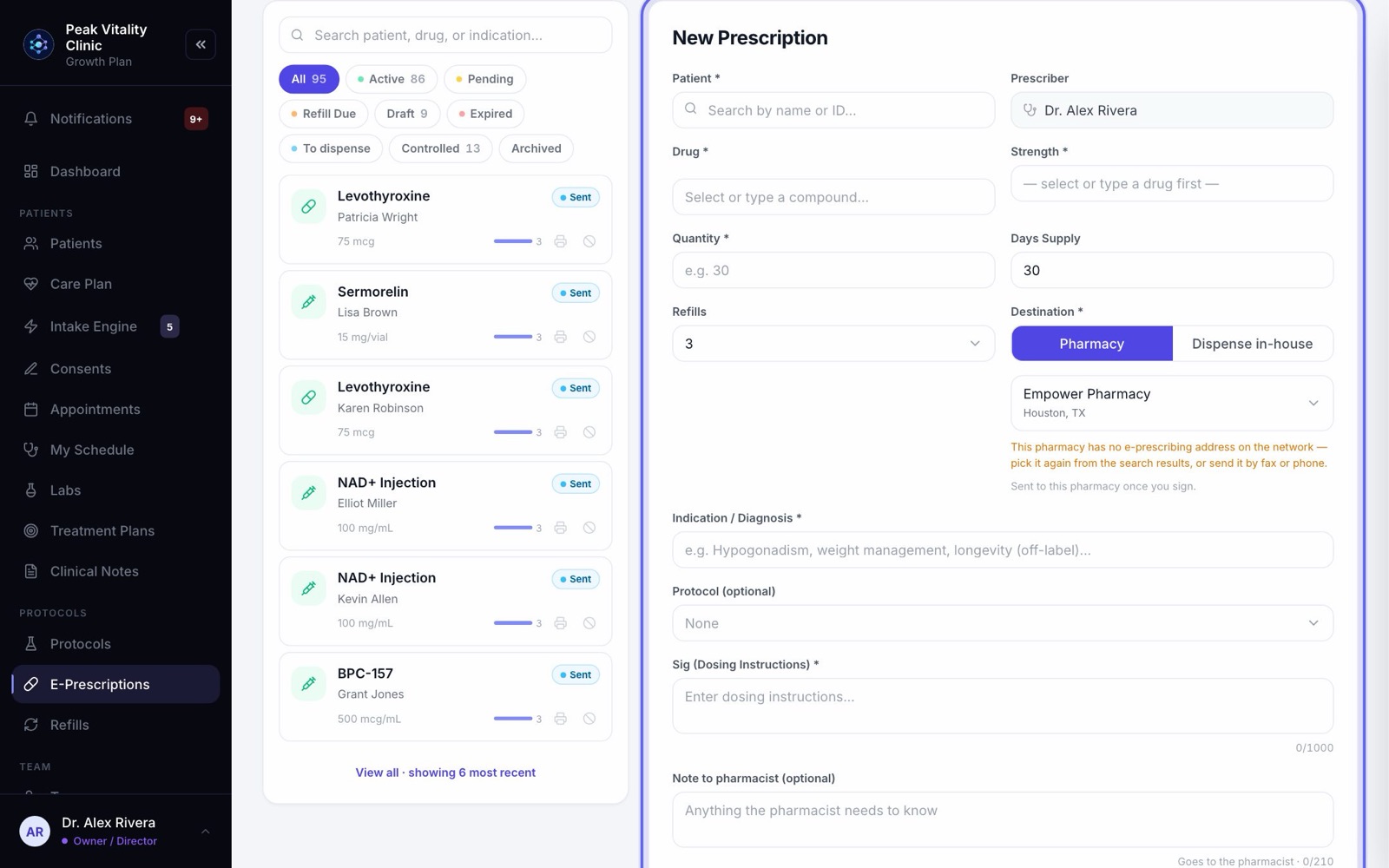
- 1On E-Prescriptions, click New Prescription.
- 2Pick the patient and the drug, then the strength, quantity, days supply, refills and directions. The prescriber is always you.
- 3Pick the pharmacy under Destination. The Safety check watches for allergies and duplicates as you type.
- 4Press Sign & send, or Save as Draft to finish later.
- 5Before your first one, open Setup on the same page. Each prescriber’s setup has to be finished before they can send.
9Refills
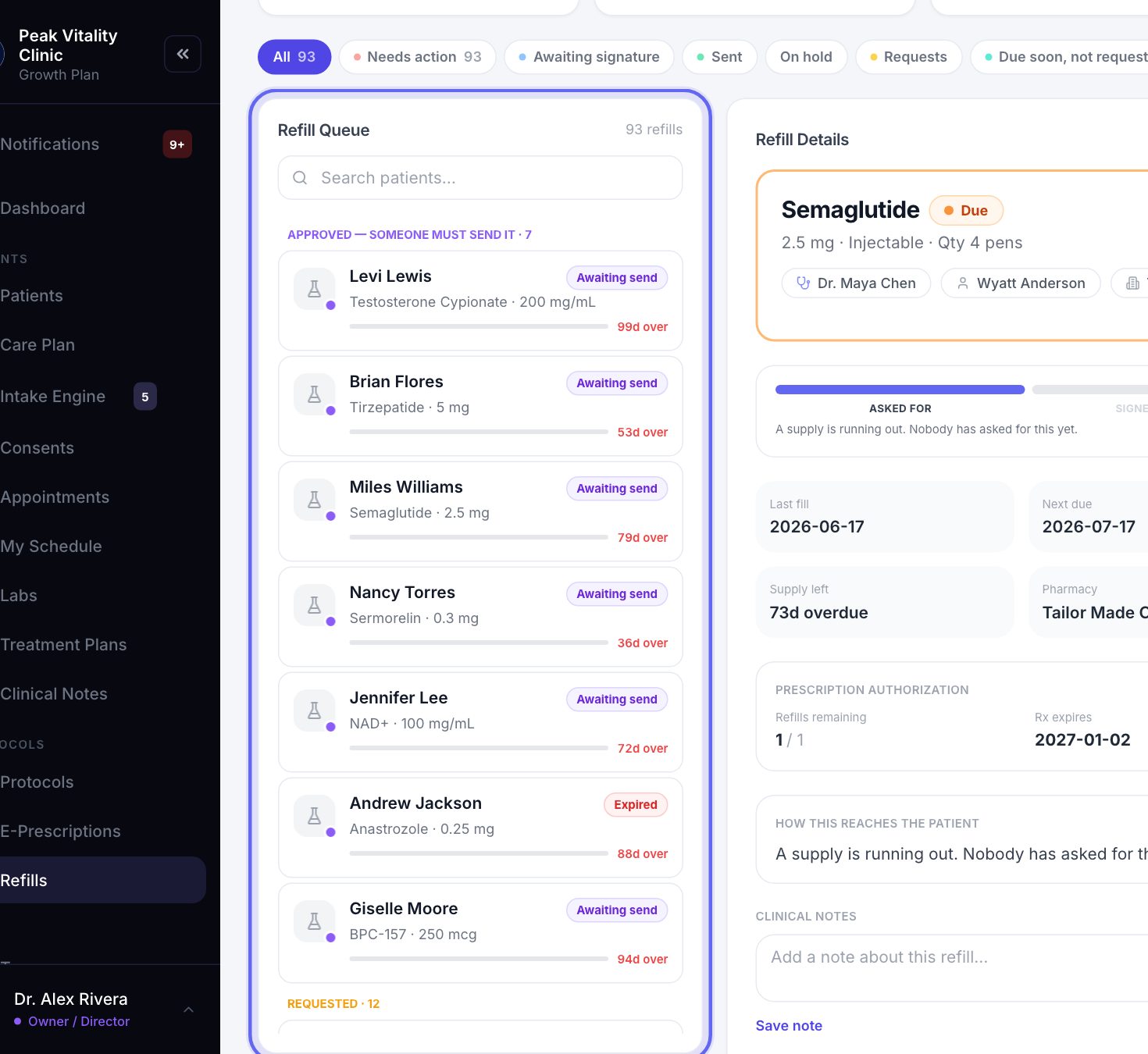
- 1Open Refills. The queue puts what needs doing first at the top, with the days of supply left.
- 2Open one and press Sign to approve, or Decline. Only people allowed to approve refills see these buttons.
- 3Approving isn’t sending. It still has to be signed and sent to the pharmacy, or phoned or faxed.
- 4Due soon, not requested lists medicines running out in the next 14 days that nobody asked about yet.
10Labs
- 1On Labs, press Order labs, pick the patient and the tests.
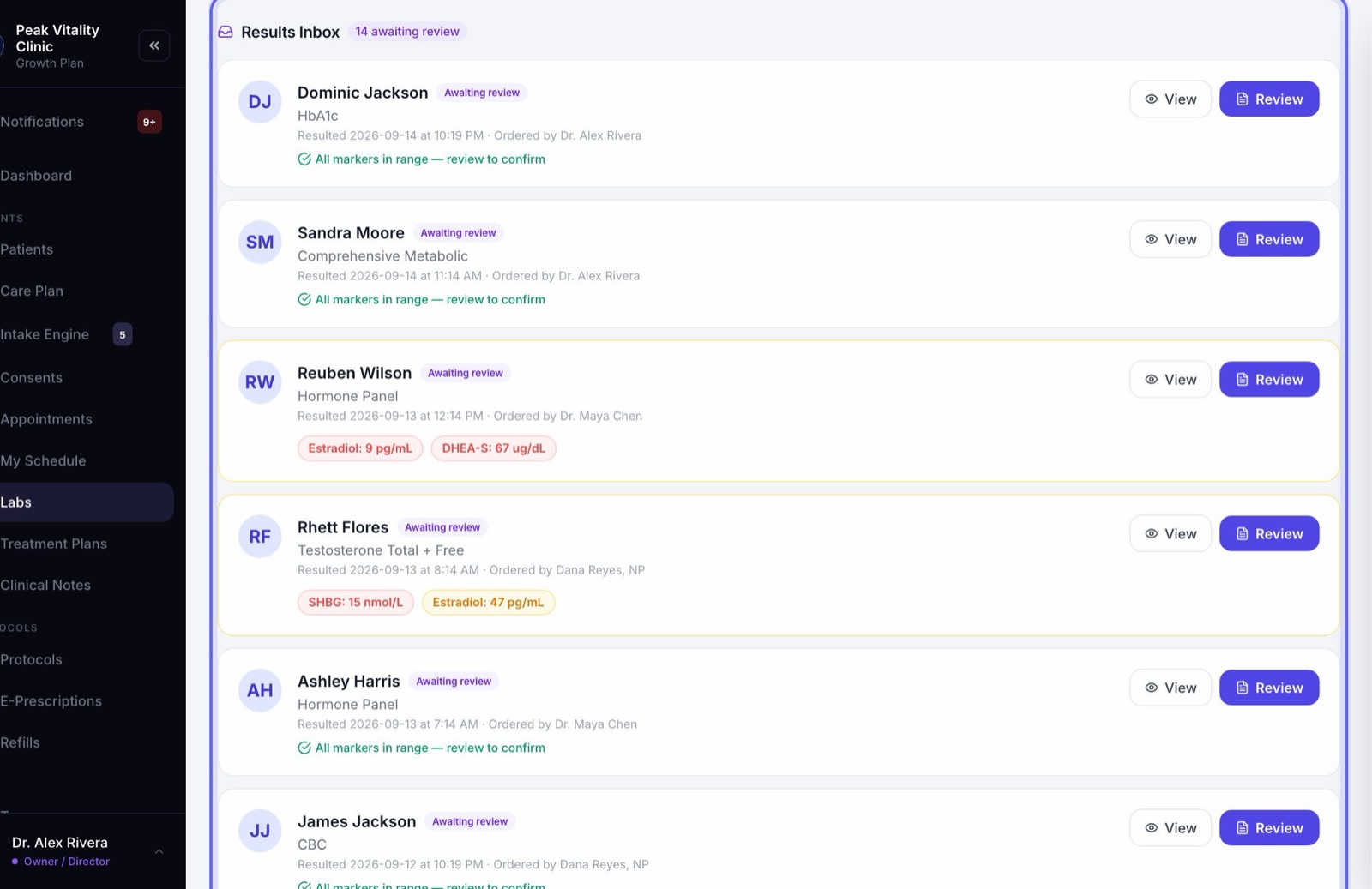
- 2New results wait on the Results Inbox tab. They stay hidden from the patient until you release them.
- 3Open a result to see each marker with its range. Out-of-range ones are flagged. Press Review & Send when it’s ready.
- 4As a provider, the list shows the labs you ordered.
11Also yours
- 1Create and edit Protocols, your treatment programs.
- 2Send consents from Consents with Send to patient, or Hand to patient to sign on a tablet.
- 3Take a payment at checkout. Refunds need someone who can see revenue.
- 4Close a day on Appointments blocks new bookings for a day you’re away.
12What your role can’t do by default
- 1Billing, Analytics, Team, Staff Scheduling, Workflows, Communications, the HIPAA Audit Trail and Settings belong to owners and managers.
- 2You can look at visit types and copy the booking link, but only an owner or manager can change them.
- 3In Intake Engine you can preview the forms and read what patients send in. Building a form is an owner’s or manager’s job.
- 4An owner can change what your role can do in Settings → Roles & Permissions.
Keep going
My Schedule
Your own day, one visit at a time. Open a visit to see who it is, start it, read the brief, record it with the AI scribe and write your note.
Read the guideThe patient chart
Everything about one patient on one page. The header says who they are and what’s next; the tabs below hold each part of their record.
Read the guideClinical Notes
Every note for every patient, in one place. Write a note, sign it, find it again later, and change a signed note the right way.
Read the guideAI scribe
The AI scribe listens to a visit and drafts the note. It records only patients who agreed to it, and a person checks and signs every note.
Read the guideCare Plan
A visit, one step at a time: pick the patient, choose a protocol, build and sign the plan, record vitals, write prescriptions, and finish.
Read the guideE-Prescriptions
Write, sign and send prescriptions, and see where each one really is. Pharmacy messages, the state drug check and medication history live here too.
Read the guideE-prescribing and refills
One prescription from start to finish: written, signed, sent electronically or by fax, then refilled when the patient asks. Approving a refill is not sending it.
Read the guideRefills
Approve or decline refills, get them signed and sent, and see what really reached the pharmacy. Approving is not sending.
Read the guideLabs
Order tests, bring results in, and review them before patients see them. Every lab in the clinic, on one page.
Read the guideLab orders and results
One lab, start to finish: the order, the draw, the result coming back, your review, and the moment the patient gets to see it.
Read the guideProtocols
Your treatment programs. Build one step by step, price it, publish it, and see who is on each one and how they are doing.
Read the guideCo-signatures
Everything waiting on your signature as a reviewer, oldest first. Read it, co-sign it or decline it, and choose whether you get an email when something new arrives.
Read the guideVideo visits
A video visit from booking to note: the patient joins from their app, you join from My Schedule with their chart beside the video, and the note and summary follow.
Read the guideRather be shown?
Inside Aminova, the tutorial walks you through every page, and the Getting started checklist shows you each task click by click. Or book a live training session with our team.