1The page at a glance
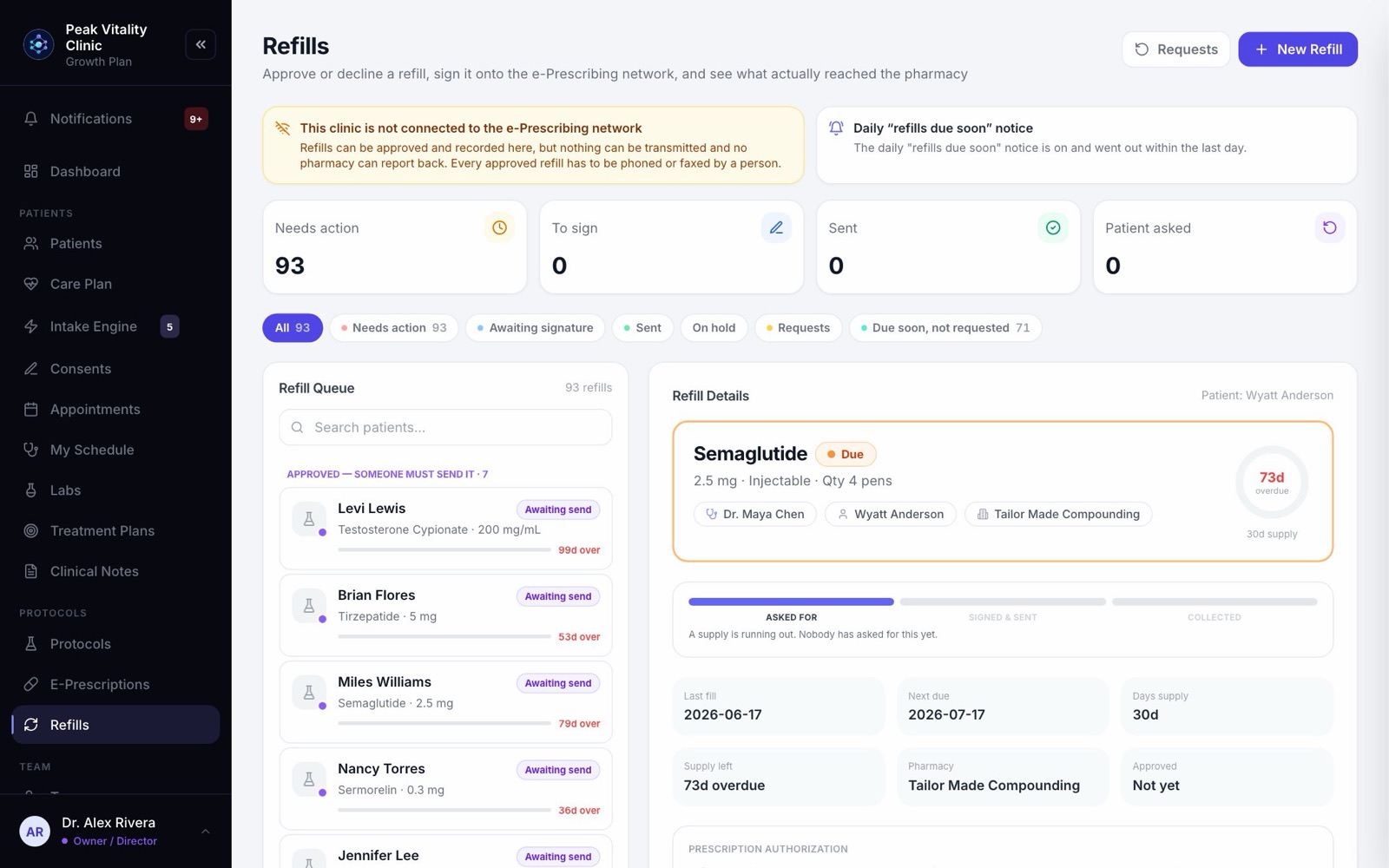
Refills is where refills get approved, signed and sent, and where you see what really reached the pharmacy. Along the top are Requests and New Refill. Below are four numbers, the filters, and the queue, with the refill you opened beside it.
A note above the numbers says whether your clinic is connected to the e-prescribing network. If it isn’t, refills can still be approved here, but each one has to be phoned or faxed by a person.
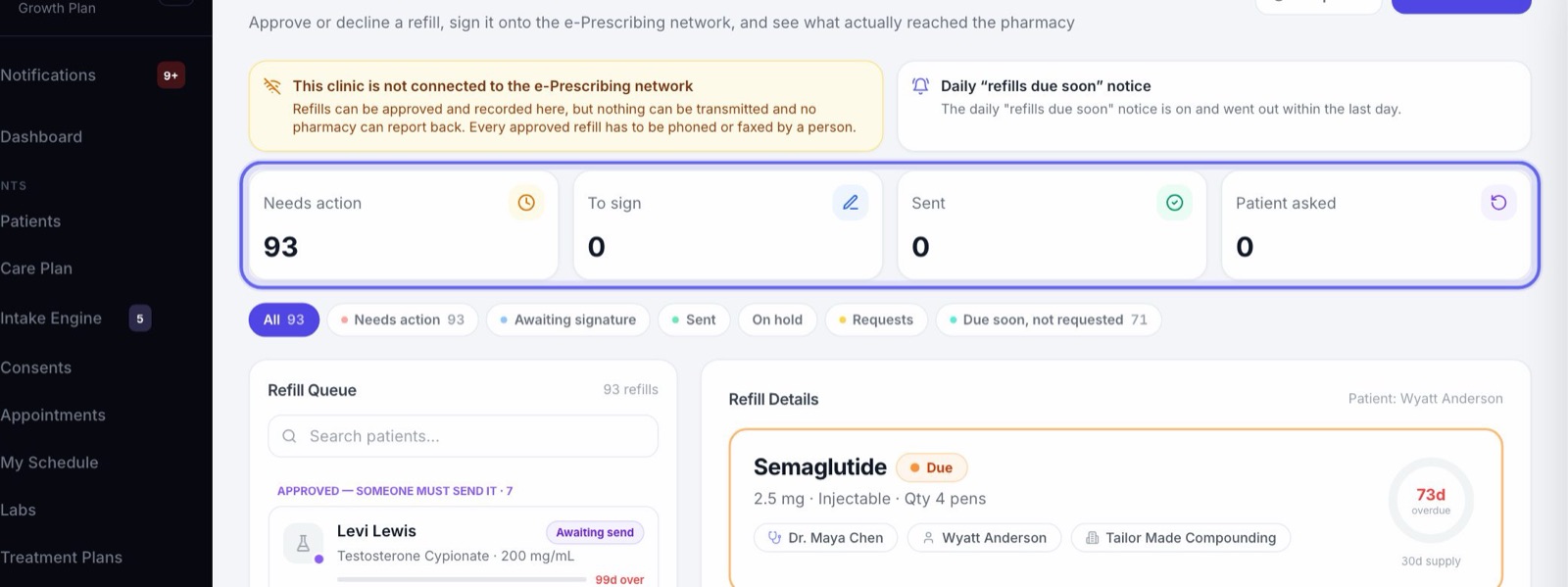
2Where things stand
Needs action, To sign, Sent and Patient asked. Click a number to see that list.
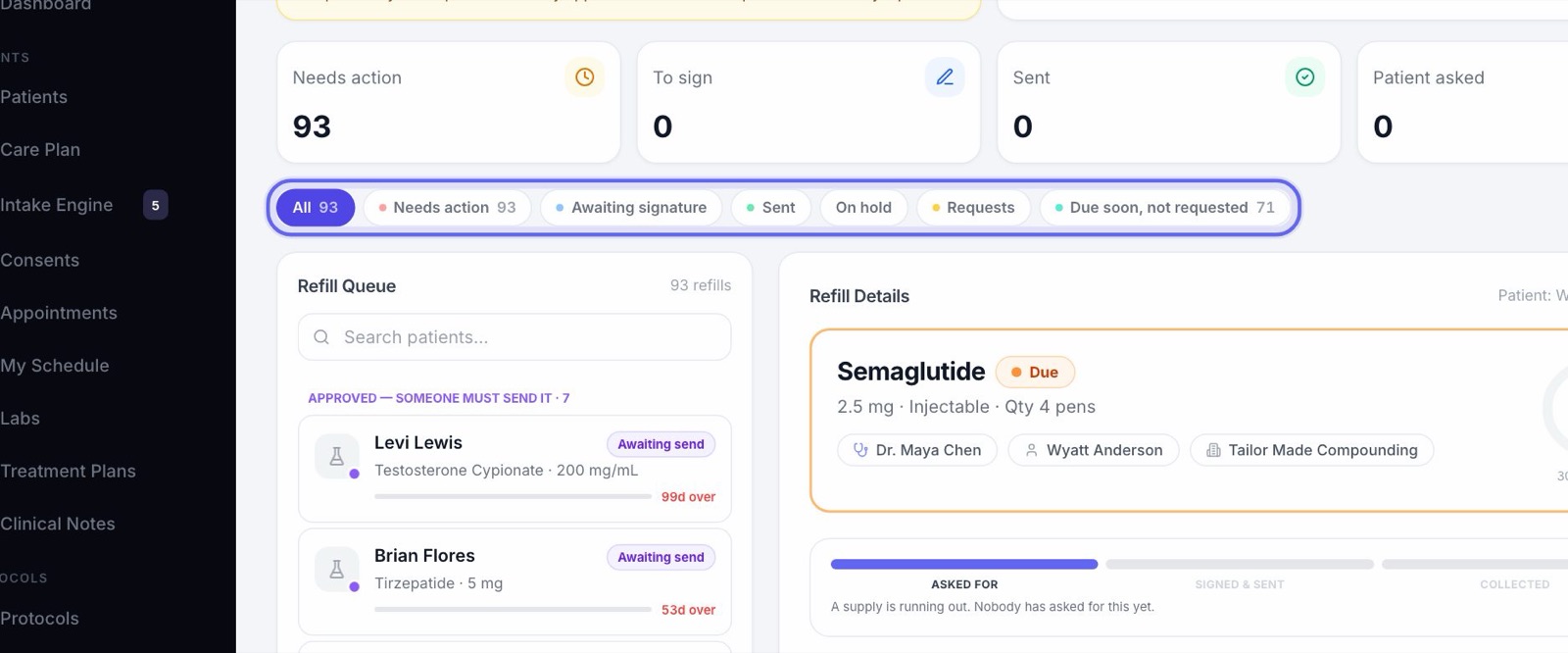
3Filter the queue
- 1Needs action: someone has to do something next.
- 2Awaiting signature: approved, and waiting for a prescriber to sign and send it.
- 3Sent: gone to the pharmacy, electronically or by hand. On hold: paused.
- 4Requests: what patients asked for. Due soon, not requested: running low, and nobody has asked yet.
- 5Set refill clocks shows only when prescriptions brought in from another system are waiting for a start date.
4Patient requests
- 1Click Requests. The number on it is how many patients are waiting on a decision.
- 2Each card shows the patient, when they asked, the medicine and dose, and any note they wrote.
- 3Tags warn you about a controlled drug, Labs overdue, how many refills are left, or Rx expired.
- 4Press Sign to approve or Decline. Only people allowed to approve refills see these buttons. Everyone else sees that a prescriber must decide.
5Read the whole request
Click a request card to open it in full: Refills left, Rx expires, Controlled, Days supply, Last fill and Pharmacy.
If the prescription has expired or has no refills left, approving is blocked and it tells you to write a renewal instead. Approve or decline from here, or press Close.
6The refill queue
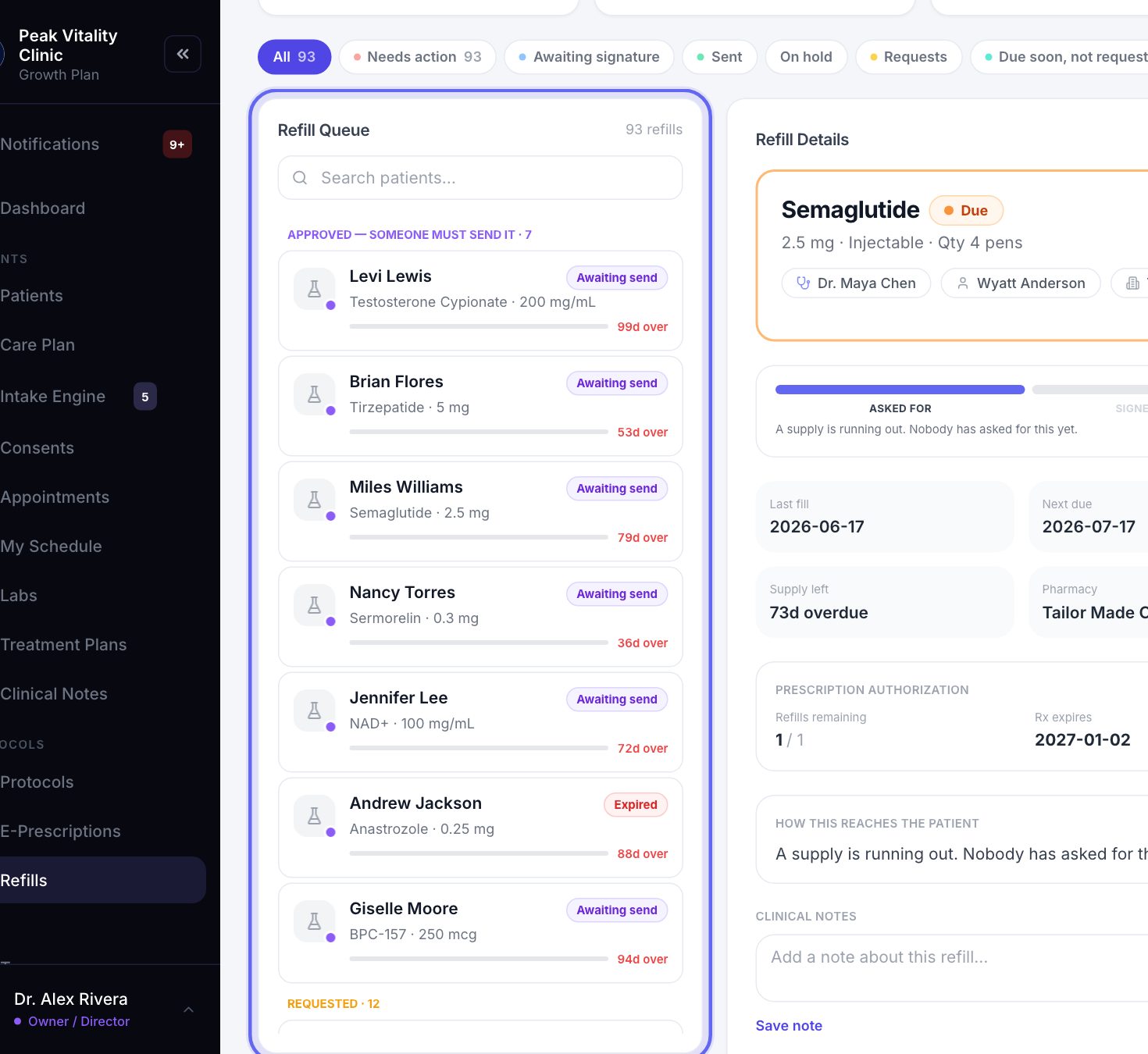
- 1The Refill Queue is grouped by what needs doing first: failed sends, then ones waiting for a signature, ones someone must send, requests, and medicines running out. Sent, collected, on hold and declined come last.
- 2Each row shows the patient, the medicine, its status, and a bar of the days of supply left.
- 3Search by patient or medicine. Click a row to open it.
7Open a refill
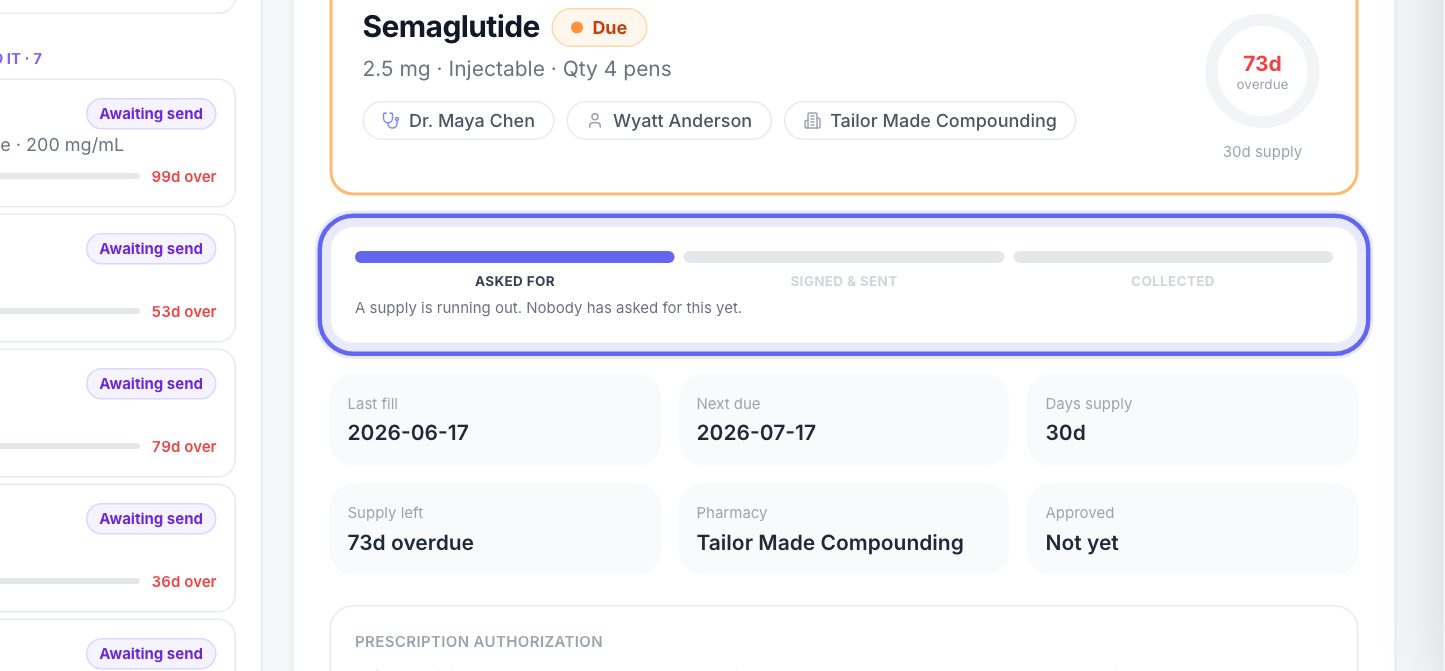
- 1Refill Details shows the medicine, its status, the prescriber, the patient and the pharmacy, with a ring showing the days of supply left.
- 2Under it are three steps: Asked for, Signed & sent, Collected. The line below says exactly where it is.
- 3Then come the dates and Prescription Authorization: refills remaining, when it expires, and who approved and signed it. Click the name to see the signature.
- 4Add a note under Clinical Notes and press Save note.
8What the statuses mean
- 1Due or Requested: waiting for a prescriber to approve or decline.
- 2Awaiting signature: approved. A prescriber signs it to send it.
- 3Awaiting send: approved, and nothing here can send it. Phone or fax it, then confirm you did.
- 4Transmitted: accepted by the e-prescribing network. Acknowledged: the pharmacy has answered.
- 5Sent by hand: someone here confirmed they phoned or faxed it.
- 6Send failed: the approval stands, but the send didn’t go. The reason is shown, so you can try again.
9Approving is not sending
- 1Press Sign to approve. Confirm your Team Member ID, then sign by drawing or typing your name.
- 2Approving records your signed OK and uses up one of the prescription’s refills.
- 3It sends nothing to the pharmacy. Sending is the next step.
- 4The button opens 14 days before the supply runs out, and only the prescriber named on the prescription can press it. Hover over it to see why it is waiting.
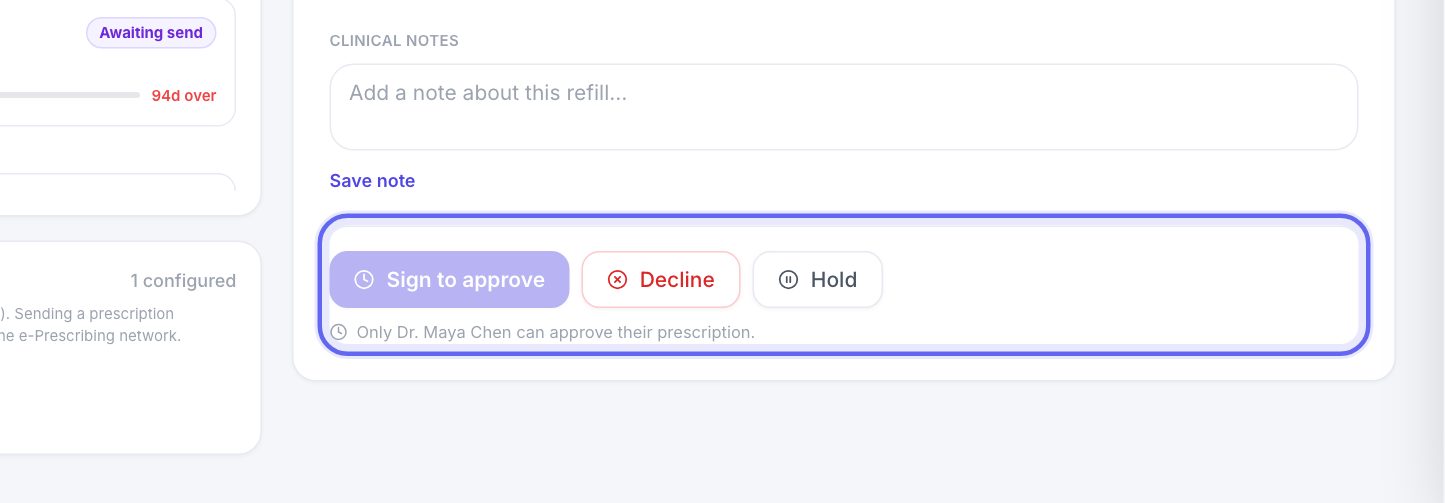
For a supplement from your own shelf, the button reads Approve reorder. Nothing goes to a pharmacy.
10Then it gets sent
- 1If your clinic is connected and you are a prescriber, the signing window opens as soon as you approve, already filled in. Complete it there. If you are not a prescriber, it waits as Awaiting signature for one.
- 2When the window closes, the page checks what reached the pharmacy. A refill still waiting to be signed offers Open signing window.
- 3If your clinic isn’t connected, phone or fax the prescription to the pharmacy. Then press I sent it — mark it sent and confirm. The patient is told it is on its way.
- 4If a send failed, read the reason and press Try the send again.
- 5When the patient has it, press Mark collected. The refill clock starts again from the fill date.
- 6On a connected clinic, Sync at the top checks the network for anything that has come back.
11Decline or hold
- 1Decline asks for a reason. It is recorded and sent to the patient.
- 2Hold pauses a refill. Nothing happens until someone presses Resume.
- 3A refill that has already gone to the pharmacy can’t be held.
12When it needs a renewal
A refill marked Expired can’t be refilled. It needs a new prescription.
Press Go to Rx. You are asked whether to take this refill off the page: Dismiss & go or Keep & go. Either way, the prescription form opens on E-Prescriptions with the medicine filled in. Dismiss on its own just takes it off the page.
13Start a refill yourself
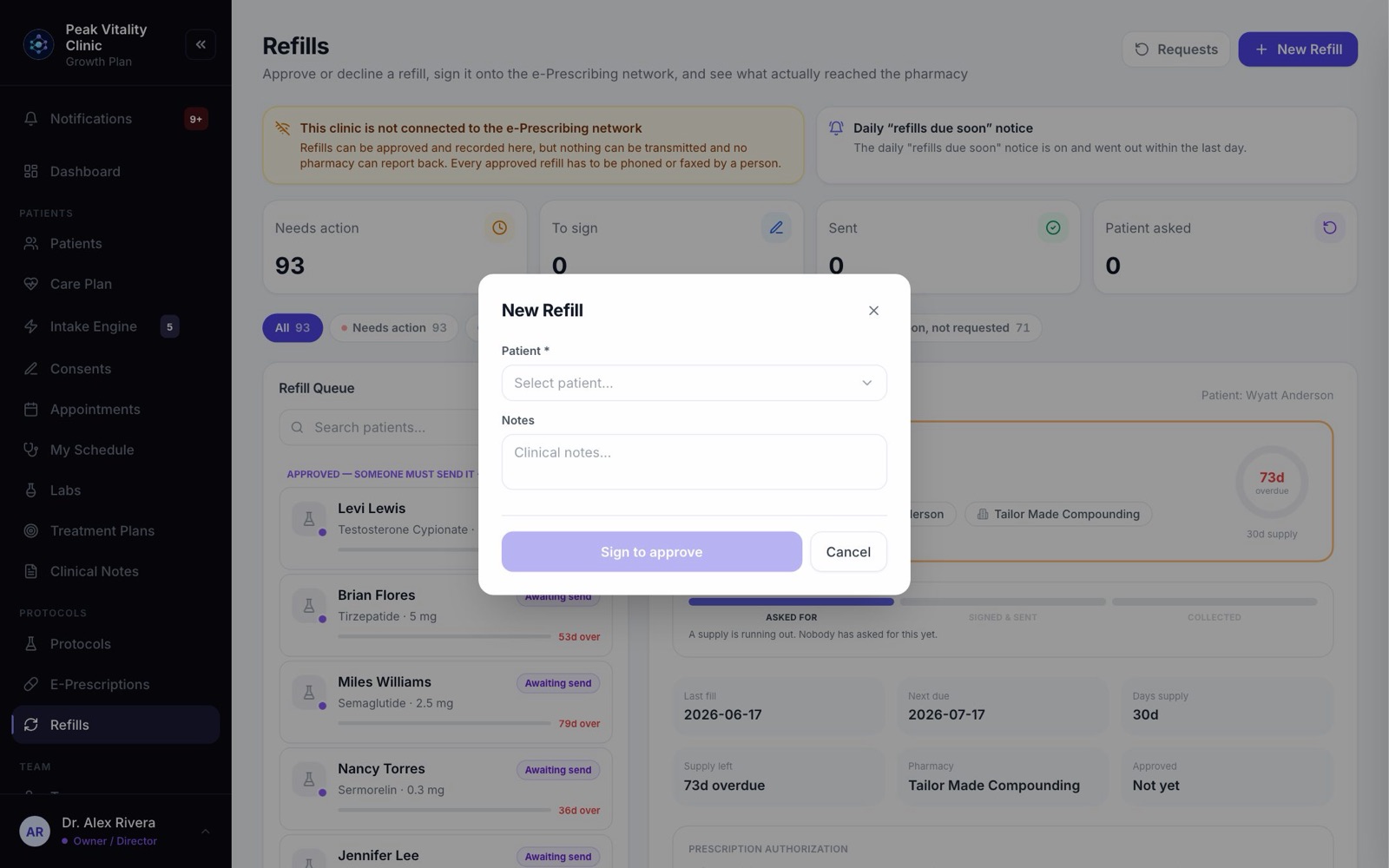
- 1Click New Refill and pick the patient.
- 2Under Active medication to refill, pick the medicine. Only ones within 14 days of running out can be picked; the rest say Still full.
- 3Refill to be sent shows exactly what will go: the directions, quantity, days supply, refills left and pharmacy. None of it can be changed here. A change is a new prescription.
- 4Add Notes if you like, then press Sign to approve.
14Running low, not asked
- 1Open the Due soon, not requested filter.
- 2It lists prescriptions running out in the next 14 days that nobody has asked to refill, with when each is due and how many refills remain.
- 3If a patient doesn’t get reminders, the row says so, so someone can reach out.
- 4A prescription with no days supply has no date to count from. It shows No refill date until you set the days supply on the prescription.
15Set refill clocks
Prescriptions brought in from another system arrive without a start date, so they stay out of the queue. The Set refill clocks filter lists them.
Enter the Last fill date and Days supply for each, or press Paste from a spreadsheet to fill the table for you. Pasting saves nothing. When the table is right, press the start button, for example Start 3 refill clocks, and they join the queue.
16Pharmacies
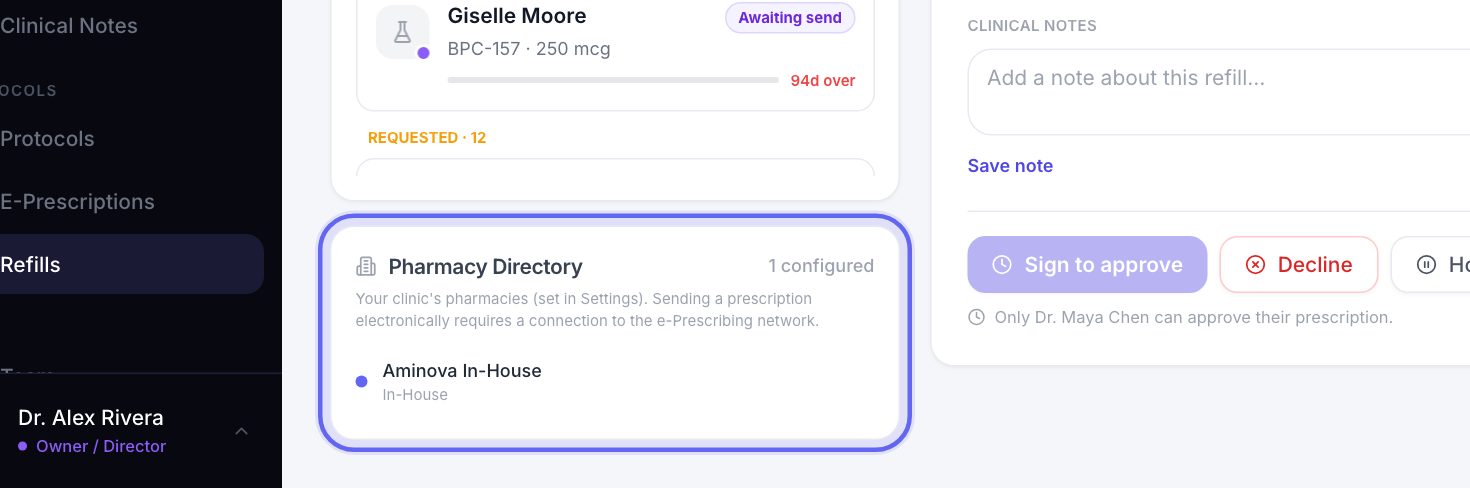
The Pharmacy Directory card sits under the queue. Each refill goes to the pharmacy on its own prescription, shown as Pharmacy on the refill.
To keep the pharmacies you use most, star them on the Pharmacy page. They show first, as favorites, when you write a prescription.
Keep going
E-Prescriptions
Write, sign and send prescriptions, and see where each one really is. Pharmacy messages, the state drug check and medication history live here too.
Read the guideE-prescribing and refills
One prescription from start to finish: written, signed, sent electronically or by fax, then refilled when the patient asks. Approving a refill is not sending it.
Read the guideSet up e-prescribing
Get each prescriber able to send prescriptions electronically: what Setup checks, the details each prescriber needs, and the extra steps for controlled substances.
Read the guidePharmacy
Track every pharmacy order from Pending Rx to Delivered, fax a signed prescription, and keep the list of pharmacies your clinic uses.
Read the guideRather be shown?
Inside Aminova, the tutorial walks you through every page, and the Getting started checklist shows you each task click by click. Or book a live training session with our team.