1The page at a glance
Open Pharmacy in the sidebar. The page is called Pharmacies. From the top down: your Favorites, a search to Find a pharmacy, the Pharmacies you order from, and the Order queue.
Orders at the top right opens every order. Rx History opens your prescriptions.
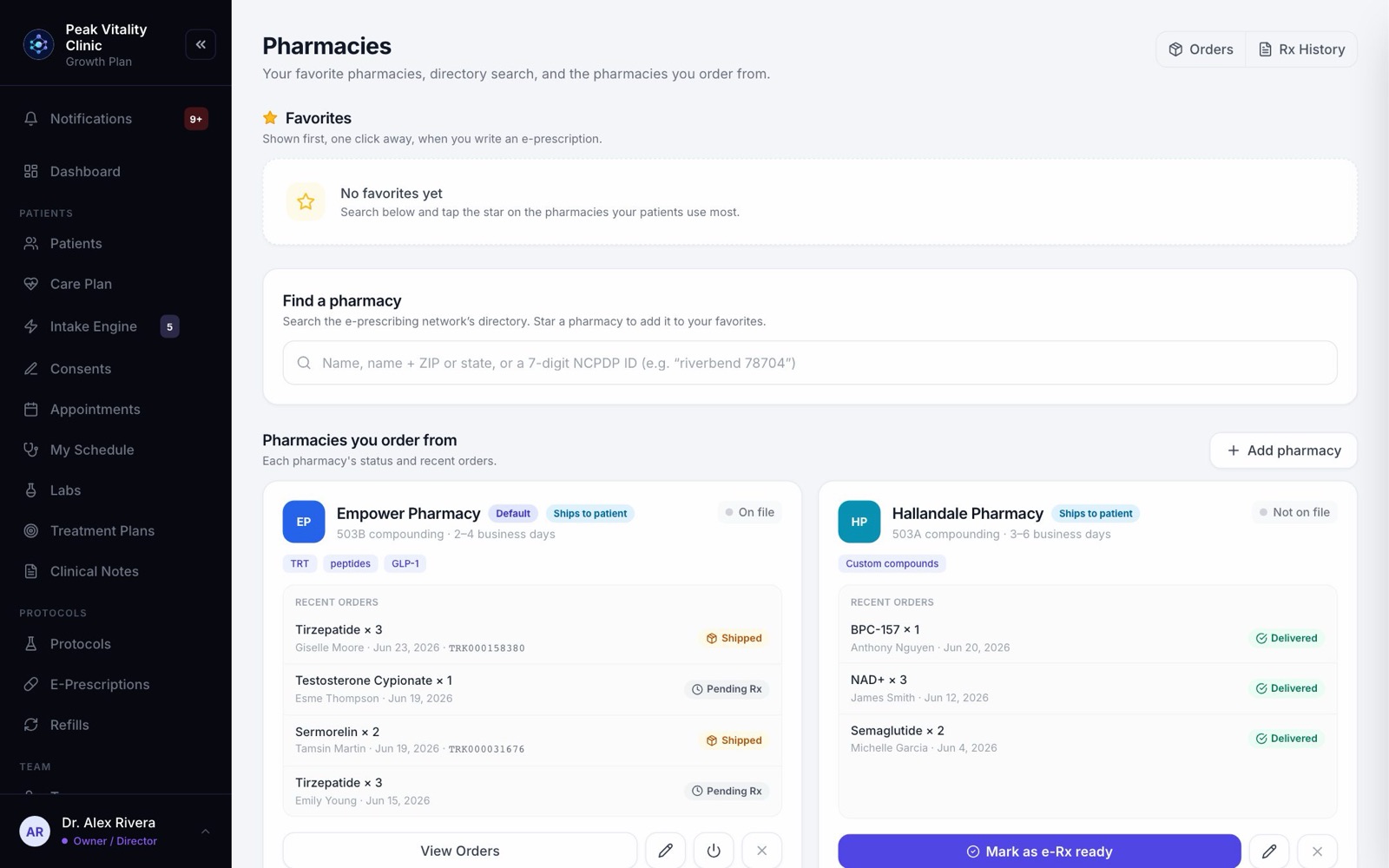
Adding or starring a pharmacy only saves it to your list. It doesn’t link Aminova to that pharmacy.
2The order queue
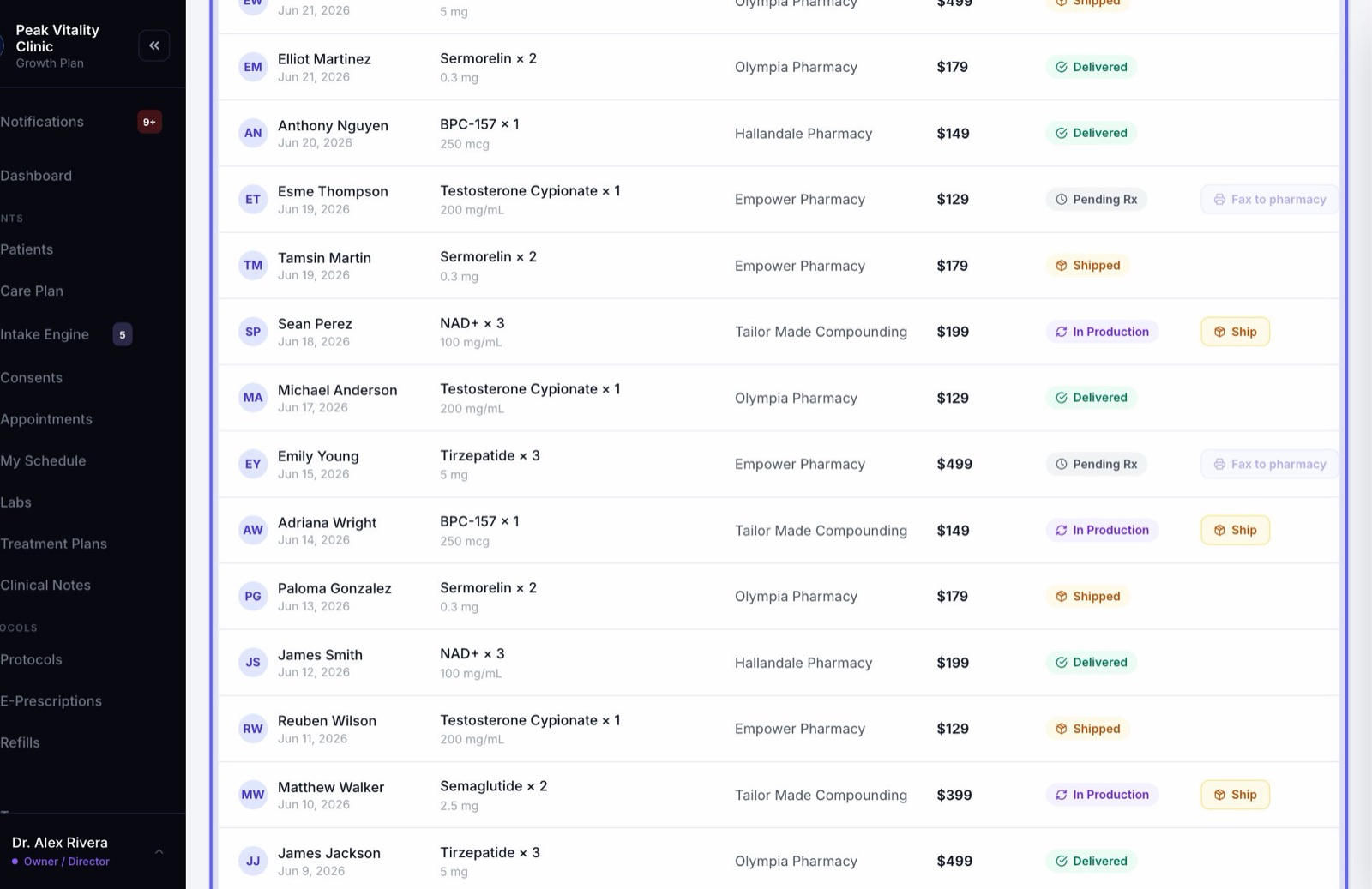
- 1Scroll down to Order queue. Each row shows the patient, the medicine and dose, the pharmacy, the amount and where the order stands.
- 2An order moves through Pending Rx, Sent to Pharmacy, In Production, Shipped and Delivered.
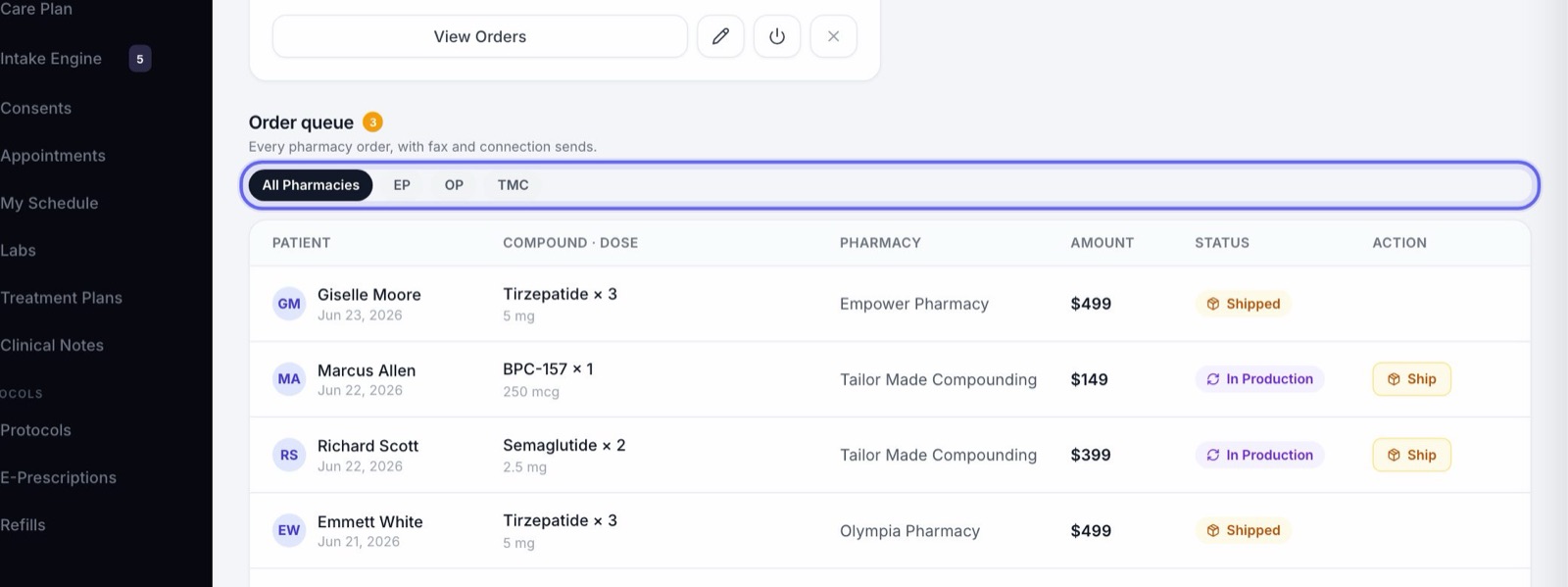
- 3The amber number next to the heading counts orders still at Pending Rx.
- 4Click a row to see its details: the medicine, dose, pharmacy and tracking number. View in Orders opens the order itself.
3Move an order along
- 1On a Pending Rx order, click Fax to pharmacy. The signed prescription is faxed to the fax number you saved for that pharmacy, and the order moves on.
- 2When you see In Prod, click it once the pharmacy is making the order.
- 3When it leaves the pharmacy, click Ship. If the patient uses the app, they get a notice there that it has shipped.
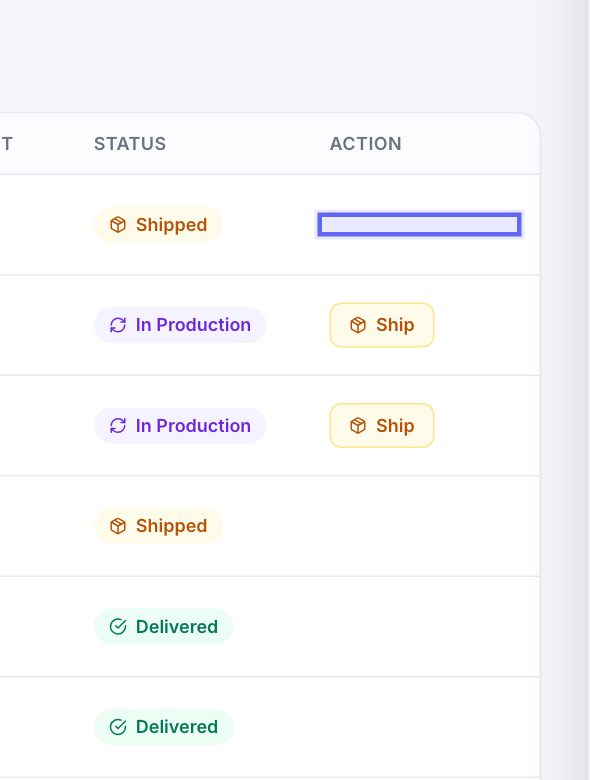
If this prescription was already faxed, you’re asked before a second copy goes. If it can’t be faxed, you’re told why and nothing is sent.
4Before you fax
- 1Only people who can prescribe can fax a prescription.
- 2The order needs a prescription attached. If it has none, the fax button is grayed out.
- 3The pharmacy needs a fax number on file. Add it with the pencil on the pharmacy’s card.
- 4In training mode nothing is sent. You’ll see a note that the fax was only practiced.
5One pharmacy at a time
- 1Above the queue, click a pharmacy’s short name to see only its orders.
- 2Click All Pharmacies to see everything again.
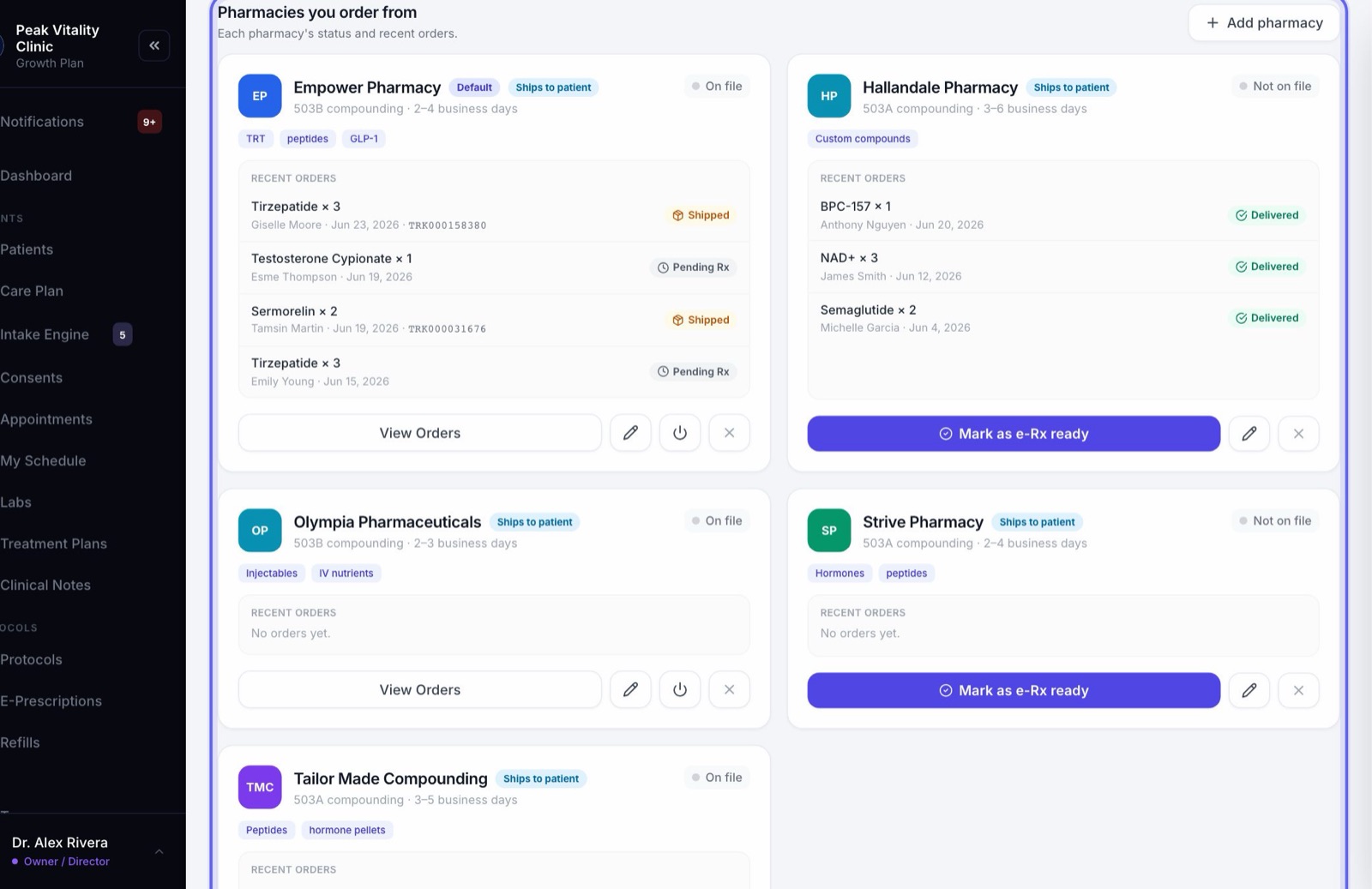
6Pharmacies you order from
- 1Compounding pharmacies, and pharmacies that only take faxed prescriptions, are listed here.
- 2Each card says Local pickup or Ships to patient, its type and turnaround, and shows its four latest orders.
- 3Fax only means prescriptions to it go by fax from the order queue, never electronically.
- 4View Orders jumps to its orders in the queue. The pencil edits the pharmacy. The X removes it from your list.
7Add a pharmacy
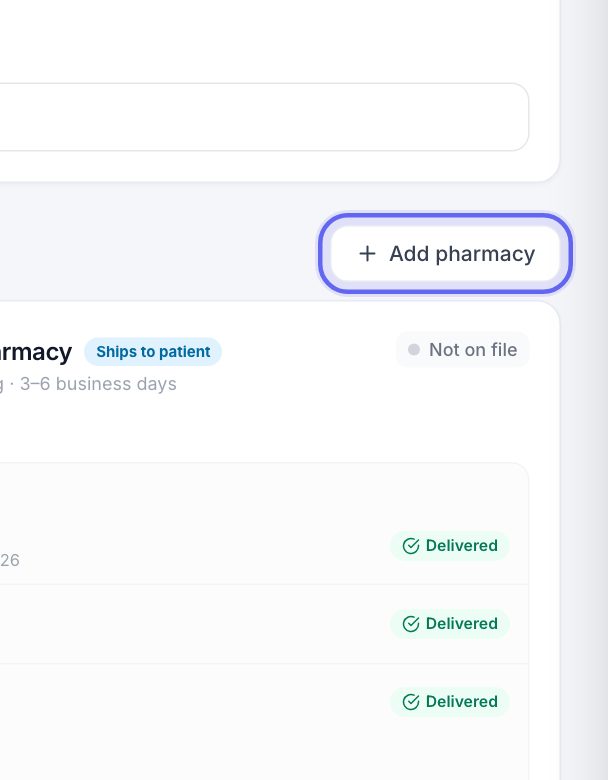
- 1Click Add pharmacy next to Pharmacies you order from.
- 2Use it for a compounder, a pharmacy that only takes faxed prescriptions, or one the search can’t find. For any other pharmacy, search for it and star it instead.
- 3Type the Pharmacy Name and pick its Type. The line under the type says whether patients pick up in person or it ships to them.
- 4Add the States Licensed, Avg Turnaround and Specialties if you like.
8Fax only, or with its NCPDP ID
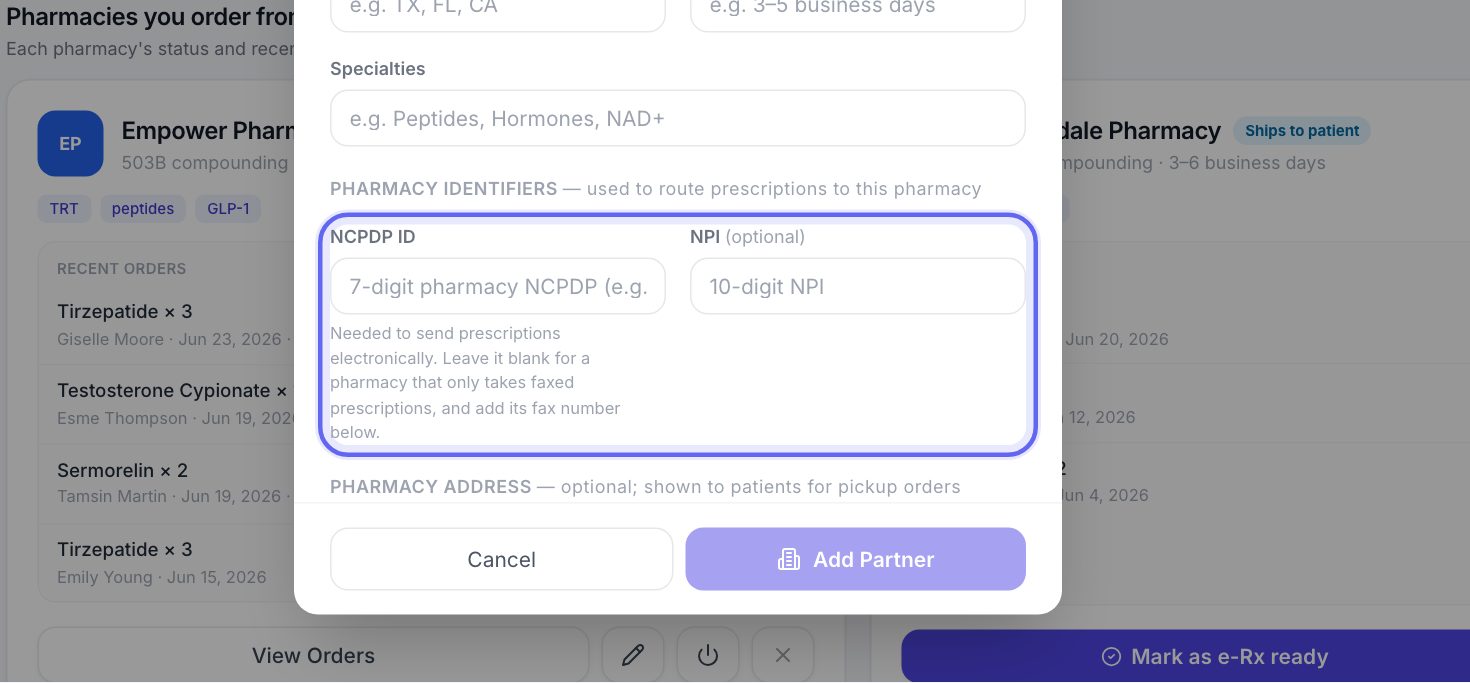
- 1Under Pharmacy Identifiers, type the pharmacy’s 7-digit NCPDP ID if it has one. It is needed to send prescriptions electronically.
- 2For a pharmacy that only takes faxed prescriptions, leave the NCPDP ID blank and fill in Fax under Primary Contact. Without an NCPDP ID, the fax number is required.
- 3The address is optional. Patients see it for pickup orders.
- 4Click Add Partner. It stays grayed out until the pharmacy has a name and either an NCPDP ID or a fax number.
A pharmacy with an NCPDP ID that isn’t a compounder shows under Favorites. Compounders and fax-only pharmacies show under Pharmacies you order from.
9Favorites
- 1Favorites are your go-to pharmacies, at the top of the page.
- 2They show first, one click away, when you write an e-prescription.
- 3Each card has the address, the type, the phone number and the NCPDP ID.
- 4Click the gold star on a card to take it off your favorites.
10Find a pharmacy
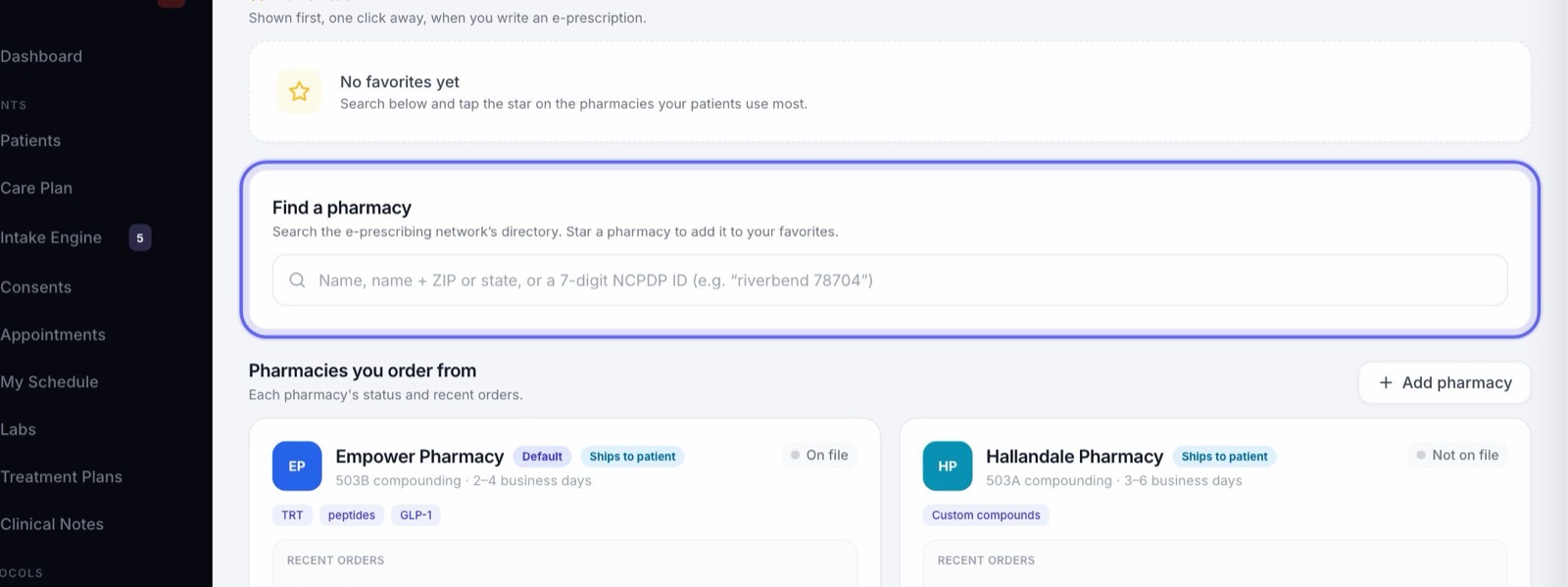
- 1Under Find a pharmacy, type a name, a name with a ZIP code or state, or a 7-digit NCPDP ID.
- 2Results come from the e-prescribing network’s directory, with the address, phone and NCPDP ID.
- 3Tap the star to add a pharmacy to your favorites. Tap it again to take it off.
- 4If a pharmacy can’t be added, the reason shows under it.
The search works once your e-prescribing is set up. Until then it tells you so.
11If you can’t see a button
The search, the stars, Add pharmacy and the edit buttons are for roles that manage operations, like owners and managers. Everyone who can open the page can see the lists and the queue.
Keep going
E-Prescriptions
Write, sign and send prescriptions, and see where each one really is. Pharmacy messages, the state drug check and medication history live here too.
Read the guideSet up e-prescribing
Get each prescriber able to send prescriptions electronically: what Setup checks, the details each prescriber needs, and the extra steps for controlled substances.
Read the guideE-prescribing and refills
One prescription from start to finish: written, signed, sent electronically or by fax, then refilled when the patient asks. Approving a refill is not sending it.
Read the guideProducts
Everything you sell, and what you charge for it. Add compounds, services, supplies and supplements, set their cost and price, and see every patient order.
Read the guideRather be shown?
Inside Aminova, the tutorial walks you through every page, and the Getting started checklist shows you each task click by click. Or book a live training session with our team.