1What it is
A prescription’s whole life in Aminova. You write it, sign it and send it to the pharmacy, electronically or by fax. Later the patient asks for a refill, a prescriber approves it, and it is signed and sent again.
Prescriptions live on the E-Prescriptions page. Refills live on the Refills page.
2Before you start
To send electronically, your clinic must be connected to the e-prescribing network and each prescriber registered on it. E-Prescriptions, then Setup, shows what is still missing. The e-prescribing setup guide walks through it.
Until then, you can still write and sign prescriptions, and send them to the pharmacy yourself.
3Write it
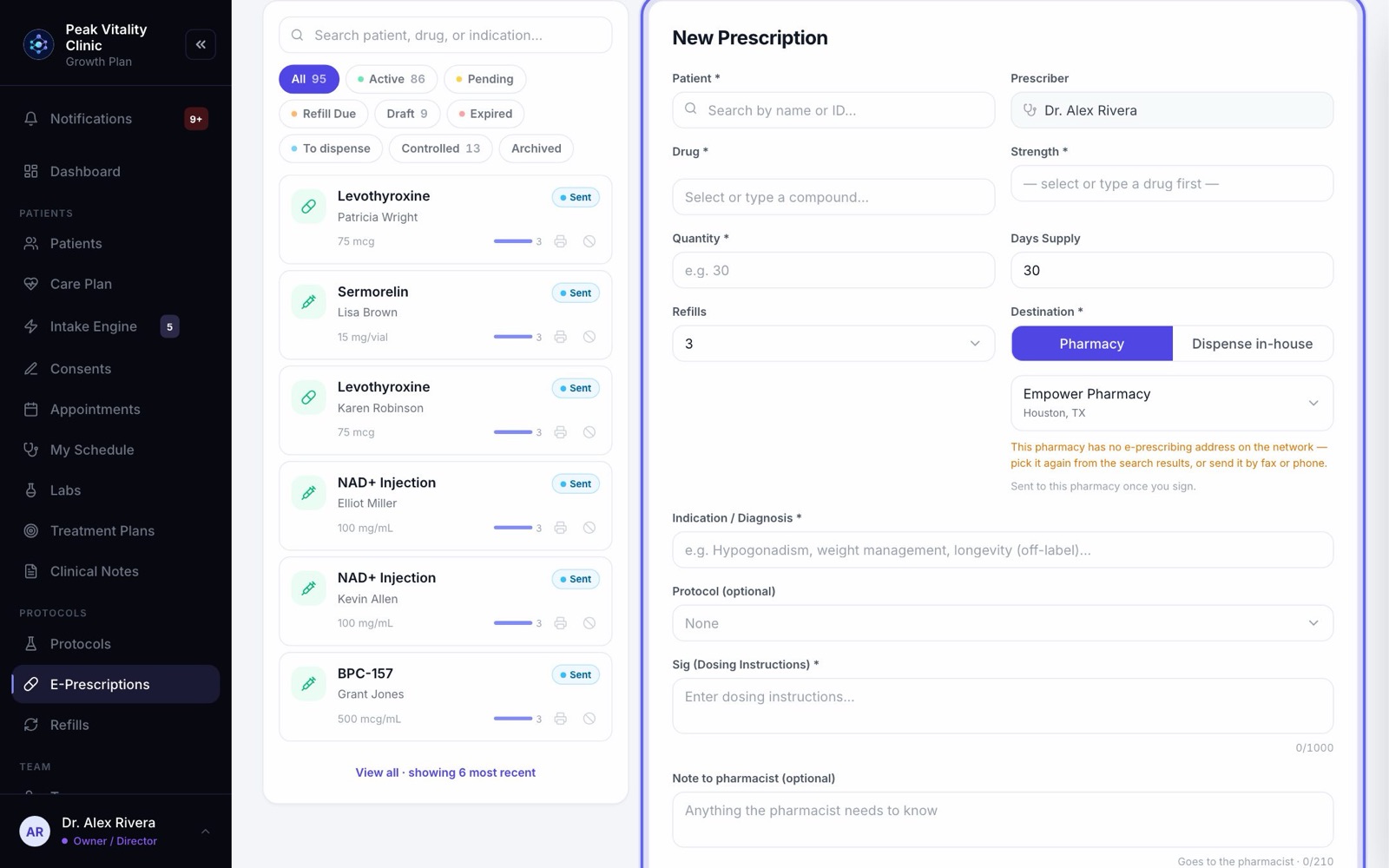
- 1On E-Prescriptions, click New Prescription. You can also start one from a patient’s Care Plan.
- 2Pick the patient, the drug, the strength, the quantity, and the directions, called the Sig.
- 3Pick the pharmacy under Destination. Your favorites show first.
- 4Fill in Indication / Diagnosis. Every field with a star is needed before it can be sent.
4Check it
While you fill it in, the Safety check looks at the patient’s recorded allergies, the drugs they are already on, and known dangerous pairs. Anything serious must be acknowledged before you go on.
For a controlled substance, run the state drug check with PDMP first. It shows the patient’s controlled-substance history from your state’s monitoring program.
5Sign it
- 1Press Sign & send. On a connected clinic, the signing window opens and the prescriber completes it there. A controlled substance also asks for their second factor.
- 2When the window closes, you are told whether it was sent, is waiting for the network, or is still a draft.
- 3Save as Draft keeps it unsent. It waits on the list as Draft — not sent.
- 4Only a prescriber can sign, and nothing is sent until they do.
6Sent electronically
- 1The prescription travels over the e-prescribing network to the pharmacy you picked.
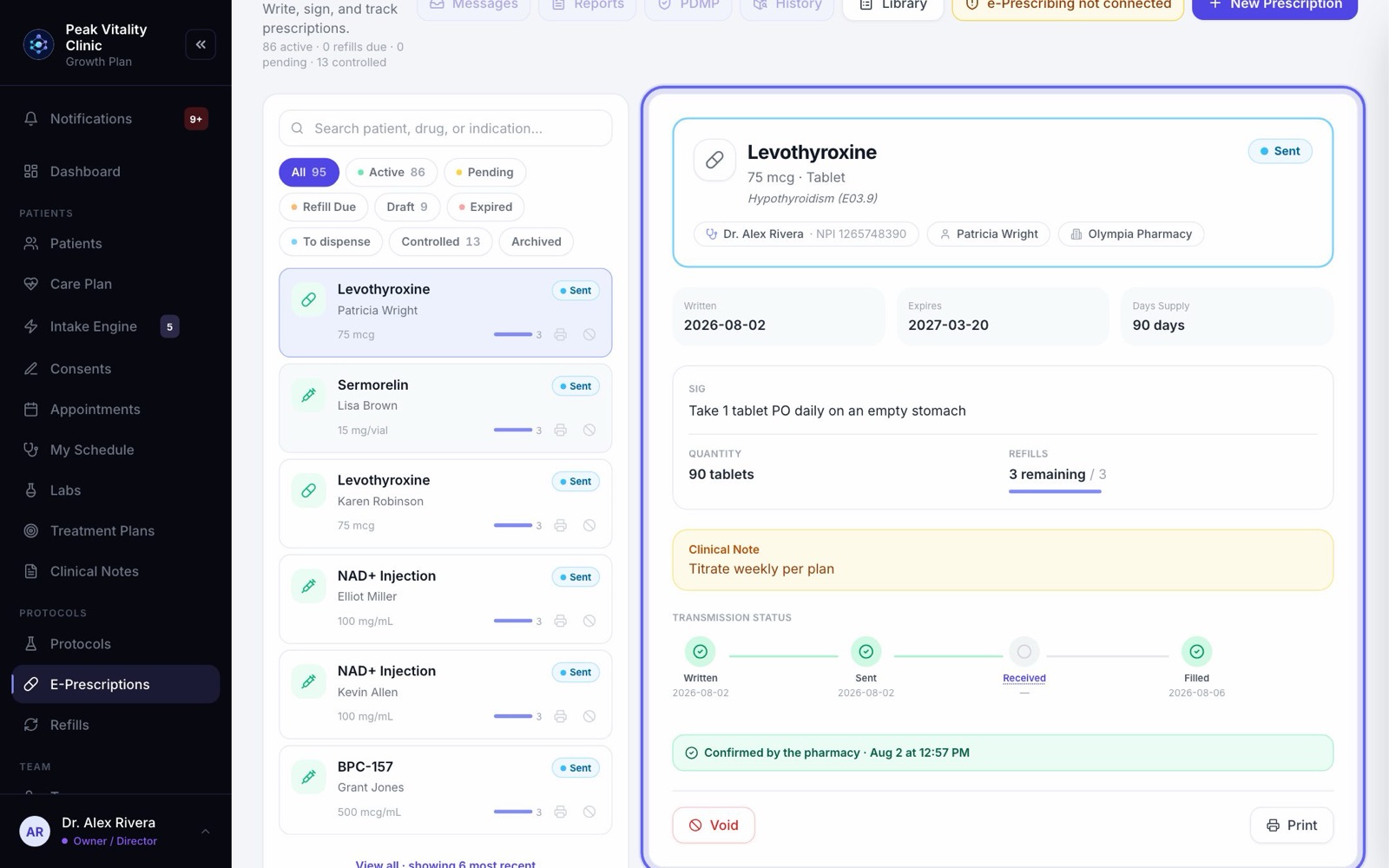
- 2Open it on E-Prescriptions to follow it: Written, Sent, Received, then Filled once the pharmacy reports it.
- 3At first it reads Signed and sent to the e-Prescribing network while the pharmacy confirms. Then it reads Confirmed by the pharmacy, or, in red, Not accepted by the pharmacy — not dispensed, with the reason.
- 4One the pharmacy turned down also shows under Messages as Not accepted. It has to be sent again.
7Or sent by fax or phone
- 1Some prescriptions can’t go electronically: your clinic isn’t connected yet, or the pharmacy can’t take e-prescriptions. The form tells you when a pharmacy has to be phoned or faxed.
- 2The printer icon on a prescription’s row opens a copy ready to print or fax: a cover sheet and the prescription.
- 3Controlled substances have stricter rules. A Schedule II faxed copy isn’t valid; the pharmacy needs the original signed paper. Schedule III to V must be printed, signed by hand, then faxed.
- 4If your clinic can’t sign controlled substances here, the prescription offers Prescribe externally. Print it or get a fax copy, tick that you checked the state PDMP yourself, and press Record as prescribed so the chart stays right.
8Keep track of it
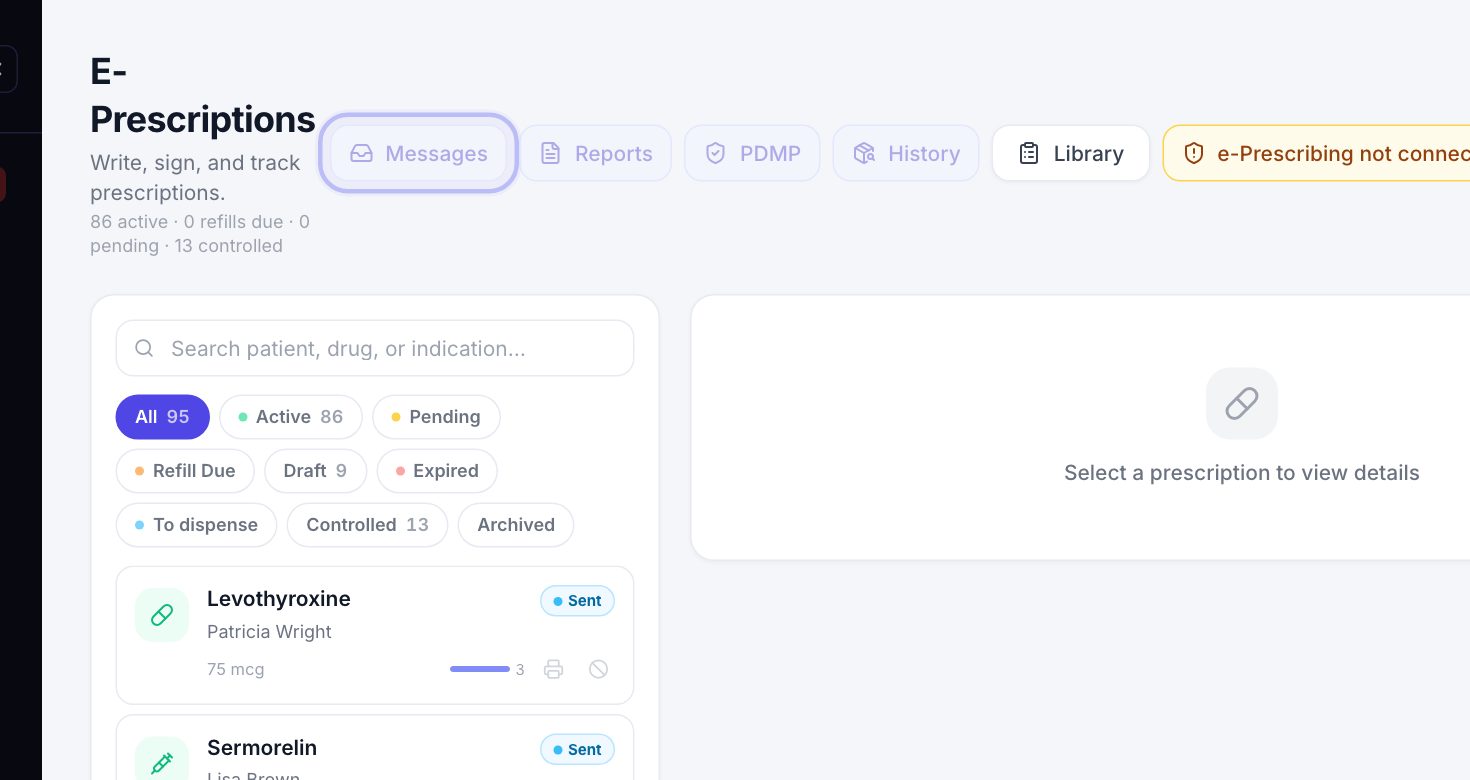
- 1Messages on E-Prescriptions holds what pharmacies send back: requests to renew or change a prescription, and answers to cancellations.
- 2To take a prescription back, press Void, sign, and give a reason. If it went electronically, a cancellation goes to the pharmacy first.
- 3Until the pharmacy answers a cancellation, the medicine may still be handed out. Call the pharmacy if it must not be.
9The patient asks for a refill
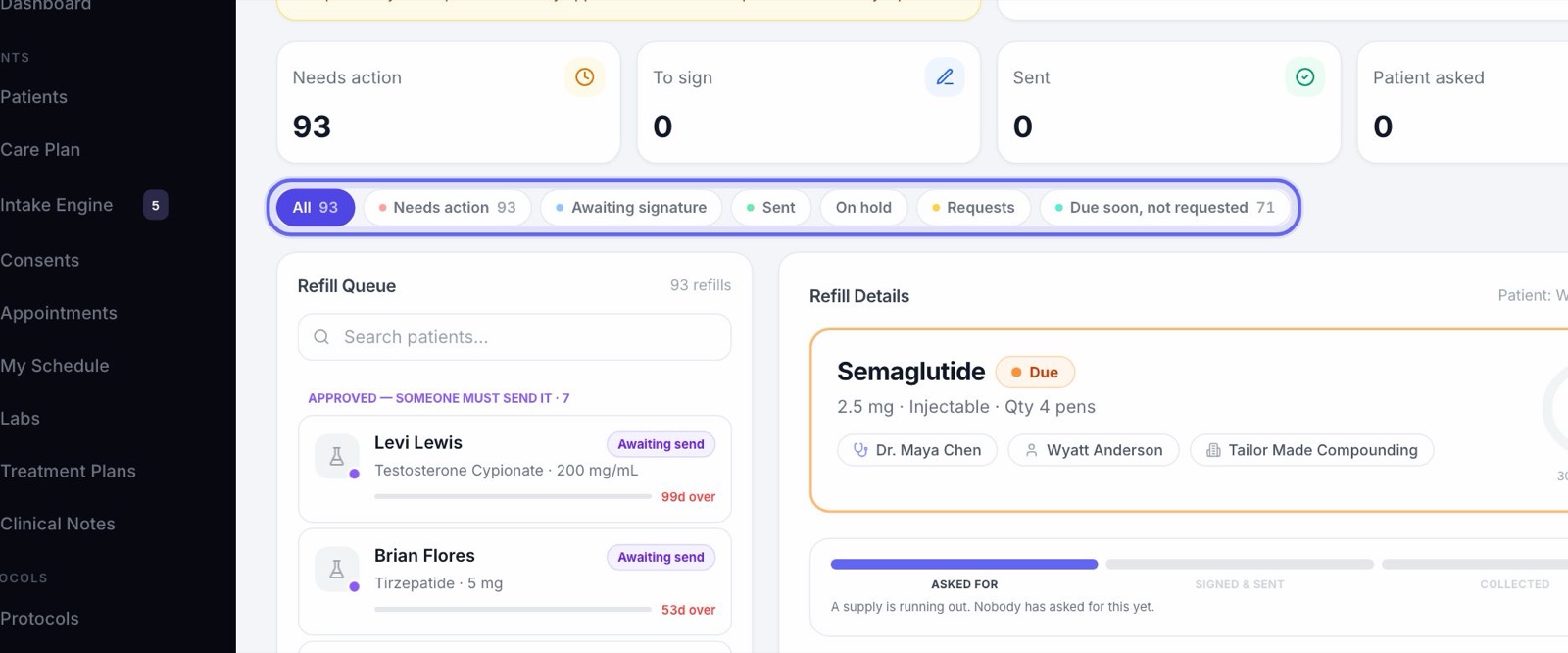
- 1Patients ask for a refill in their app. The request lands on Refills under Requests.
- 2Medicines running out in the next 14 days that nobody has asked for show under Due soon, not requested.
- 3Your team can start one too, with New Refill.
- 4A pharmacy asking you to renew a prescription comes to Messages on E-Prescriptions, not to Refills, if your clinic’s registration includes those requests.
10A prescriber approves it
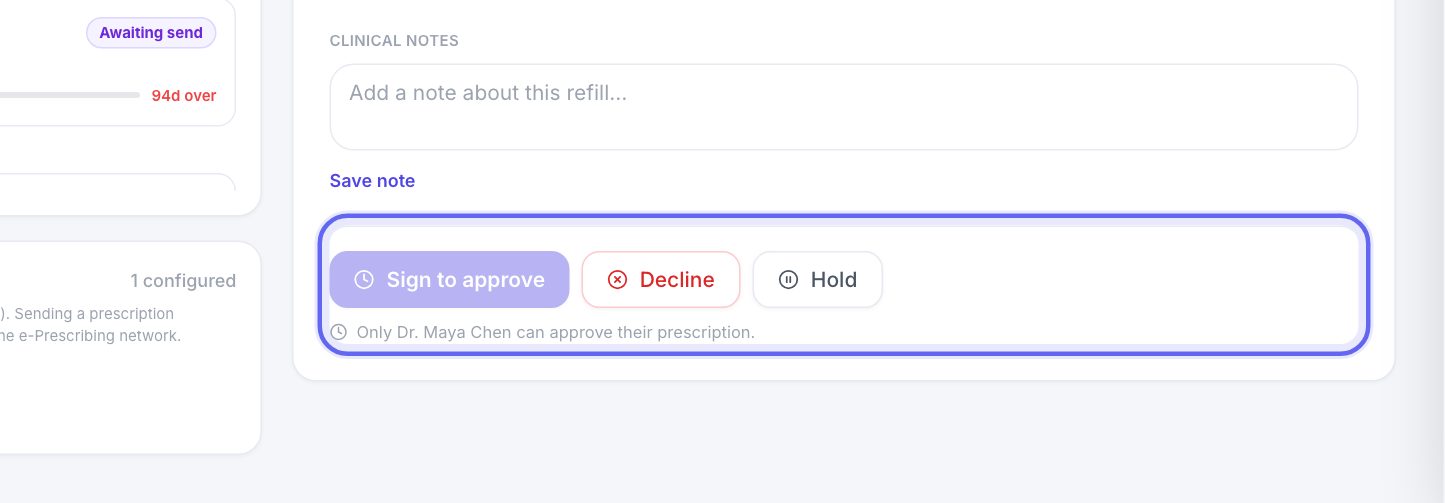
- 1Open the refill and press Sign to approve. Confirm your Team Member ID and sign.
- 2Approving records the OK and uses up one of the prescription’s refills.
- 3Approving is not sending. Nothing has gone to the pharmacy yet.
- 4No refills left, or the prescription expired? It needs a renewal: a new prescription, written on E-Prescriptions.
11Then it is signed and sent
- 1On a connected clinic, the signing window opens right after approving, already filled in. The prescriber completes it, and the refill moves to Transmitted.
- 2Not connected? Phone or fax it to the pharmacy, then press I sent it — mark it sent. It moves to Sent by hand.
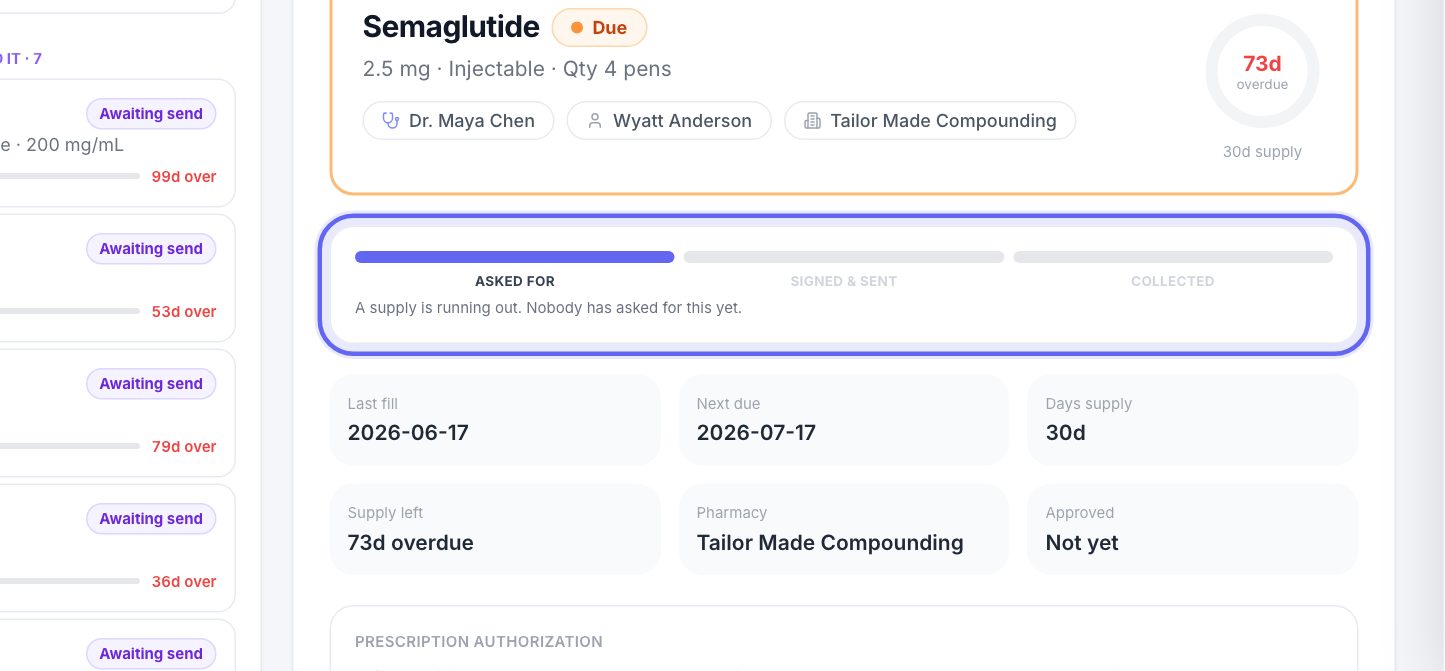
- 3The steps on the refill show where it is: Asked for, Signed & sent, Collected.
12Collected, and round again
When the patient has it, press Mark collected on the refill. The refill clock starts again from the fill date, and the medicine comes back to the queue when it runs low again.
Keep going
E-Prescriptions
Write, sign and send prescriptions, and see where each one really is. Pharmacy messages, the state drug check and medication history live here too.
Read the guideRefills
Approve or decline refills, get them signed and sent, and see what really reached the pharmacy. Approving is not sending.
Read the guideSet up e-prescribing
Get each prescriber able to send prescriptions electronically: what Setup checks, the details each prescriber needs, and the extra steps for controlled substances.
Read the guidePharmacy
Track every pharmacy order from Pending Rx to Delivered, fax a signed prescription, and keep the list of pharmacies your clinic uses.
Read the guideThe patient app
Your patients’ side of Aminova, screen by screen: how they get in, what each tab does, and where each thing they do shows up for your team.
Read the guideRather be shown?
Inside Aminova, the tutorial walks you through every page, and the Getting started checklist shows you each task click by click. Or book a live training session with our team.