1What e-prescribing needs
Before a prescription can be sent electronically, three things must be true. Your clinic is connected to the e-prescribing network. Each prescriber is registered on it. And each prescriber’s details are in Aminova.
Controlled substances need more: a DEA number (the federal registration for prescribing them), the prescriber’s own identity check and second factor, and a second person at the practice who approves them. Everything that isn’t a controlled substance can be prescribed without those.
2Open e-prescribing setup
- 1Go to E-Prescriptions in the sidebar.
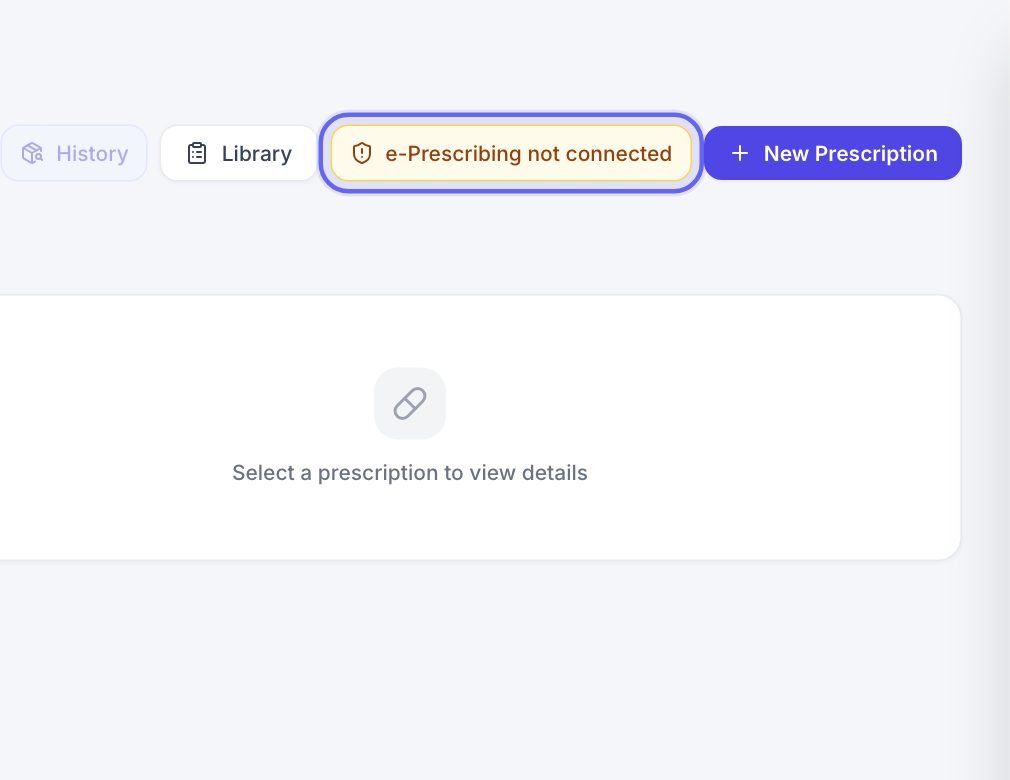
- 2Click Setup at the top right. Until your clinic is connected, the button reads e-Prescribing not connected.
- 3The button shows for people who can prescribe.
3Read what is outstanding
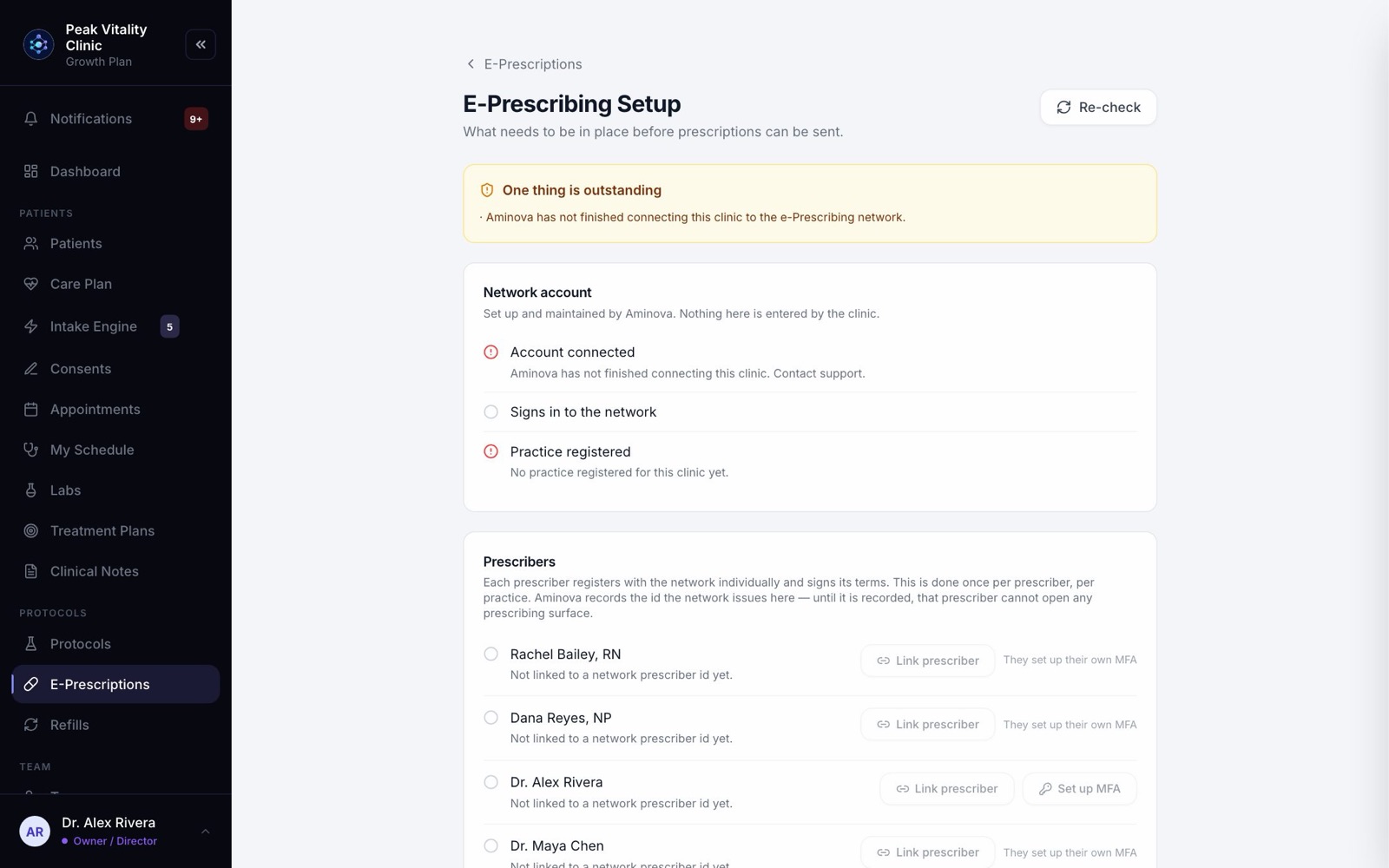
- 1The top of E-Prescribing Setup lists anything still outstanding, in plain words.
- 2When nothing is, it says “Nothing outstanding was found. Prescriptions can be sent.”
- 3Down the page, a green check means done, a red mark means not done, and a gray circle means it isn’t known yet.
- 4Press Re-check after anything changes.
4The network account
Aminova sets up and looks after your clinic’s account on the e-prescribing network. Nothing in the Network account box is entered by the clinic.
It has three rows: Account connected, Signs in to the network and Practice registered. If one is red, contact Aminova support.
5Add each prescriber’s details
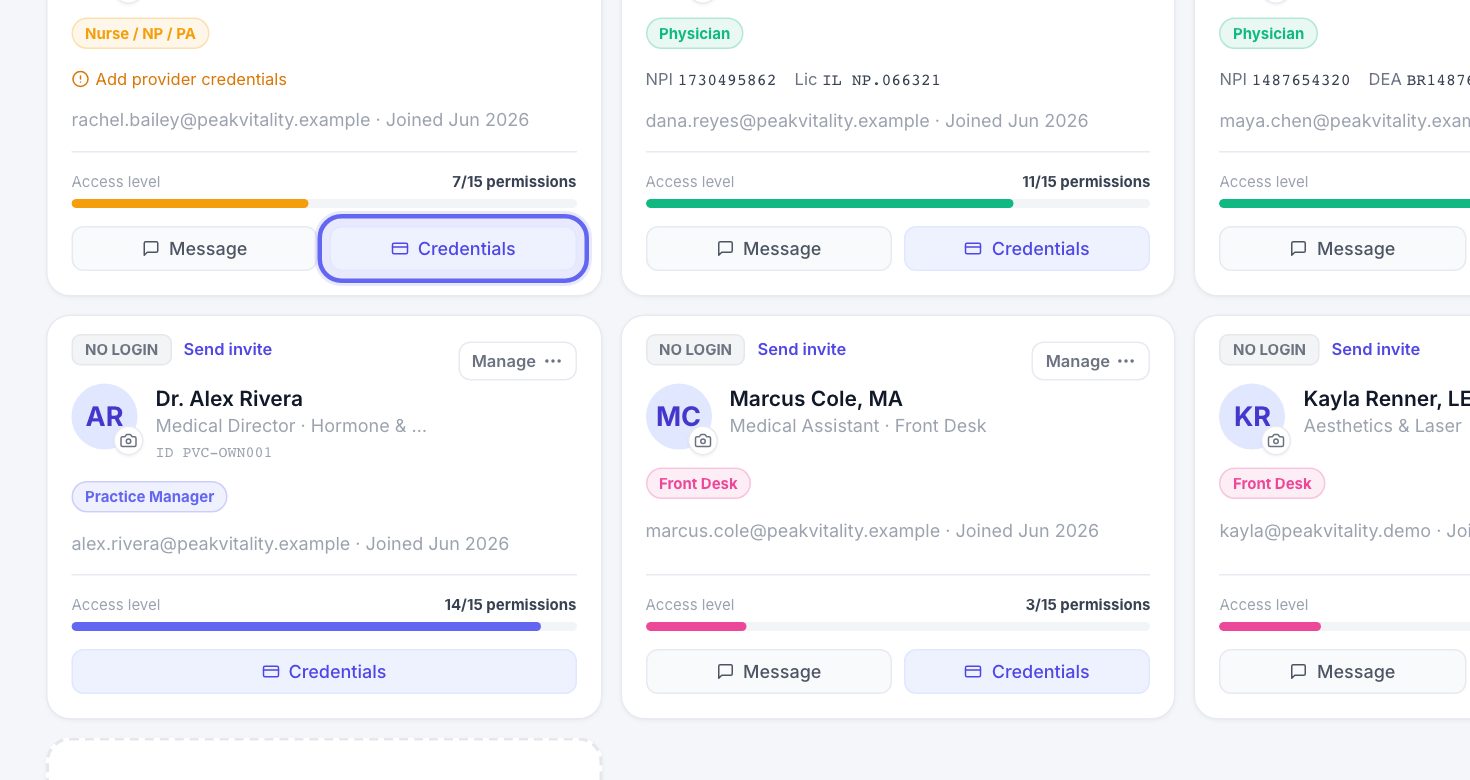
- 1Go to Team and click Credentials on the prescriber’s card.
- 2Enter their 10-digit NPI (national provider number) and press Verify to check it against the national registry. If there is no NPI box, tick Sees patients first.
- 3For controlled substances, add their DEA Number.
- 4Add their State License #, License Expiry and Licensed States. Prescribing to a patient in a state they aren’t licensed in is blocked.
- 5Press Save.
6Link each prescriber to the network
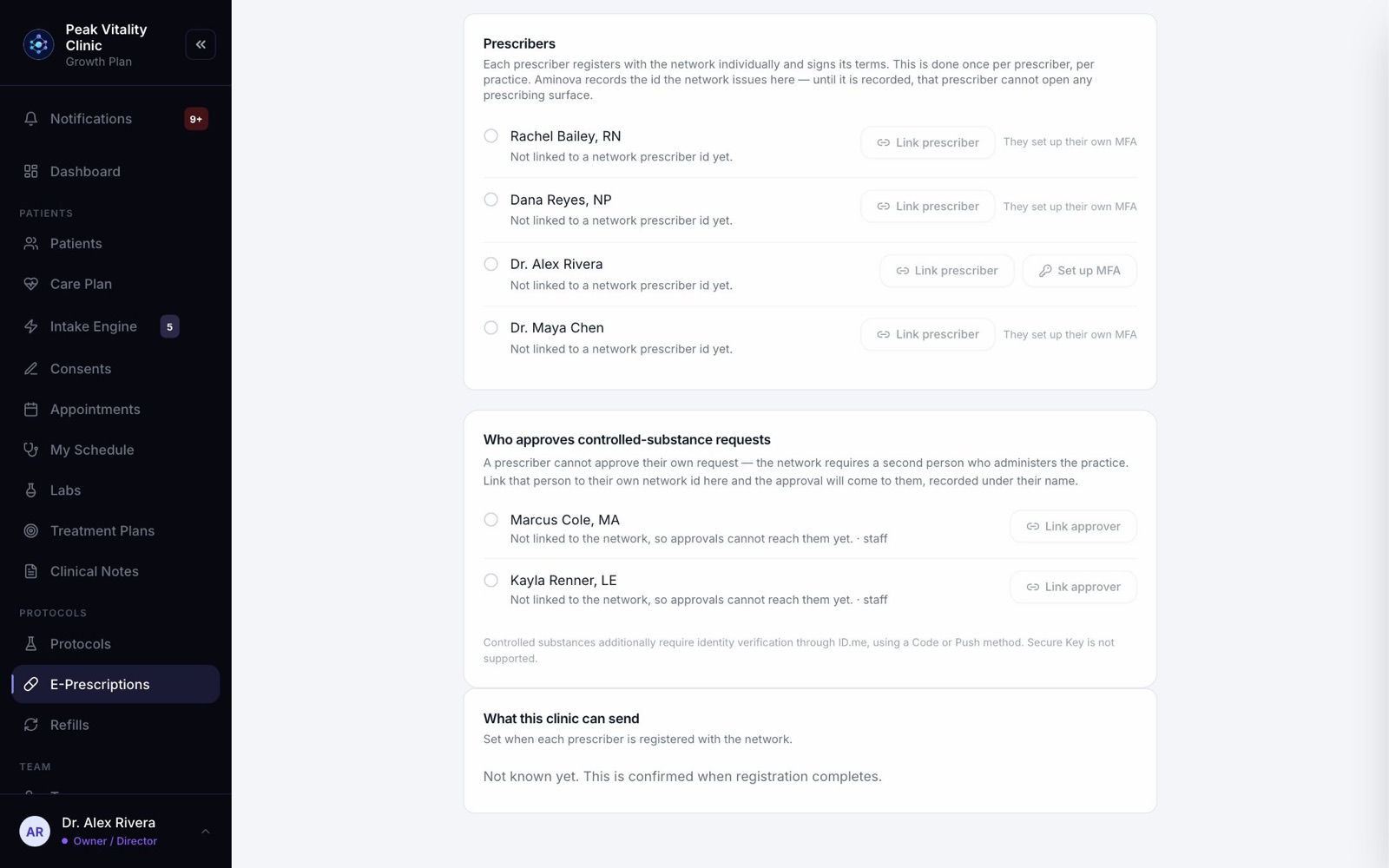
- 1Each prescriber registers with the e-prescribing network and signs its terms, once per practice. The network then gives them an id.
- 2Aminova records that id for you. An owner can also record it: under Prescribers, press Link prescriber.
- 3Type the Network prescriber id and press Check and save. It is checked with the network first. An id the network doesn’t know is refused, never saved.
- 4If the network account doesn’t match the person, you are told, and Link anyway appears. Use it only if you are sure.
- 5These buttons wait until the network account is connected.
7Check each prescriber is ready
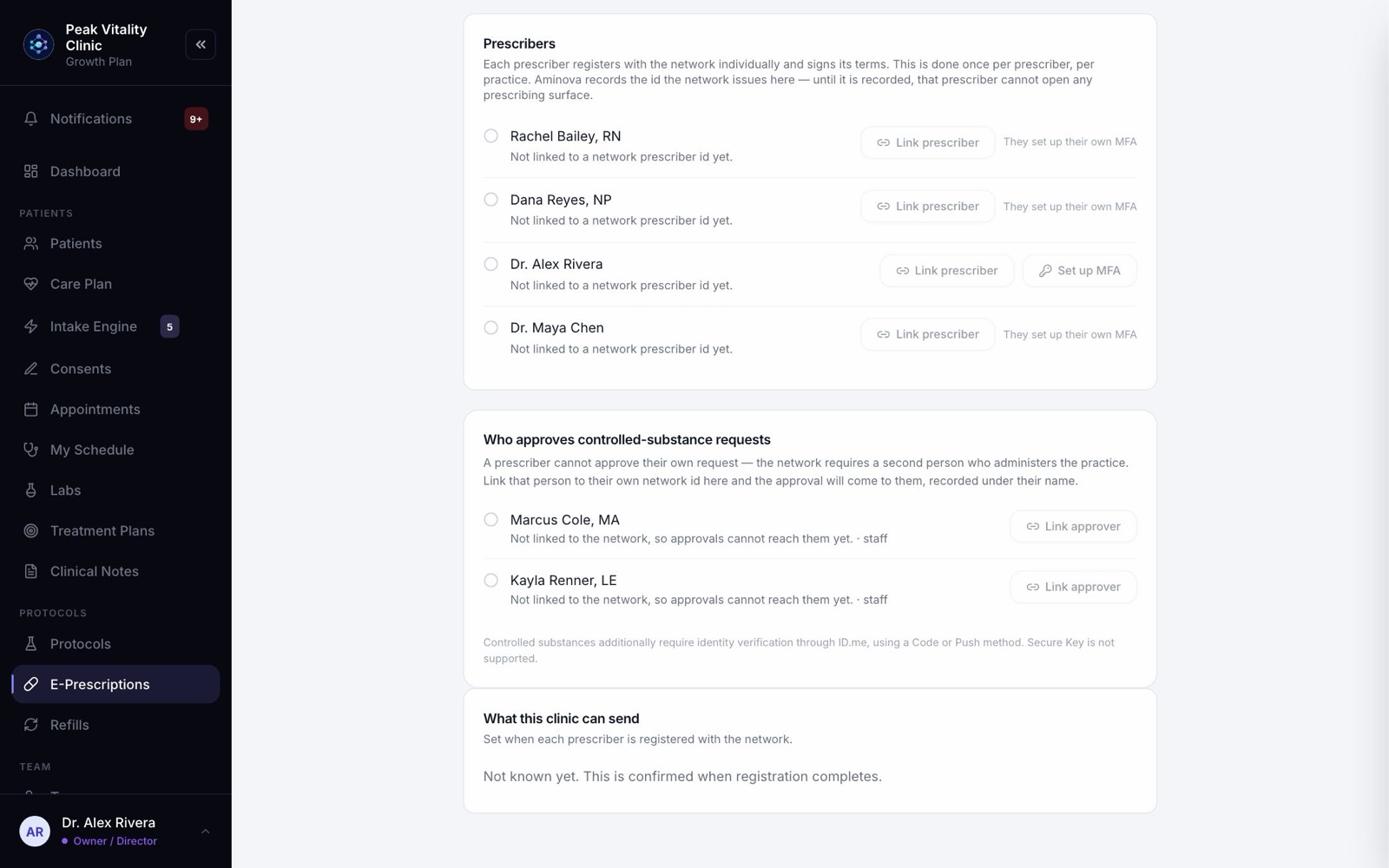
- 1A green check beside a name means that prescriber can send prescriptions.
- 2A prescriber who isn’t linked yet says “Not linked to a network prescriber id yet.”
- 3Under a ready prescriber, Controlled substances: ready means they can send those too.
- 4Controlled substances: not yet lists what is missing. Everything else can still be prescribed in the meantime.
8Controlled substances: what is needed
- 1Your clinic’s registration must include controlled substances. Aminova arranges this with the network. It shows under What this clinic can send as Controlled substances (EPCS), short for electronic prescribing of controlled substances.
- 2The prescriber’s DEA Number must be on file.
- 3The prescriber must verify their identity and set up a second factor: a second sign-in step, by code or push, that proves it is really them.
- 4Someone else at the practice must approve them. A prescriber can never approve themselves.
9The prescriber sets up their own security
- 1The prescriber signs in to Aminova as themselves and opens E-Prescriptions, then Setup.
- 2On their own row, they press Set up MFA. Nobody can do this for someone else. Other people’s rows say “They set up their own MFA.”
- 3The Set Up MFA window walks them through verifying their identity. It needs a verified identity account set to the Code or Push method. Secure Key does not work.
- 4Closing the window doesn’t prove it worked. Press Re-check to see.
10Choose who approves
- 1Under Who approves controlled-substance requests are the staff who don’t prescribe, like a practice manager.
- 2An owner presses Link approver, types Their network user id, and presses Check and save.
- 3The id must belong to an administrator of your practice on the network, or it is refused.
- 4The approver also needs the permission to approve controlled-substance requests. By default, the Owner / Director, Practice Manager and Nurse / NP / PA roles have it.
11Approve the request
- 1When a prescriber is waiting and the approver is signed in to Aminova, a window appears on its own: Controlled-substance approval needed.
- 2It lists the prescribers waiting. The approver presses Approve or Deny for each.
- 3Approving confirms they know this person and that they are who they say they are. It is recorded against the approver’s name.
- 4A prescriber sees their own request in the list, but can’t approve it. Not now closes the window until the next sign-in.
12Check it is done
Back on E-Prescribing Setup, press Re-check. The prescriber’s row now reads Controlled substances: ready.
From then on, signing a controlled substance also asks for the prescriber’s second factor.
Setup never guesses. Anything it can’t confirm shows as a gray circle, not a green check.
Keep going
E-Prescriptions
Write, sign and send prescriptions, and see where each one really is. Pharmacy messages, the state drug check and medication history live here too.
Read the guideE-prescribing and refills
One prescription from start to finish: written, signed, sent electronically or by fax, then refilled when the patient asks. Approving a refill is not sending it.
Read the guideTeam
Everyone who works at your clinic. Invite people, give each a role, keep their credentials up to date, and remove someone who has left.
Read the guideInvite your team
Give everyone at your clinic their own login, with the right role. Then add providers’ credentials so patients can be booked with them.
Read the guideRather be shown?
Inside Aminova, the tutorial walks you through every page, and the Getting started checklist shows you each task click by click. Or book a live training session with our team.