1The page at a glance
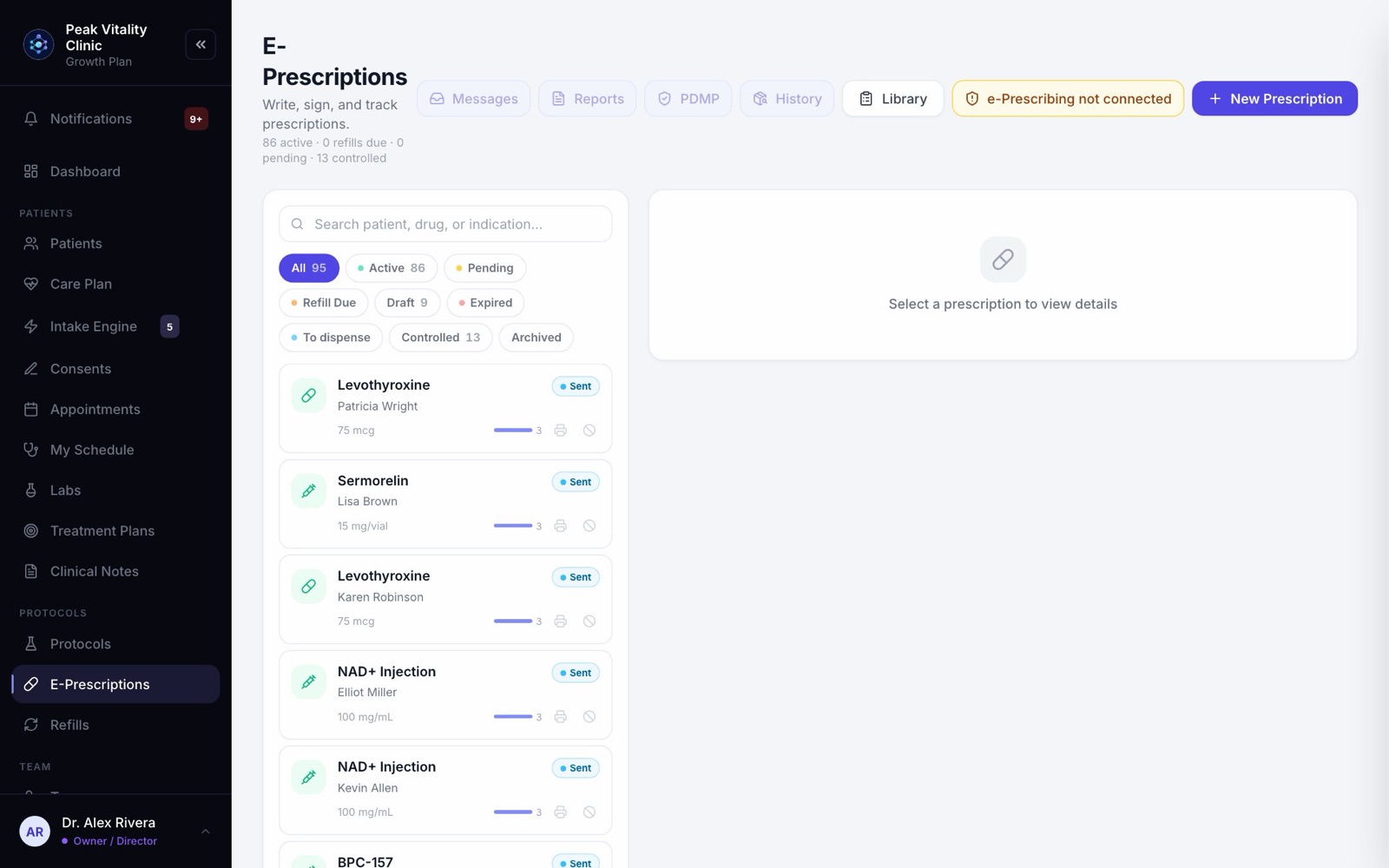
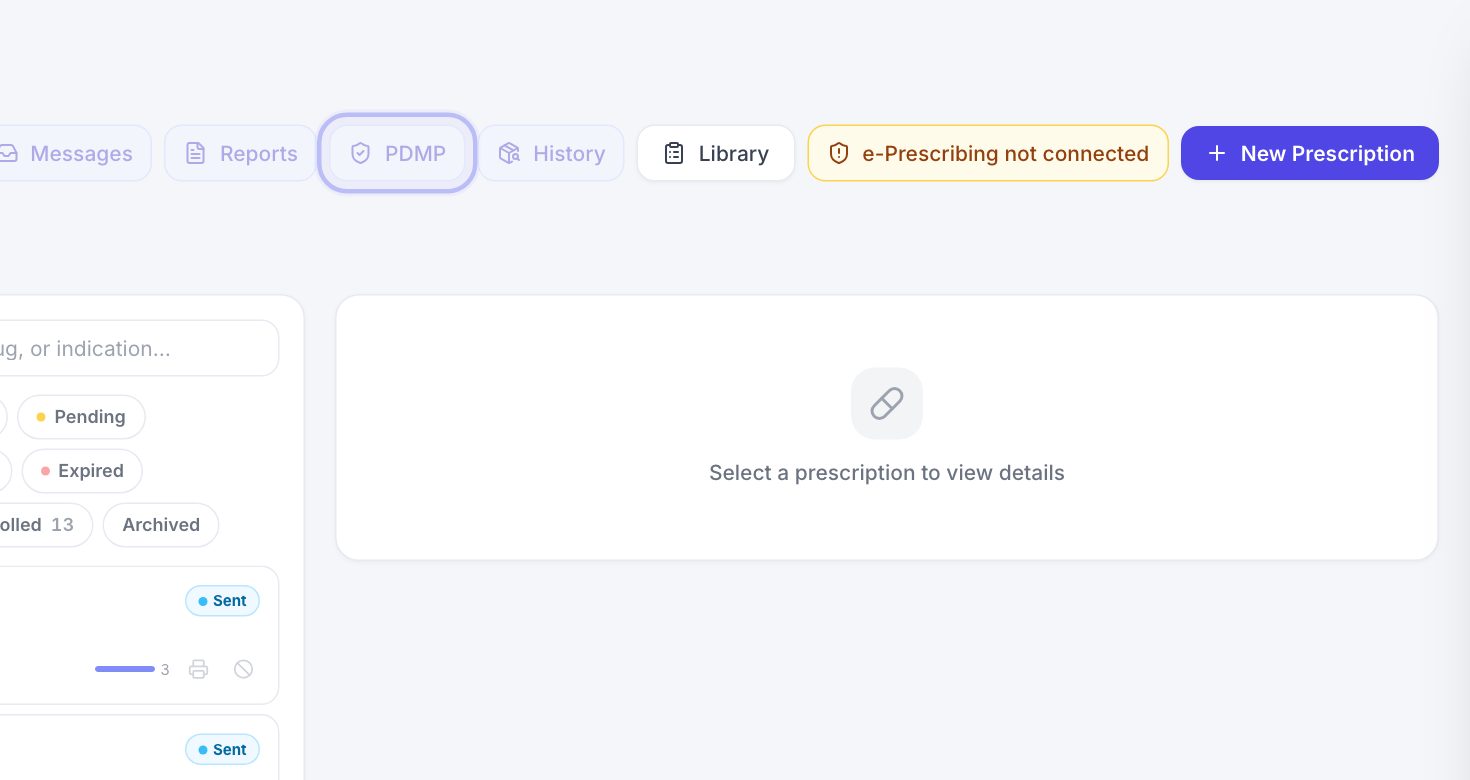
E-Prescriptions is where prescriptions are written, signed and sent. Across the top are the tools: Messages, Reports, PDMP, History, Library, Setup and New Prescription. The line under the title counts what is active, due for a refill, pending and controlled.
Below, the list of prescriptions is on the left and the one you open is on the right. Only prescribers can write, sign and send. Everyone else sees the page as view only.
2Write a prescription
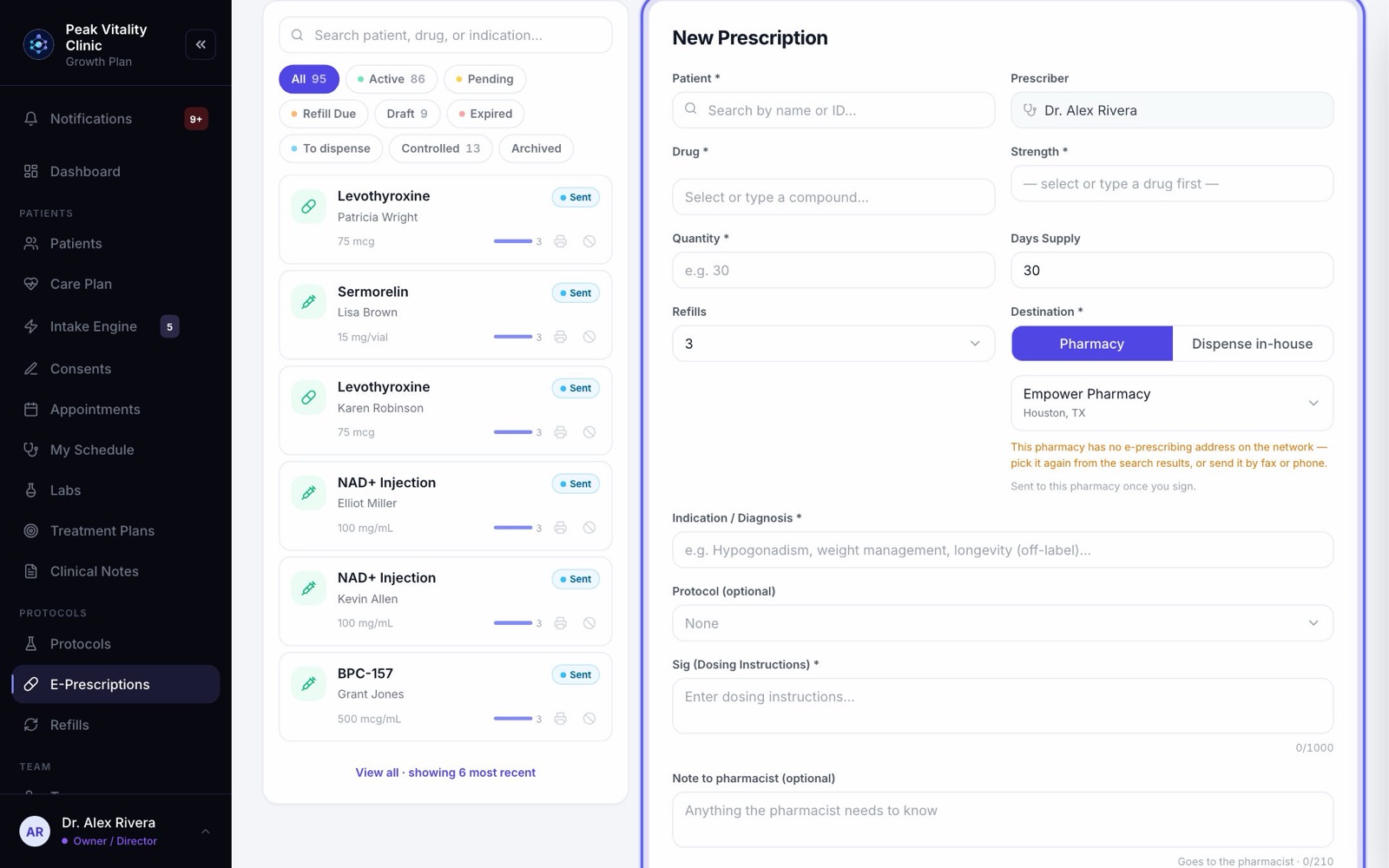
- 1Click New Prescription. The form opens on the right.
- 2Under Patient, search by name and pick the patient. Their allergies show at the top of the form.
- 3The Prescriber is always you. You can only prescribe as yourself.
- 4Fill in Indication / Diagnosis: what it is for. Add a Protocol if it belongs to one.
- 5Every field with a star must be filled in before you can send. Hover over the button to see what is still needed.
3The drug, dose and directions
- 1Under Drug, click Search medications… and pick the exact product. Your clinic’s own products are under Or choose an in-house / compounded product. Until your clinic is connected, the drug box lists your own products and you can type a name.
- 2Pick the Strength and enter the Quantity as a number.
- 3Set the Days Supply and the number of Refills. A Schedule II drug is locked to 0 refills.
- 4Write the Sig (Dosing Instructions): the directions the patient follows. Add a Note to pharmacist (optional) if they need to know something.
- 5Tick Dispense as written (DAW) if the pharmacy must not swap in a different drug.
- 6For a prescription you write often, press Save this Rx and name it. Next time, pick it under Saved.
4Where it goes
- 1Under Destination, pick the pharmacy. Your clinic’s favorites show first as one-click buttons under Favorites.
- 2To find another, type its name, or its name and ZIP code, in the search box.
- 3If the patient’s chart already names a pharmacy, a link under the box offers it.
- 4Press Save to your pharmacies to keep one you will use again.
- 5The line under the box tells you what happens next: the patient collects it, it is mailed to them, or the pharmacy can’t take e-prescriptions and has to be phoned or faxed.
5The safety check
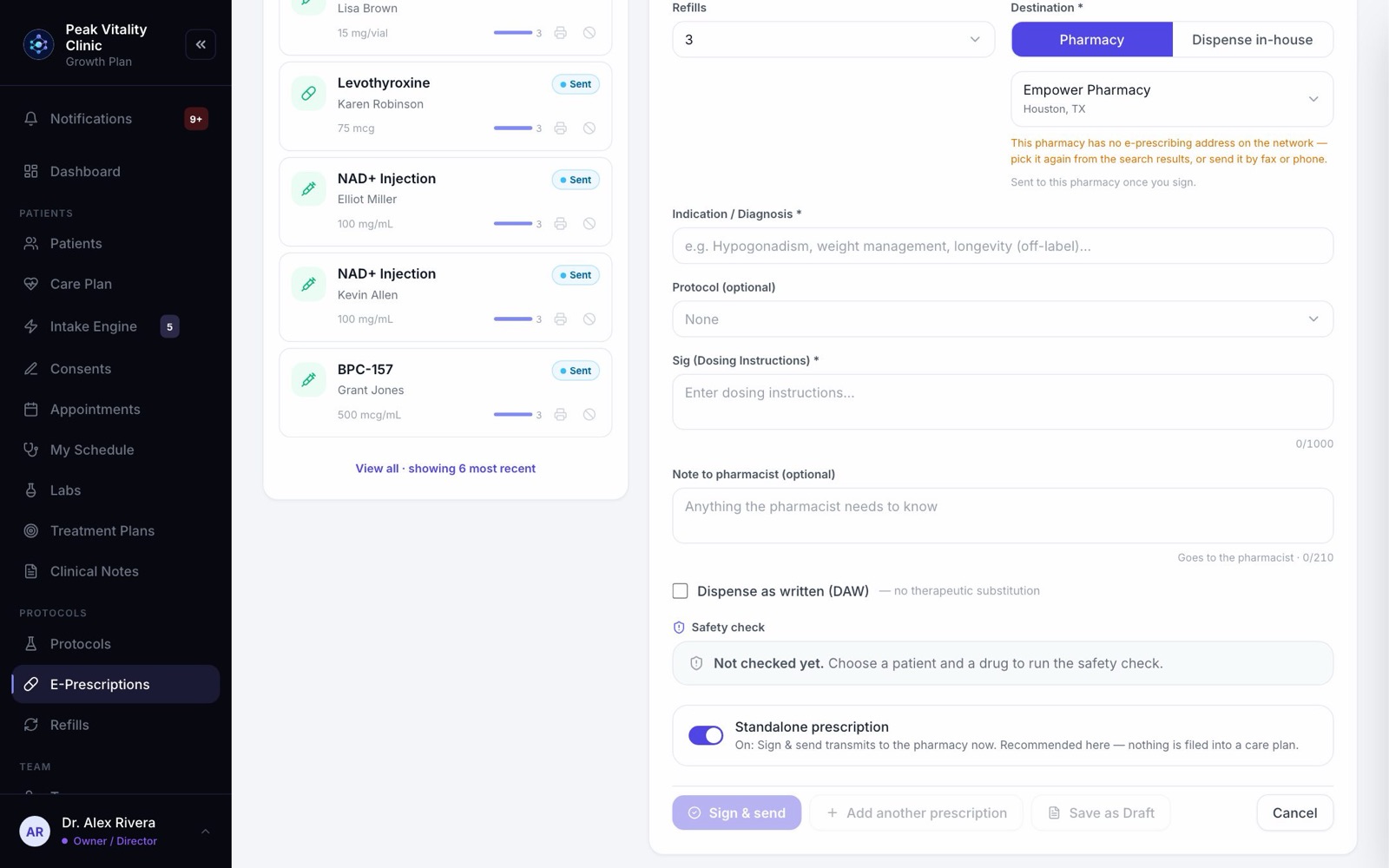
The Safety check box works on its own as you fill in the form. It looks at the patient’s recorded allergies, the drugs they are already on, and a list of known dangerous pairs. It is a safety net, not a full drug interaction check, and it says so when part of it could not run.
If it finds something serious, you are shown it and must press Acknowledge & continue before the prescription goes on. When you pick a controlled substance from your product list, a red note appears with the state drug check for this patient right under it.
6Sign and send
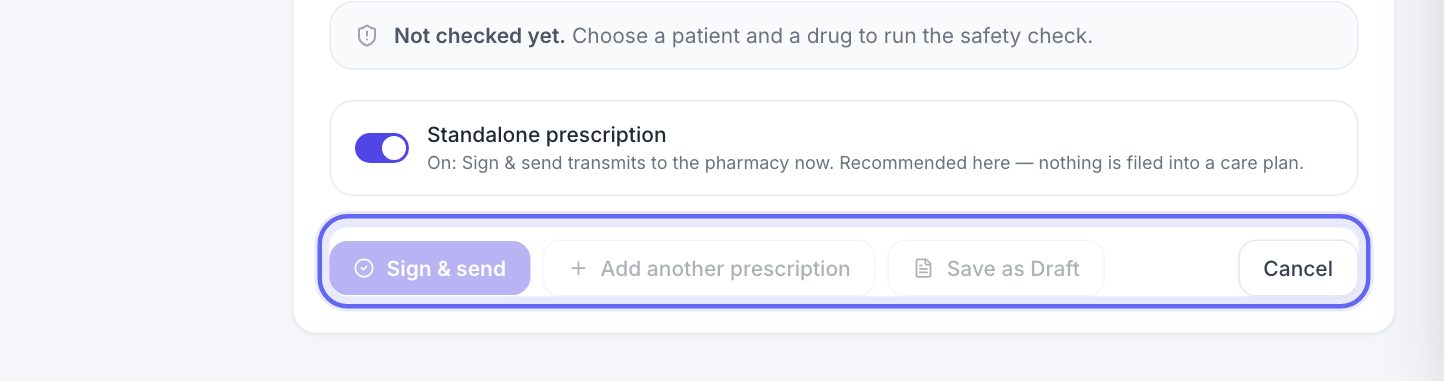
- 1Standalone prescription is on when you start here. Sign & send sends it to the pharmacy now.
- 2Turn it off and the button reads Confirm. That files the prescription into the patient’s Care Plan, and you finish and send it there.
- 3Add another prescription starts a second one for the same patient. Each gets a tab, Rx 1, Rx 2, and you sign them all when you send.
- 4Save as Draft keeps it on the list without sending it. Cancel closes the form.
7What happens when you sign
- 1On a connected clinic, the signing window opens: Review & Send Prescription. Check it and complete it there. Nothing is sent until you do.
- 2For a controlled substance, it also asks for your second factor, which may open in its own window.
- 3When the window closes, a message says what happened: Sent, Signed — waiting for the network to confirm, or Not sent — still a draft.
- 4Waiting means don’t send it again; the list updates when the network answers. Still a draft means it was never signed, and Finish signing reopens the same prescription.
- 5If your clinic isn’t connected yet, you sign on a signature pad instead. The prescription is then signed but not sent, and you send it to the pharmacy yourself.
8Find a prescription
- 1Search by patient, drug, or what it is for.
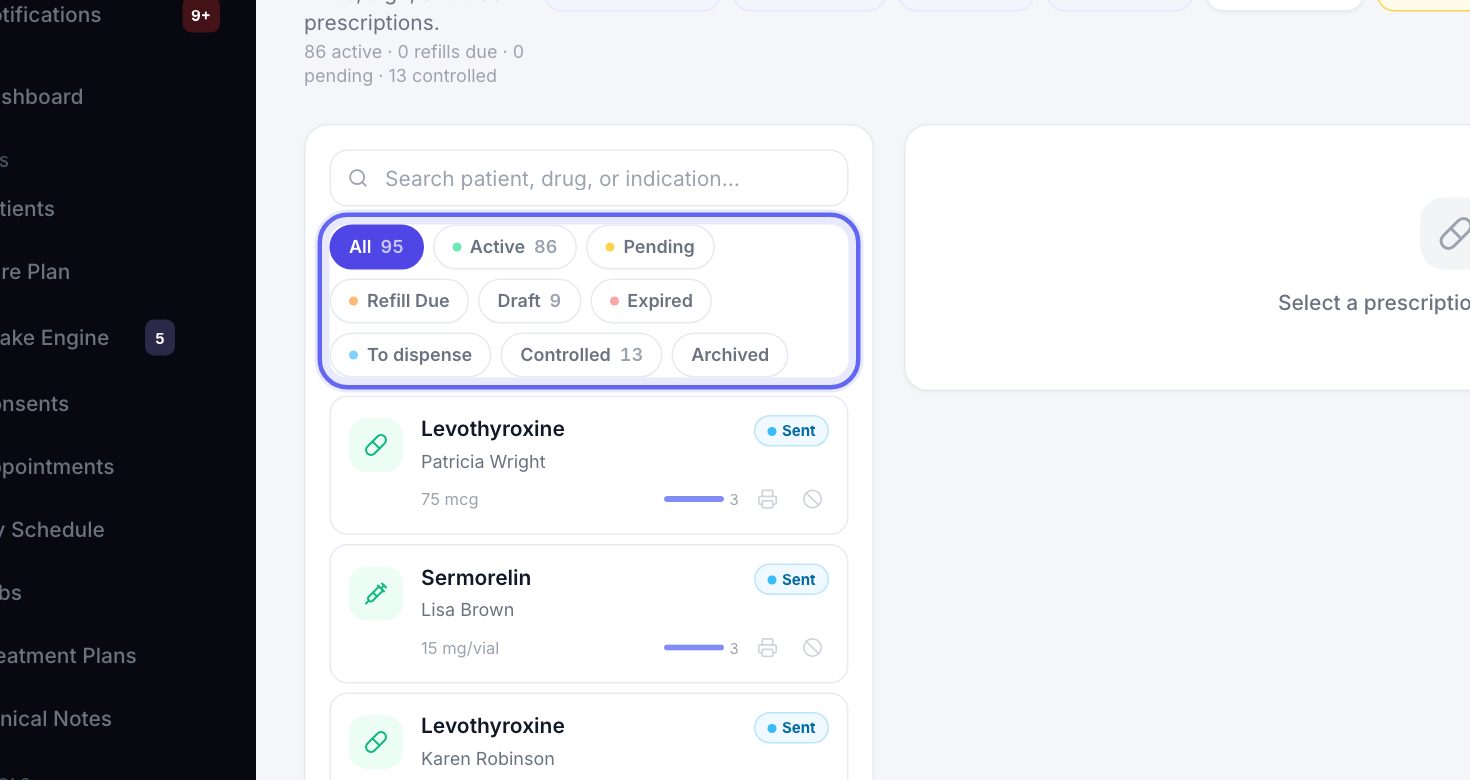
- 2Use the filters to narrow the list: All, Active, Pending, Refill Due, Draft, Expired, To dispense, Controlled and Archived. The number on each is how many it holds.
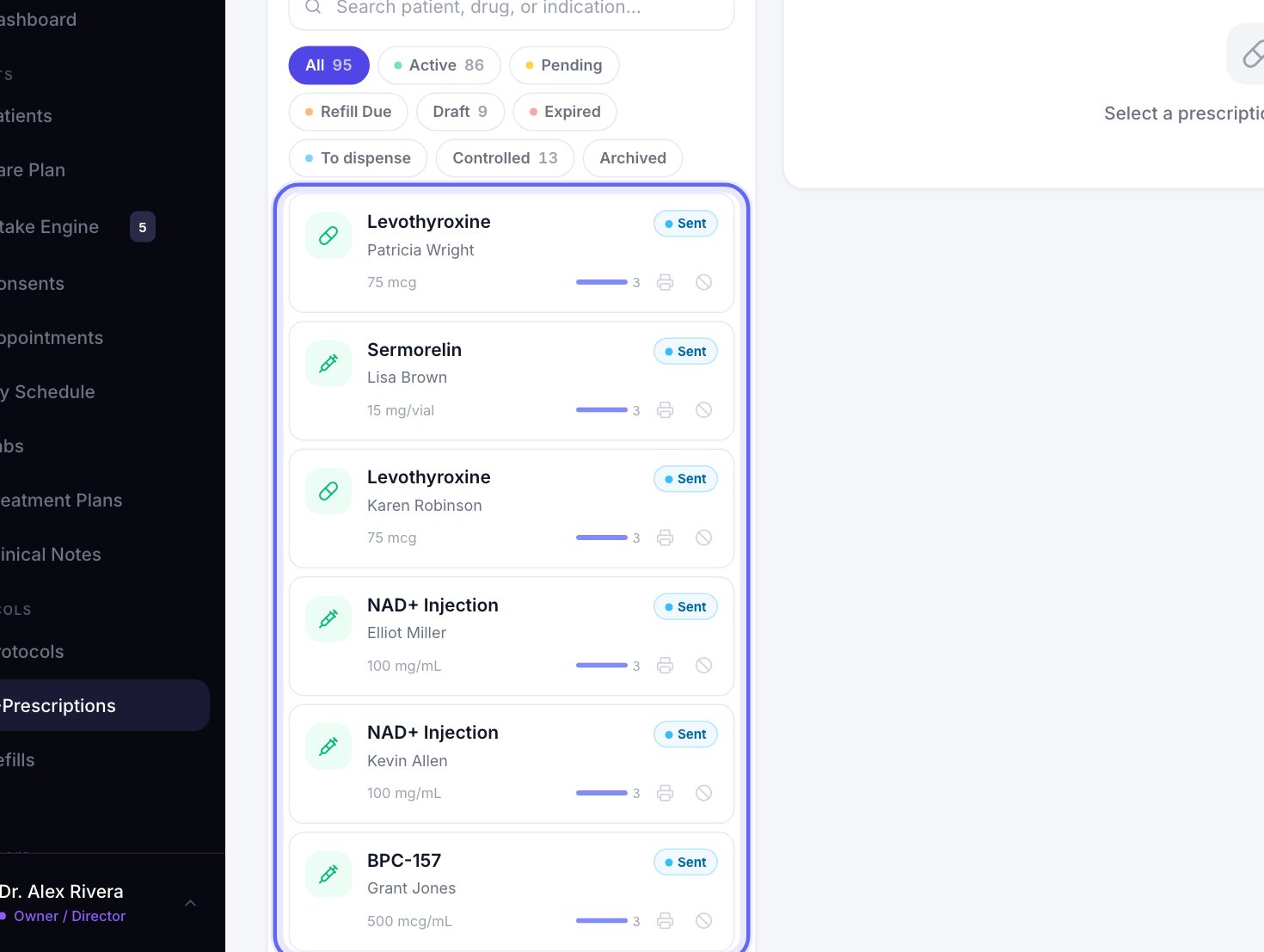
- 3The list shows the six most recent. Click one to open it.
- 4View all opens every active prescription in the clinic, with its own search.
9What the statuses mean
- 1Active: signed, sent and still live. Pending: written and waiting for a prescriber to send it.
- 2Draft — not sent: saved, never sent. Awaiting signature: prepared for sending but not signed yet.
- 3To dispense: your clinic hands the medicine over itself, and nobody has yet. Archived: voided or canceled, and kept on the record.
- 4Controlled substances carry a red tag, C-II to C-V. These are drugs the DEA, the federal drug agency, tracks closely.
- 5A green Received, Verified or Filled is the pharmacy’s own answer, sent back through the e-prescribing network. Click it to see who signed and when.
- 6On each row, the printer icon opens a copy ready to print or fax. Where a sent prescription can still be pulled back, a cancel icon sits beside it.
10Open a prescription
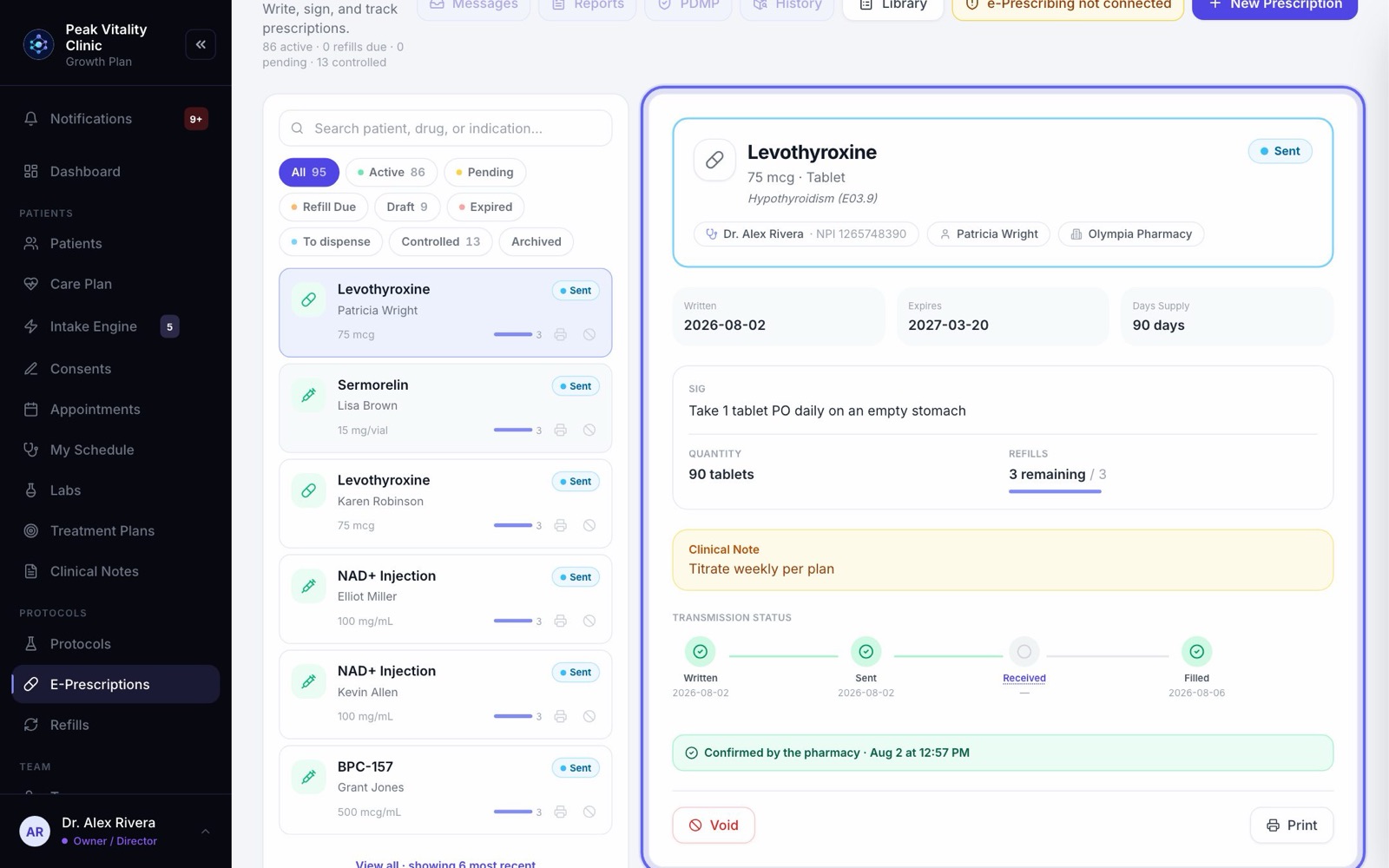
- 1The top shows the drug, its status, the prescriber with their NPI (national provider number), the patient and the pharmacy.
- 2Below are the dates, the Sig, the Quantity and how many Refills remain.
- 3Transmission Status runs Written, Sent, Received, then Filled once the pharmacy reports it. Click Received to see who signed and when.
- 4A colored note says where it really is: sent and waiting for the pharmacy to confirm, confirmed by the pharmacy, not accepted by the pharmacy, or signed but not yet sent.
- 5Other active prescriptions for the same patient are listed below, with a warning if the same drug is there twice.
11What you can do with it
- 1Send to Pharmacy sends a draft or pending prescription. If the patient owes money, you are told first and can still send. Finish signing picks up one that was never signed.
- 2Request Refill makes a new prescription for the same medicine once you sign. It opens 14 days before the supply runs out; until then the button counts down the days. An expired one offers Renew Prescription.
- 3Mark as Filled records that the pharmacy filled it.
- 4Void needs your signature and a reason. If it was sent electronically, a cancellation goes to the pharmacy first. If that can’t be done, it isn’t voided, and you are told to call the pharmacy.
- 5Print prints the prescription form, and warns you if it was printed before.
- 6Dispense from stock appears when your clinic hands the medicine over itself.
When your clinic can’t sign controlled substances here yet, a controlled prescription offers Prescribe externally instead. Print it or get a fax copy, tick that you checked the state PDMP yourself, and press Record as prescribed so the chart stays right.
12Messages from pharmacies
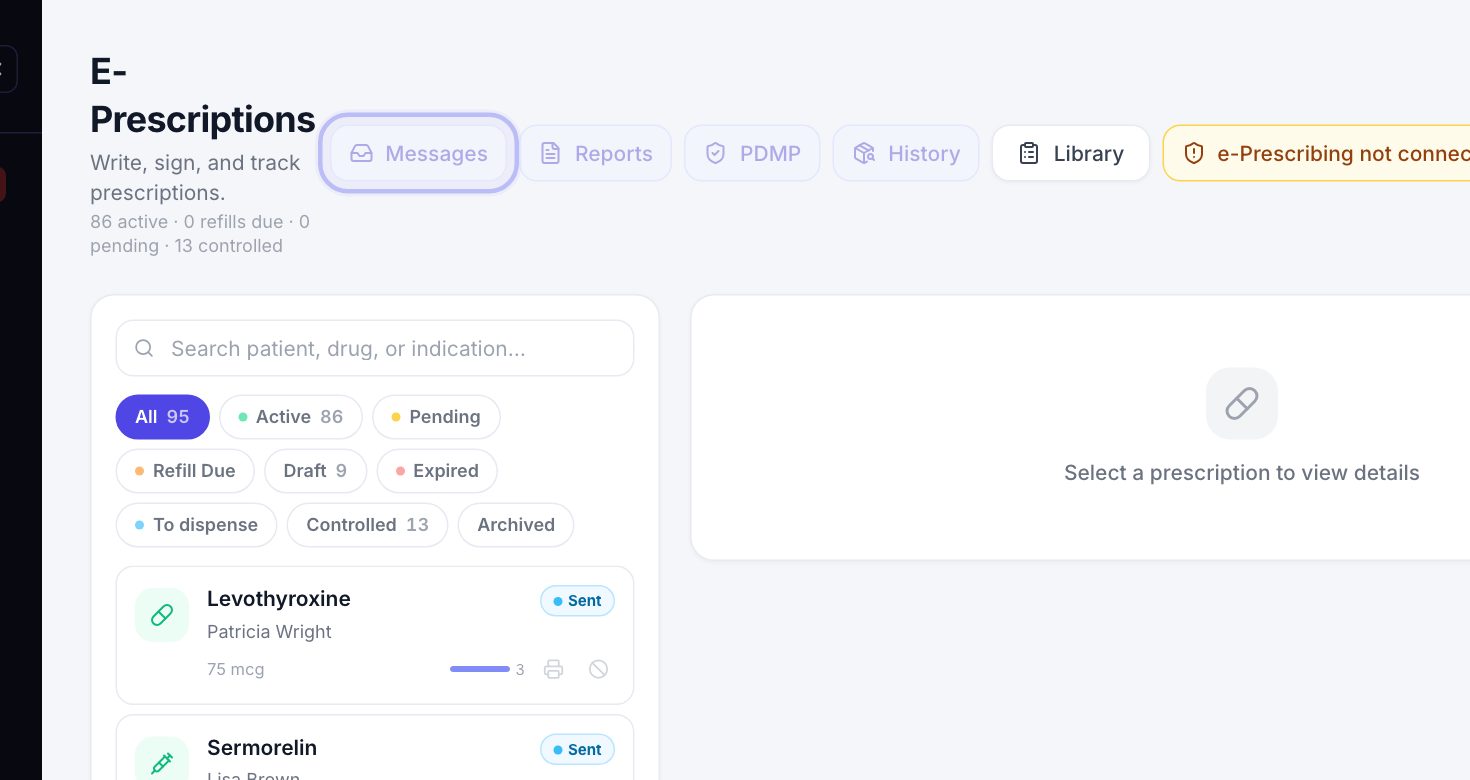
- 1Messages opens what pharmacies send back: requests to renew or change a prescription, and their answers to cancellations. The number on it is how many are waiting.
- 2When something is waiting, a Waiting on you row appears under the header: Renewal requests, Change requests, Cancellation answers, and, in red, Not accepted. Those never reached the pharmacy and must be sent again.
- 3Each one opens the e-prescribing network’s own screen, where you answer it.
- 4Reports, beside it, holds your prescribing activity and controlled-substance reports.
- 5These buttons work once your clinic is connected and you are linked as a prescriber in Setup.
A cancellation the pharmacy hasn’t answered yet shows as a warning. Until it is answered, the medicine may still be handed out, so call the pharmacy if it must not be.
13The state drug check
The PDMP is your state’s prescription drug monitoring program: its record of the controlled substances a patient has been given. Check it before you prescribe one.
Click PDMP. With a prescription open, it runs for that patient; otherwise you pick the patient first. The report can take two minutes to be ready. The box waits, then offers Open the PDMP report. Reading it is up to you. Nothing marks the check as done for you.
14Medication history
History shows what a patient has had dispensed, from pharmacy and insurance records, not just what your clinic wrote. It is how you catch a drug prescribed somewhere else. You pick the patient the same way as for the PDMP.
15The library
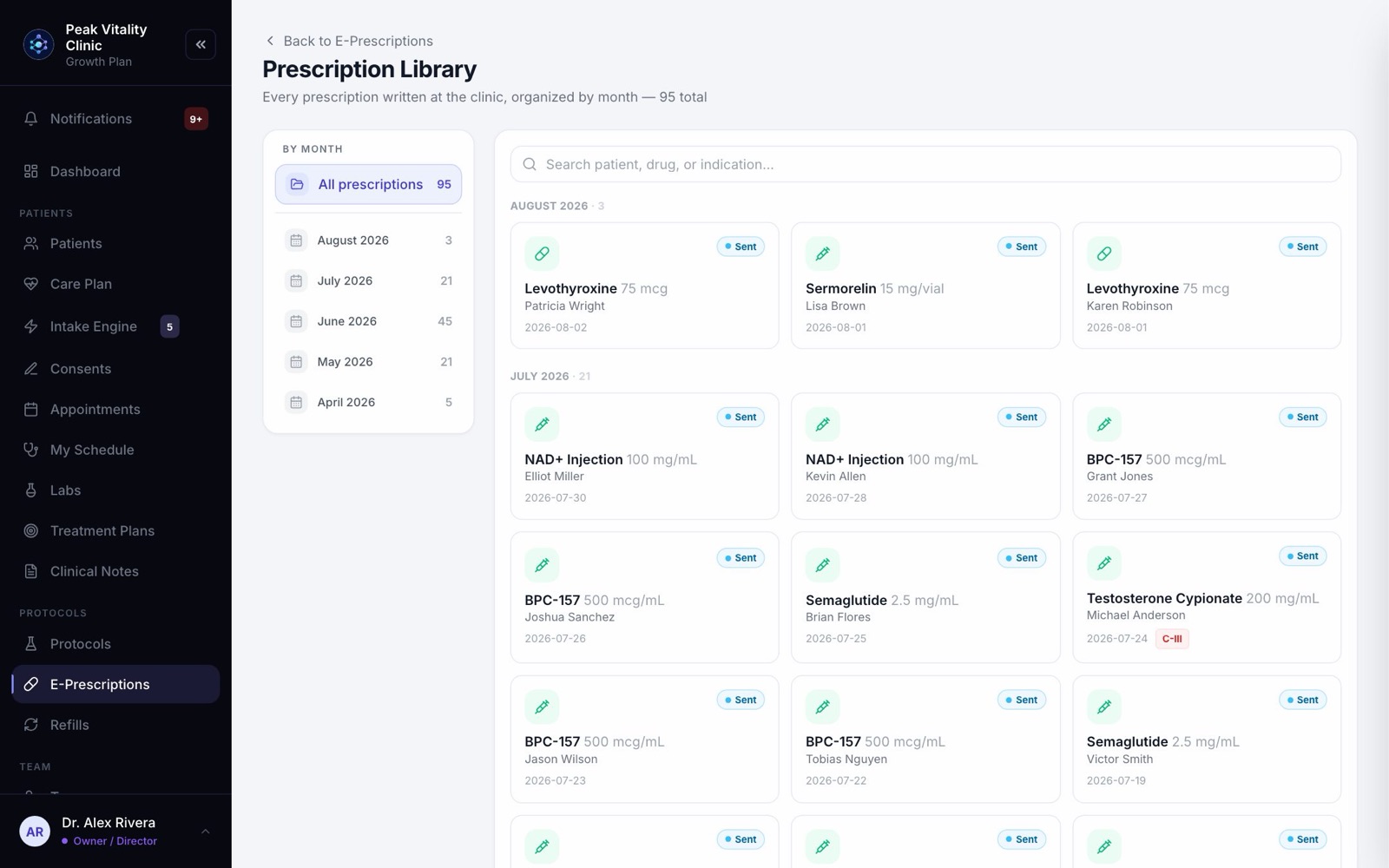
- 1Click Library to open the Prescription Library: every prescription written at the clinic, by month.
- 2Pick a month on the left, or All prescriptions. Search by patient, drug, or what it is for.
- 3Click any card to open it on E-Prescriptions. Back to E-Prescriptions takes you back.
16Setup
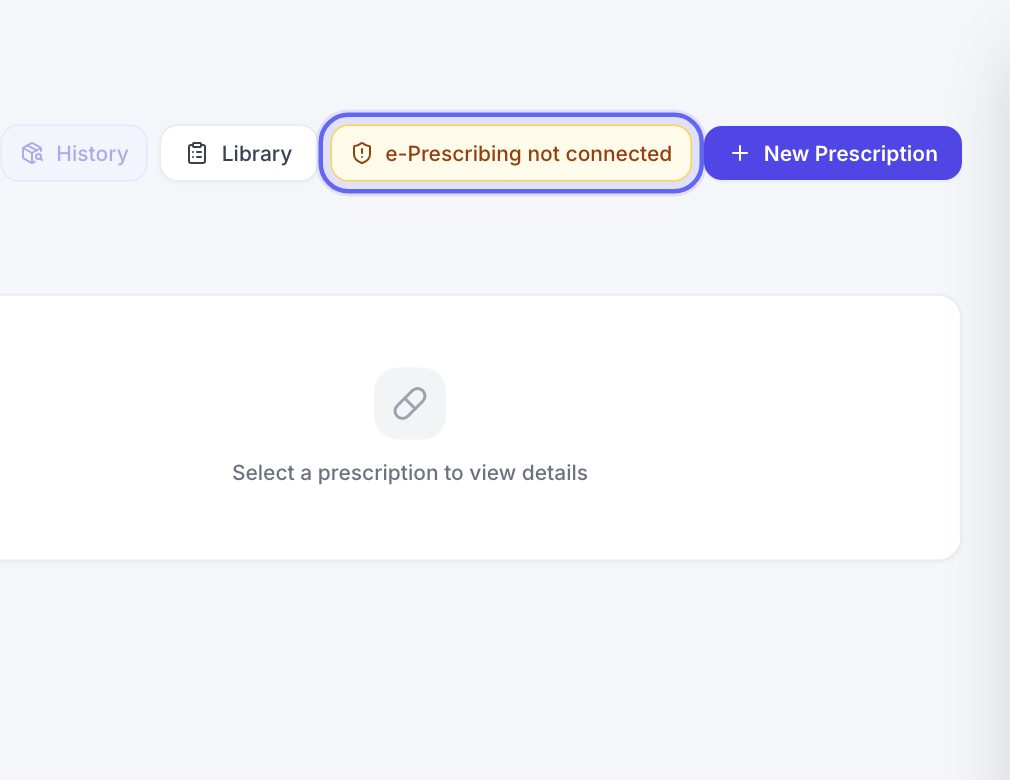
Setup opens the list of what must be in place before prescriptions can be sent. Until your clinic is connected, the button reads e-Prescribing not connected. The e-prescribing setup guide walks through it.
Keep going
Set up e-prescribing
Get each prescriber able to send prescriptions electronically: what Setup checks, the details each prescriber needs, and the extra steps for controlled substances.
Read the guideE-prescribing and refills
One prescription from start to finish: written, signed, sent electronically or by fax, then refilled when the patient asks. Approving a refill is not sending it.
Read the guideRefills
Approve or decline refills, get them signed and sent, and see what really reached the pharmacy. Approving is not sending.
Read the guidePharmacy
Track every pharmacy order from Pending Rx to Delivered, fax a signed prescription, and keep the list of pharmacies your clinic uses.
Read the guideCare Plan
A visit, one step at a time: pick the patient, choose a protocol, build and sign the plan, record vitals, write prescriptions, and finish.
Read the guideRather be shown?
Inside Aminova, the tutorial walks you through every page, and the Getting started checklist shows you each task click by click. Or book a live training session with our team.