1What the patient app is
The patient app is what your patients use on their phone. They follow their plan, check in, book and join visits, message your team, sign forms and pay.
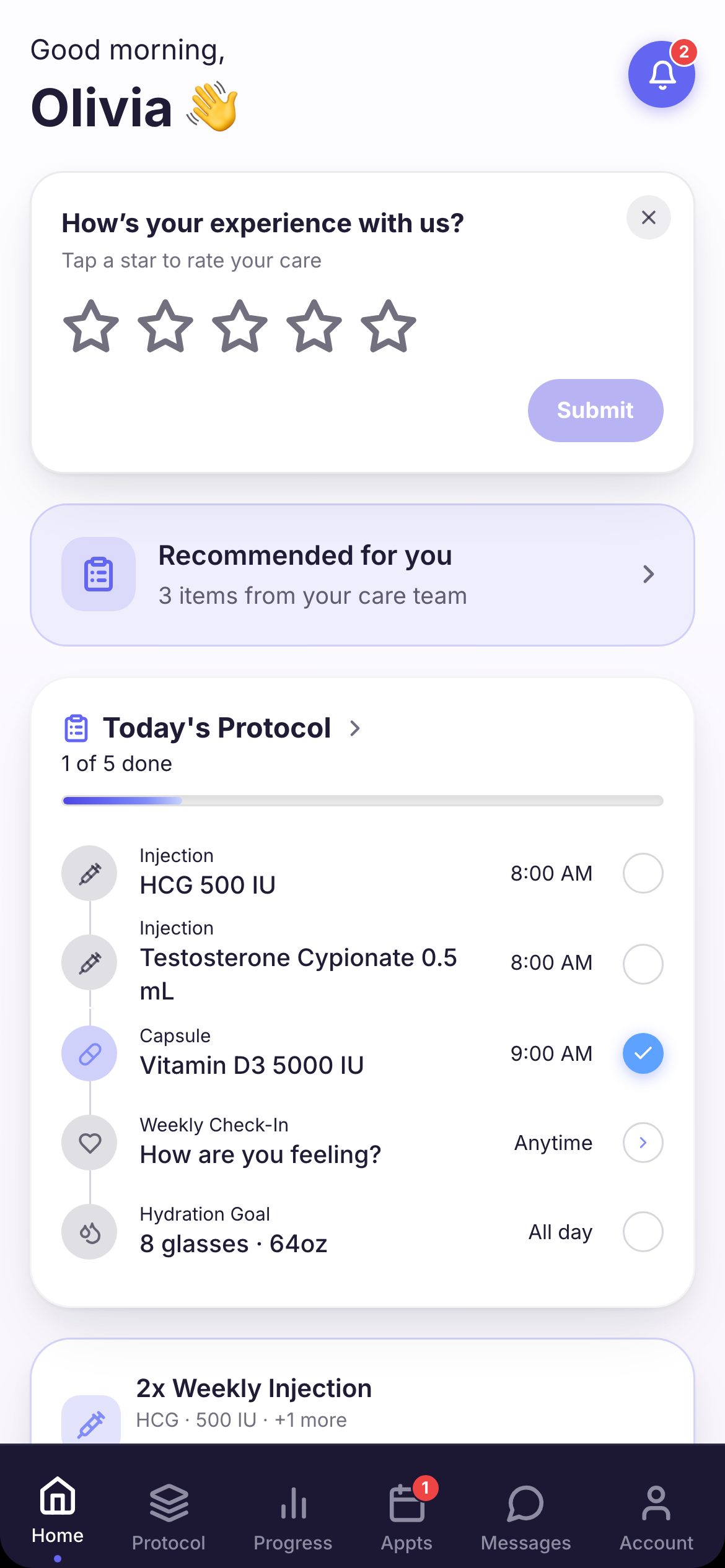
Six tabs run along the bottom: Home, Protocol, Progress, Appts, Messages and Account. If you switch messaging off, the Messages tab is gone.
You choose which parts patients get in Settings → Patient Portal. See the setup guide for each switch.
2Getting in
The app signs a patient out after an hour without use, and once a week in any case. It tells them why, and keeps anything they were typing.
- 1The patient types your Clinic code and presses Continue. After the first time, their phone remembers it.
- 2The first time, they press First time? Activate your account. They enter their User ID, Date of birth and a new password, then press Activate account. They may be asked once for a 6-digit code sent to their email.
- 3After that, they sign in with their User ID and password. Remember me on this device fills in the User ID next time.
- 4After their first sign-in, the app offers Enable Face ID, so next time they can sign in without typing.
3The welcome steps
- 1The first time in, a short welcome asks for their goals. It can also ask for their health background: conditions, allergies, medicines and measurements. Anything you already have is shown for them to check.
- 2Then it asks about their lifestyle, an emergency contact, and their insurance and preferred pharmacy, with a first quick rating of energy, sleep and mood.
- 3They agree to the Privacy Policy and Terms of Service and press Complete Profile. An emergency contact is required.
- 4Save & Continue Later lets them stop. A Complete your health profile banner stays on Home until they finish.
- 5If they have no visit yet, Schedule your first visit opens next. I’ll do this later skips it.
4Home and today’s list
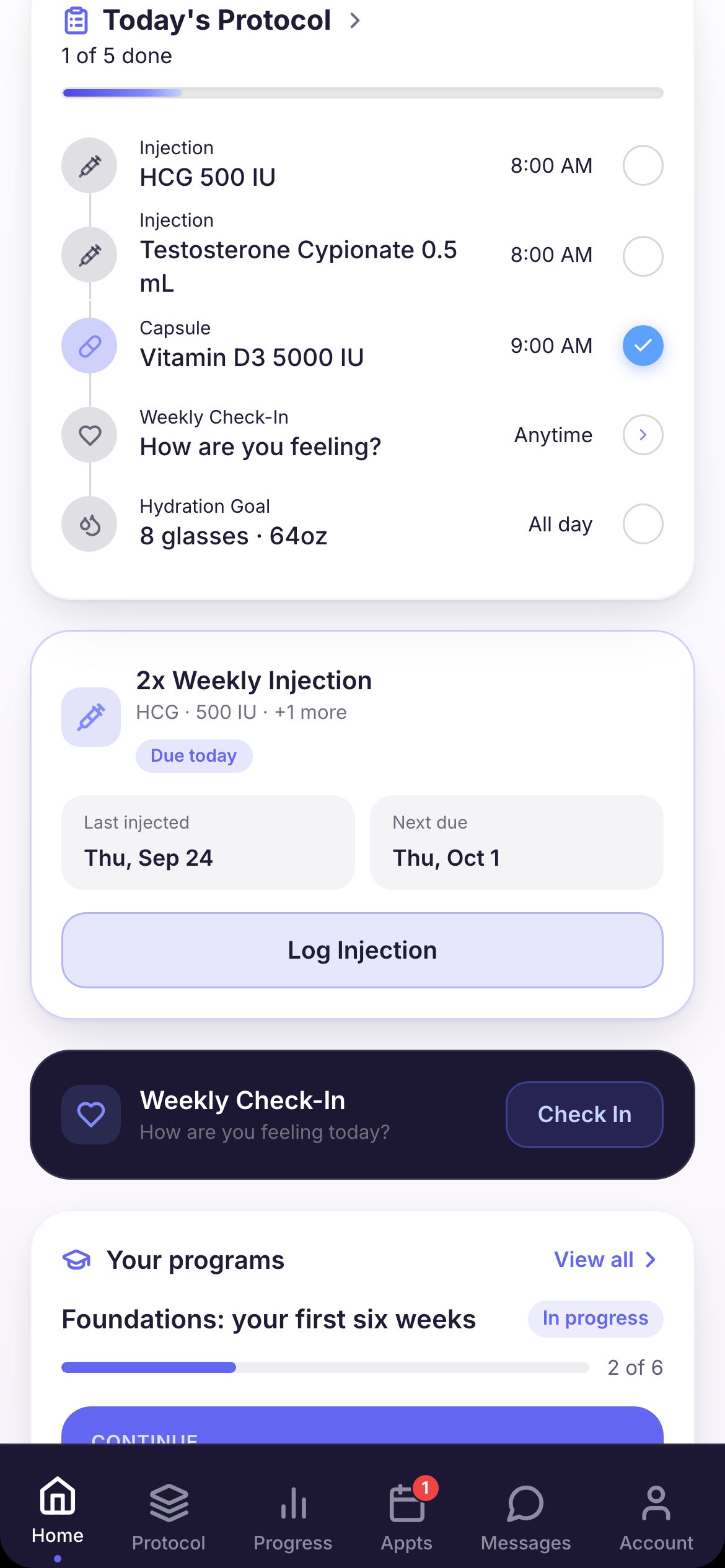
Today’s Protocol lists what is due today. They tap the circle to check a dose off. Their check-in and water goal are on the list too. Your team sees what they check off.
Below it are cards that come and go: injections to log (Log Injection), the next visit, Refill Status, Latest Labs, their streak, a shipment to track with I’ve received it, Your programs, and forms and consents to sign. The bell at the top holds their notices.
When medicine is shipped or picked up, the patient presses I’ve received it or I’ve picked it up. That starts the medicine on their list.
5The Protocol tab
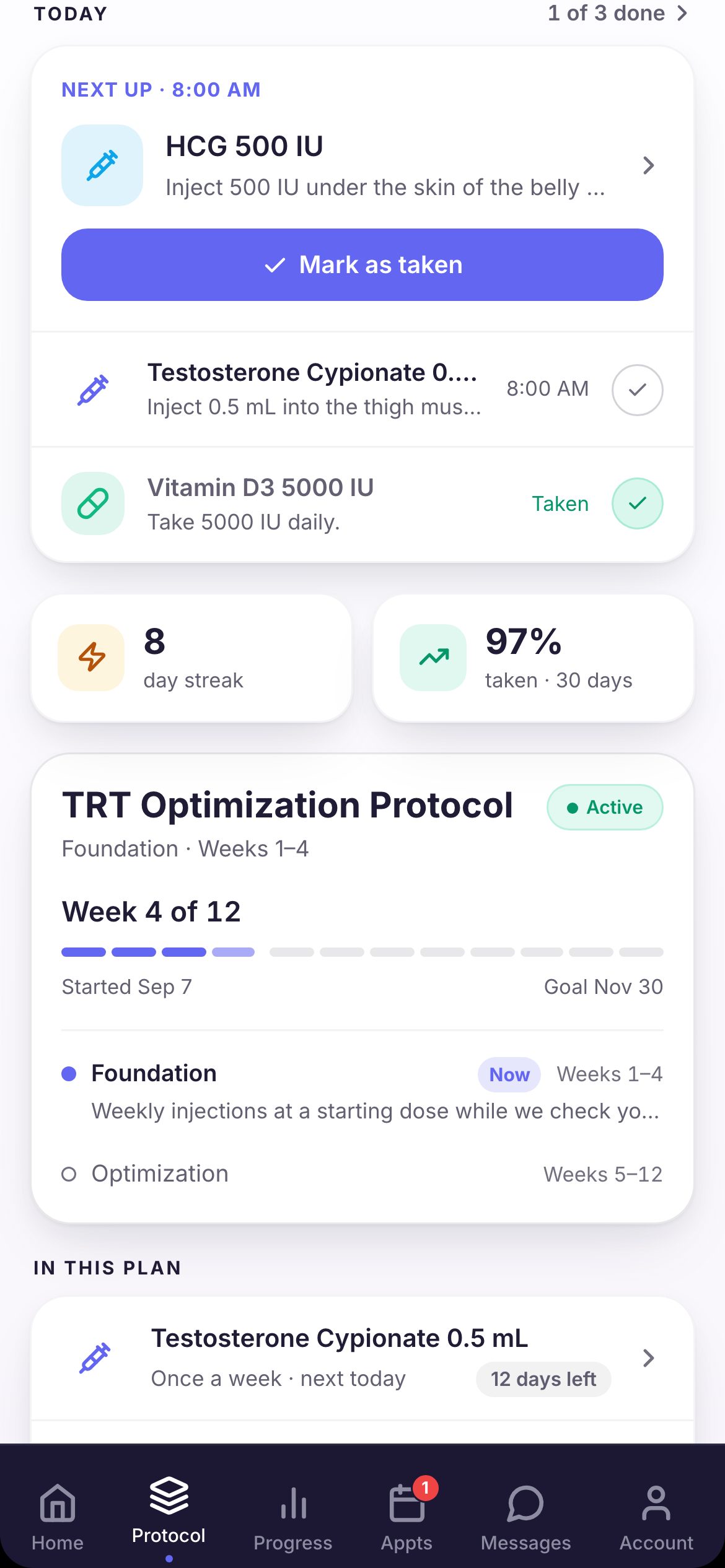
Today shows the next dose with Mark as taken, and the rest of today below. Tap the count, like 1 of 3 done, to see today, yesterday and tomorrow at once. Under it are their streak and how much they have taken in the last 30 days.
Then comes their plan: its name, the week they are on, its phases, In this plan and About this plan. When you change the plan, Your plan was updated shows them what changed.
6One medicine and its refills
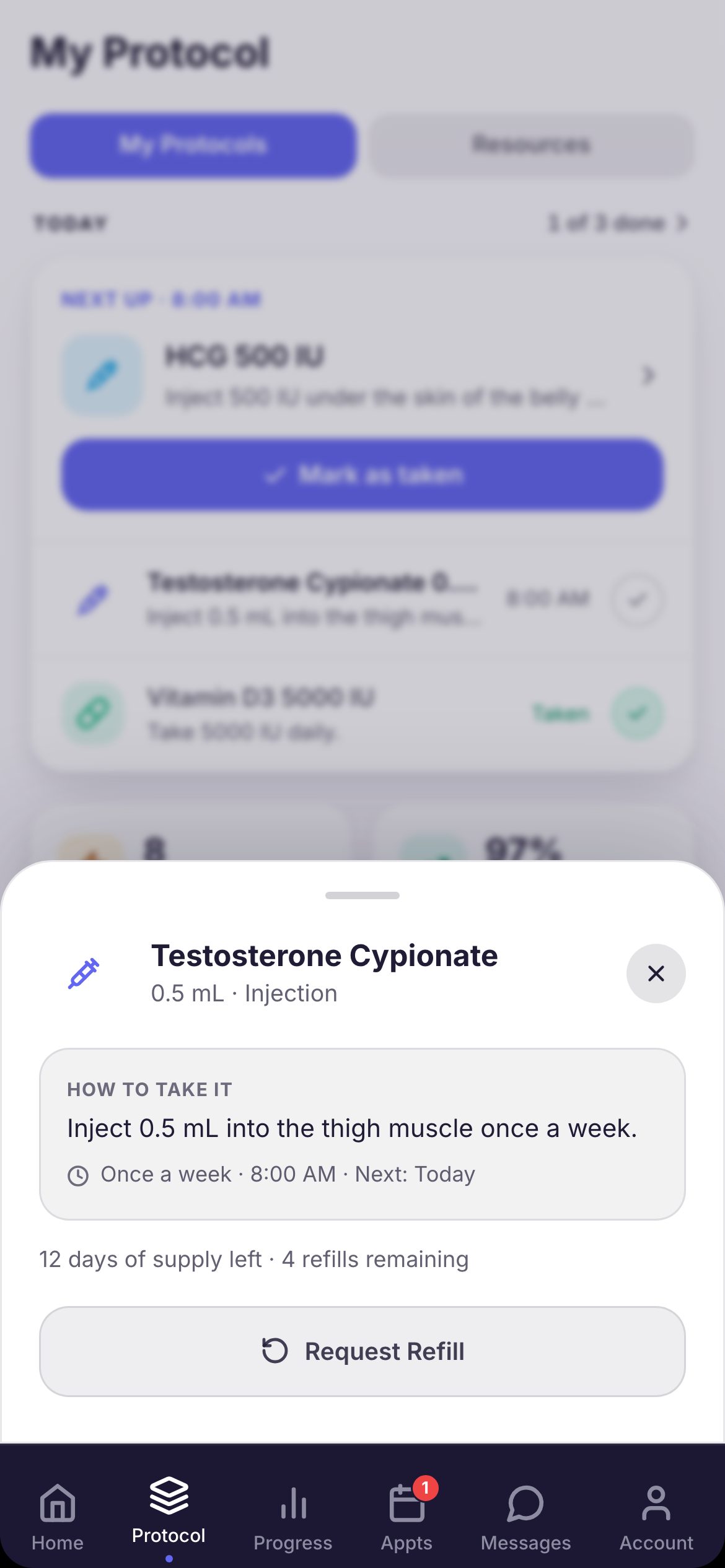
Tapping a medicine opens How to take it, with how often and when it is next due. It also shows days of supply left and refills remaining.
When a refill can be asked for, the patient presses Request Refill. Before then it says when it will be available. Once a refill is on its way, its progress shows here instead.
7Check-ins
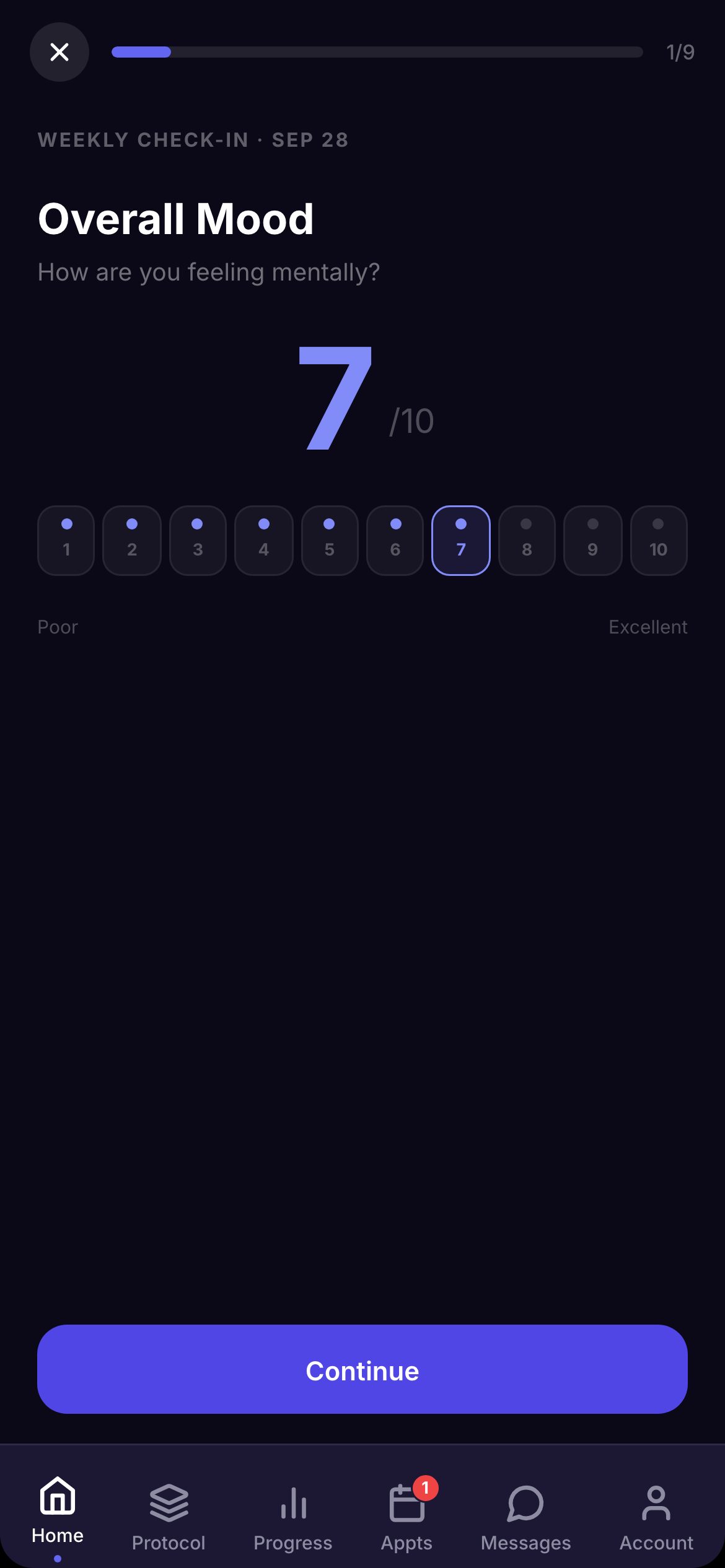
- 1On Home, the check-in card says Check In when one is open.
- 2The patient rates each question from 1 to 10. They may be asked about side effects, and can add a note.
- 3They press Submit Check-In. It is saved for your team to review.
- 4The card then shows Locked until the next one opens, on the schedule you set.
8The Progress tab
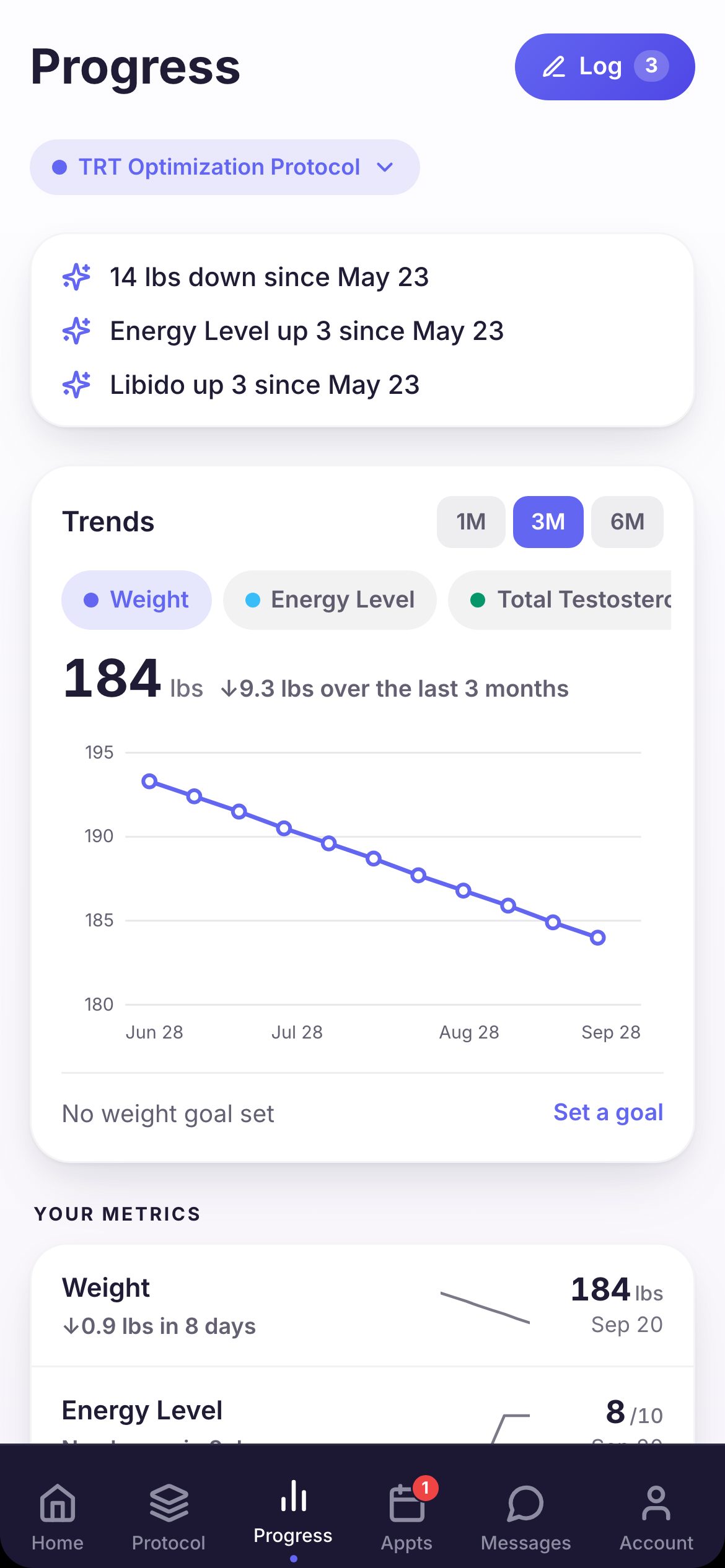
Progress shows how they are doing. Trends charts one thing at a time, over 1M, 3M or 6M. They can Set a goal for their weight.
When something is due, Log lets them enter it, like their weight. Below are Your metrics, Your logs, Check-in scores, Lab Results and Adherence.
9Booking a visit
- 1On Appts, the patient presses Request New Appointment.
- 2They choose what to book from your visit types, then a date and an open time. View soonest available finds the first opening.
- 3They press Review & request, check what and when, and press Confirm request.
- 4If you confirm bookings on their own, they see You’re booked. If not, Request sent, and it waits for your team.
- 5If the visit needs a deposit, the time is held for a few minutes. They pay it from the card on Home, or the slot is released.
The visit’s forms and consents are sent to them once it’s booked. With Appointment Booking off, the app tells them to contact your clinic instead.
10The Appts tab
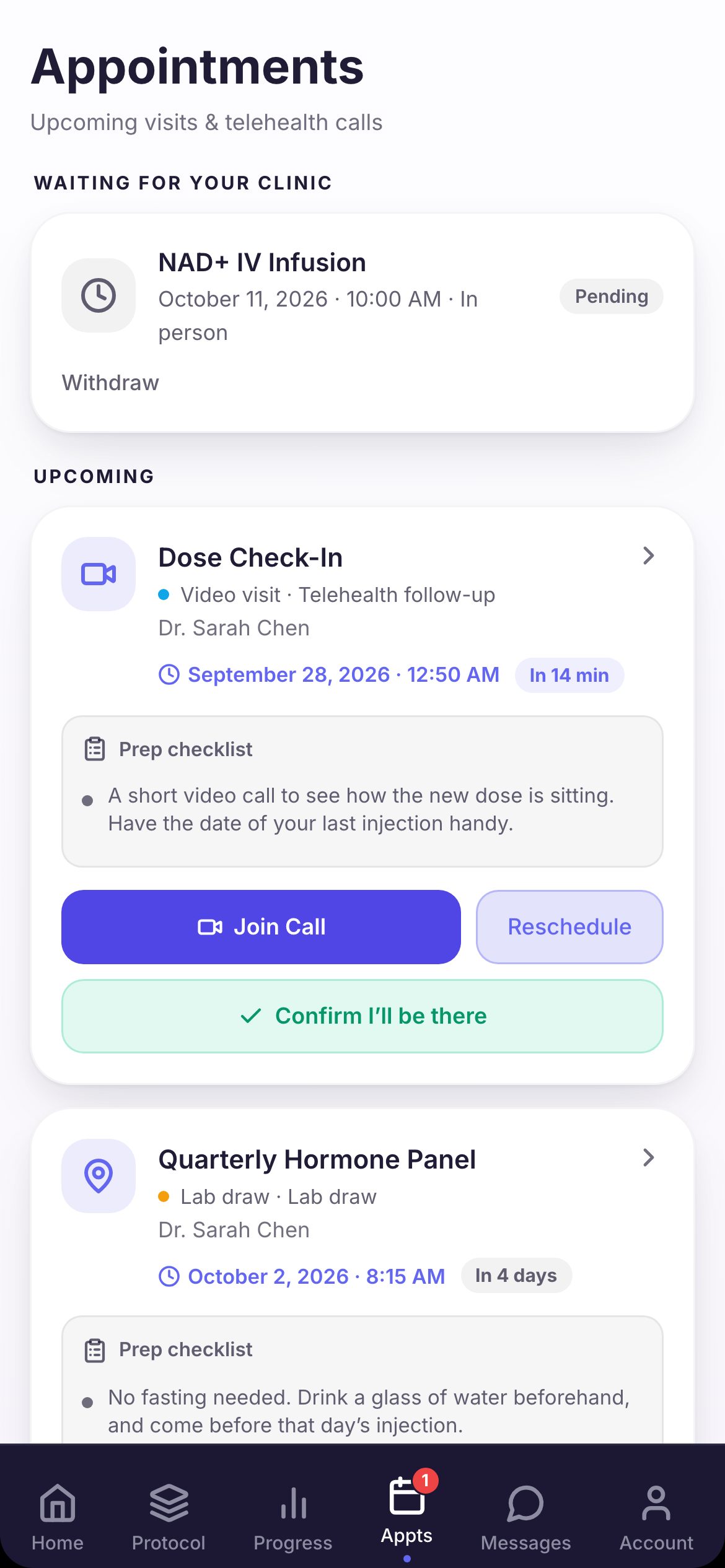
Waiting for your clinic lists requests you haven’t answered yet. The patient can Withdraw one.
Upcoming shows each visit with its time, provider and prep checklist. Video visits have Join Call. Visits in person have Get directions. Forms still to sign for that visit show in red right on the card. Below are Past Visits and any classes they can book.
11Managing a visit
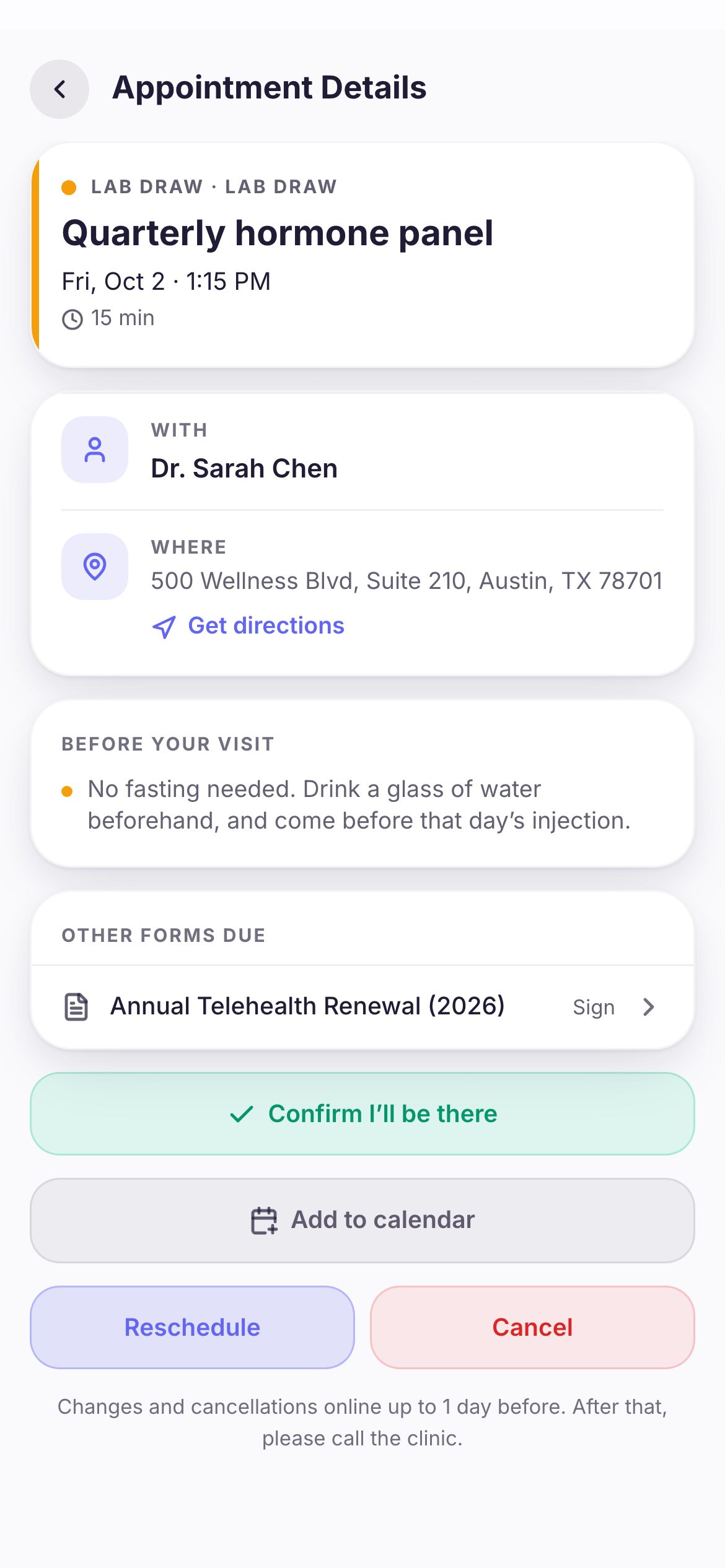
- 1Tapping a visit opens Appointment Details: when, with whom, where, and what to do before.
- 2Confirm I’ll be there shows in the week before. Add to calendar saves it to their phone.
- 3Reschedule asks your team for a new time, or lets them pick one themselves if your clinic allows it. Cancel cancels it. Too close to the visit, it says to call the clinic.
- 4On the day of a visit in person, I’m here shows from 45 minutes before. It tells the desk; they still check the patient in.
- 5For a video visit, Join video visit opens 15 minutes before. If your clinic asks for consent to record, they are asked first and can join without it.
12Messages
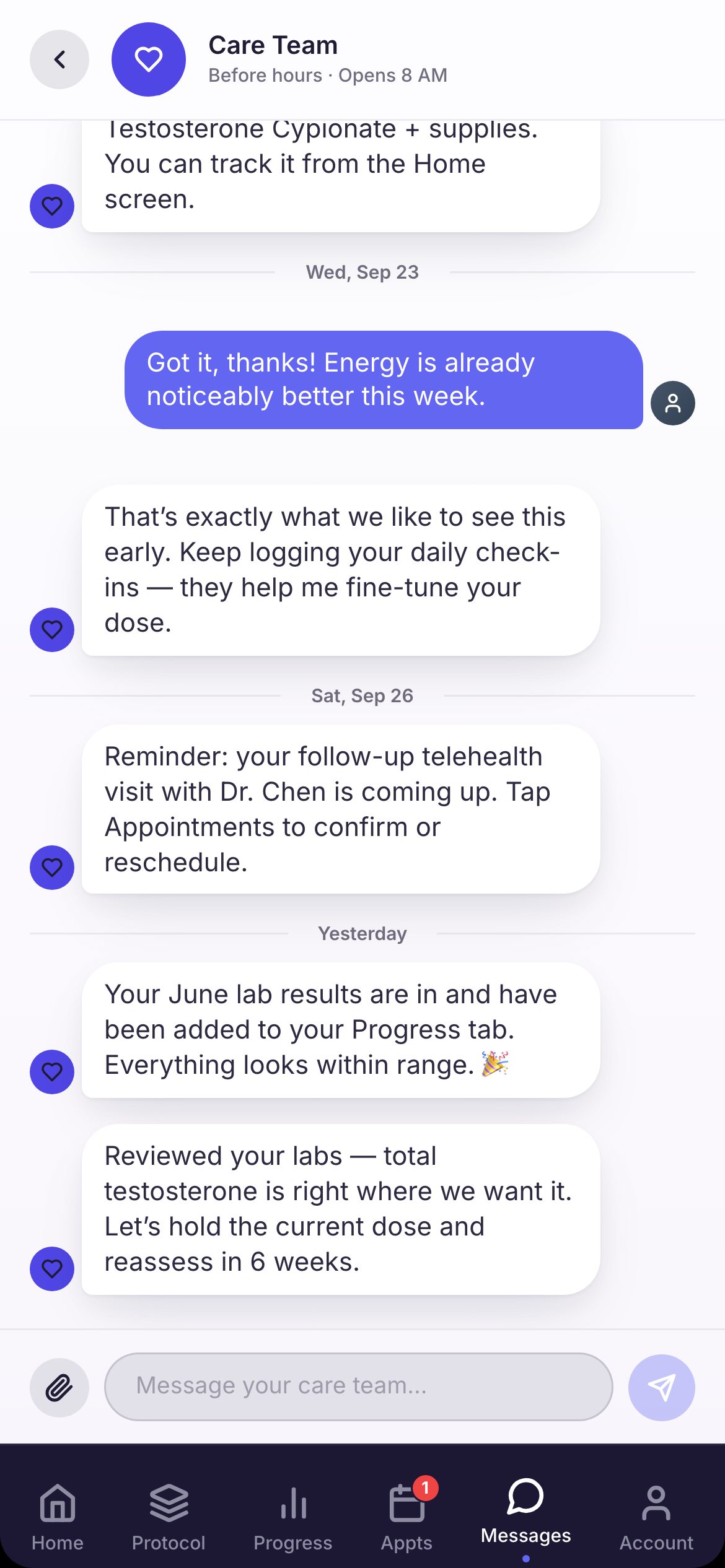
The Messages tab lists who they can write to, such as their provider and your care team. You set the list and the names.
They type, or press the paperclip to send a photo or a file. Their last message shows Sent, then Read once your team opens it.
13Forms and consents
- 1Forms waiting for them show on Home under Forms to complete and Consents, and on the visit they belong to.
- 2For a form, they press Start, answer, and press Send to my clinic.
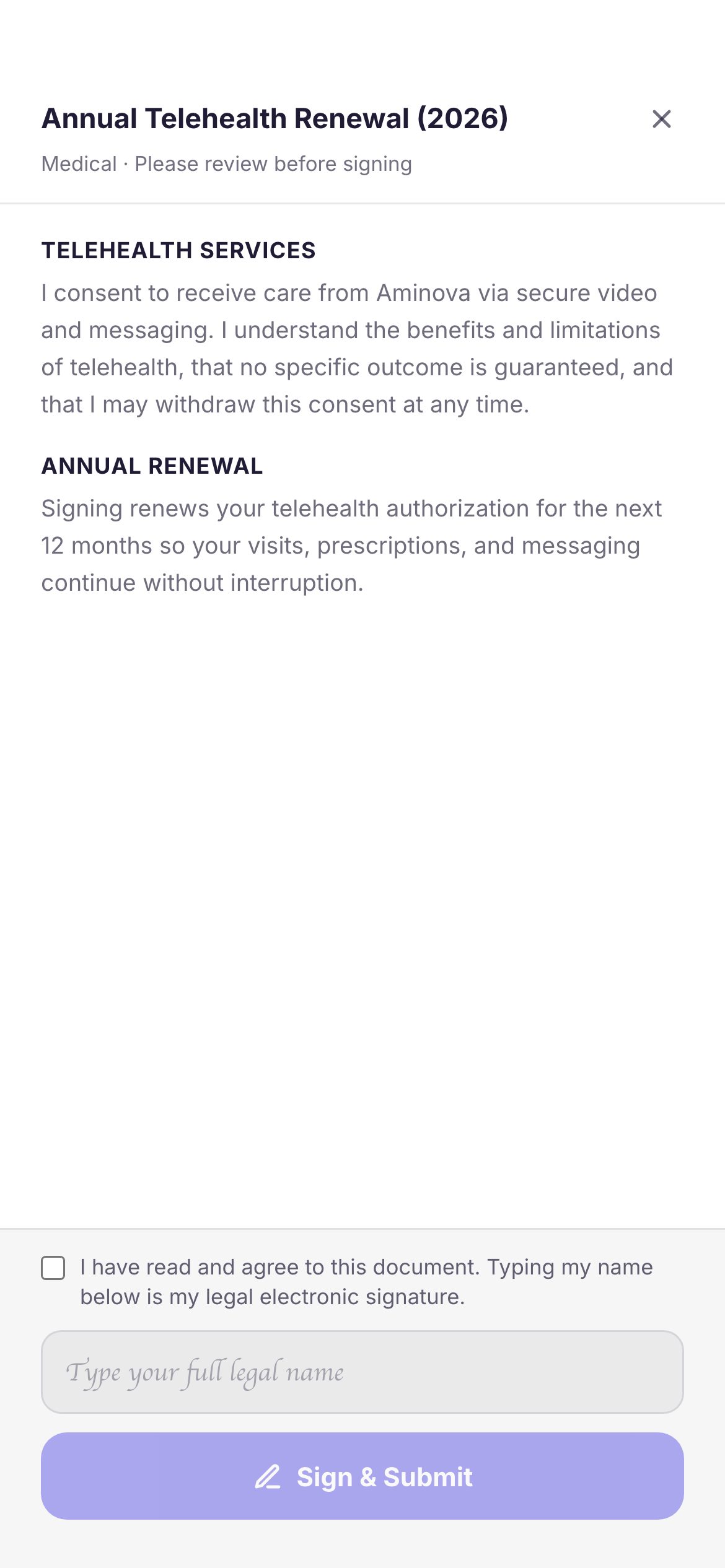
- 3For a consent, they press Review & sign, read it, tick the box, type their full name and press Sign & Submit.
- 4For a PDF with places to sign, they adopt their signature once. After that, one tap signs.
- 5Signed copies are kept under Account → Consent Forms.
14Paying
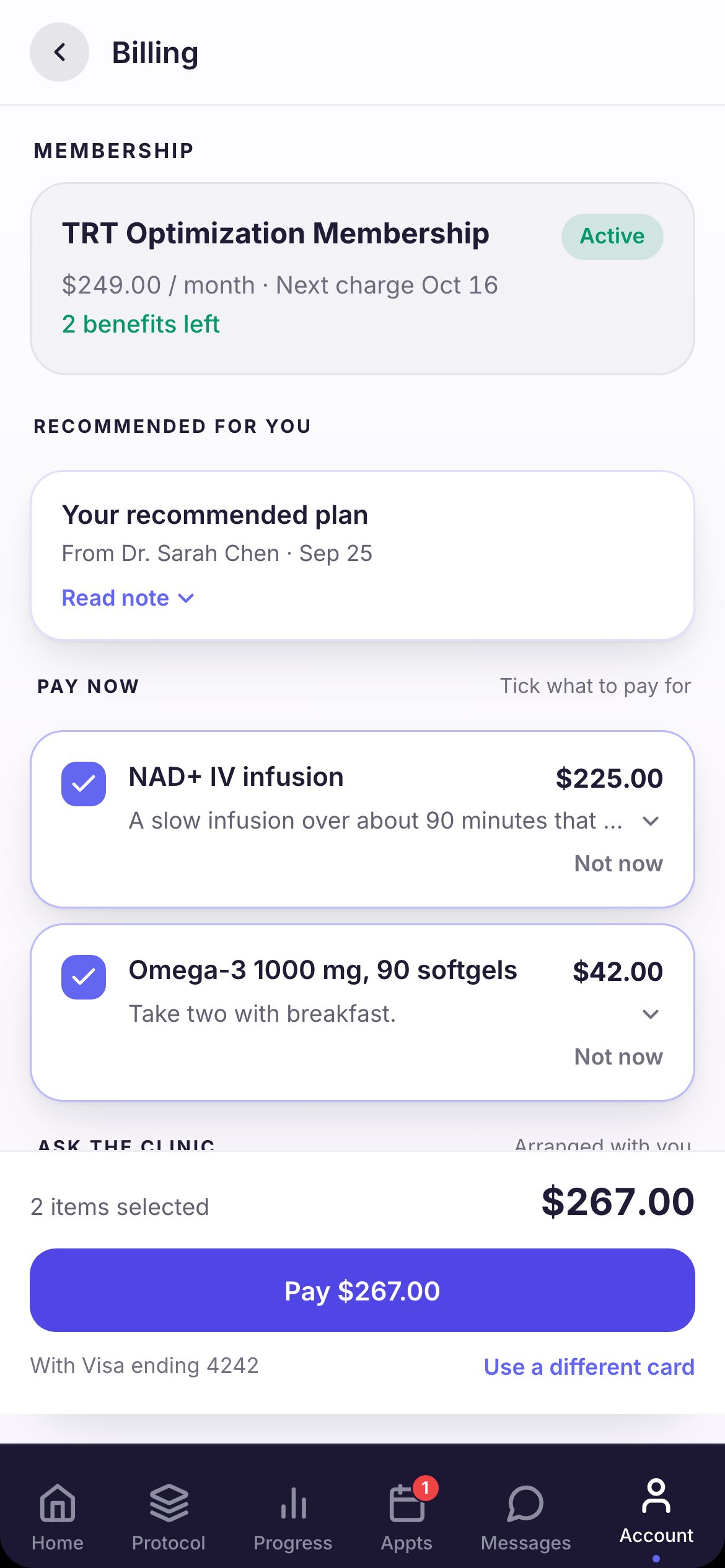
Recommended for you on Home opens Billing, where they see what their provider recommended. They tick what to pay for, or press Not now. Some things say I’d like to start, and your clinic arranges them.
Billing also holds Bills to pay, their Card on file, their membership, Payment history with receipts, and plans they can join.
15The Account tab
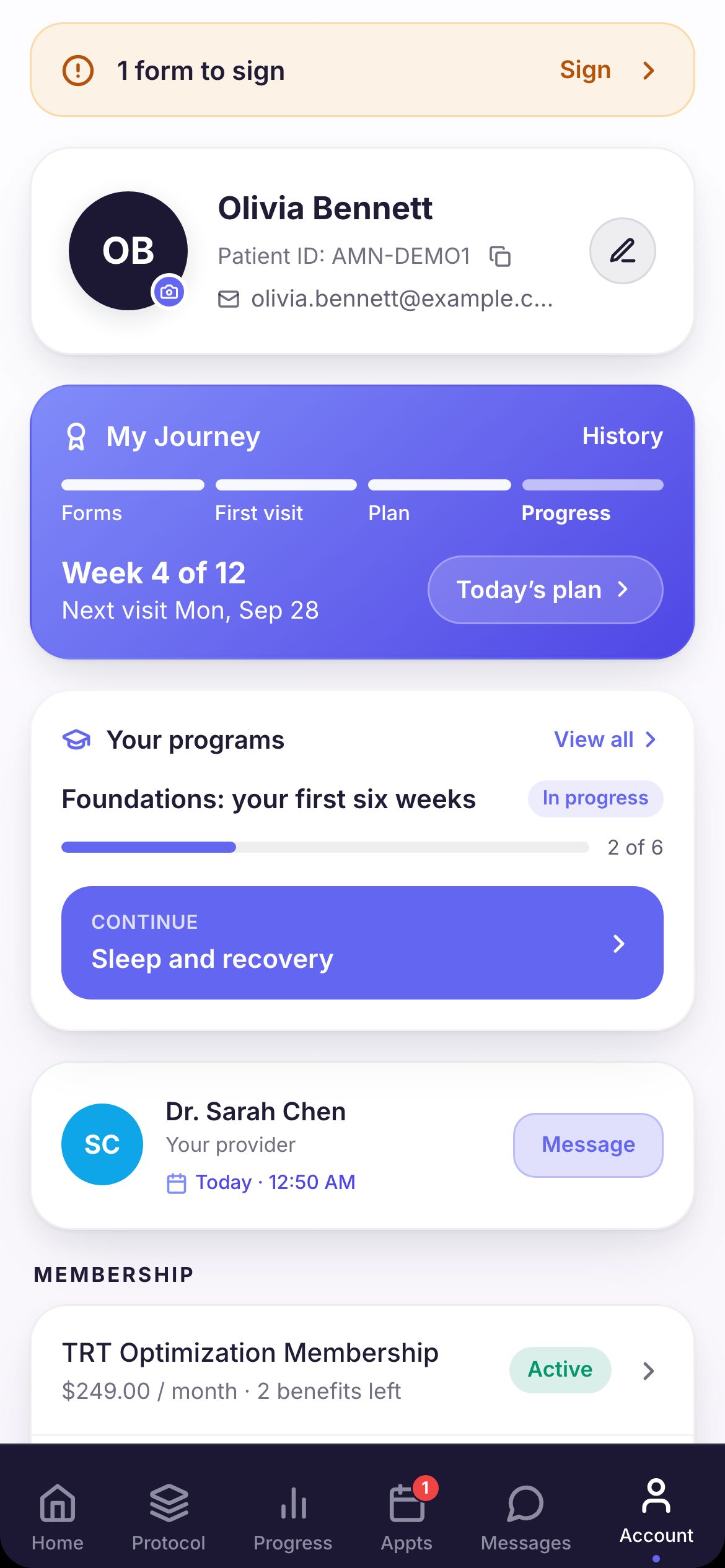
Account holds their profile, My Journey, their provider with Message, and their membership. Under Documents are My Labs, Consent Forms, Prescriptions and Visit Summaries. Order Labs lets them ask for a lab panel; their provider reviews each request.
Notifications turns phone alerts on or off by type. They still see everything in the app. App Settings has dark mode, Download my records, and Request account deletion. Get help opens a message to your care team.
16What your team sees
- 1A visit request lands on Appointments under Requests. A cancellation sends your team a notice.
- 2Confirm I’ll be there shows as Confirmed on the visit. I’m here sends a notice to the front desk and the provider.
- 3Messages arrive on your Messages page. Refill requests land on Refills under Requests. Lab requests land on Labs under Requests.
- 4Check-ins show on the patient’s chart under Protocol, and their scores and logs under Progress. Check-offs feed their Adherence. Signed consents show on Consents.
- 5Payments land in Billing.
Keep going
Set up your patient app
Choose your clinic code, what patients can do in the app, who they can message, and what they are told. Then give patients their sign-in details.
Read the guideForms and consents, start to finish
A visit is booked, its paperwork goes out, the patient fills it in at home or on a tablet, and the answers come back to you. Here is every step, and what your team signs.
Read the guideMessaging and reminders
How your clinic reaches patients: messages, booking confirmations, appointment reminders and other notices. What goes out on its own, how you control it, and what patients can turn off.
Read the guideVideo visits
A video visit from booking to note: the patient joins from their app, you join from My Schedule with their chart beside the video, and the note and summary follow.
Read the guideE-prescribing and refills
One prescription from start to finish: written, signed, sent electronically or by fax, then refilled when the patient asks. Approving a refill is not sending it.
Read the guidePayments and checkout
Money from start to finish: the deposit when a visit is booked, the charge at the visit, the receipt, a refund if one is needed, and where it all shows up.
Read the guideRather be shown?
Inside Aminova, the tutorial walks you through every page, and the Getting started checklist shows you each task click by click. Or book a live training session with our team.