1What it is
There are two kinds of paperwork. Intake forms are questions, like a health history. Consents are documents the patient signs, like a treatment consent.
You set both up once, then attach them to each visit type. From then on, booking a visit sends the right paperwork, the patient fills it in, and it comes back to you, ready to review.
2The visit type decides what goes out
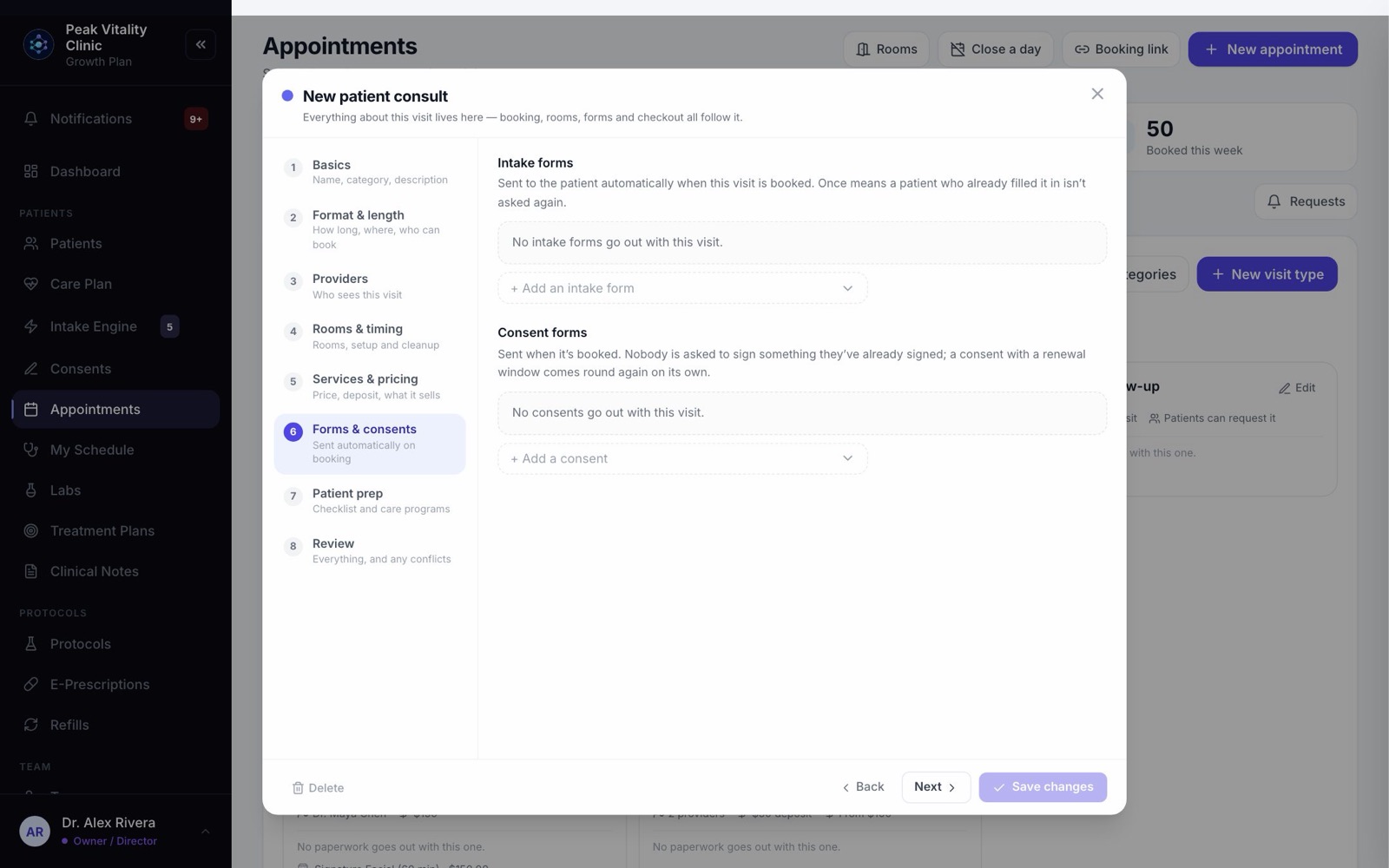
- 1Open a visit type from Appointments → Visit types and go to Forms & consents.
- 2Add the intake forms and the consents that belong to this visit.
- 3For each intake form, choose Once or Every visit.
3A visit is booked, and the paperwork goes out
- 1When the visit is booked, by your team, in the patient app or on your booking link, its forms and consents are sent.
- 2Anything the patient already signed or filled in is skipped. A form set to Every visit goes each time, and one that is due for renewal goes again.
- 3The patient gets one email that lists the new forms to fill in and sign.
- 4Booked on your booking link with a deposit? The paperwork goes out once the deposit is paid.
A practice patient (green Practice patient badge) is never emailed.
4What the patient sees
- 1In the email, each intake form has its own link. It opens on their phone with no app and no account, and works for 30 days.
- 2Consents are signed in their patient app. On its home screen, Forms to complete lists their intake forms, and Consents lists what to sign.
- 3They tap Start on a form, answer, and tap Send to my clinic. Their answers are saved as they go, so they can stop and Continue later.
- 4For a consent they tap Review & sign. Signed consents stay in their app under Account → Consent Forms.
5Sending paperwork by hand
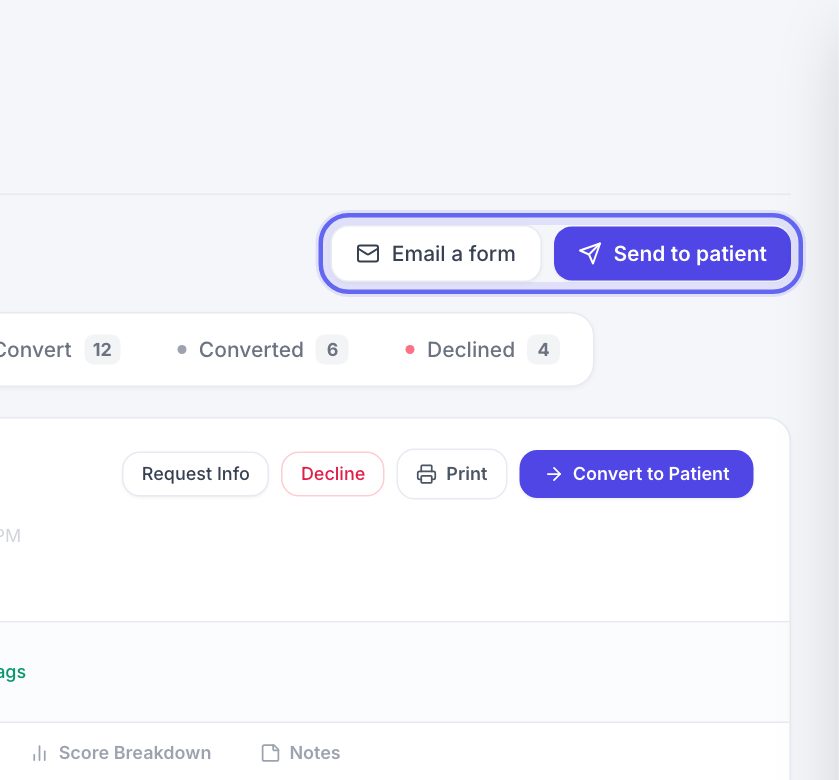
- 1Send to patient, on the Consents page or in Intake results, sends one patient any forms you pick.
- 2On an appointment, the Forms section has a Send button for that patient.
- 3On a patient’s chart, Forms & Files has Send forms.
- 4Email a form, in Intake results, sends an intake form to anyone by email, even someone with no chart yet.
6In the office: hand over the tablet
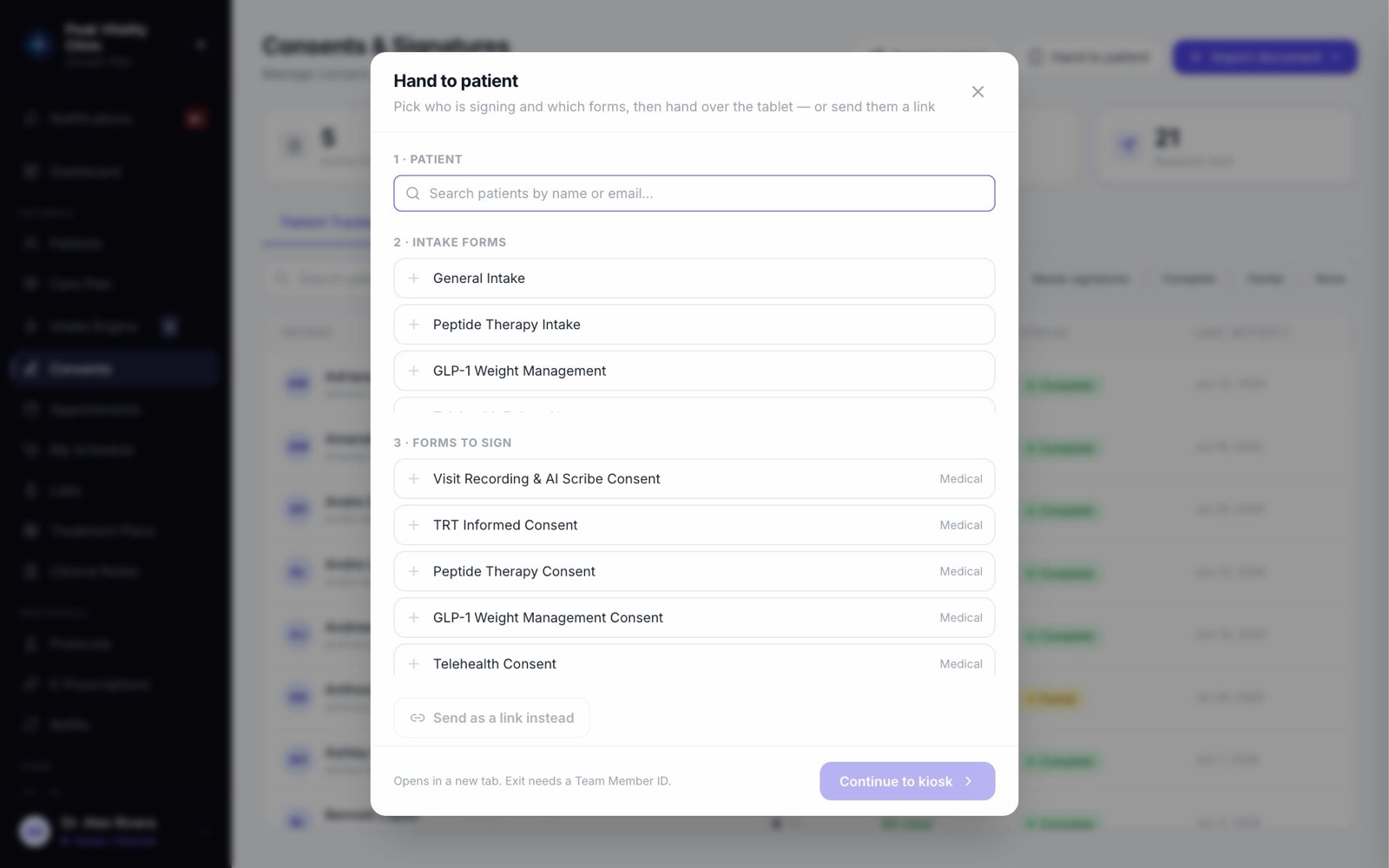
- 1On the Consents page, click Hand to patient. On My Schedule, the visit’s Forms card has the same button, with that patient and the consents they owe already chosen.
- 2Pick the patient, then the intake forms and the consents, in the order you want them. Intake forms always come first.
- 3Press Continue to kiosk and hand over the tablet. Or press Send as a link instead for someone who isn’t there.
7On the tablet
- 1The patient sees only the forms you picked, one after another, with how many are left.
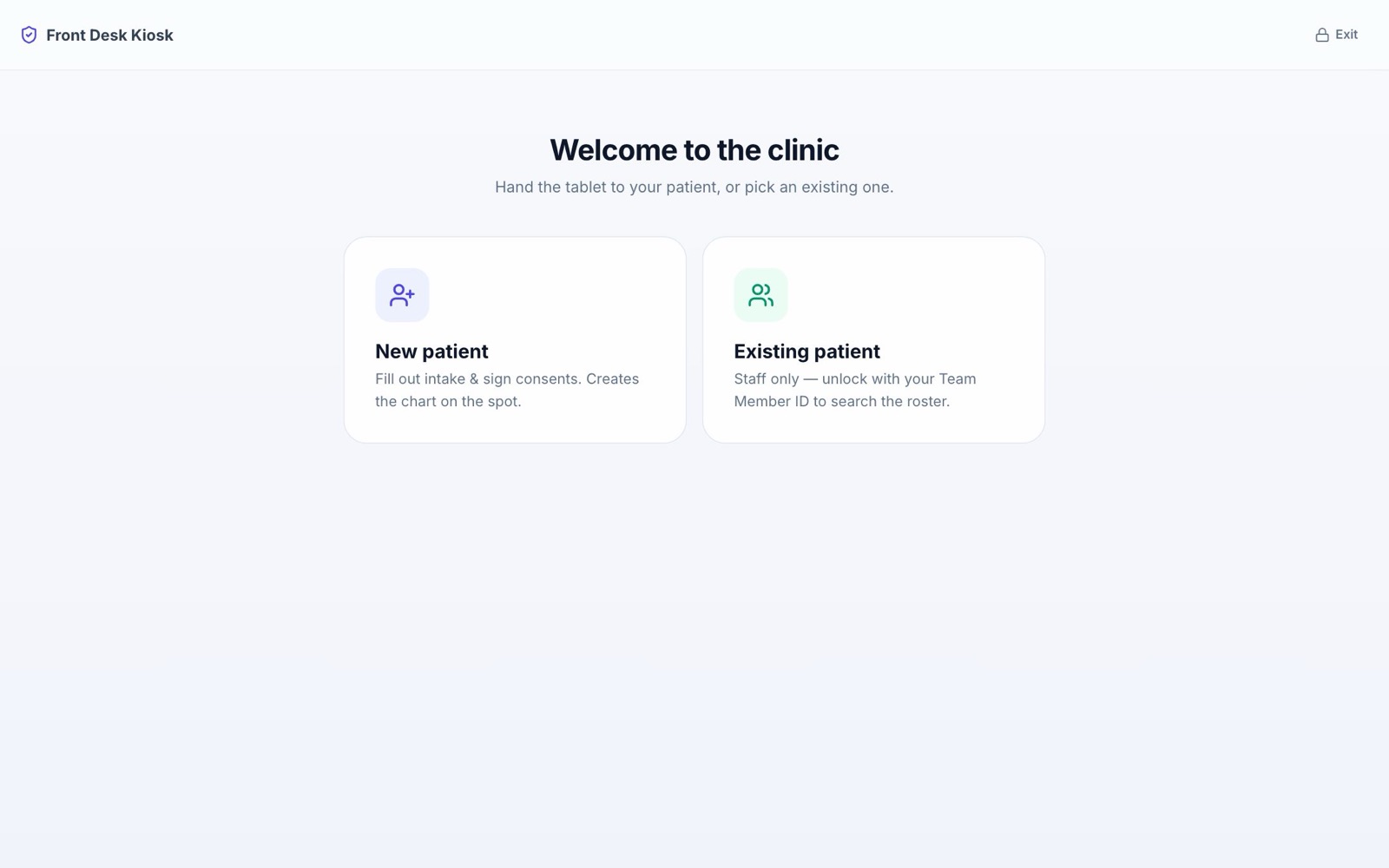
- 2Opened on its own, the tablet offers New patient, which fills in intake and makes their chart on the spot, and Existing patient, which staff unlock with their Team Member ID.
- 3If they can’t finish a required form, I can’t finish — hand back to the front desk tells your team what is still unsigned.
- 4Left untouched, it asks Still there?, then clears itself so the next person can’t see anything. Leaving the tablet screen needs a Team Member ID.
No internet for a moment? The tablet keeps what was filled in and sends it when the connection is back.
8Keep track of who has done what
- 1Open an appointment. Its Forms section shows each form as Done, Opened, Waiting or Not sent, and how many are outstanding.
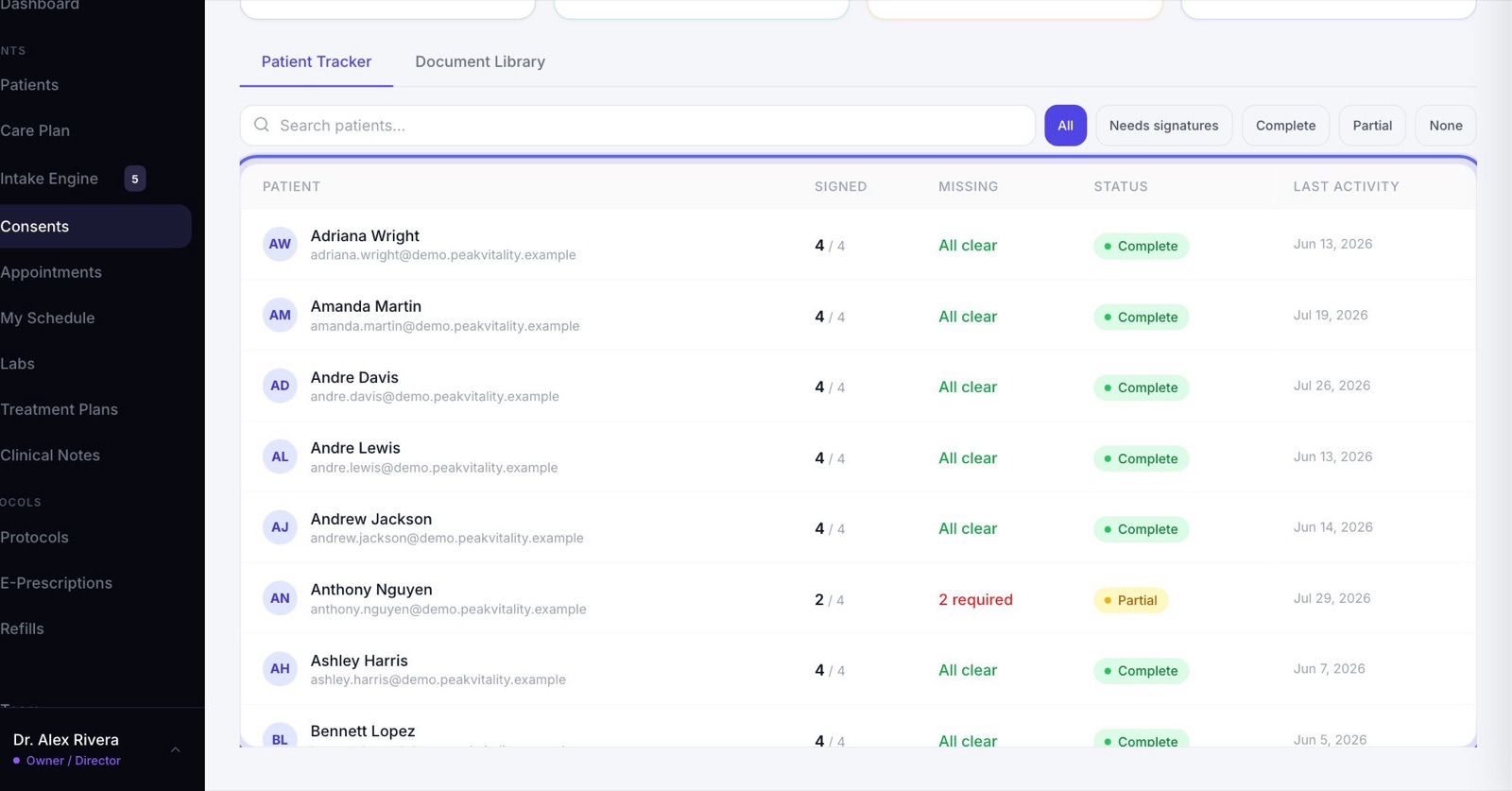
- 2On the Consents page, the Patient Tracker shows every patient’s signed and missing consents.
9Where intake answers land
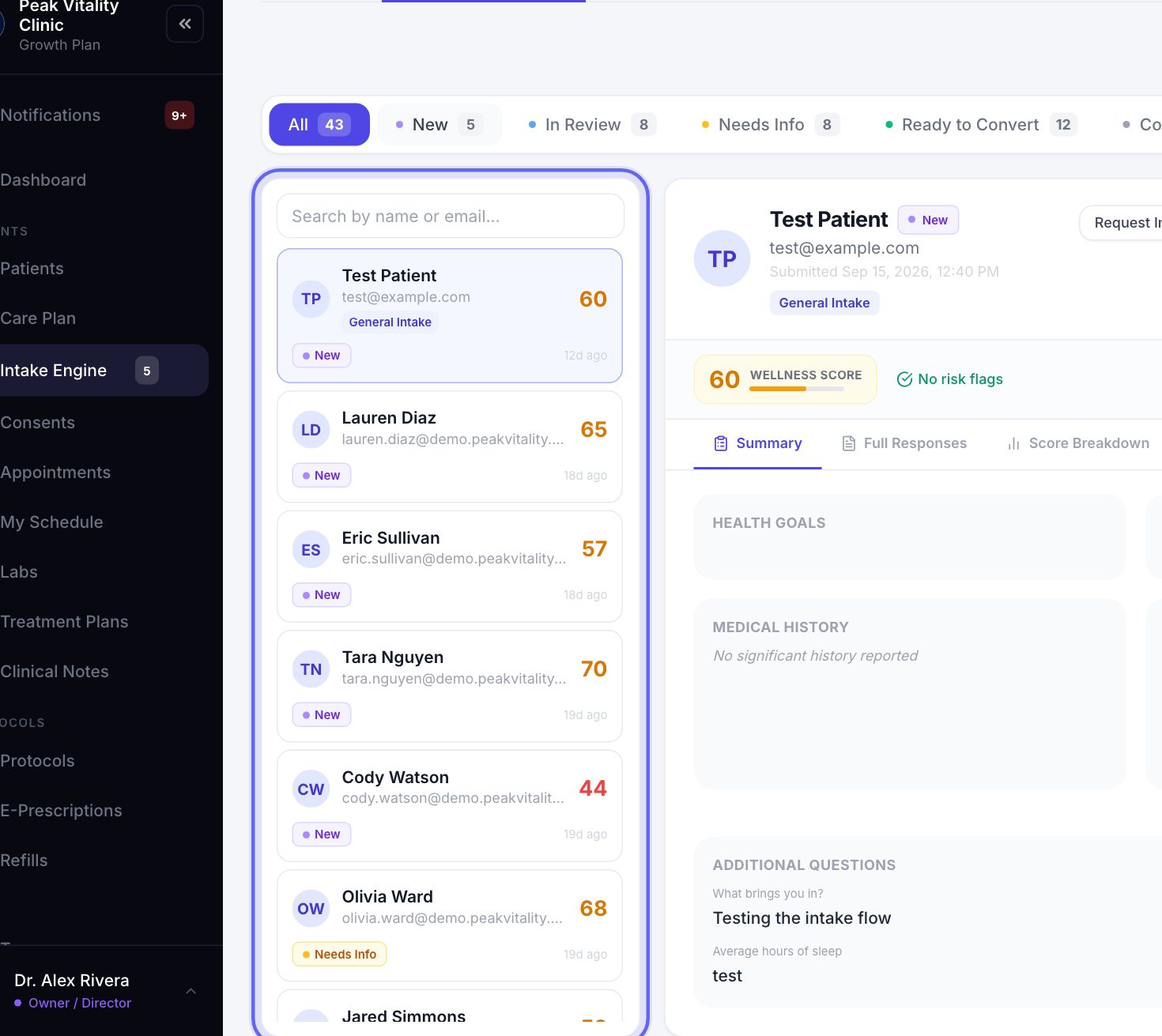
- 1Every intake form that comes back lands in Intake Engine → Intake results.
- 2A form your clinic sent to a patient arrives already on their chart.
- 3A form from your website link, or emailed to someone new, arrives on its own. You Convert to Patient to make a new chart, or File to chart to put it on one you have.
- 4At the tablet, a new patient’s first form makes their chart right there.
10What reaches the chart
- 1Answers you mapped to the chart in the form builder, like allergies or medications, go onto the patient’s chart. Lists are added to, never replaced.
- 2If the form needs a clinician’s approval, those answers wait until a clinician clears it.
- 3A consent the patient agreed to inside an intake form is recorded as signed when the form becomes a patient or is filed to a chart. For a form that arrived already on a chart, press the button that counts them, like Record 2 consents, in Intake results.
- 4Signed consents are on the patient’s chart under Forms & Files.
11What a clinician approves
- 1A form set to Needs a clinician’s approval must be cleared before the patient can be checked in.
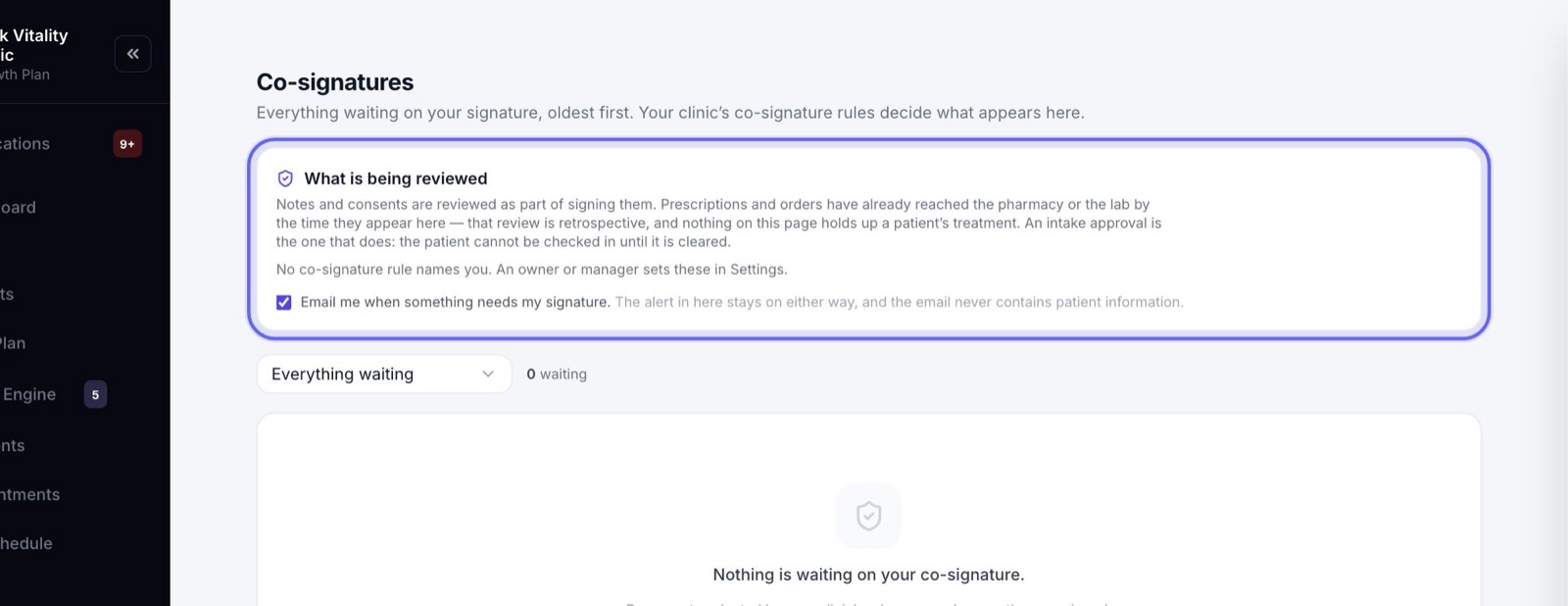
- 2It shows up in the reviewer’s Co-signatures, under Intake approvals.
- 3They press Co-sign and sign. Or Decline, with a reason.
12Consents your clinic signs too
- 1A consent with boxes for the clinic says Awaiting your signature once the patient has signed.
- 2On the Consents page, open the patient and press Sign clinic fields, or Sign for the clinic.
- 3To have a second clinician review a signed consent, choose them under Needs a second signature?.
13Renewals keep it going
A consent set to renew goes back to the patient when the time is up. Their app says Renewal due — please sign again, and booking the visit again sends it. An intake form set to ask again does the same.
You never have to remember who is due. The paperwork comes round on its own.
Keep going
Consents
Your consent forms, and who has signed them. Send forms, hand the tablet over in the office, and keep your library of forms in order.
Read the guideIntake Engine
Build the forms patients fill in, choose where their answers go, and review what they send you.
Read the guideBring in your intake forms
Upload the PDFs you use today and check each one, or start from our template. Then publish them and attach them to your visit types.
Read the guideSet up your consent forms
Bring in the consent PDFs you use today, place the signature boxes, and decide who signs each one and how often. Then attach them to your visit types.
Read the guideSet up your visit types and booking link
Build each kind of visit once: its length, providers, rooms, price and forms. Then turn on the link patients book from.
Read the guideCo-signatures
Everything waiting on your signature as a reviewer, oldest first. Read it, co-sign it or decline it, and choose whether you get an email when something new arrives.
Read the guideThe patient app
Your patients’ side of Aminova, screen by screen: how they get in, what each tab does, and where each thing they do shows up for your team.
Read the guideRather be shown?
Inside Aminova, the tutorial walks you through every page, and the Getting started checklist shows you each task click by click. Or book a live training session with our team.