1The page at a glance
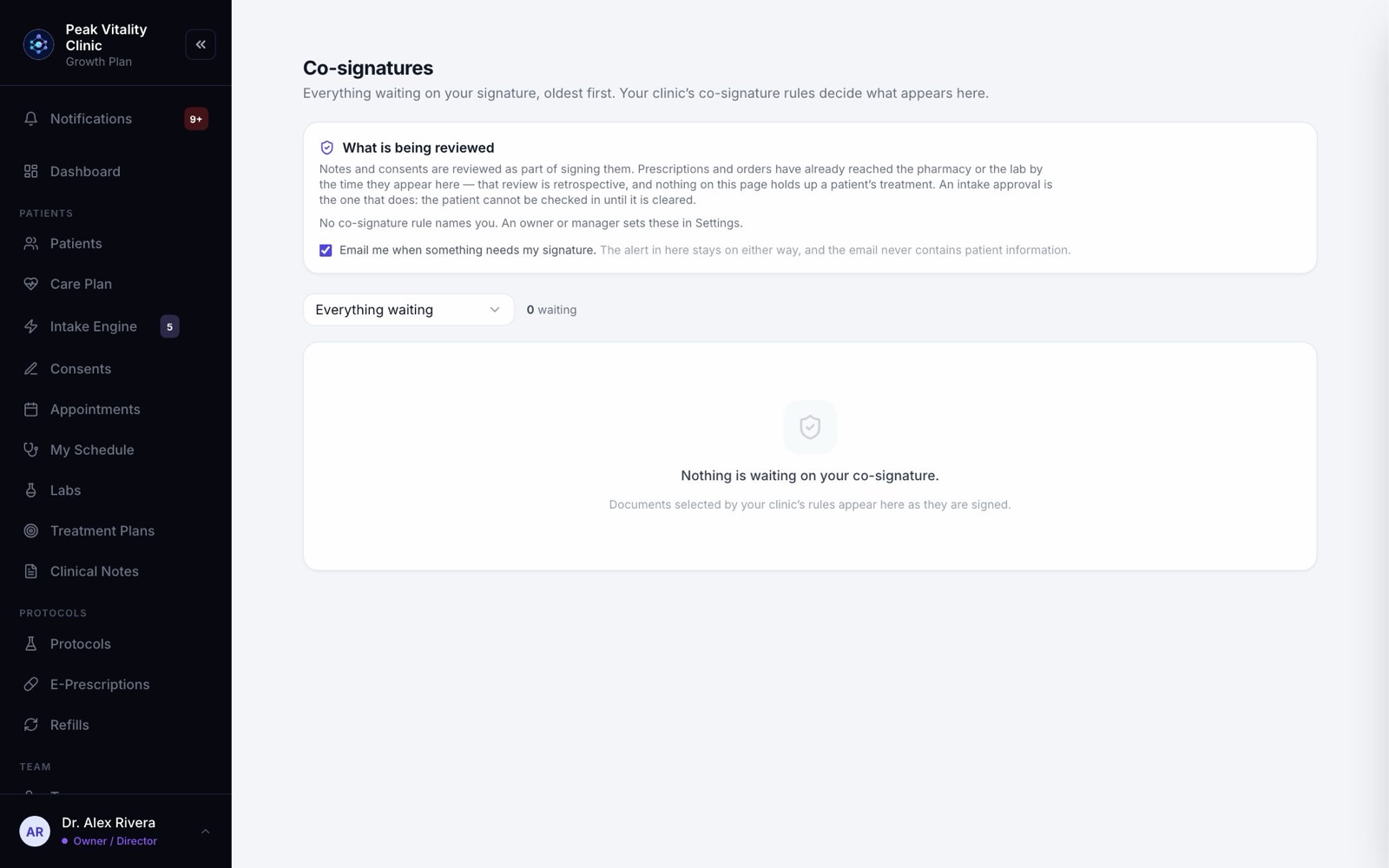
Co-signatures is a reviewer’s to-do list. It holds every document your clinic’s rules send to you for a second signature: notes, consents, prescriptions, orders and intake approvals.
The list is yours alone. It only ever shows what is waiting on you, never on a colleague.
2Who sees this page
- 1Co-signatures shows in the sidebar only for people named as a reviewer on a co-signature rule, or who have something waiting.
- 2A number on it counts what is waiting. It turns red when something is past the agreed time.
- 3If no rule names you, the page says so. An owner or manager sets the rules in Settings.
3What you are reviewing
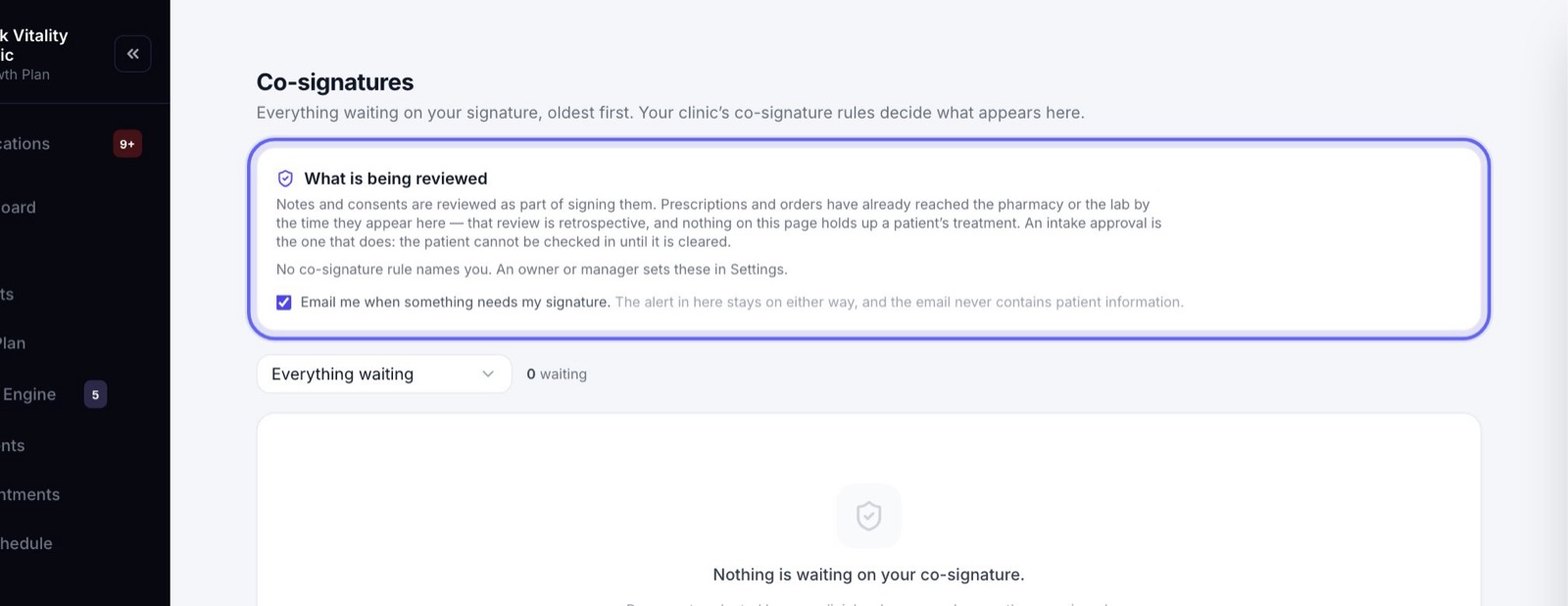
- 1Notes and consents are reviewed as part of signing them.
- 2Prescriptions and orders have already gone to the pharmacy or the lab by the time they reach you. You review them afterwards, and nothing here holds up a patient’s treatment.
- 3An intake approval is the one that waits on you: the patient can’t be checked in until you clear it.
4Your queue
- 1The oldest is always at the top, so nothing sits forgotten at the bottom.
- 2Each row has the patient, the kind of document, who wrote it, when it was signed and how long ago.
- 3A red Past the agreed time tag means it is later than your clinic’s rule allows. The count above the list shows how many.
- 4“In the review sample” means the rule picked this one at random for review.
5One kind at a time
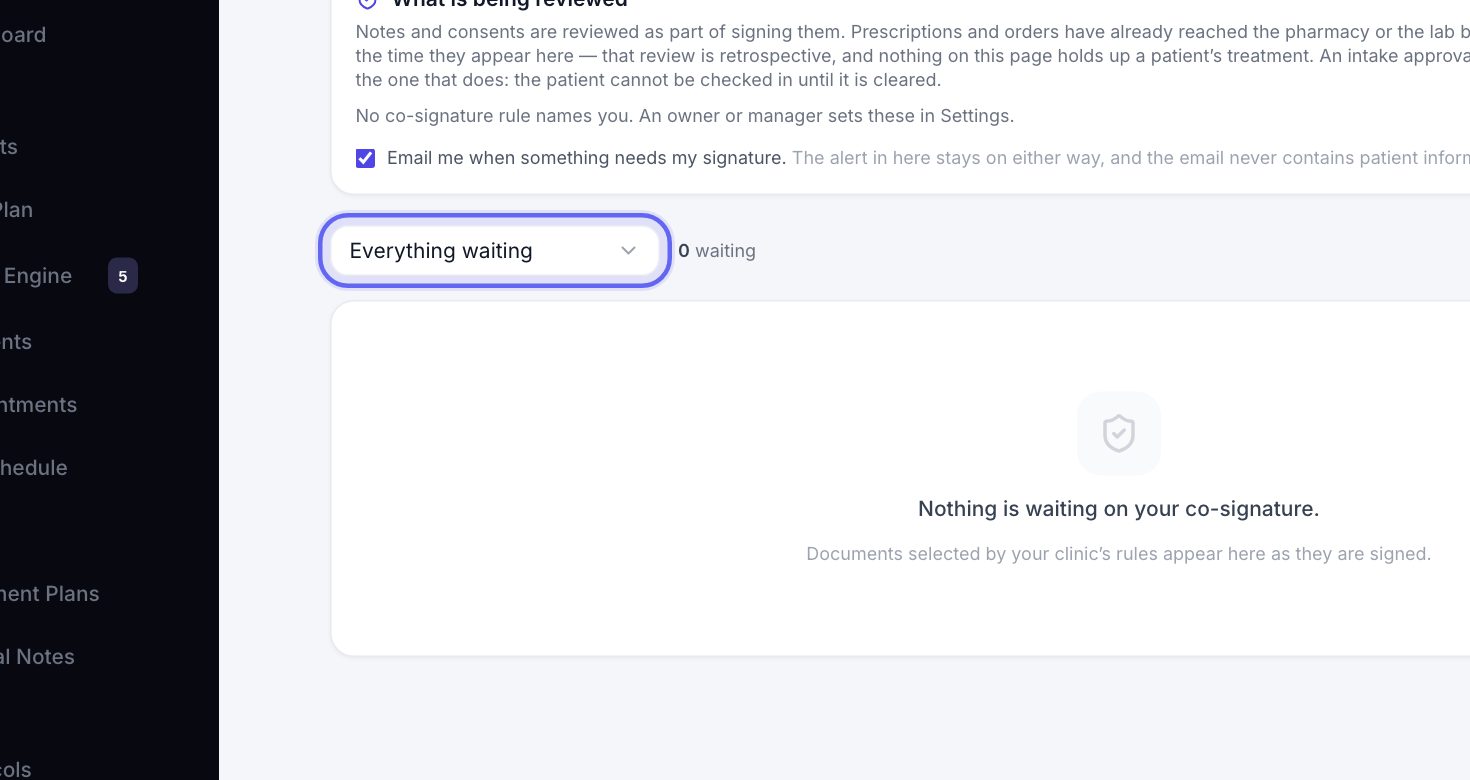
- 1Click Everything waiting to pick one kind.
- 2Choose Clinical notes, Consents, Prescriptions, Orders or Intake approvals.
- 3Pick Everything waiting again to see it all.
6Read it first
- 1Click Open on a row to go to the document itself and read it.
- 2Click the patient’s name to open their chart.
7Co-sign
- 1Click Co-sign on the row.
- 2Draw your signature in the Sign here box with your mouse or finger. Clear starts it again.
- 3Click Co-sign. Until you draw, the button says Sign above to continue.
- 4The row leaves your queue. Your signature is saved with the document, as proof you reviewed it.
8Decline
- 1Click Decline on the row.
- 2Say what needs to change before you can sign it. You can’t decline without a reason.
- 3Click Record the decline. It stays on the clinic’s record with your reason. It is never sent to the patient.
9Email alerts
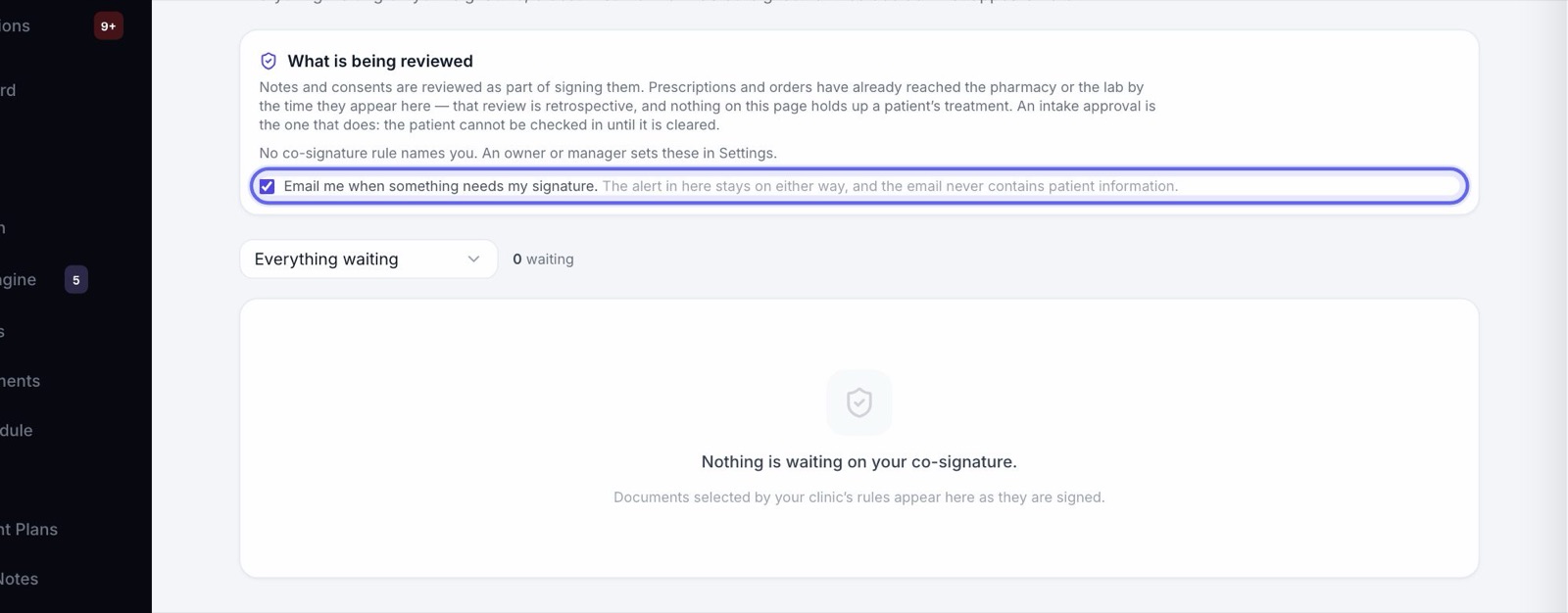
- 1Tick Email me when something needs my signature. to get an email each time something new arrives. It starts ticked.
- 2Untick it if you work in Aminova every day. The alert inside Aminova stays on either way.
- 3The email says what kind of document is waiting and links to this page. It never has any patient information in it.
- 4With the email on, anything that goes past the agreed time gets one reminder email. Only one.
10Where the rules are set
- 1Go to Settings and open Roles & Permissions.
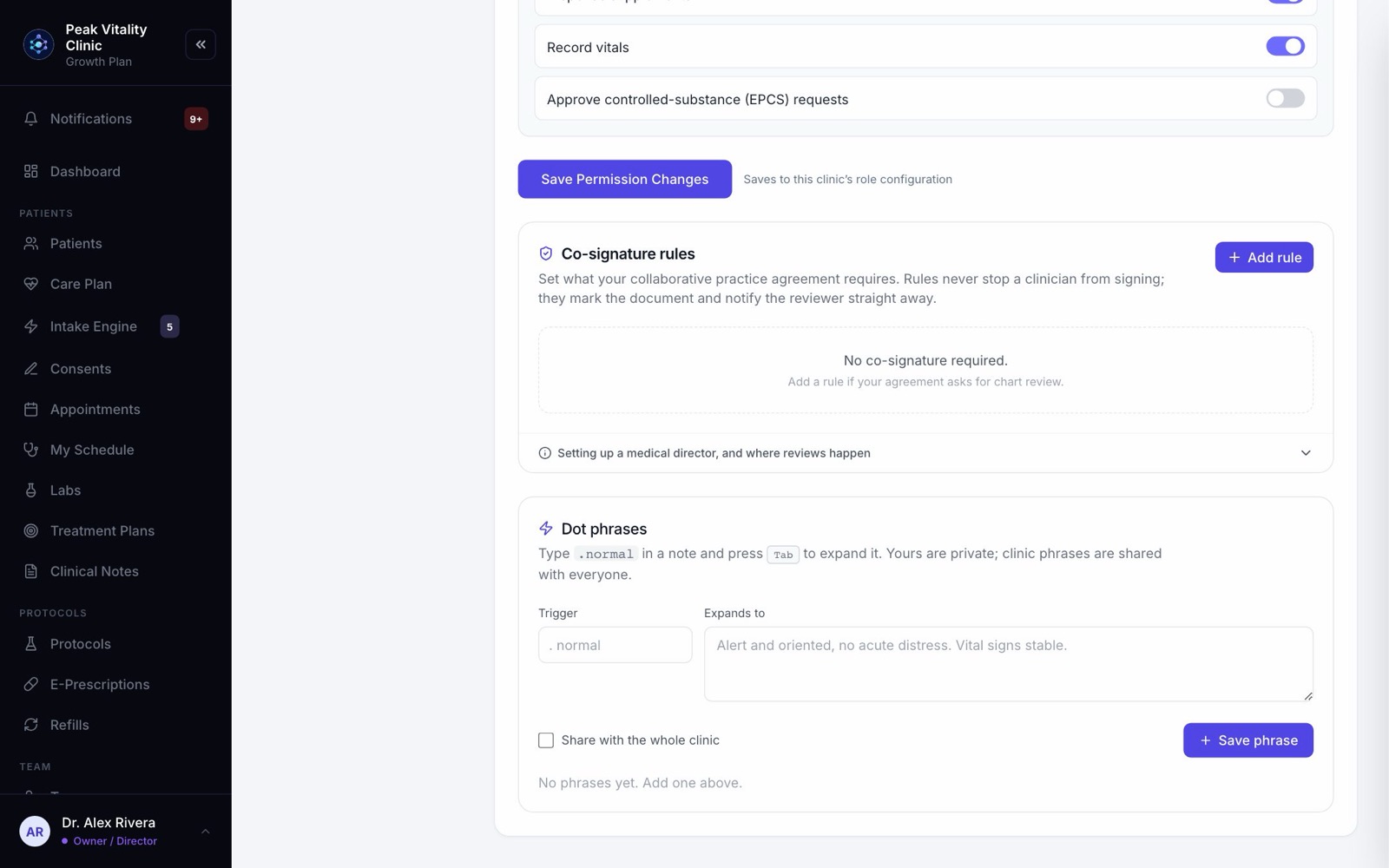
- 2Scroll down to Co-signature rules. Each rule reads as one sentence: who co-signs what share of whose documents.
- 3Under each rule you see how many of this month’s documents were signed off, and how many were declined.
- 4A rule never stops anyone from signing. It marks the document and alerts the reviewer straight away.
11Add a rule
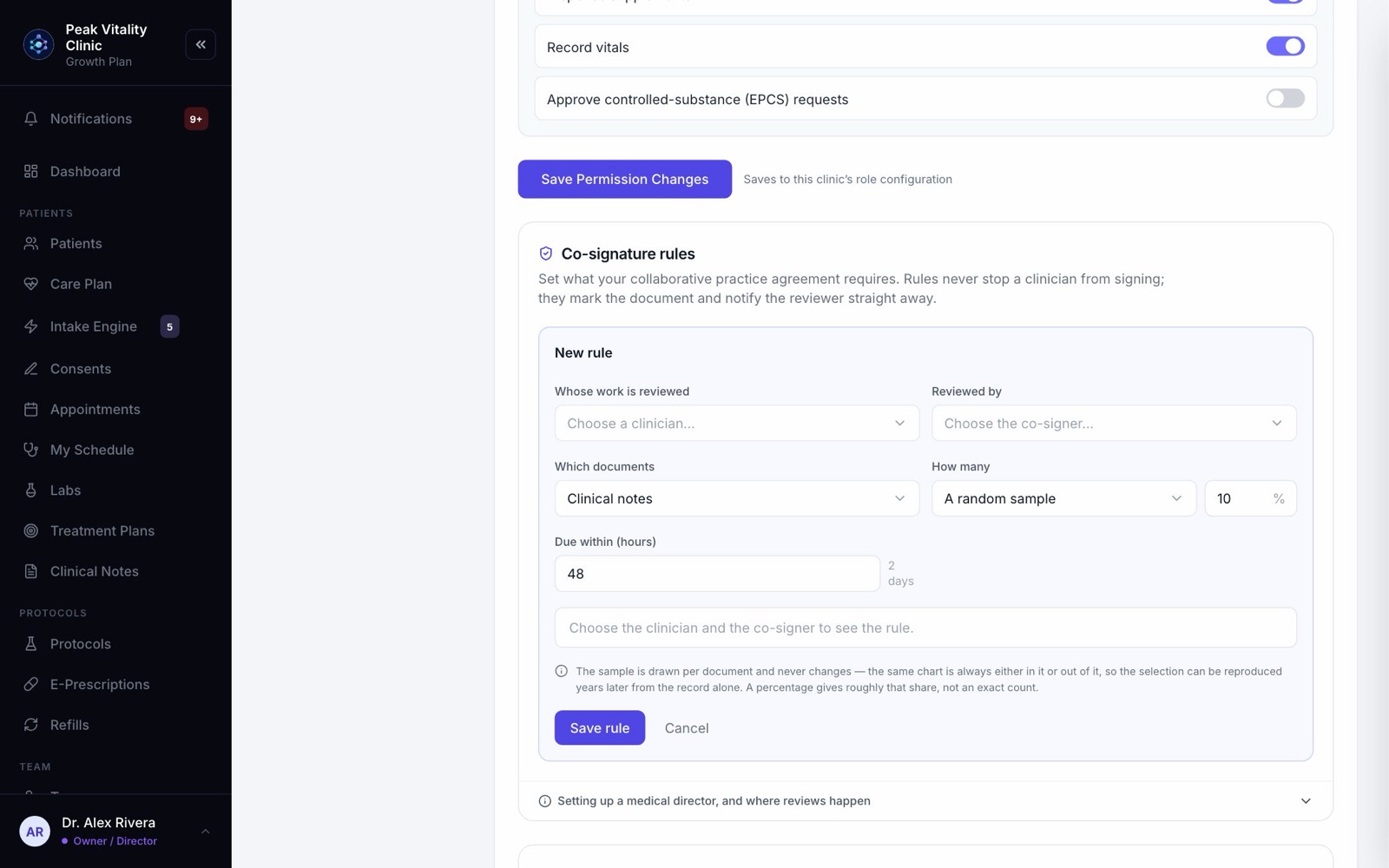
- 1Click Add rule.
- 2Choose Whose work is reviewed and who it is Reviewed by.
- 3Pick Which documents, then How many: Every one, or A random sample with a percentage.
- 4Set Due within (hours). Past that, the document is flagged as late.
- 5Read the sentence under the fields to check it, then click Save rule.
The reviewer is an ordinary team member. Add them on the Team page first, then name them here.
12Change or remove a rule
- 1Click the pencil on a rule to edit it, or the bin to remove it.
- 2Removing a rule stops new requests. Anything already waiting stays on the reviewer’s Co-signatures page.
Keep going
Settings
How your clinic runs: your details and hours, payments, what patients are told, the patient app, security, connected tools and who can do what.
Read the guideClinical Notes
Every note for every patient, in one place. Write a note, sign it, find it again later, and change a signed note the right way.
Read the guideConsents
Your consent forms, and who has signed them. Send forms, hand the tablet over in the office, and keep your library of forms in order.
Read the guideE-Prescriptions
Write, sign and send prescriptions, and see where each one really is. Pharmacy messages, the state drug check and medication history live here too.
Read the guideTeam
Everyone who works at your clinic. Invite people, give each a role, keep their credentials up to date, and remove someone who has left.
Read the guideRather be shown?
Inside Aminova, the tutorial walks you through every page, and the Getting started checklist shows you each task click by click. Or book a live training session with our team.