1What a video visit is
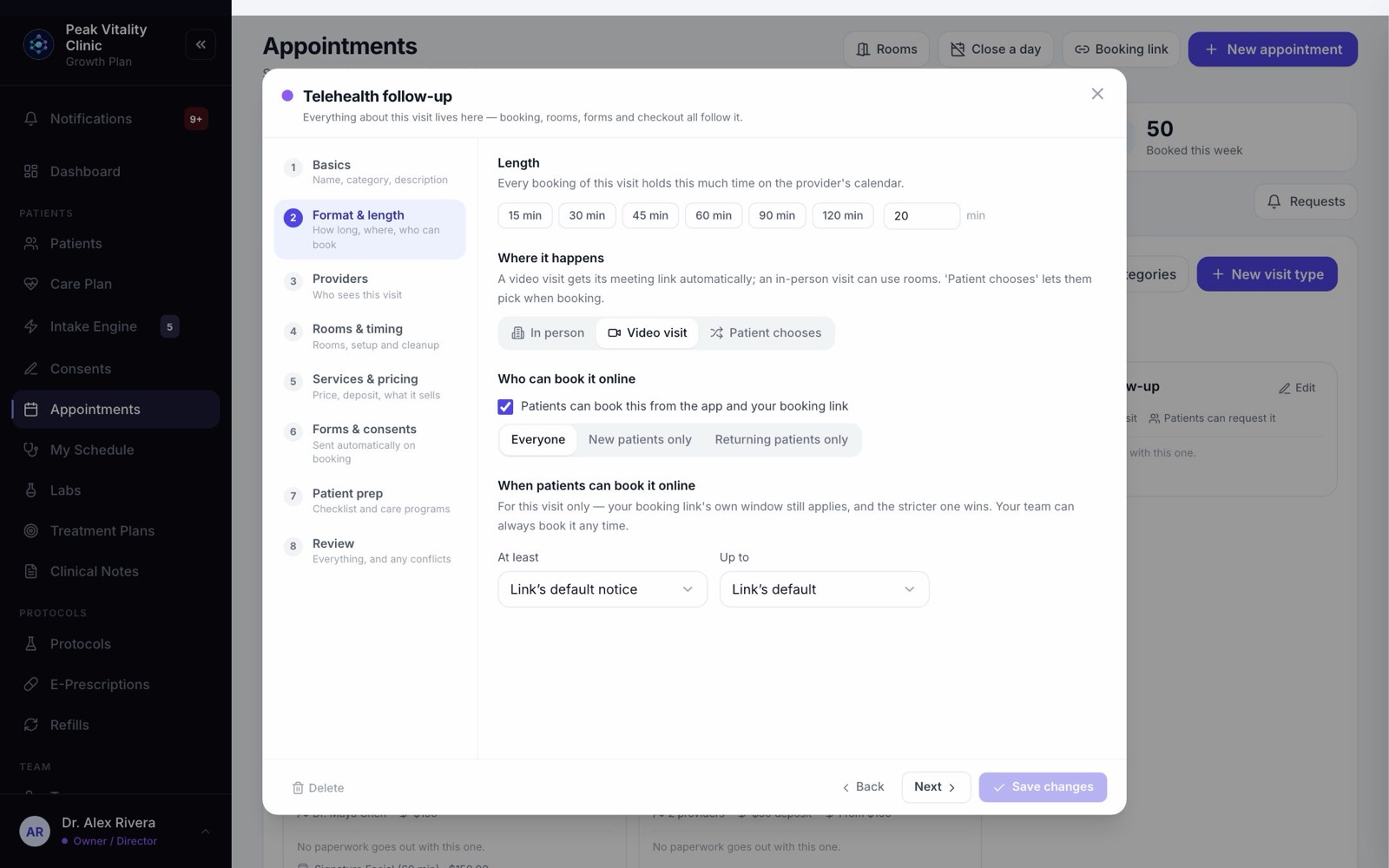
A video visit is an appointment where the patient and provider meet on camera instead of in the clinic. Any visit type set to Video visit books as one, or one set to Patient chooses when the patient picks video.
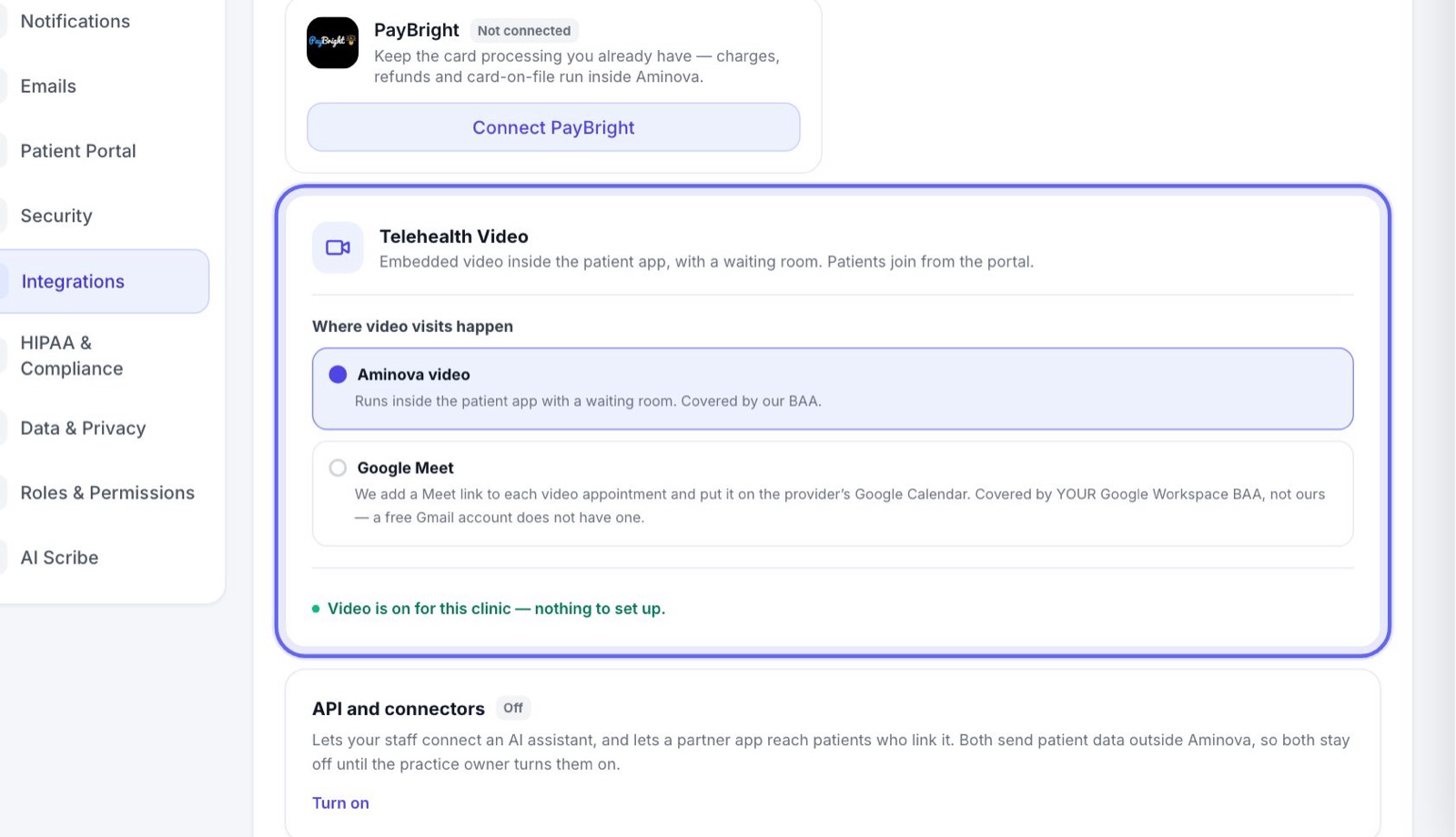
Your clinic runs them one of two ways: in the video room built into the patient app, or on your clinic’s own meeting links (Google Meet in Settings). Most of this manual is about the built-in room. The last sections cover meeting links.
2Booking one
- 1Book it like any visit, with New appointment, from the patient app, or from your booking link.
- 2The booking screen says where the video will happen. With the built-in room there’s no link to make or send.
- 3The visit’s forms and consents go out as soon as it’s booked.
3How the patient joins
- 1In the patient app, the visit says Video visit, and when the join button opens.
- 2From 15 minutes before, the patient taps Join video visit.
- 3With the waiting room on, they wait there until you let them in.
4Join from My Schedule
- 1Open My Schedule and click the visit.
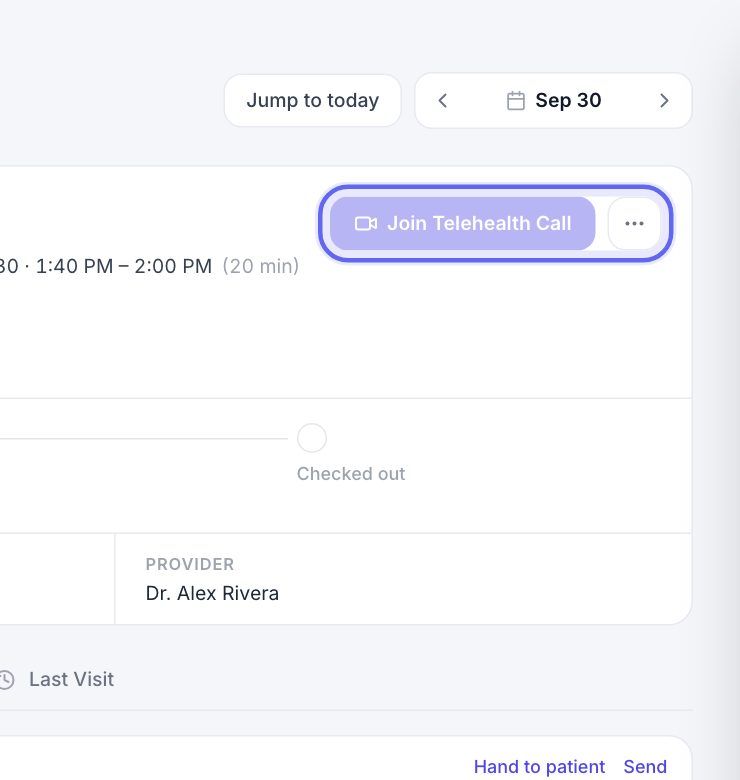
- 2From an hour before it starts, press Join Telehealth Call.
- 3If the patient hasn’t signed a required consent, you see Consent required before this visit, with what’s missing. Press Cancel and have them sign it in their app, or Proceed anyway on your own judgment.
5Before you start
- 1A screen shows the patient and whether they’ve opened the visit yet. Nothing is connected and your camera is off.
- 2Leave Waiting room ticked so the patient knocks and you let them in. Untick it to let anyone with the link join straight away.
- 3If your clinic has the AI scribe, tick AI Scribe to record the visit and draft the note, and pick the Note format. Decide before you start.
- 4Press Start visit. Or press Not yet to go back and read the chart first.
If the scribe can’t record because a consent isn’t signed, the screen says so. Press Send it to them now to send it to the patient. The screen updates when they sign.
6During the call
- 1The patient’s chart sits beside the video: Vitals & Check-in, Conditions & Allergies, Medications, Active Protocol and Previous Note.
- 2When the patient knocks, you see their name with Admit and Decline.
- 3Use the buttons under the video to mute, turn your camera off, share your screen, or leave.
- 4While the scribe is on, the call shows Recording for notes.
- 5Need your schedule for a moment? Shrink the call. It keeps going in a small window, and you can bring it back.
7When the call ends
- 1Leave the call. You see Visit complete, how long it lasted, and your visit note.
- 2With the scribe on, the note is drafted for you. Check it against the Transcript before you save.
- 3Press Save visit note.
- 4Tick Recommend a follow-up visit and the patient gets a Request another visit button.
- 5Press Continue to Care Plan to update their plan, or Exit to schedule. If the note is still drafting, Back to schedule — keep drafting keeps it going in the corner.
8Send an after-visit summary
- 1On the same screen, press Write after-visit summary.
- 2It’s filled in from your note: what you discussed, the assessment, the plan and next steps, and medications. Change anything you like.
- 3Press Send to patient. They can view and download it in their app.
9Check out
Back on My Schedule, the visit now shows Check out as its main button, with Rejoin call beside it if you need to go back in. Check out closes the visit, the same as the front desk does for an in-person visit.
10What the front desk sees
On Appointments, a video visit shows Video visit under Where when you open it. The front desk books, moves and cancels video visits exactly like any other.
Only clinical staff can join the call itself.
11If your clinic uses its own meeting links
- 1The meeting link is made on the provider’s calendar when the visit is booked. It shows on the appointment with Copy link beside it.
- 2The patient’s Join video visit button opens the same meeting link.
- 3The AI scribe doesn’t run on these calls, so you write the note yourself.
12When a meeting link is missing
If a video visit has no meeting link, the appointment says No video link yet and why. The usual reason is that the provider hasn’t connected their calendar yet.
Fix the reason, then press Retry. On My Schedule the same button reads No Meet link yet · Retry.
Keep going
Set up video visits
Choose where your video visits happen, make the right visit types video visits, and try one on your practice patient.
Read the guideConnect your calendar
Each provider connects their own work calendar. Their visits show up on it without patient names, and their busy times stop Aminova offering those slots.
Read the guideMy Schedule
Your own day, one visit at a time. Open a visit to see who it is, start it, read the brief, record it with the AI scribe and write your note.
Read the guideAI scribe
The AI scribe listens to a visit and drafts the note. It records only patients who agreed to it, and a person checks and signs every note.
Read the guideForms and consents, start to finish
A visit is booked, its paperwork goes out, the patient fills it in at home or on a tablet, and the answers come back to you. Here is every step, and what your team signs.
Read the guideAppointments
Every visit, for everyone. Book visits, run the front desk, and open any appointment to check a patient in, move it or charge it.
Read the guideRather be shown?
Inside Aminova, the tutorial walks you through every page, and the Getting started checklist shows you each task click by click. Or book a live training session with our team.