1The page at a glance
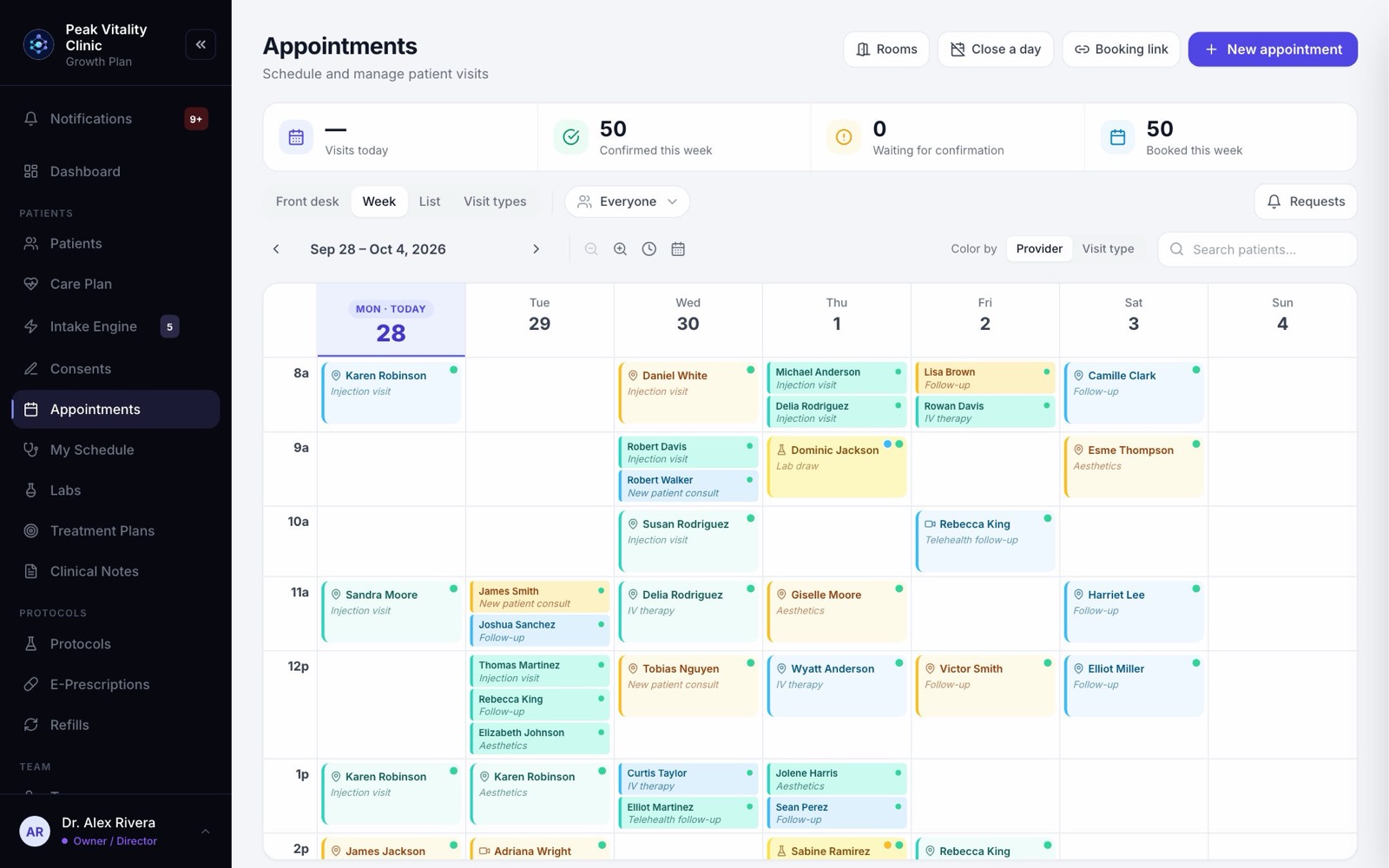
Appointments is the clinic’s whole schedule. Across the top are the week’s numbers; below them, four ways to look at the schedule, a filter for whose schedule you see, and the schedule itself.
2The week in numbers
Visits today, visits confirmed this week, visits still waiting for confirmation, and everything booked this week.
3Four ways to look
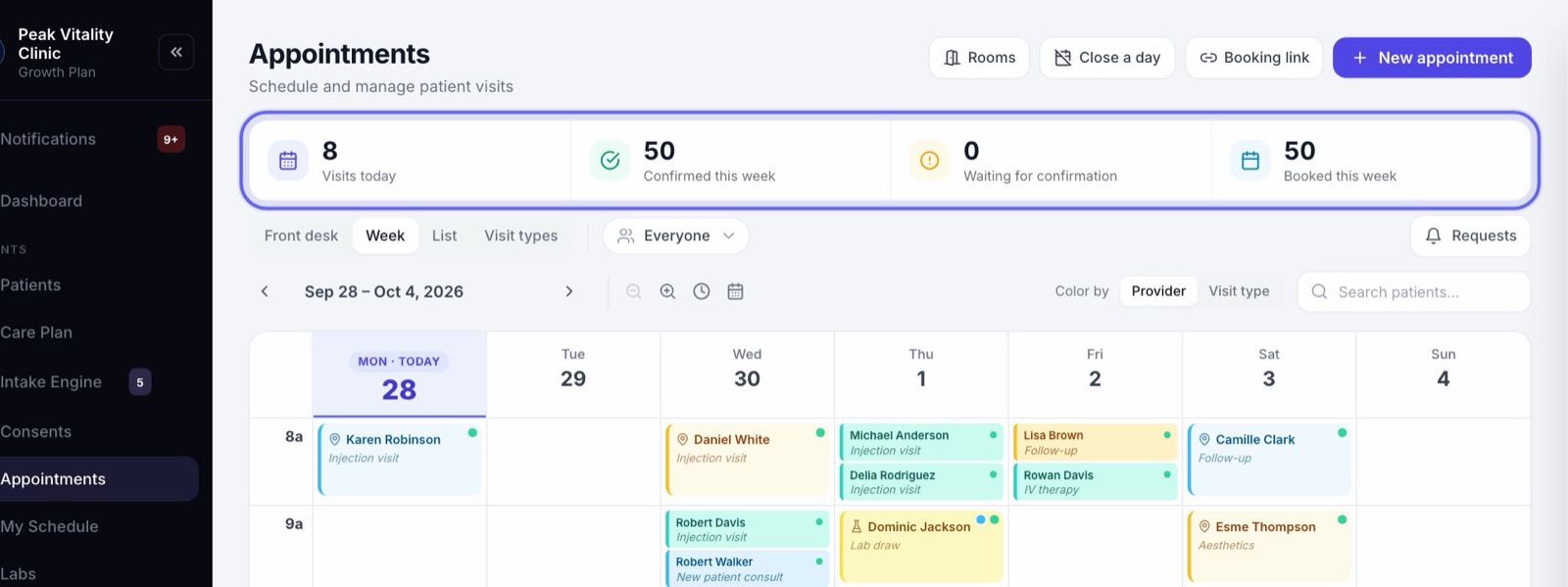
- 1Front desk runs today: who is arriving, waiting, in a visit, and done.
- 2Week is the calendar, colored by provider.
- 3List shows the same visits as rows, easy to scan.
- 4Visit types is where you set up what can be booked.
4Whose schedule you see
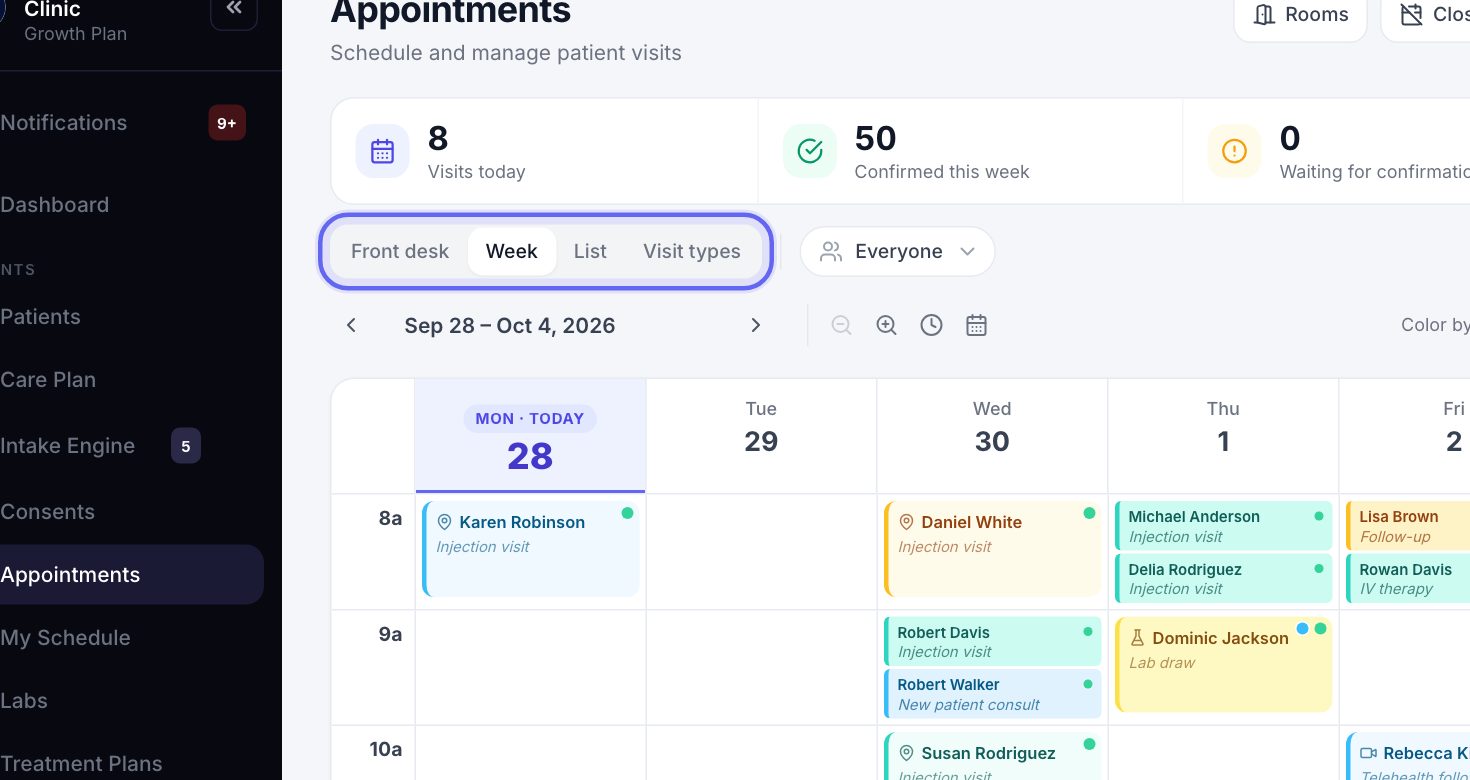
- 1Click Everyone to pick one provider.
- 2Each provider has their own color on the calendar.
5Book a visit
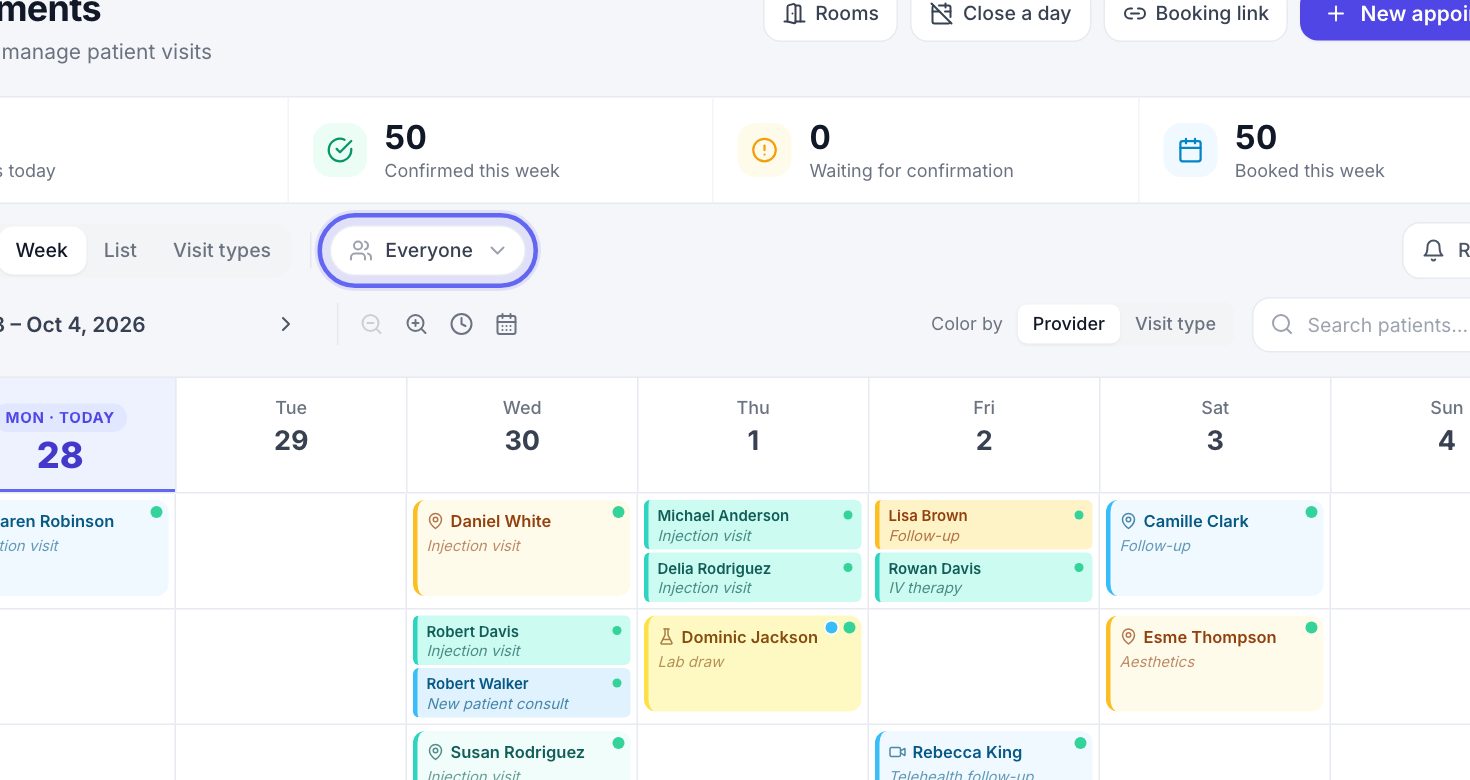
- 1Click New appointment.
- 2Pick the category, then the kind of visit.
- 3Pick the patient and a time. The times shown are only the ones the provider is really free.
- 4Check the summary and book it. The visit’s forms, prep and deposit go out on their own.
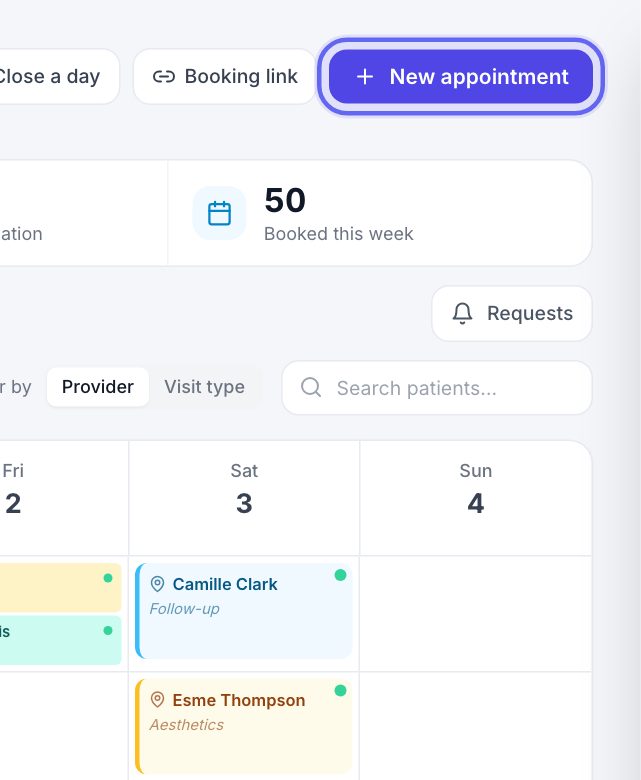
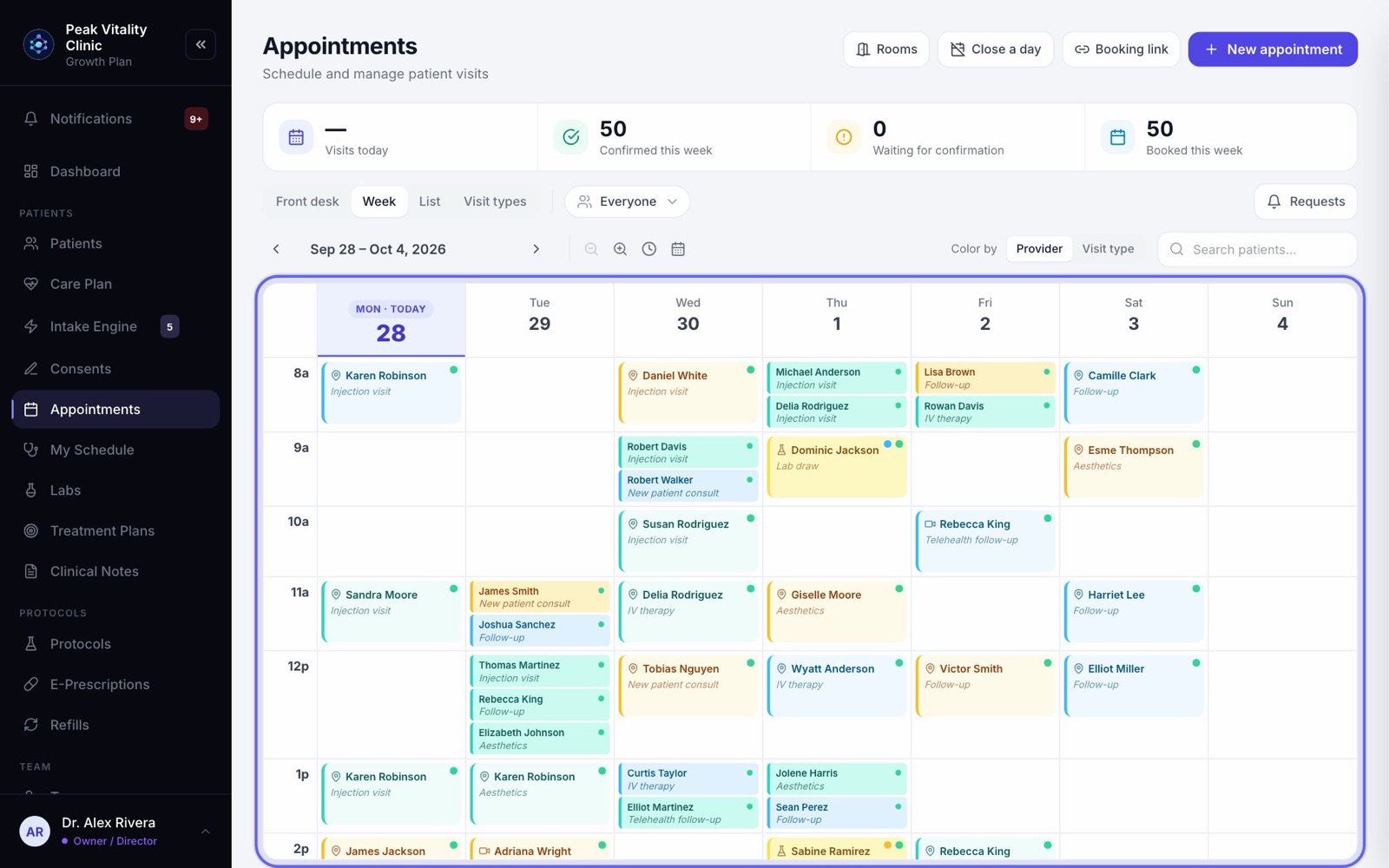
6The calendar
- 1Each visit shows the patient and the kind of visit, in the provider’s color.
- 2Faded visits are already over.
- 3Click any visit to open it.
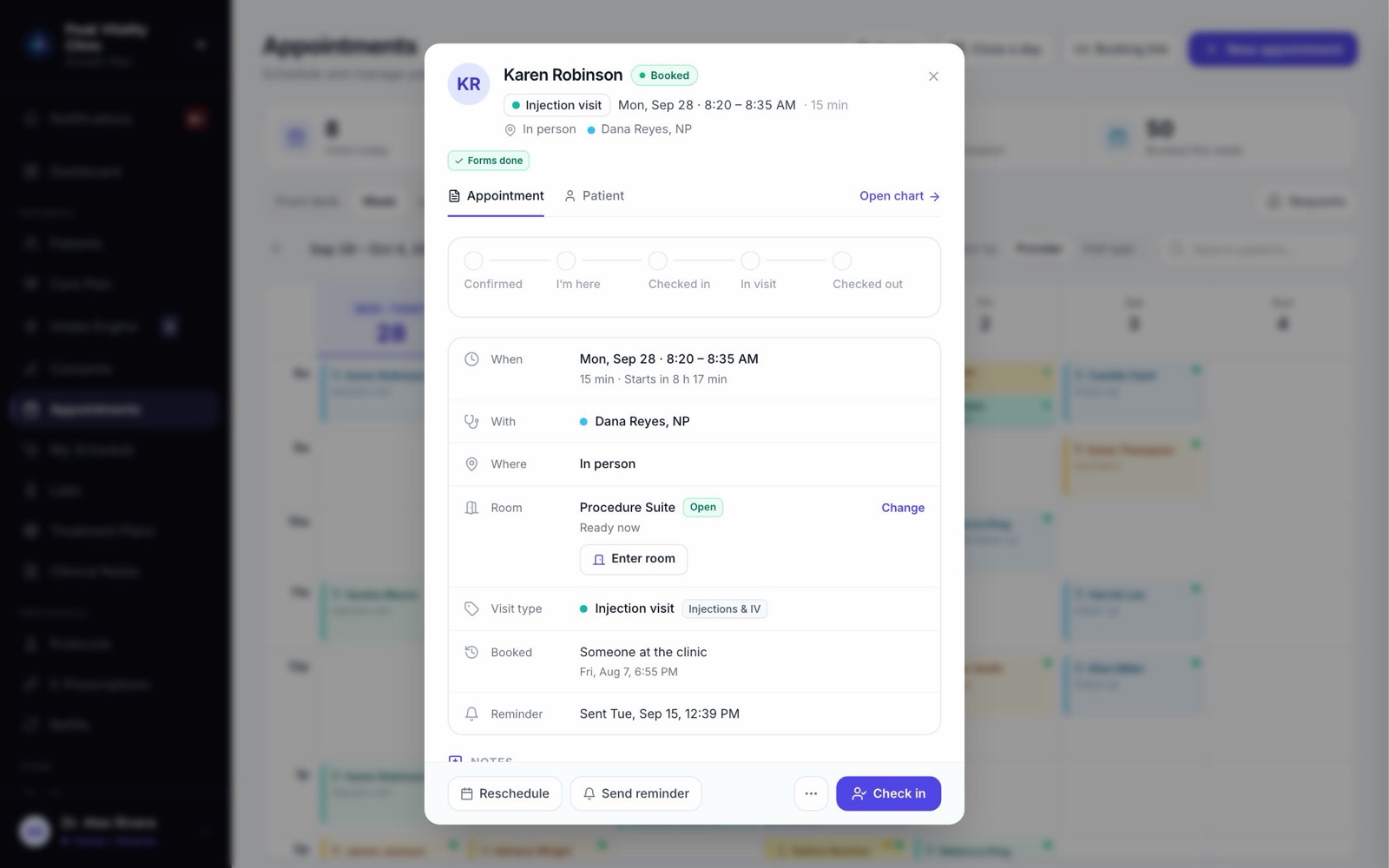
7Open a visit
- 1The visit opens in a panel with everything about it: when, with whom, where, the kind of visit, who booked it, and the last reminder sent.
- 2The main button changes with the visit: Confirm, Check in, Check out or Charge.
- 3Reschedule, Send reminder and the … menu hold everything else, like no-show and cancel.
- 4Allergies show as a red tag at the top. The Patient tab has their details, last visit and forms.
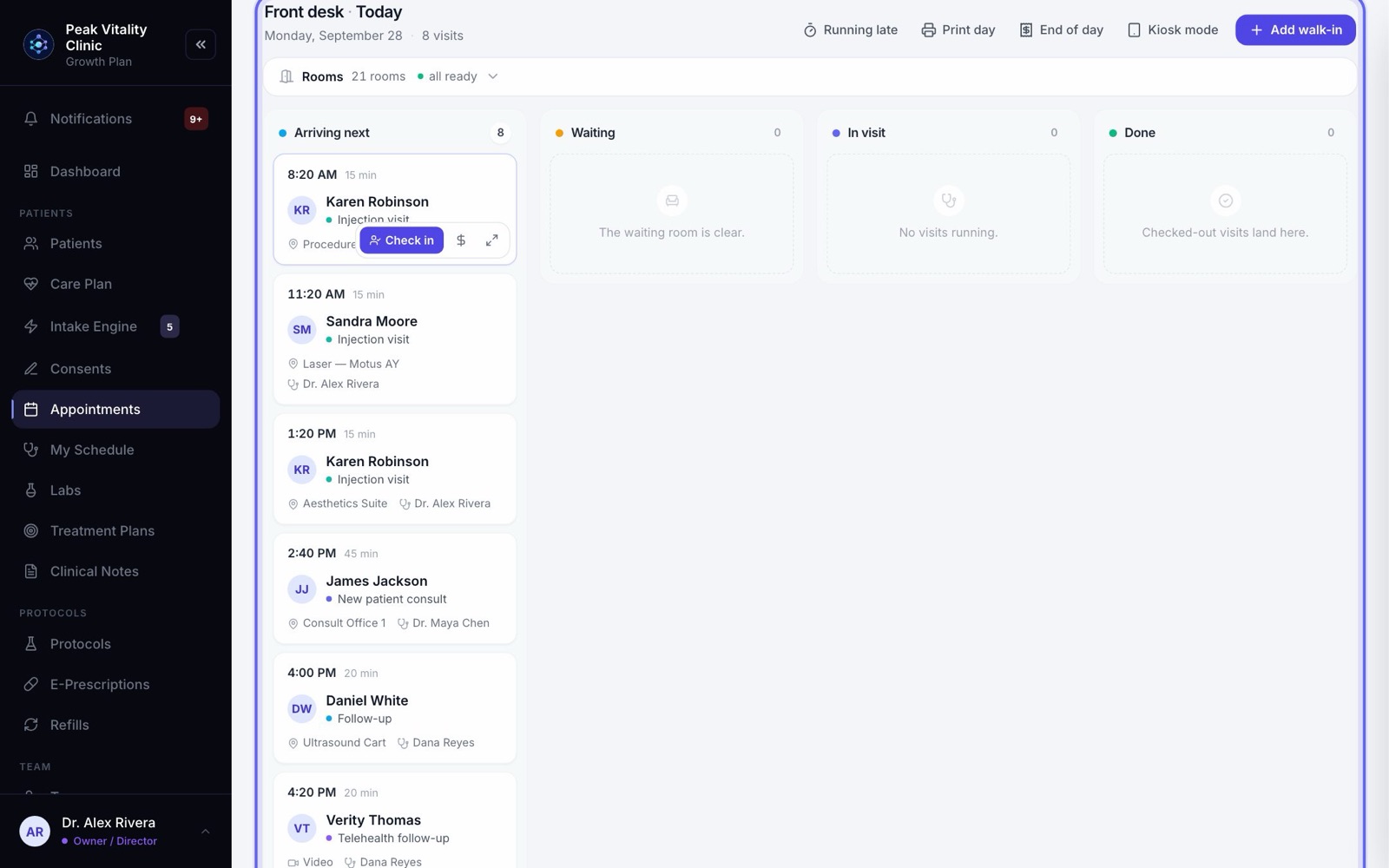
8Run the front desk
- 1Open the Front desk tab.
- 2Today is in lanes: arriving, waiting, in a visit, done.
- 3Click a patient to check them in, move them along or check them out.
9Requests from patients
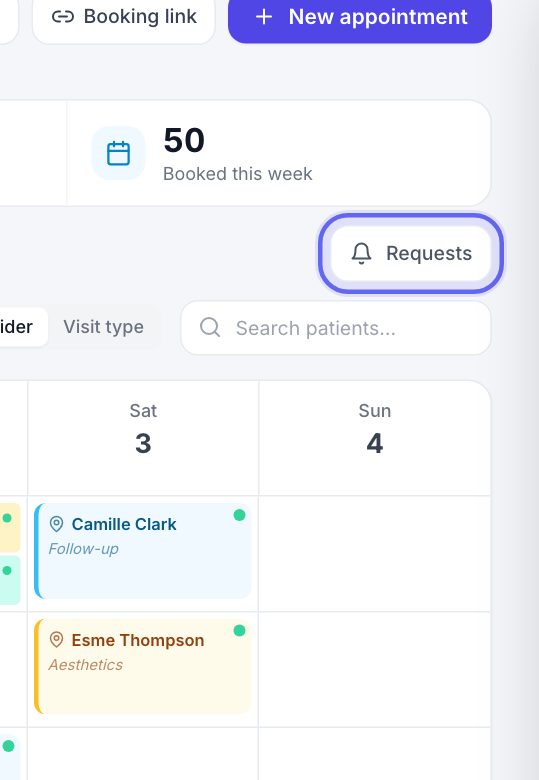
- 1Visits patients asked for online land under Requests.
- 2Approve one, or offer another time.
10Your booking link
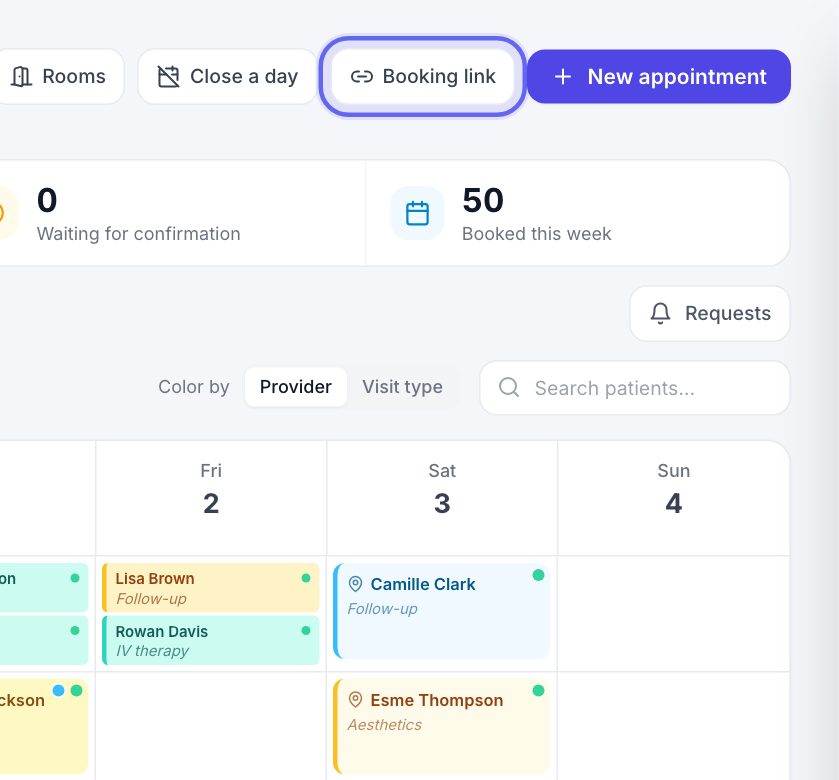
Click Booking link to turn on the link for your website and copy it. See the visit types and booking link setup guide for the details.
11Close a day
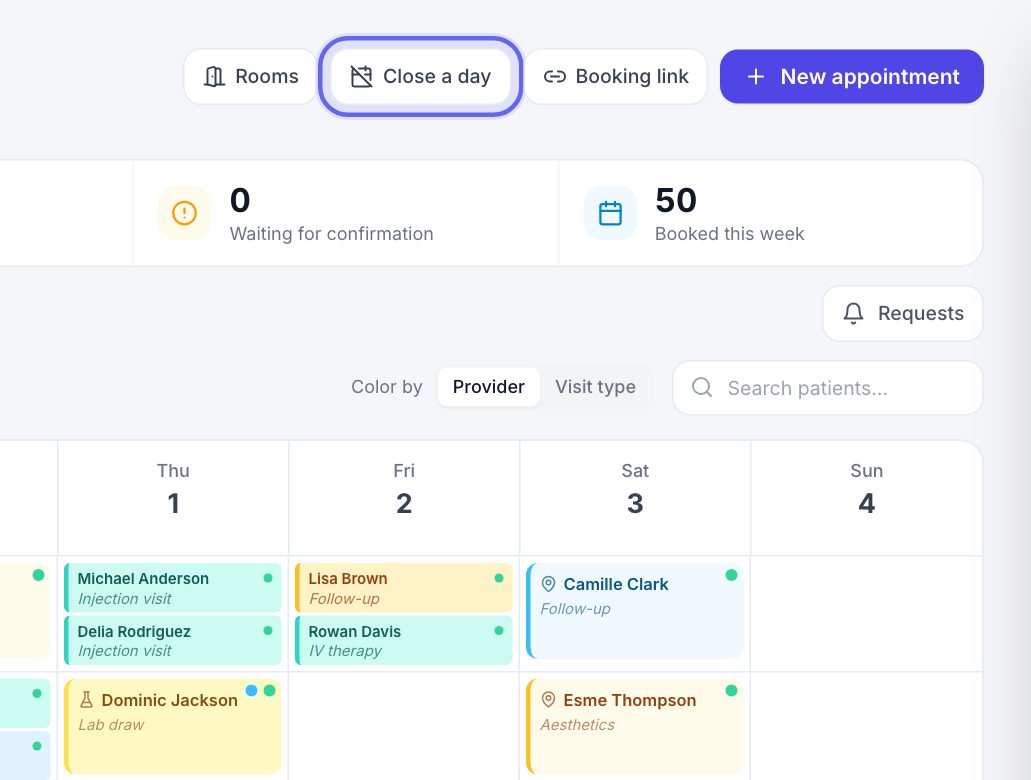
For a holiday or a day away, click Close a day. Nothing new can be booked while it’s closed. Visits already booked stay put, so you decide about each one.
12Rooms
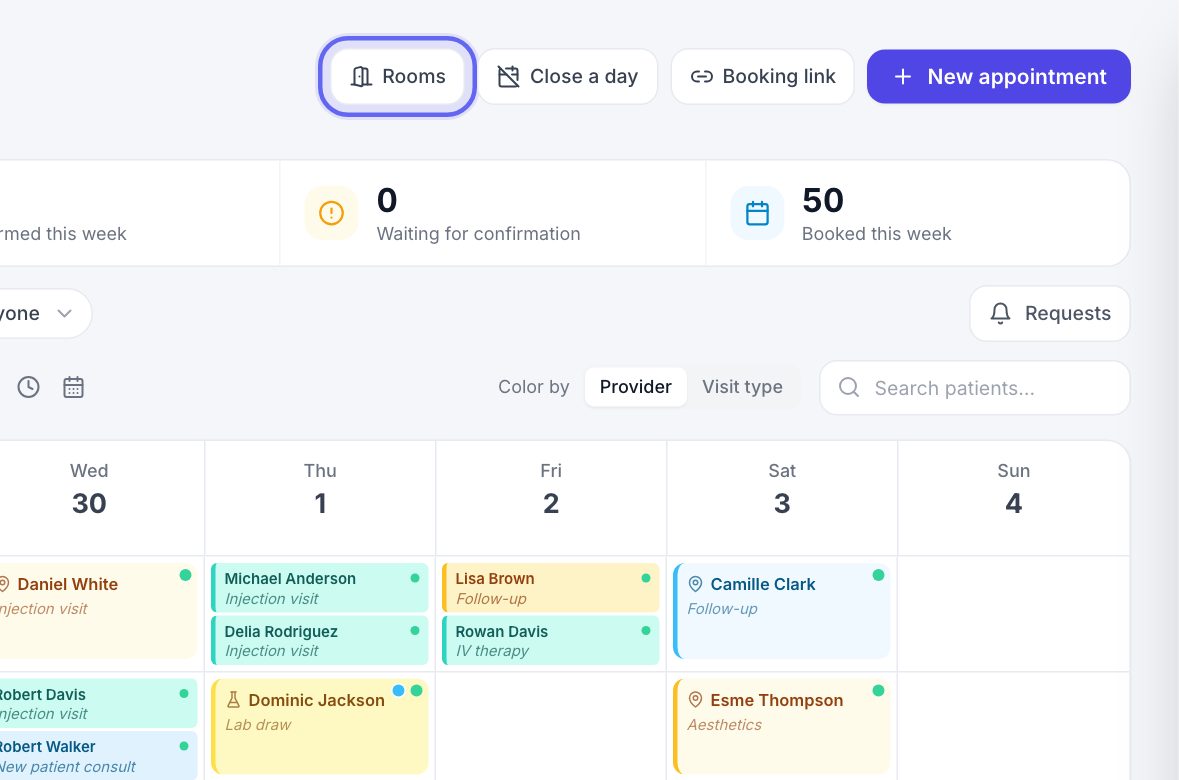
Rooms shows who is in which room right now, the day room by room, and where you set your rooms up.
Keep going
Set up your visit types and booking link
Build each kind of visit once: its length, providers, rooms, price and forms. Then turn on the link patients book from.
Read the guideRoom steps
For visits that move through more than one room: vitals, then treatment, then recovery. Set the steps once, then move the patient on with one tap.
Read the guideRather be shown?
Inside Aminova, the tutorial walks you through every page, and the Getting started checklist shows you each task click by click. Or book a live training session with our team.