1What room steps are
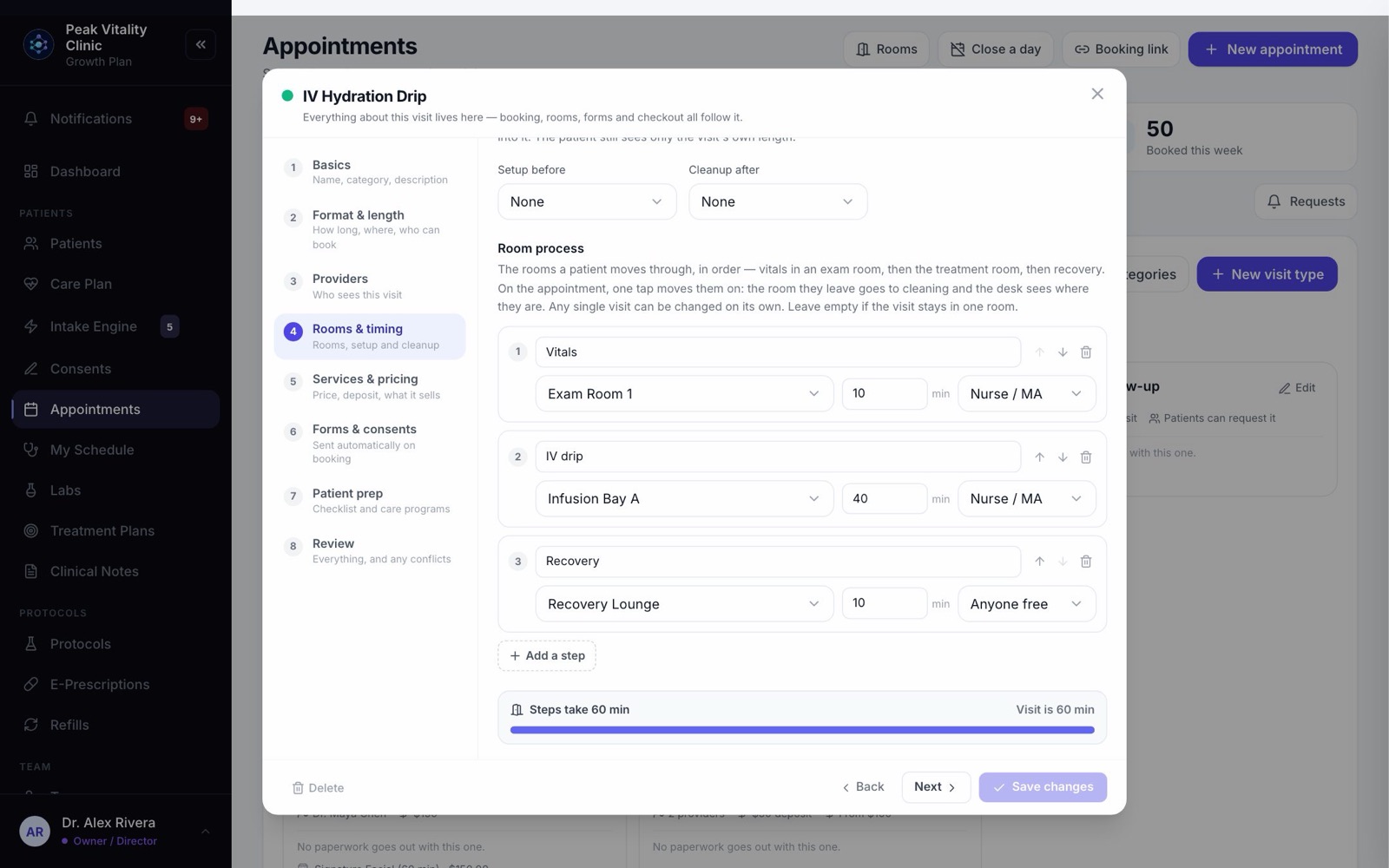
Some visits happen in more than one room. An IV visit might be vitals in an exam room, the drip in an infusion bay, then recovery. Room steps are that path, in order, with how long each part takes and who does it.
Most visits stay in one room and don’t need steps at all.
2Set the steps on a visit type
- 1Go to Appointments → Visit types and open the visit.
- 2Open Rooms & timing and find Room process.
- 3Press Add a step for each part of the visit. Give it a name, a room, the minutes it takes, and who does it.
- 4Use the arrows to put them in order. Save the visit type.
3See every visit’s steps
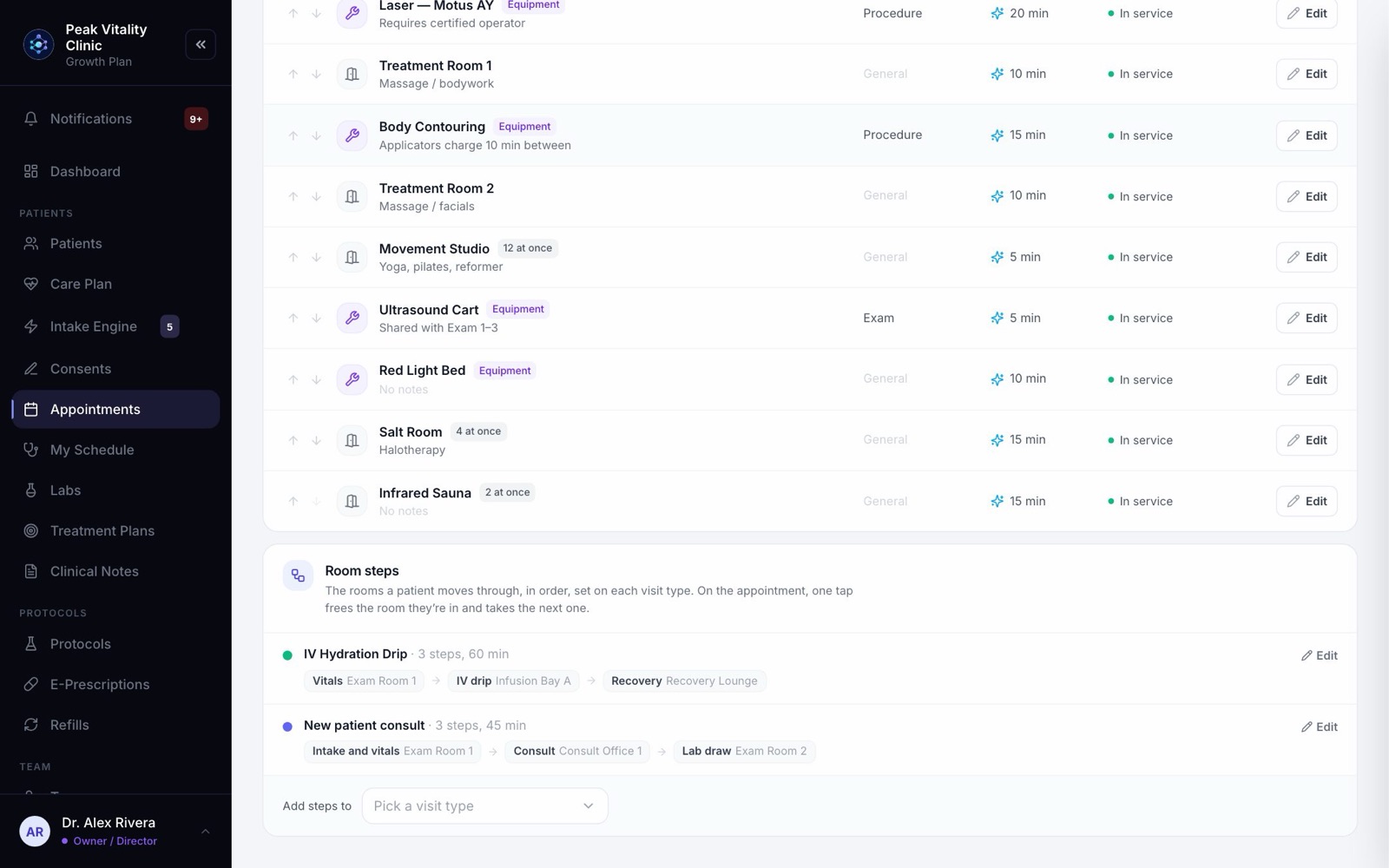
The Rooms page lists every visit type that has room steps, step by step, with a link straight into each one.
4Follow the steps during a visit
- 1Open the appointment. Its Room steps card shows each step, with a check on the ones already done.
- 2Press Start to take the first room.
- 3Press Next to move on. The room they leave goes to cleaning, and the front desk sees where they are.
- 4On the last step, Finish frees the room.
- 5A step running long turns amber. Nothing moves on by itself.
5When the next room is taken
If the room for the next step is in use, you’re offered another room for that step. Pick one and carry on.
6Change the steps for one visit
- 1On the appointment’s Room steps card, press Change for this visit.
- 2Add, remove or reorder steps. Only this appointment changes; the visit type keeps its own.
- 3To go back, press Use the visit type’s steps.
- 4A visit with no steps can get them from the … menu: Add room steps.
7On My Schedule
Providers see the same steps on My Schedule, under the visit they have open. Visits without steps keep the simple room control.
Keep going
Set up your visit types and booking link
Build each kind of visit once: its length, providers, rooms, price and forms. Then turn on the link patients book from.
Read the guideAppointments
Every visit, for everyone. Book visits, run the front desk, and open any appointment to check a patient in, move it or charge it.
Read the guideRather be shown?
Inside Aminova, the tutorial walks you through every page, and the Getting started checklist shows you each task click by click. Or book a live training session with our team.