1Two ways to run video visits
Aminova video runs inside the patient app, with a waiting room. The patient joins from their appointment, and the provider joins from My Schedule, with the chart beside the video. There is no link to make or send.
Or your visits can run on your clinic’s own Google Meet. Each video visit then gets a meeting link on the provider’s calendar, and the link shows on the appointment.
2Open the video settings
- 1Go to Settings, then Integrations.
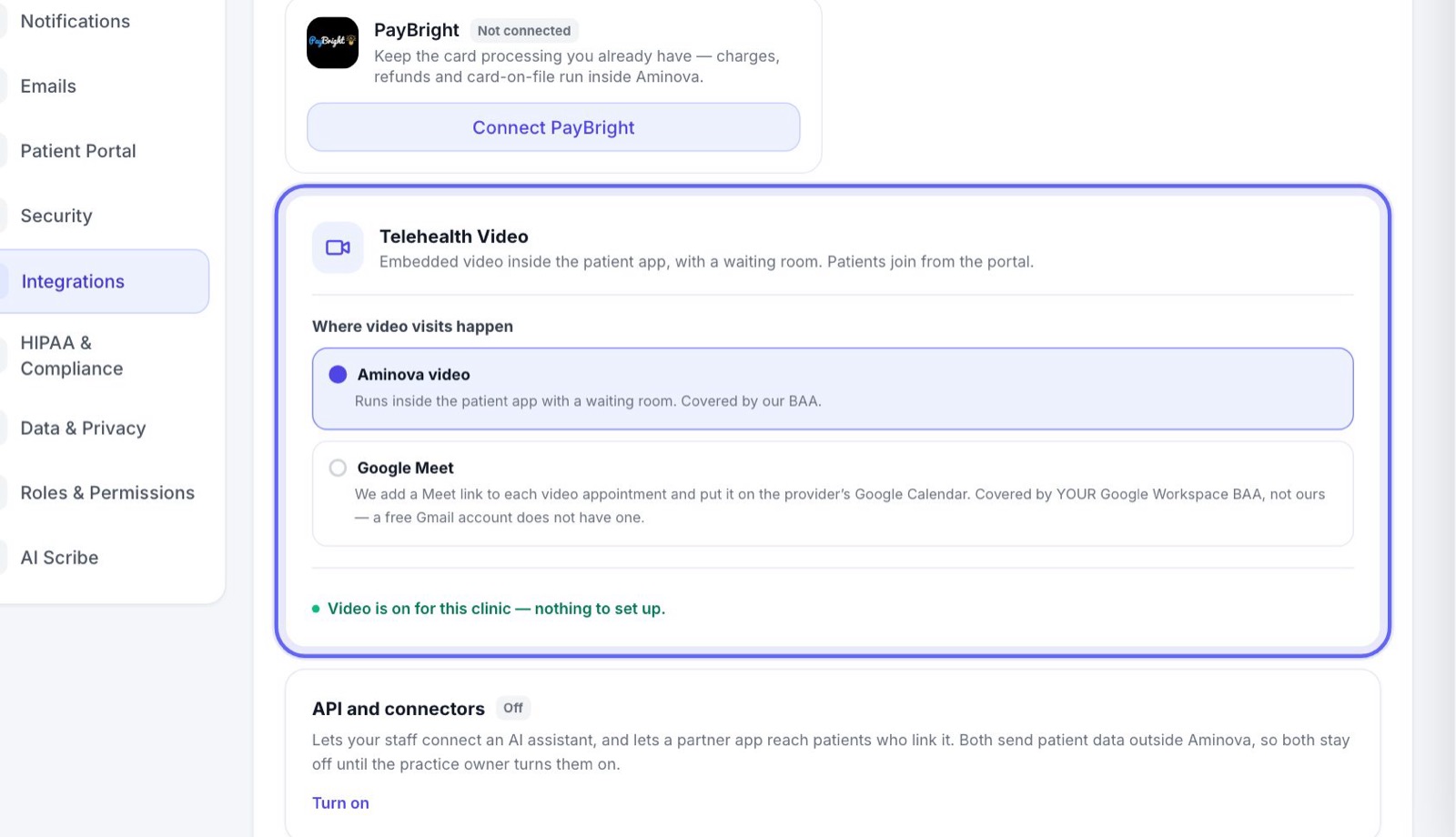
- 2Find the Telehealth Video card.
- 3Under Where video visits happen, you see the two choices. Click one to pick it. It saves on its own.
3If you pick Aminova video
- 1Look at the bottom of the card.
- 2If it says Video is on for this clinic — nothing to set up., you’re ready.
- 3If not, contact us. We switch it on for your clinic, and there’s nothing for you or your patients to install.
- 4If the choice is grayed out, your plan doesn’t include the built-in video room. You can still pick Google Meet.
Aminova video is covered by your privacy agreement with us.
4If you pick your own meeting links
- 1Your video visits run on your clinic’s own business account, under your clinic’s own agreement with that provider. Use a business account, not a free personal one.
- 2Every provider who sees video visits connects their own calendar, from the menu under their name. The calendar setup guide shows how.
- 3The AI scribe doesn’t run on these calls.
5Make your visit types video visits
- 1Go to Appointments → Visit types and press Edit on a visit, like a follow-up.
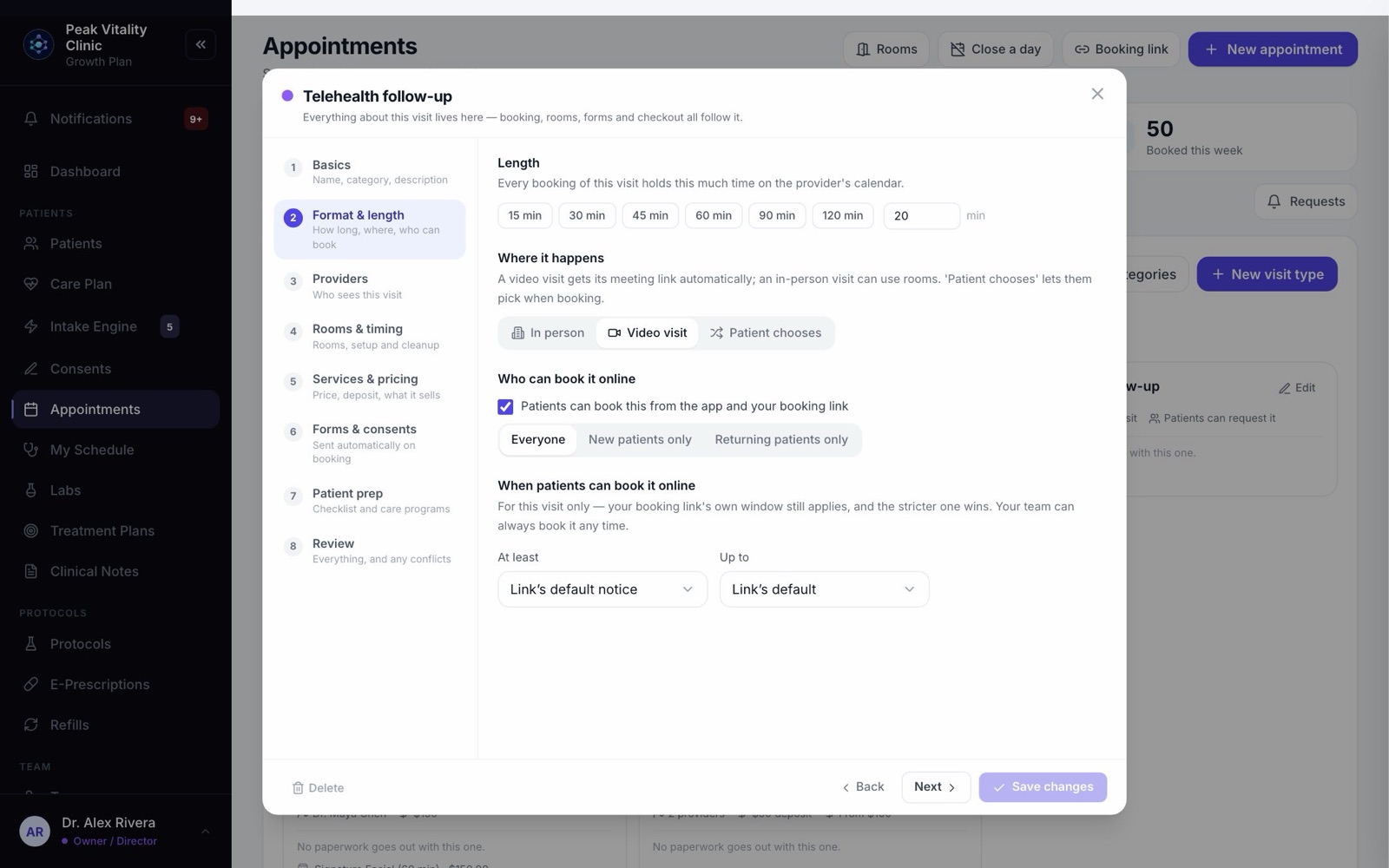
- 2Open Format & length.
- 3Under Where it happens, pick Video visit. Or pick Patient chooses to let each patient pick video or in person when they book.
- 4Save the visit type. Video visits don’t use rooms, so you can skip the rooms step.
6Add a video visit consent (optional)
- 1On Consents, make a consent form in the Telehealth category.
- 2Every consent in that category must be signed before a video visit starts. If one is missing, the provider sees Consent required before this visit. They can still press Proceed anyway, on their own judgment.
- 3To send it to patients as soon as a video visit is booked, add it under Forms & consents on the visit type.
7How booking works
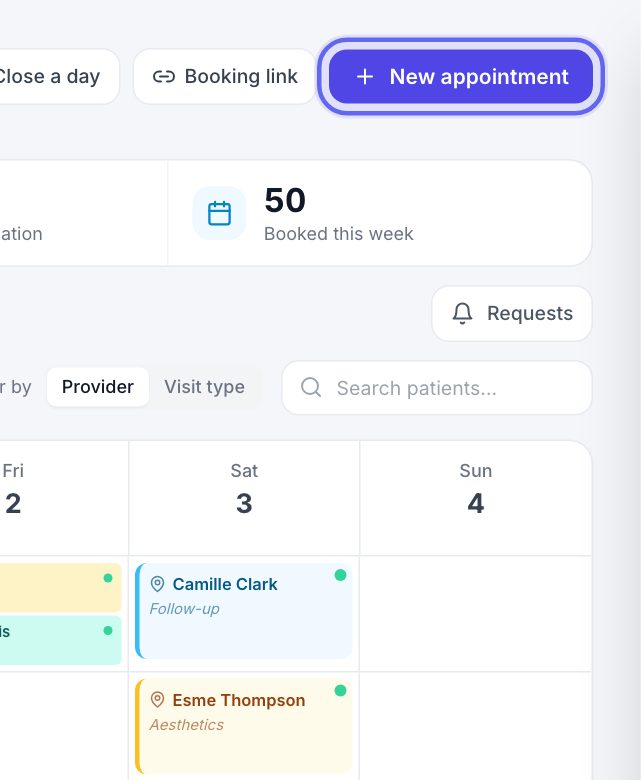
Book a video visit the usual way, with New appointment. The booking screen says where the video will happen.
With Aminova video, there’s nothing more to do. With your own meeting links, the link is made on the provider’s calendar as you book, and appears on the appointment.
8Try it on your practice patient
- 1Book a video visit for your practice patient, for later today.
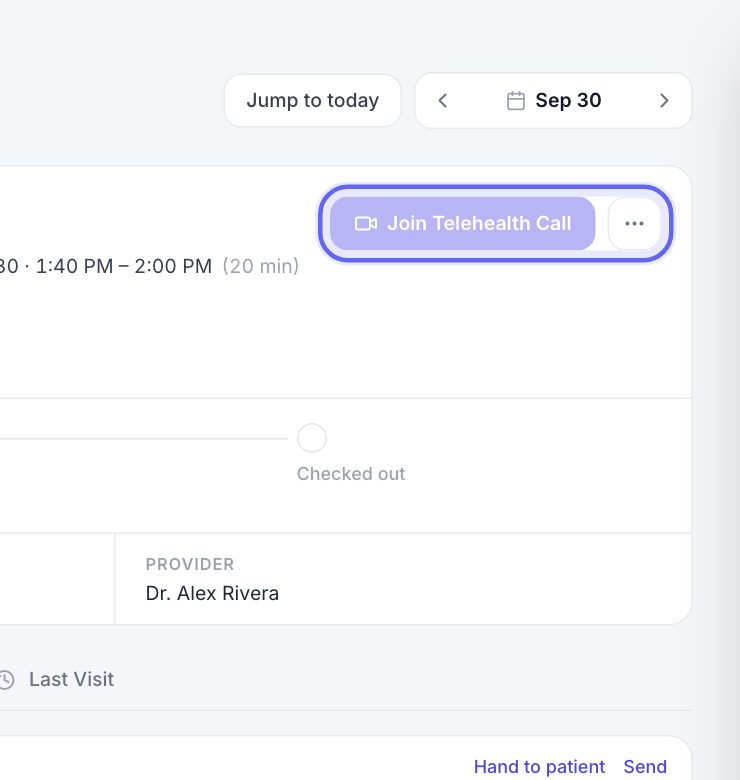
- 2Open My Schedule and click the visit. From an hour before it starts, Join Telehealth Call is ready.
- 3Press it. You see whether the patient has opened the visit, and your options, before anything starts. Press Not yet to leave without starting.
- 4Practice patients never get emails, texts or bills, so they’re safe to test with.
Patients can join from their app 15 minutes before the visit.
Keep going
Video visits
A video visit from booking to note: the patient joins from their app, you join from My Schedule with their chart beside the video, and the note and summary follow.
Read the guideConnect your calendar
Each provider connects their own work calendar. Their visits show up on it without patient names, and their busy times stop Aminova offering those slots.
Read the guideSet up your visit types and booking link
Build each kind of visit once: its length, providers, rooms, price and forms. Then turn on the link patients book from.
Read the guideMy Schedule
Your own day, one visit at a time. Open a visit to see who it is, start it, read the brief, record it with the AI scribe and write your note.
Read the guideSet up your consent forms
Bring in the consent PDFs you use today, place the signature boxes, and decide who signs each one and how often. Then attach them to your visit types.
Read the guideRather be shown?
Inside Aminova, the tutorial walks you through every page, and the Getting started checklist shows you each task click by click. Or book a live training session with our team.