1What it does
Once you connect, Aminova adds a new calendar named “Aminova” inside your calendar account and keeps your visits on it. Each visit shows as “Aminova” and the kind of visit, with a link back to the appointment. Patient names are never sent.
Aminova also checks when you’re busy on your own calendar, and stops offering those times. It only learns that you’re busy, never what you’re doing. It can’t read, change or delete anything on your own calendars.
2Everyone connects their own
This is personal, not a clinic setting. Each person connects their own calendar, from their own menu. You don’t need an owner to do it for you.
It works one way. Book, move or cancel a visit in Aminova and your calendar follows. Moving an event in your calendar never moves a patient.
3Connect it
- 1Click your name at the bottom of the sidebar.
- 2Click Connect Google Calendar. It says Your schedule, no patient names under it.
- 3Sign in to your calendar account and allow access.
- 4You’re brought back to Aminova.
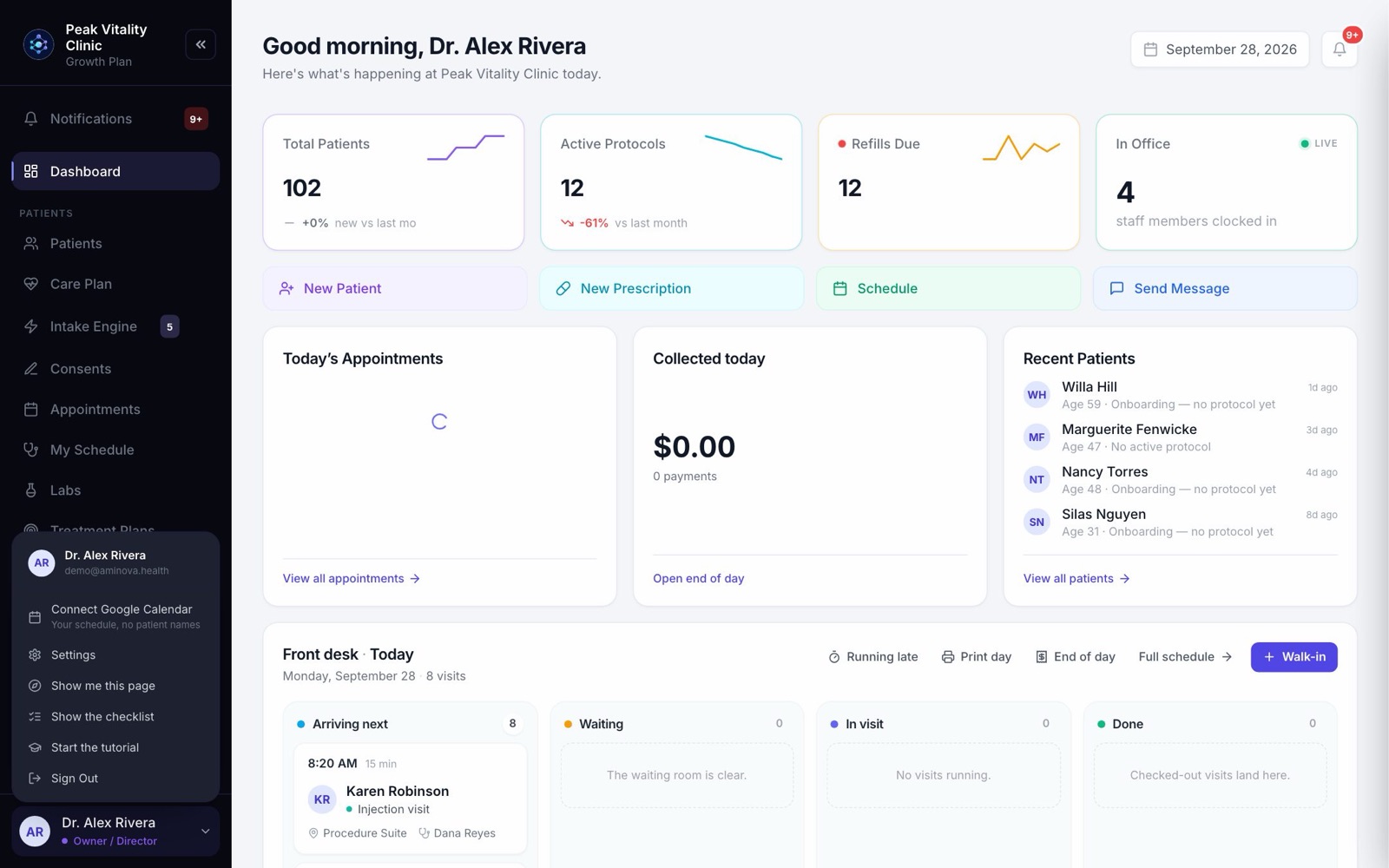
Not in your menu? Contact us and we’ll check your account.
4Check it’s connected
- 1Open your name menu again.
- 2It now says Google Calendar, with the account it’s connected to under it. Make sure that’s the account you meant.
- 3Click it to open your calendar options.
5Choose whether busy times block you
- 1Busy times block my Aminova slots is ticked to start with.
- 2Leave it ticked, and anything on your own calendar takes that time in Aminova too.
- 3Untick it only if you want Aminova to offer times you’re busy elsewhere.
6Pick your reminder
- 1Under Reminder on my visits, pick when your calendar should remind you: 10 minutes before, 30 minutes before, 1 hour before or 1 day before.
- 2Or pick My calendar’s own setting, or No reminder.
- 3It applies to visits added from now on. Your choices save on their own.
The appointment reminder Aminova sends goes to the patient. This one is for you.
7Which visits show up
- 1Visits booked, moved or canceled after you connect show up on your calendar.
- 2A visit has to have you as its provider to show up on yours.
- 3While your clinic is in training mode, nothing is written to anyone’s calendar. Your visits start showing once you’re live.
8If your clinic runs video visits on its own meeting links
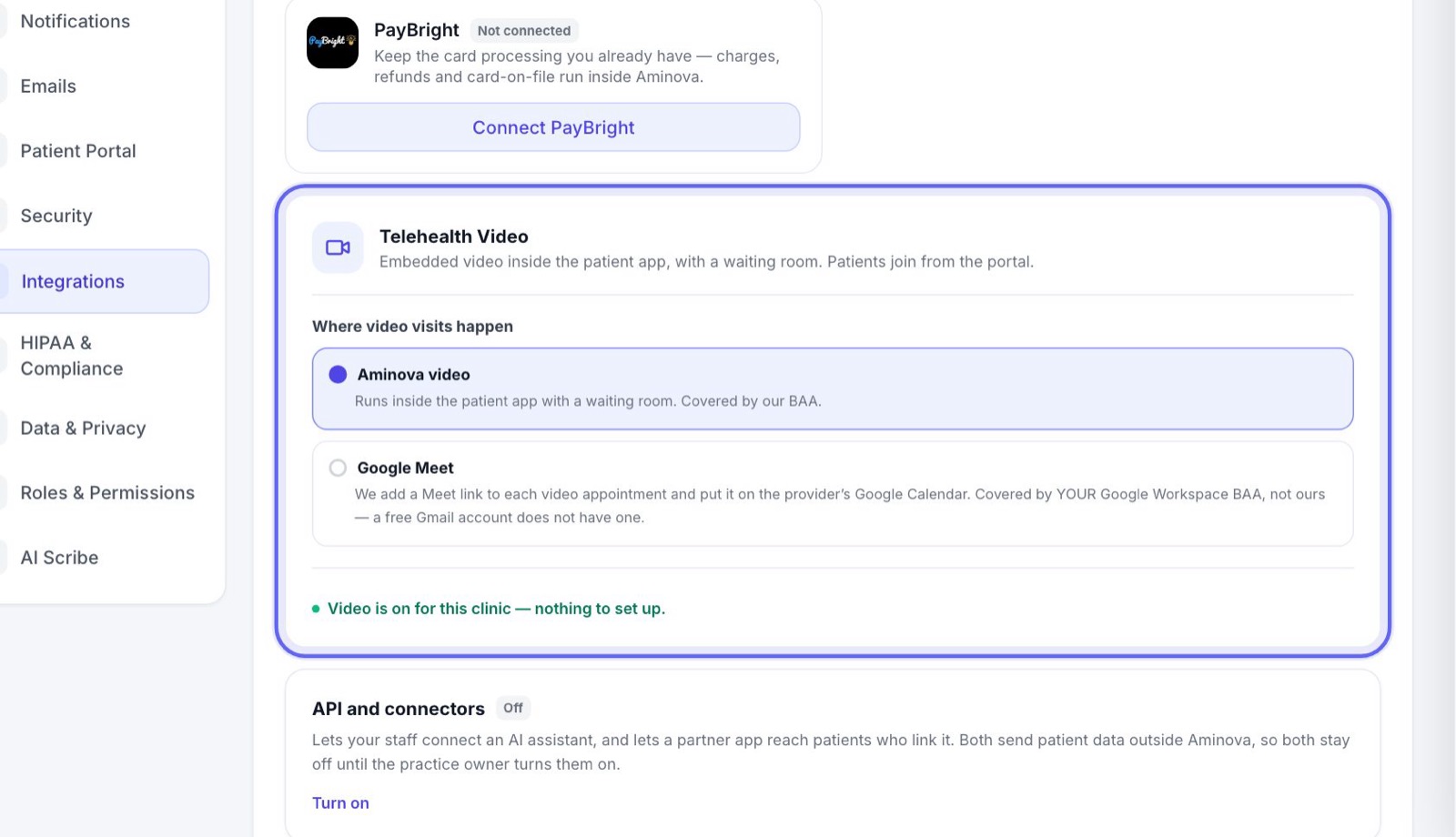
In Settings → Integrations, your clinic can choose to run video visits on its own Google Meet. Then each video visit’s calendar event gets a meeting link, and the link shows on the appointment in Aminova.
That only works for providers who have connected their calendar. Until you connect, your video visits use the video room built into the patient app, if your clinic has it. If it doesn’t, video visits can’t be booked with you. The video visits setup guide explains the choice.
9If something goes wrong
- 1If your menu says Having trouble reaching your calendar, Aminova couldn’t reach it. Until it can, only your Aminova schedule decides your open times.
- 2If it says Reconnect Google Calendar, access was removed from your calendar account. Click it and sign in again.
- 3To disconnect, remove Aminova’s access in your calendar account’s settings.
Keep going
Set up video visits
Choose where your video visits happen, make the right visit types video visits, and try one on your practice patient.
Read the guideVideo visits
A video visit from booking to note: the patient joins from their app, you join from My Schedule with their chart beside the video, and the note and summary follow.
Read the guideMy Schedule
Your own day, one visit at a time. Open a visit to see who it is, start it, read the brief, record it with the AI scribe and write your note.
Read the guideSet up staff shifts
Put everyone’s working hours on the roster. For providers, those shifts are the hours patients can book.
Read the guideRather be shown?
Inside Aminova, the tutorial walks you through every page, and the Getting started checklist shows you each task click by click. Or book a live training session with our team.