1What the AI scribe does
The AI scribe records a visit, turns it into text, and writes a draft note from it. It works for in-person visits on My Schedule and for video visits.
A person reviews every note. The scribe never puts a note in the chart or signs it by itself. You check the draft, save it, and sign it.
It is told to write down only what was said in the visit, never things that didn’t happen. That is still why you read every draft.
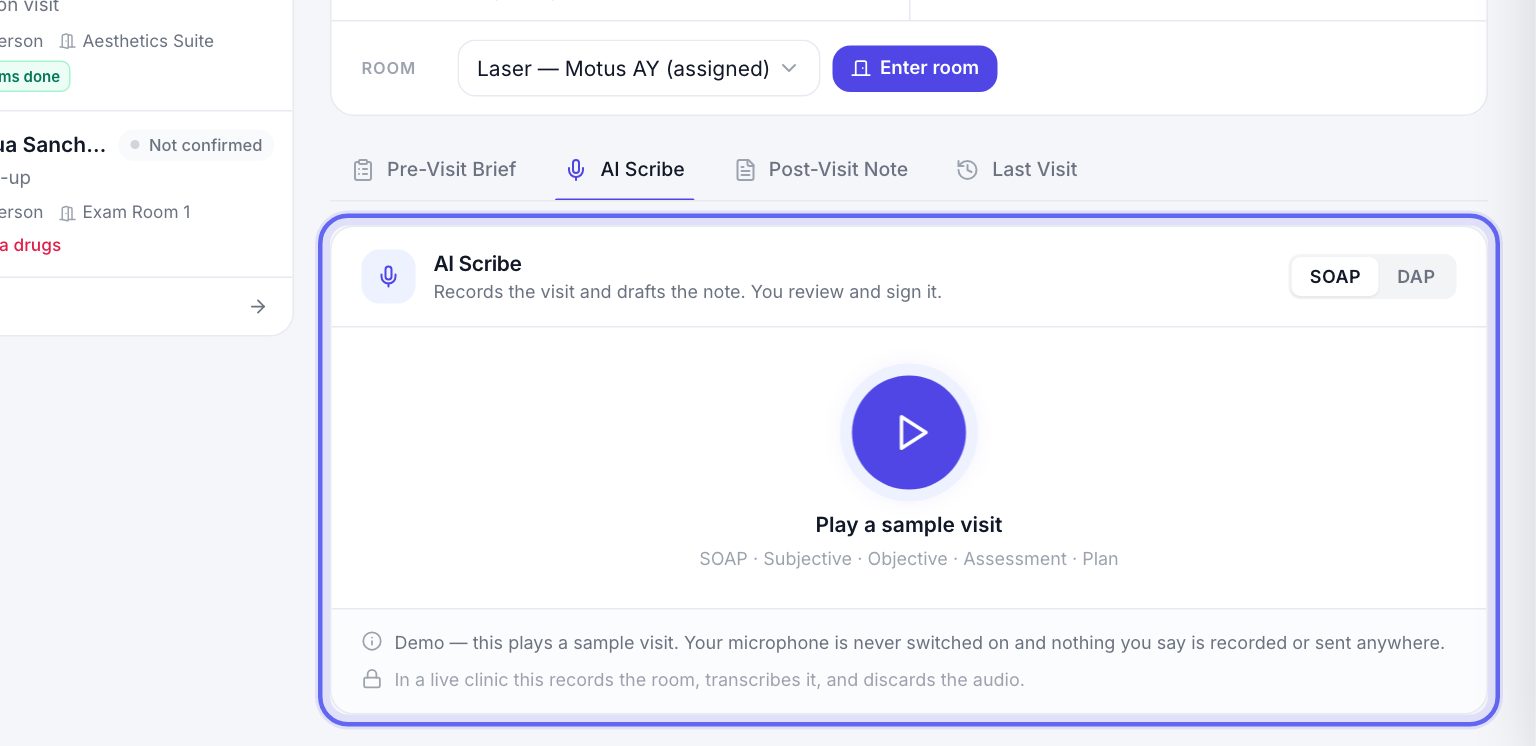
If AI Scribe doesn’t appear in Settings, your plan doesn’t include it.
2Consent comes first
- 1The scribe records only patients who signed your clinic’s recording consent form. This is checked before the record button turns on, and again before anything is sent.
- 2If the form isn’t signed, the scribe says so and stays off. Nothing is recorded.
- 3Signing is never required. A patient who says no still has their visit, and you write the note yourself.
- 4Once signed, it stays signed. The patient isn’t asked again every visit.
- 5Always tell the patient, out loud, that you’re recording, and get their agreement. Some states require everyone in the room to agree.
3Add the recording consent form
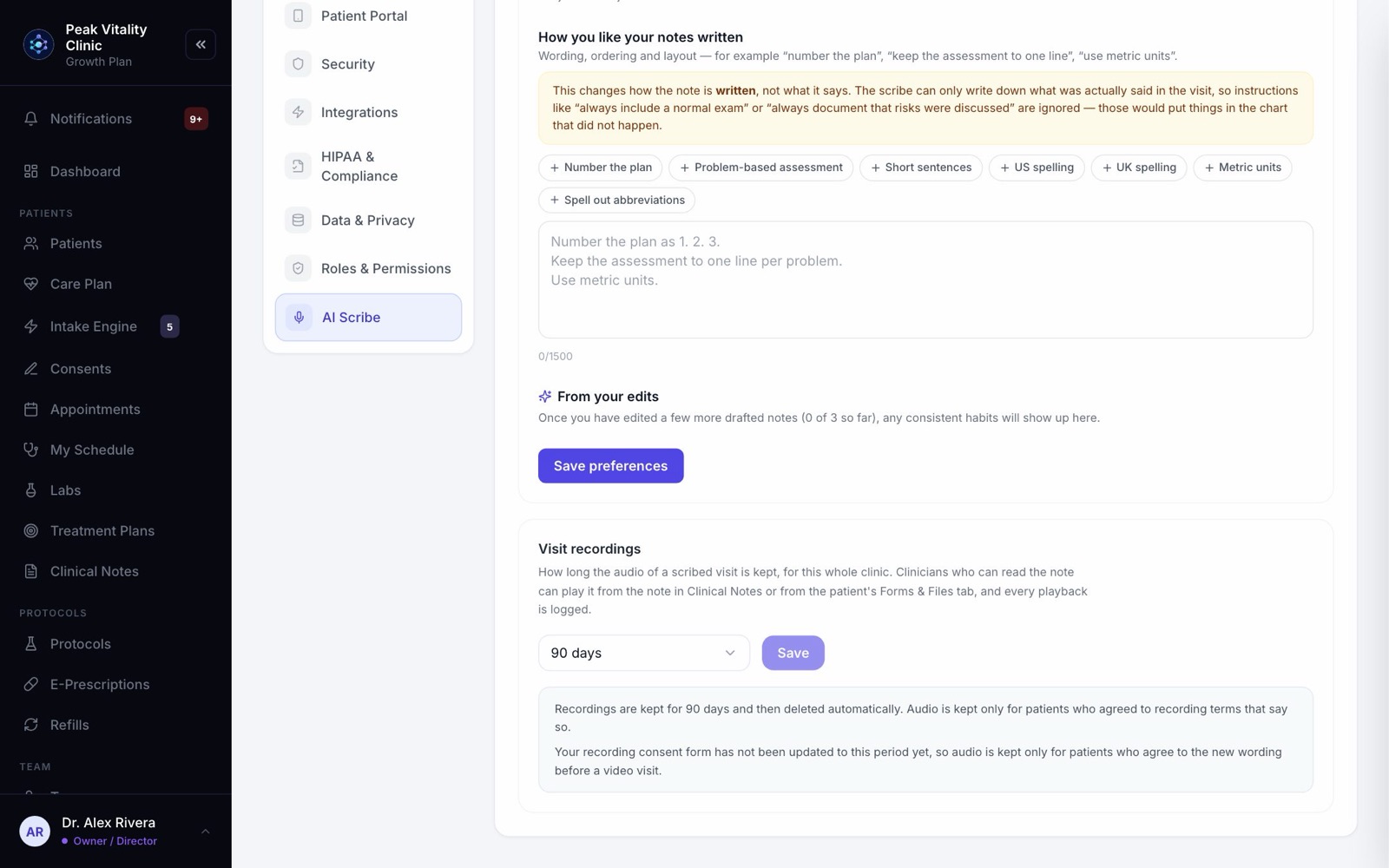
- 1Go to Settings → AI Scribe and find Visit recordings.
- 2If it says your clinic doesn’t have a recording consent form yet, press Add the form. Only owners and managers can.
- 3The form joins your Consents list. It says what the scribe does with the audio, it is never required of a patient, and you can edit or replace it like any other form.
4Getting the patient’s agreement
- 1For an in-person visit, open the visit on My Schedule. On Pre-Visit Brief, press Send in the Forms card and pick the recording consent.
- 2For a video visit, the patient’s app asks when they join. They tick the box and press Agree and join, or press Join without recording.
- 3If it isn’t signed, your first screen of the video visit says AI Scribe is off for this visit. Press Send it to them now. The screen updates when they sign.
5Your note style
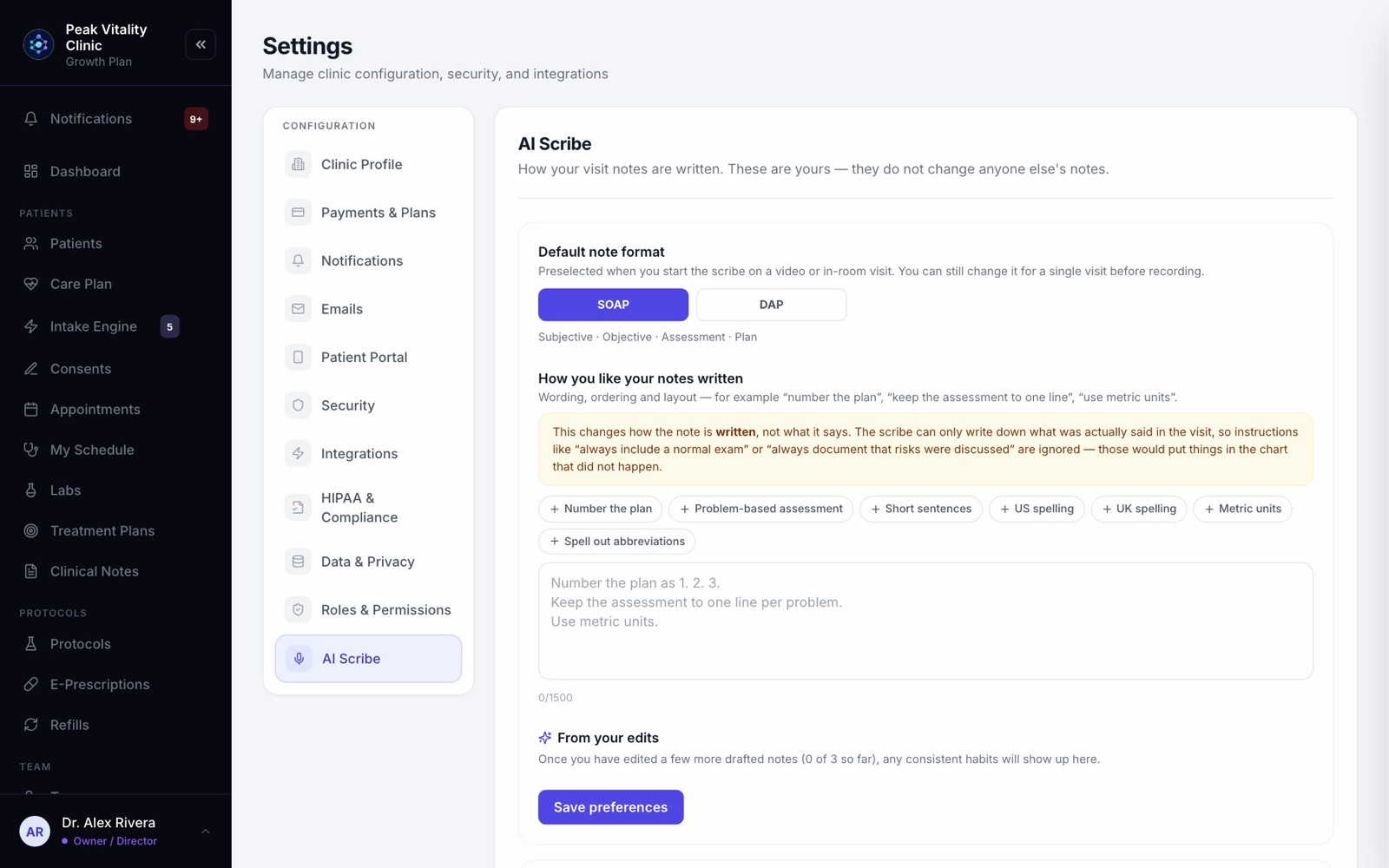
- 1In Settings → AI Scribe, pick your Default note format: SOAP (Subjective, Objective, Assessment, Plan) or DAP (Data, Assessment, Plan).
- 2Under How you like your notes written, add rules like Number the plan or Short sentences, or type your own.
- 3These change how the note is written, never what it says.
- 4From your edits suggests rules based on how you change drafts. Add the ones you like.
- 5Press Save preferences. They are yours alone. They don’t change anyone else’s notes.
6Record an in-person visit
- 1On My Schedule, open the visit and click the AI Scribe tab.
- 2Pick SOAP or DAP. It can’t change once recording starts.
- 3Press Start recording. The first time, your browser asks to use the microphone.
- 4A clock and a sound meter show it’s listening. If no sound reaches the microphone, it tells you.
- 5Use Pause and Resume as you need. When the visit ends, press Stop and draft note.
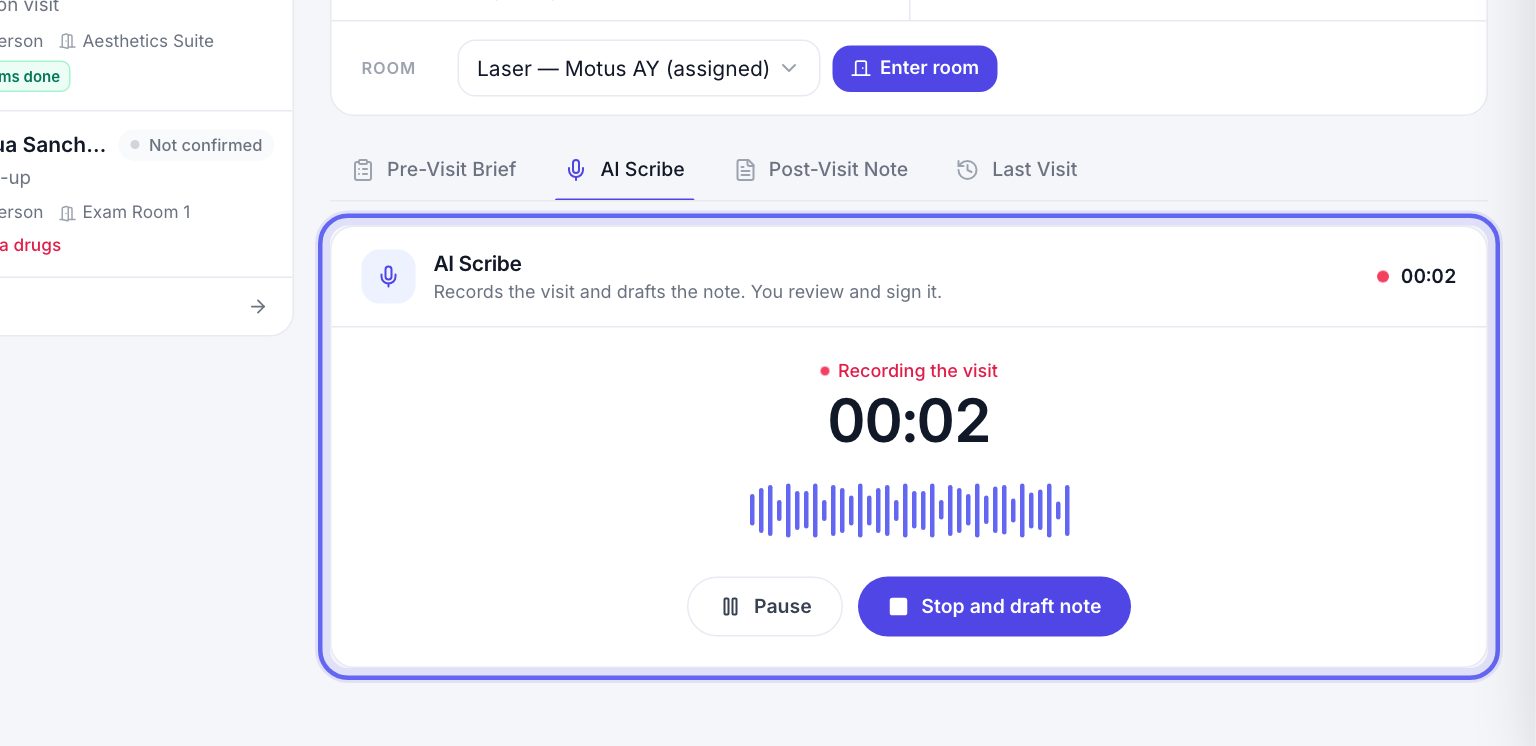
The scribe can take one recording of up to about an hour.
7While the note is drafted
- 1It goes through Upload, Transcribe and Draft. It usually takes under two minutes.
- 2You can leave the tab open and come back.
- 3It is given your clinic’s product and protocol names, to help it spell them.
- 4If the recording is empty or silent, nothing is sent, and it tells you. Check the microphone, or write the note by hand.
- 5If the draft couldn’t be saved to the visit, a message asks you to save the note now, before you leave the screen.
8Check the draft
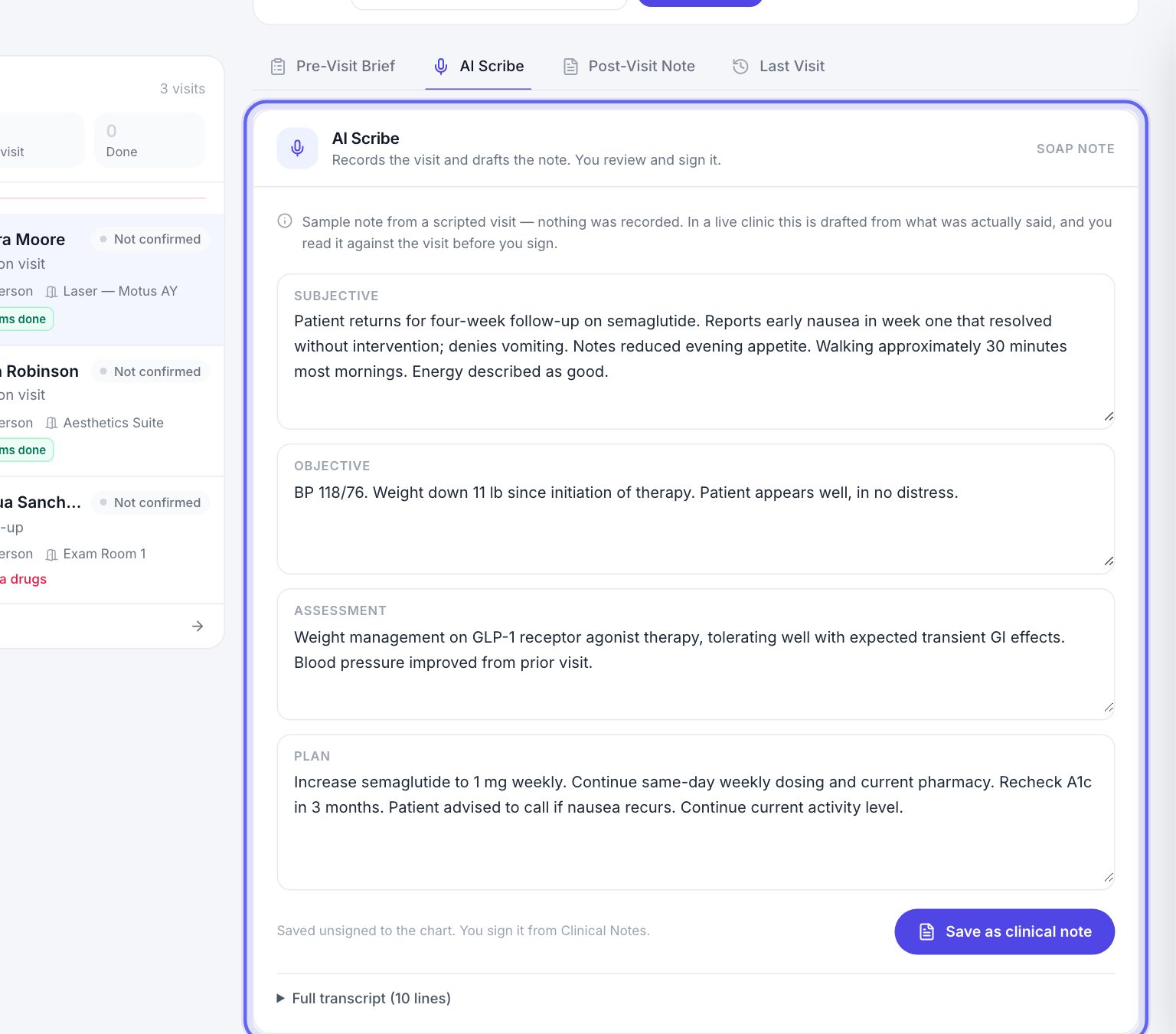
- 1The draft opens in four boxes. Read it against what really happened, drug names and doses especially.
- 2Change anything by typing in the boxes.
- 3Open Full transcript to see exactly what was said.
- 4If a weight, blood pressure or pulse was said out loud, Heard in the visit offers it. Press Add to vitals to put it in the chart.
9Save it, then sign it
- 1Press Save as clinical note. The note goes into the chart, unsigned.
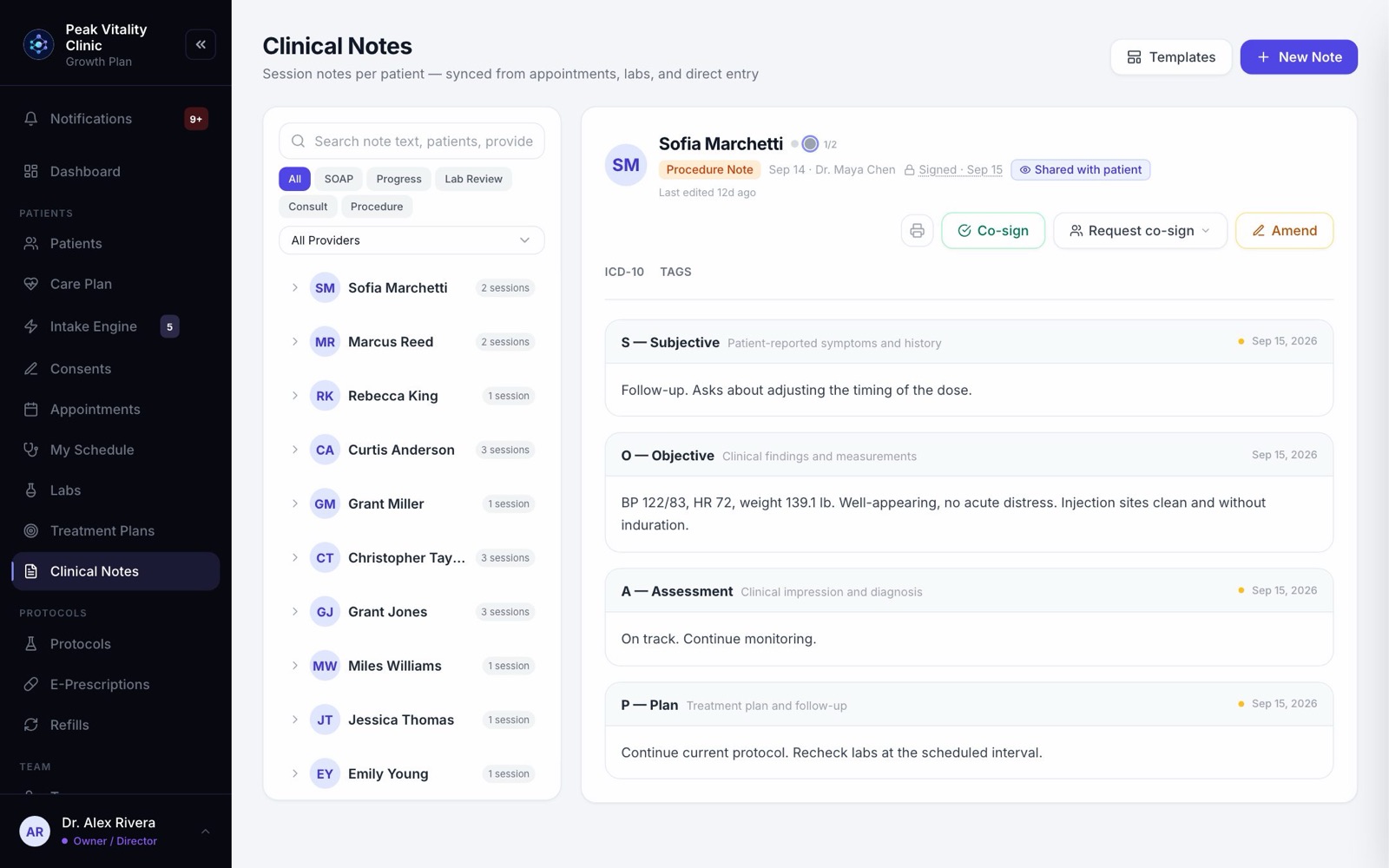
- 2Go to Clinical Notes and open it. Press Edit if anything needs changing.
- 3When it’s right, press Sign & Lock. After that, changes need an amendment.
10On a video visit
- 1On My Schedule, press Join Telehealth Call. A first screen lets you set up before you connect.
- 2Pick the Note format. Leave AI Scribe ticked to record. Decide before you start.
- 3Press Start visit. Your screen shows Recording for notes. The patient’s screen shows This visit is being recorded for notes.
- 4The AI Scribe switch in the side panel turns recording off and on.
- 5When you hang up, the note is drafted on its own.
The scribe works on video visits that run inside Aminova. It doesn’t run on visits held on your own outside video account.
11After the video visit
- 1The Visit complete screen shows a short Visit summary and the Visit note.
- 2Press redraft beside one part to write just that part again from the transcript. The other parts stay as they are.
- 3Open the Transcript to check the note against what was said.
- 4Press Save visit note. It goes into the chart unsigned, and the visit is marked completed. Sign it in Clinical Notes.
- 5Still drafting? Back to schedule — keep drafting keeps it going while you move on.
12Is the audio kept?
- 1Visit recordings in Settings → AI Scribe decides it for the whole clinic. Only owners and managers can change it.
- 2With Do not keep recordings, the audio makes the transcript and is deleted straight away.
- 3Or keep it for 30 days, 90 days, 180 days, 1 year, or Keep until deleted.
- 4Audio is kept only for patients who agreed to recording terms that say so. Others are asked again before their next video visit. Until they agree, their audio isn’t kept.
- 5Clinicians who can read the note can play it from the note in Clinical Notes, or from the patient’s Forms & Files tab. Every playback is logged.
Shortening the time deletes older recordings at the next daily clean-up.
13What the AI is told
- 1About the patient, the AI is told only their age, sex, and whether the visit is in person or by video. Never their name.
- 2Each transcription and each draft is logged in your audit log.
Keep going
My Schedule
Your own day, one visit at a time. Open a visit to see who it is, start it, read the brief, record it with the AI scribe and write your note.
Read the guideClinical Notes
Every note for every patient, in one place. Write a note, sign it, find it again later, and change a signed note the right way.
Read the guideVideo visits
A video visit from booking to note: the patient joins from their app, you join from My Schedule with their chart beside the video, and the note and summary follow.
Read the guideSet up your consent forms
Bring in the consent PDFs you use today, place the signature boxes, and decide who signs each one and how often. Then attach them to your visit types.
Read the guideConsents
Your consent forms, and who has signed them. Send forms, hand the tablet over in the office, and keep your library of forms in order.
Read the guideRather be shown?
Inside Aminova, the tutorial walks you through every page, and the Getting started checklist shows you each task click by click. Or book a live training session with our team.