1How your clinic reaches patients
Everything reaches a patient in up to three ways: a notice in their patient app, a notification on their phone, and an email.
The notice in the app has the full message. A phone notification gives only a short, general line, like “New message”, never the details. Emails leave clinical details out and point the patient to the app.
2Messages, both ways
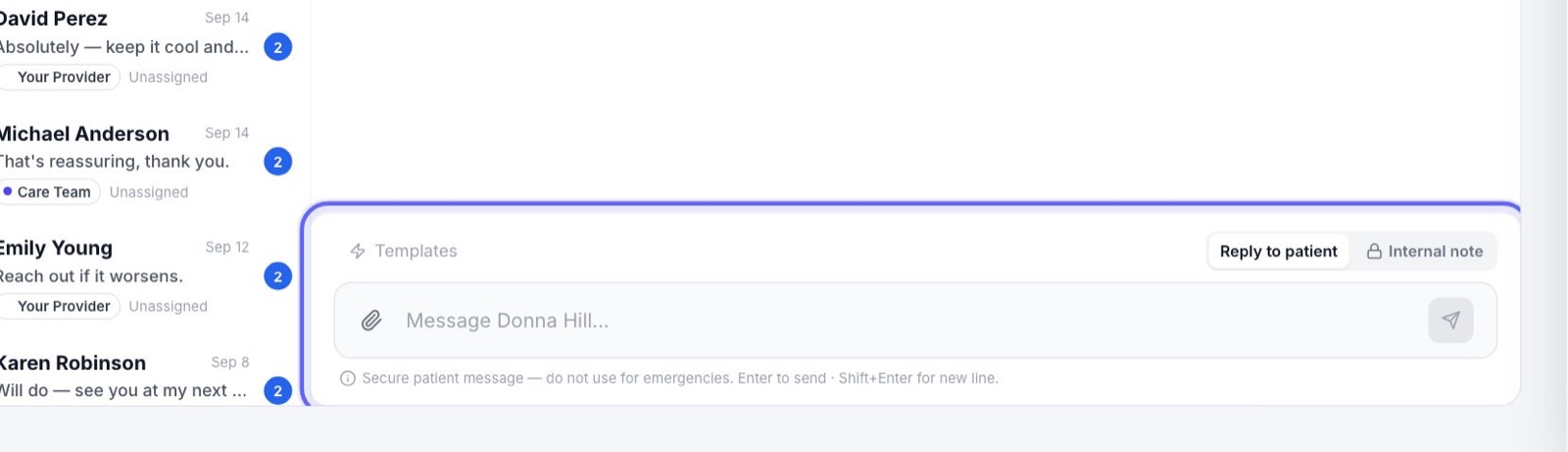
- 1You write to a patient from Messages or from their chart. It lands in their app chat, with a notice, and on their phone if they allow notifications.
- 2When the patient writes back, the conversation’s owner is told, or the whole team if nobody owns it. In the Care Team chat, the care assistant may answer first.
- 3Messages don’t go out by email.
3When a visit is booked
- 1When a visit is booked at the front desk, in the patient app or on your booking link, the patient is told it’s booked.
- 2The confirmation says when the visit is. The email leaves out what it is for.
- 3A patient who asks for a time in the app is told their request was received. When you approve it, they get the confirmation.
- 4A visit waiting on an unpaid deposit gets the bill instead of a confirmation.
- 5When you cancel a visit, the patient gets a notice in their app.
4Appointment reminders
- 1A reminder goes out on its own before each booked visit, once per visit.
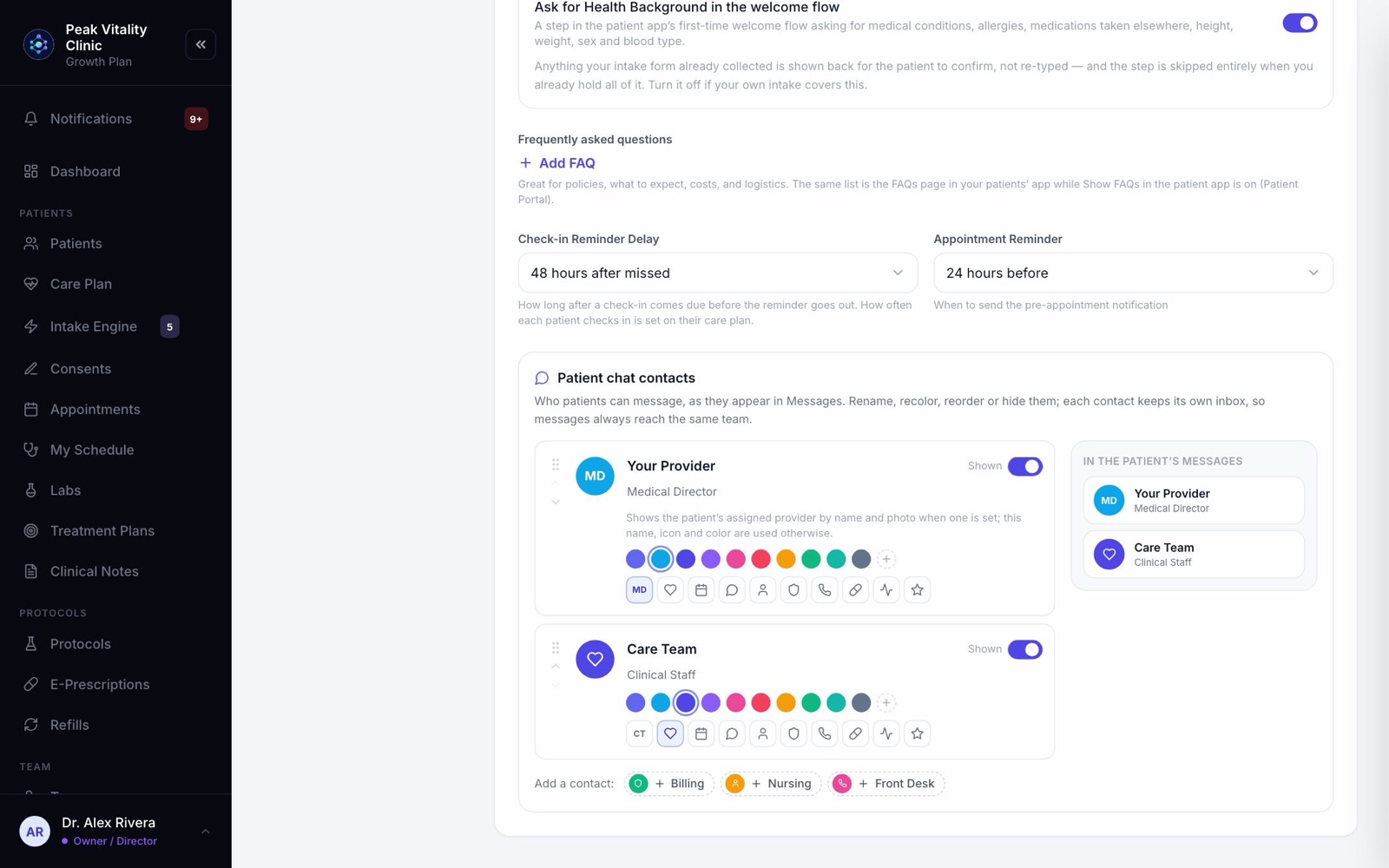
- 2Choose when in Settings → Patient Portal → Appointment Reminder: 2, 24, 48 or 72 hours before.
- 3It says the day and time, and whether it’s in person at your address or a video visit. In the app it also shows the visit’s prep list.
- 4It asks the patient to confirm. When they tap Confirm I’ll be there, the visit shows as Confirmed on your schedule.
- 5Canceled visits, requests, and visits waiting on a deposit get no reminder.
Visits brought over from your old system are never reminded. Your patients already heard about them there.
5Send a reminder yourself
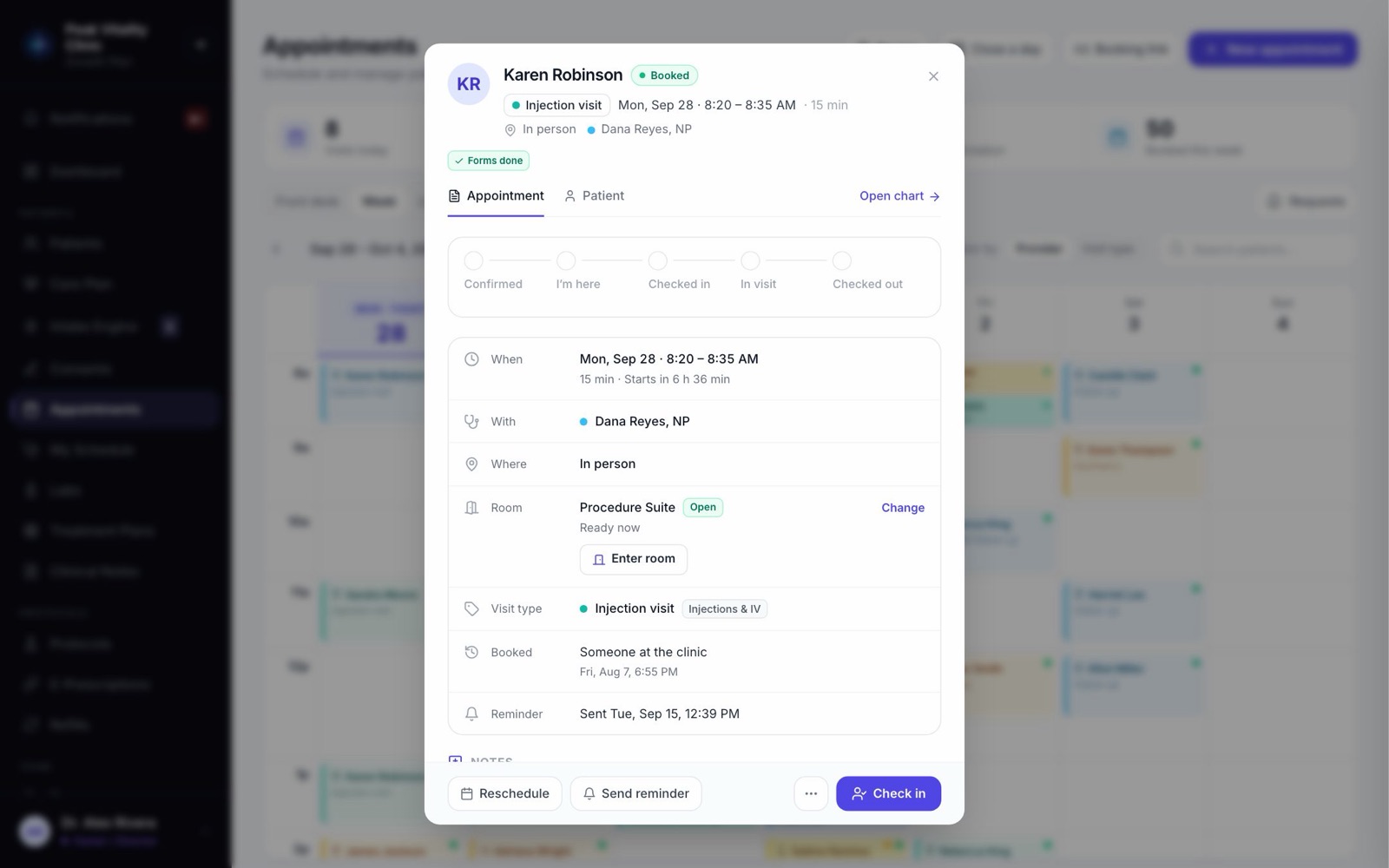
- 1Open the appointment and press Send reminder.
- 2A reminder lands in the patient’s app chat right away, asking them to confirm or reschedule.
- 3The panel then shows Reminder sent. Nothing is sent for a visit that is over or canceled.
6Other notices that go out on their own
Many things in Aminova tell the patient when they happen. For example: Appointment confirmed, New Lab Results Ready, Prescription sent, After-visit summary, Payment receipt, Forms to complete, Refill due soon and Dose reminder.
Each one is a row in Settings → Notifications, so you decide how it goes out.
7Choose how each notice goes out
- 1Go to Settings → Notifications.
- 2Each row is one kind of notice. Turn In-App, Push and Email on or off for it. Push is the phone notification.
- 3Press Save Changes.
- 4If you see Paused sends, those were switched off on an older screen and are still off. Press Turn back on to let the rows decide again.
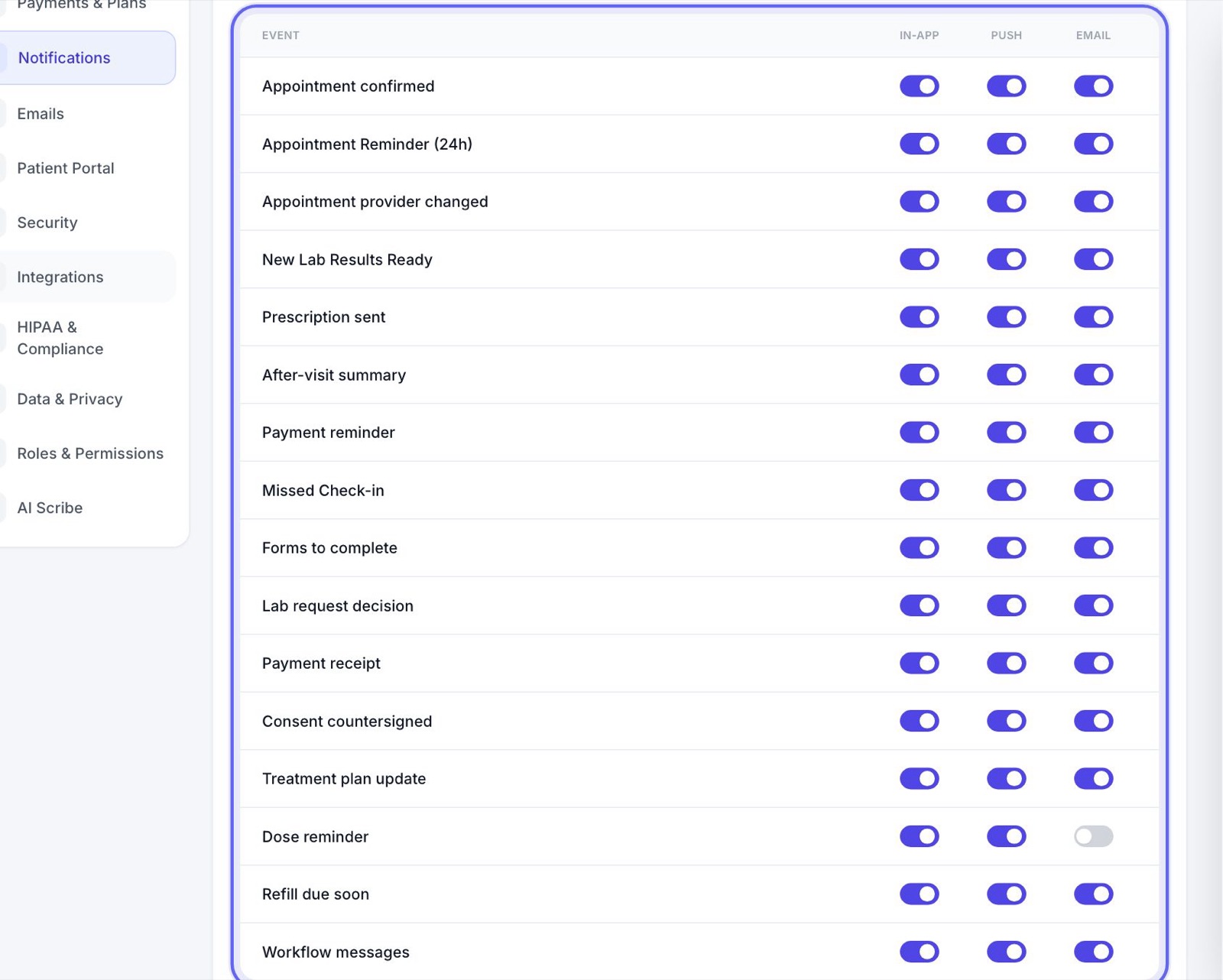
A dose reminder can come several times a day, so its email starts off. Everything else starts on.
8What your emails say
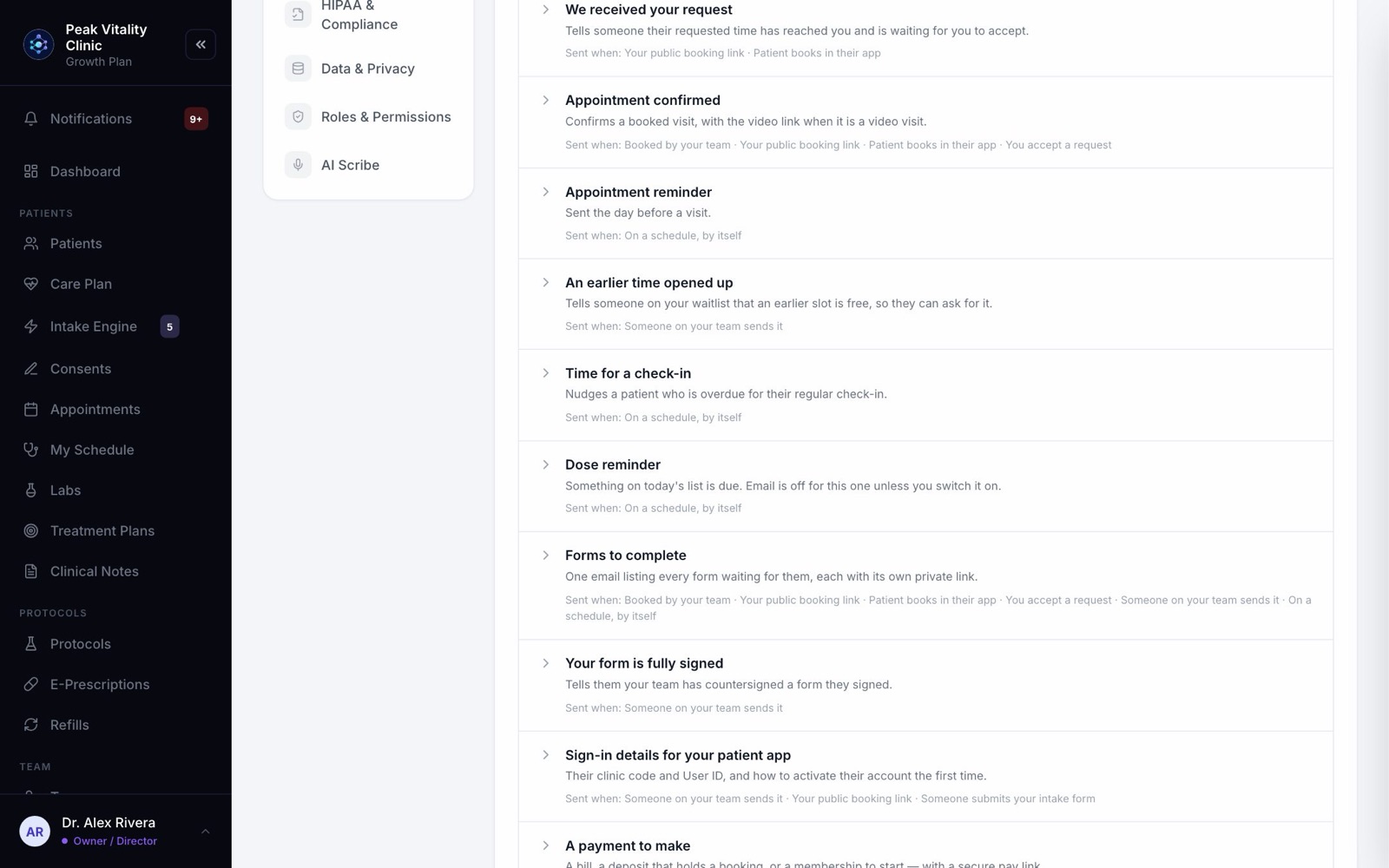
- 1Go to Settings → Emails. It lists every automatic email your patients get.
- 2Open one to see What the patient sees.
- 3Change the Subject line, A line above the message and the Sign-off to sound like your clinic.
9Quiet hours and the daily limit
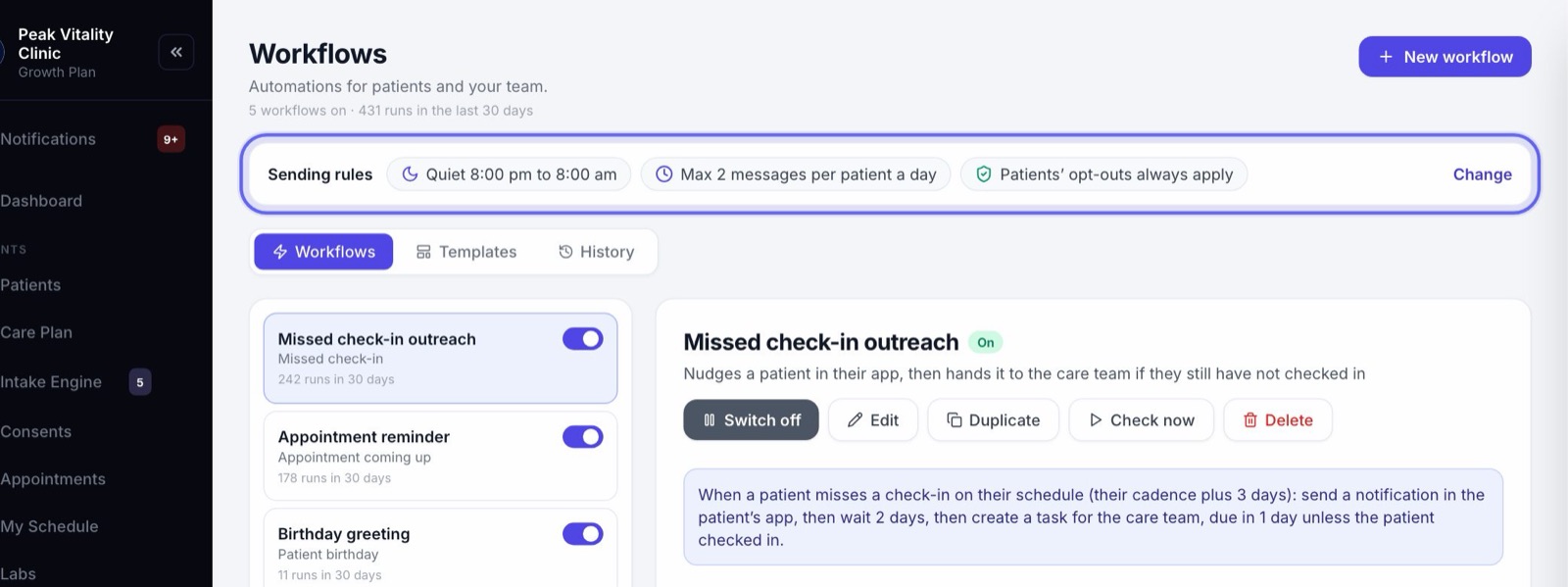
- 1On Workflows, find Sending rules and click Change.
- 2Tick Hold patient messages overnight and set the hours. Patient messages from your workflows wait until morning. Team alerts are never held.
- 3Set a Daily limit: how many workflow messages one patient can get in a day.
- 4Appointment reminders follow quiet hours too. A reminder due at night waits until morning. If the visit starts before quiet hours end, no reminder goes.
10Messages you set up yourself
- 1On Workflows, a step can send an app notification, a message in the patient’s chat, an email, a phone notification, or a form.
- 2In Messages, owners can Broadcast one message to many patients. It lands in their app chat with a notification. It is not an email.
- 3On Communications, owners and managers send campaigns by push or email to a group of patients.
11What patients can turn off
- 1In the settings of their patient app, patients can turn phone notifications off for Protocol reminders, Lab results, Appointments, Messages and Shipping updates. The notice still shows in the app.
- 2Email off stops campaign emails and emails from your workflows.
- 3News and offers off stops campaign emails.
- 4Do not contact me stops emails and phone notifications from your clinic. Notices still land in their app.
12Who never gets them
- 1A practice patient, with the green Practice patient badge, gets notices in the app only. Nothing is emailed or sent to a phone.
- 2Patients who chose Do not contact me are left out of broadcasts and campaigns.
13Your team’s side
- 1When a patient writes, the conversation’s owner gets a notice in the bell. Owners and managers set who owns each chat in the Messages settings.
- 2Settings → Notifications also has Staff notifications, for what your team is told.
- 3To get alerts on your own computer, open the bell’s settings and turn on Alert me on this device.
Keep going
Messages
One inbox for every conversation with your patients and your team. Reply, hand a message to the right person, and leave notes only your team can see.
Read the guideAppointments
Every visit, for everyone. Book visits, run the front desk, and open any appointment to check a patient in, move it or charge it.
Read the guideThe patient app
Your patients’ side of Aminova, screen by screen: how they get in, what each tab does, and where each thing they do shows up for your team.
Read the guideWorkflows
Messages and tasks that happen on their own. Pick what starts one, who it is for and what it does, check who it reaches, then switch it on.
Read the guideCommunications
Send one message to a group of patients, build courses patients work through in their portal, and set how your emails look.
Read the guideSettings
How your clinic runs: your details and hours, payments, what patients are told, the patient app, security, connected tools and who can do what.
Read the guideRather be shown?
Inside Aminova, the tutorial walks you through every page, and the Getting started checklist shows you each task click by click. Or book a live training session with our team.