1The page at a glance
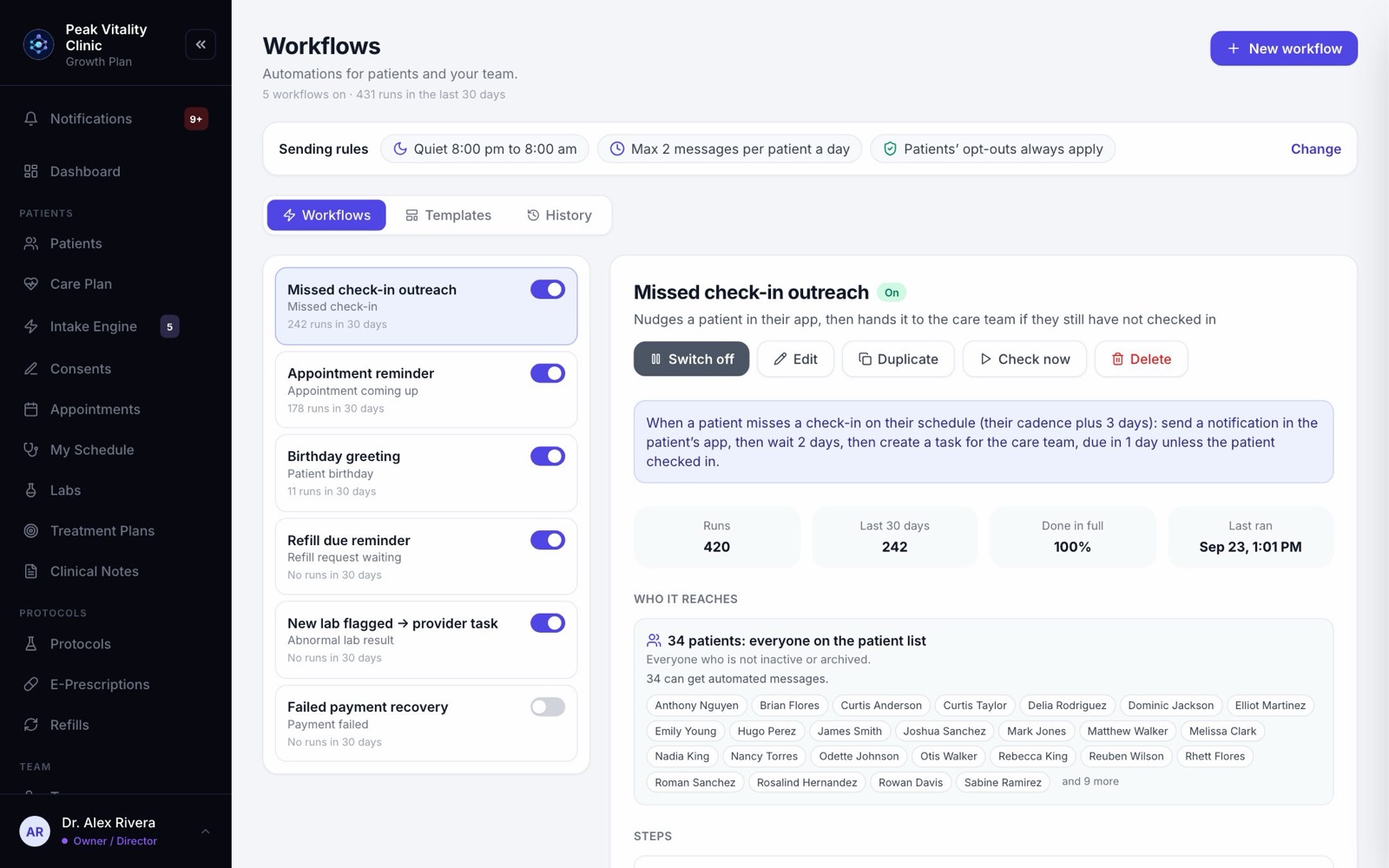
A workflow is a set of steps that runs on its own when something happens, like a visit ending or a lab result coming in. It can message the patient, send a form, or give your team a task.
At the top are your Sending rules. Below them are three tabs: Workflows, Templates and History. Owners, managers and providers can build and switch workflows. Others can look.
2Sending rules
- 1The row shows your quiet hours and the most automatic messages one patient can get in a day.
- 2Click Change. Tick Hold patient messages overnight and set the times. Messages to patients wait until morning. Team alerts are never held.
- 3Set the Daily limit per patient. 0 means no limit.
- 4Press Save.
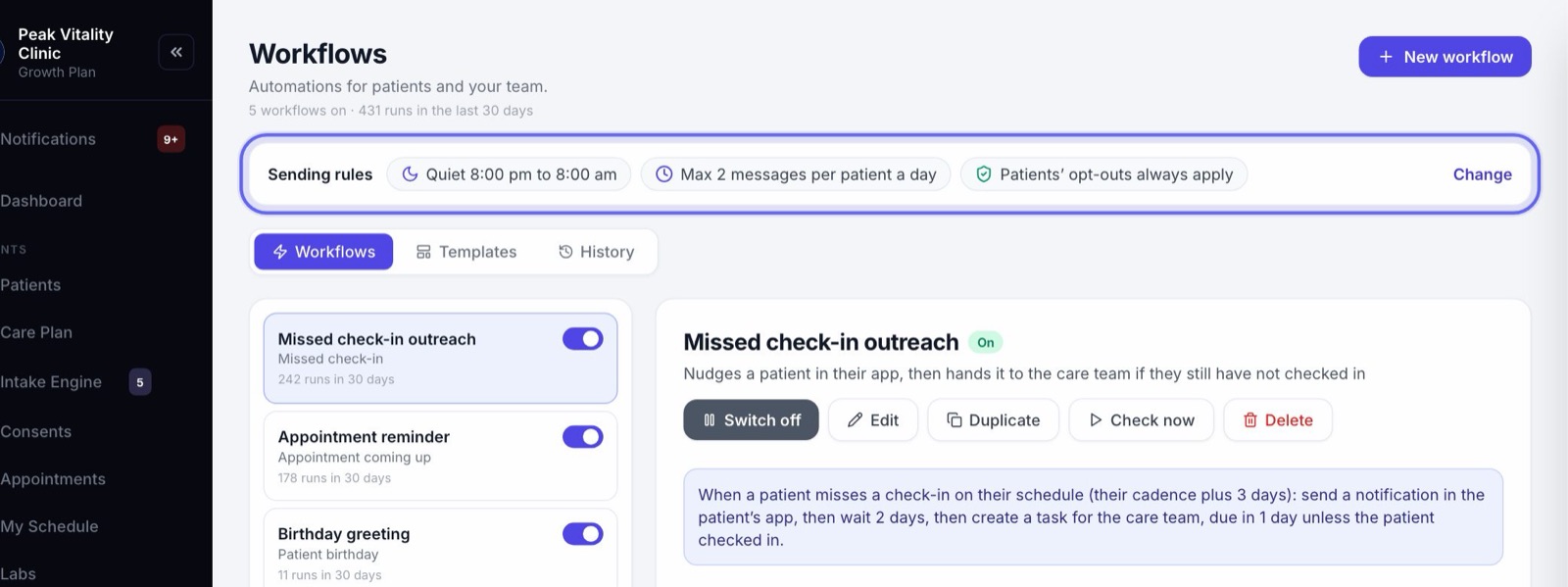
Patients’ opt-outs always apply. Nothing automatic reaches a patient by a channel they turned off.
3Your workflows
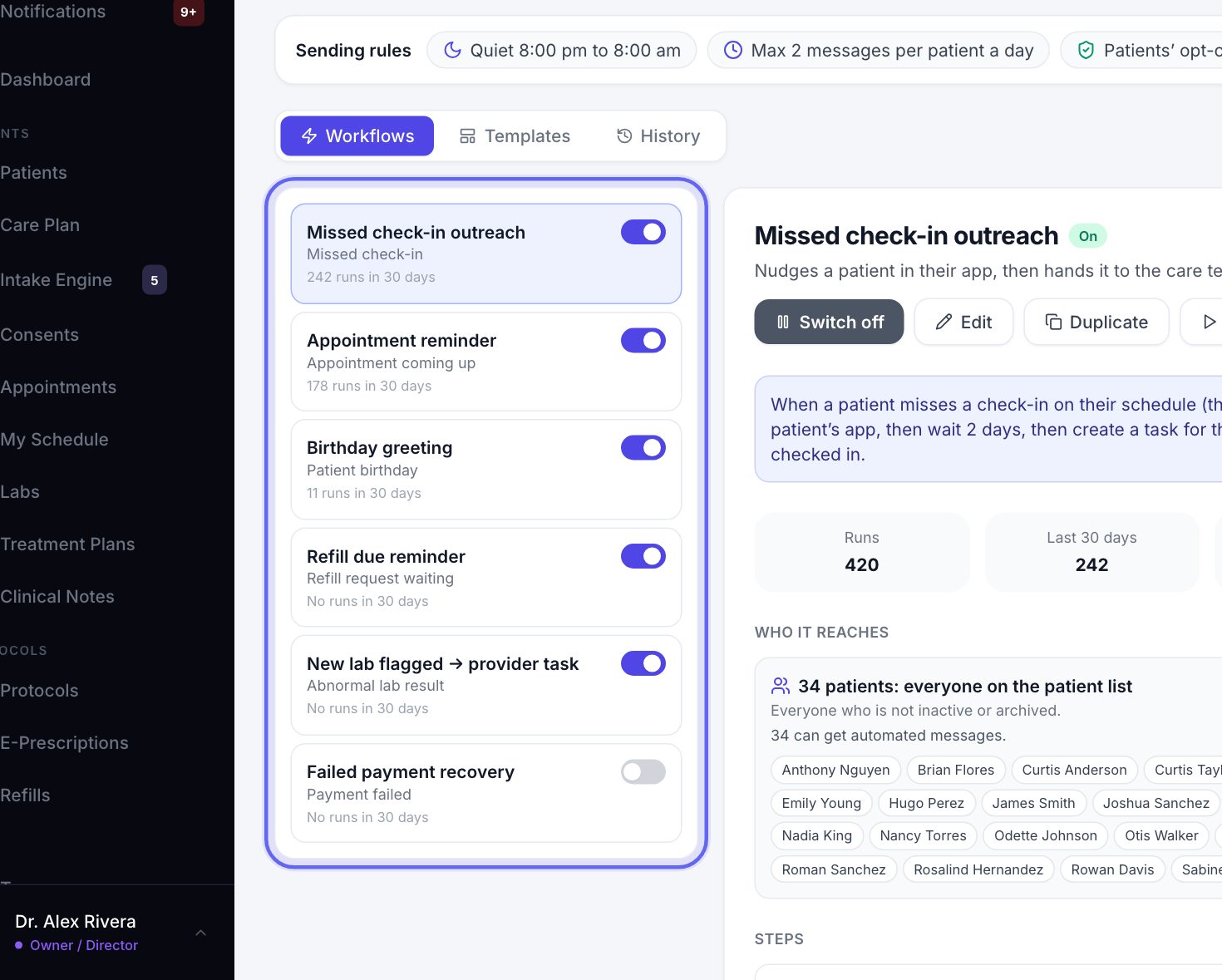
- 1Each row shows the workflow’s name, what starts it, and how many times it ran in the last 30 days.
- 2The switch on the right turns it on or off.
- 3Click a row to open it on the right.
4Inside a workflow
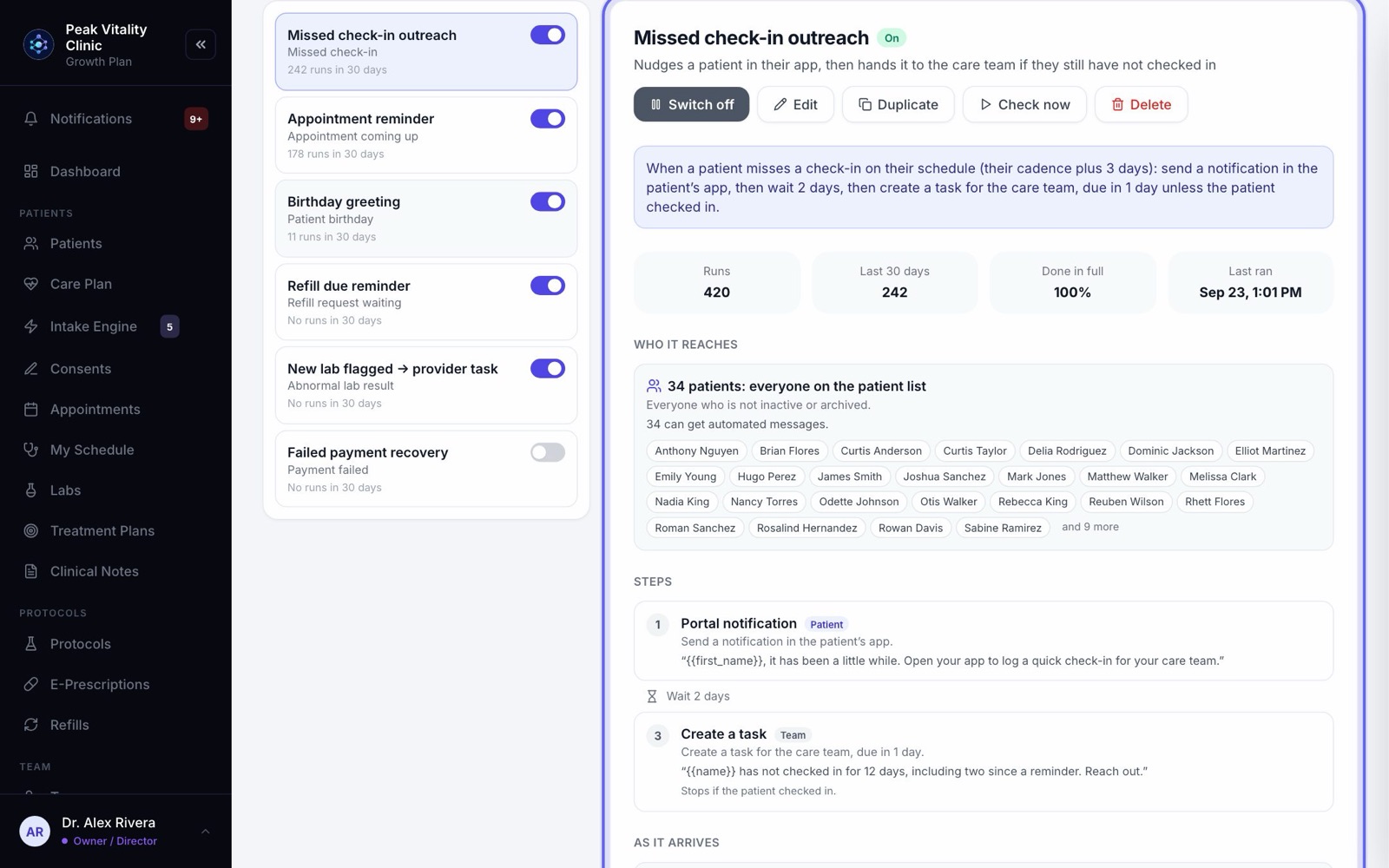
- 1The blue box says in one sentence what it does.
- 2Runs, Last 30 days, Done in full and Last ran show how it’s going.
- 3Who it reaches counts the patients it matches now. Steps lists what happens, in order, and marks each one Patient or Team.
- 4As it arrives shows each message the way it will look.
- 5Run history lists every time it ran. Click a patient’s name to see only theirs.
6Start from a template
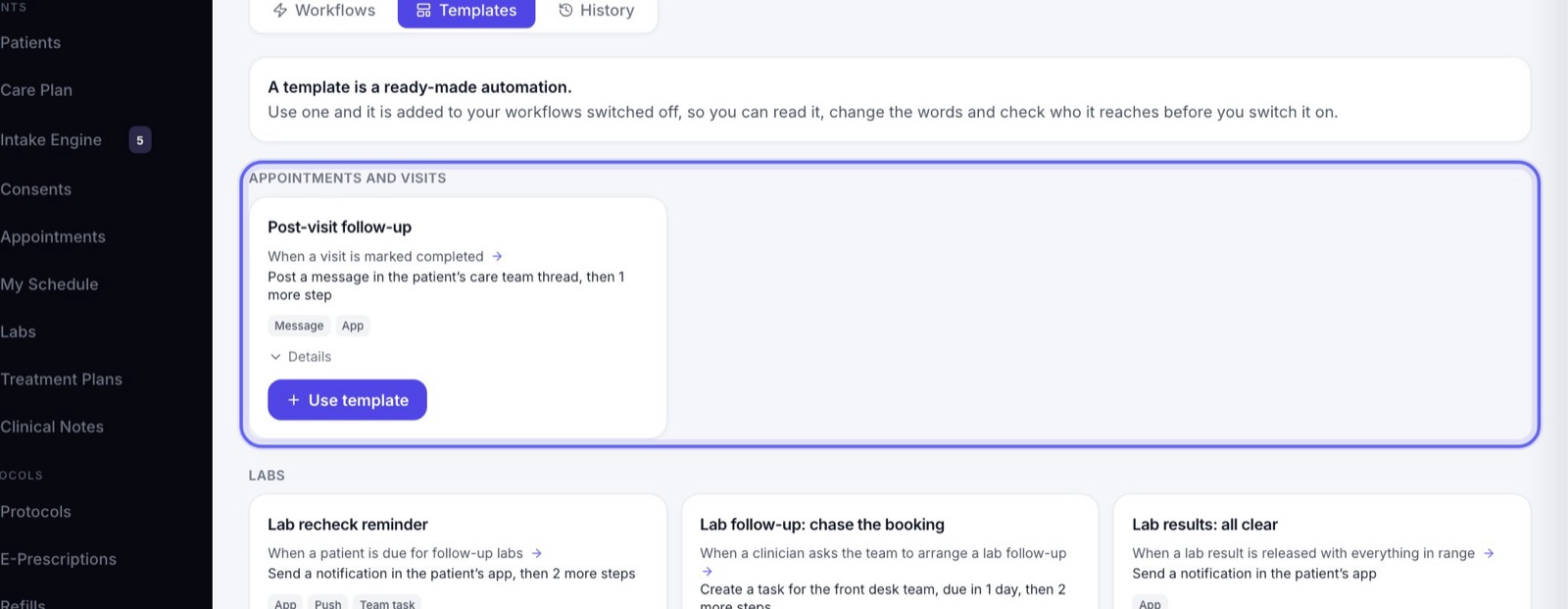
- 1Open the Templates tab. Templates are ready-made workflows, grouped by purpose.
- 2Each card says what starts it and what it does. Details says more.
- 3Press Use template. It is added to your workflows switched off, so you can read it and change the words first.
7Build your own
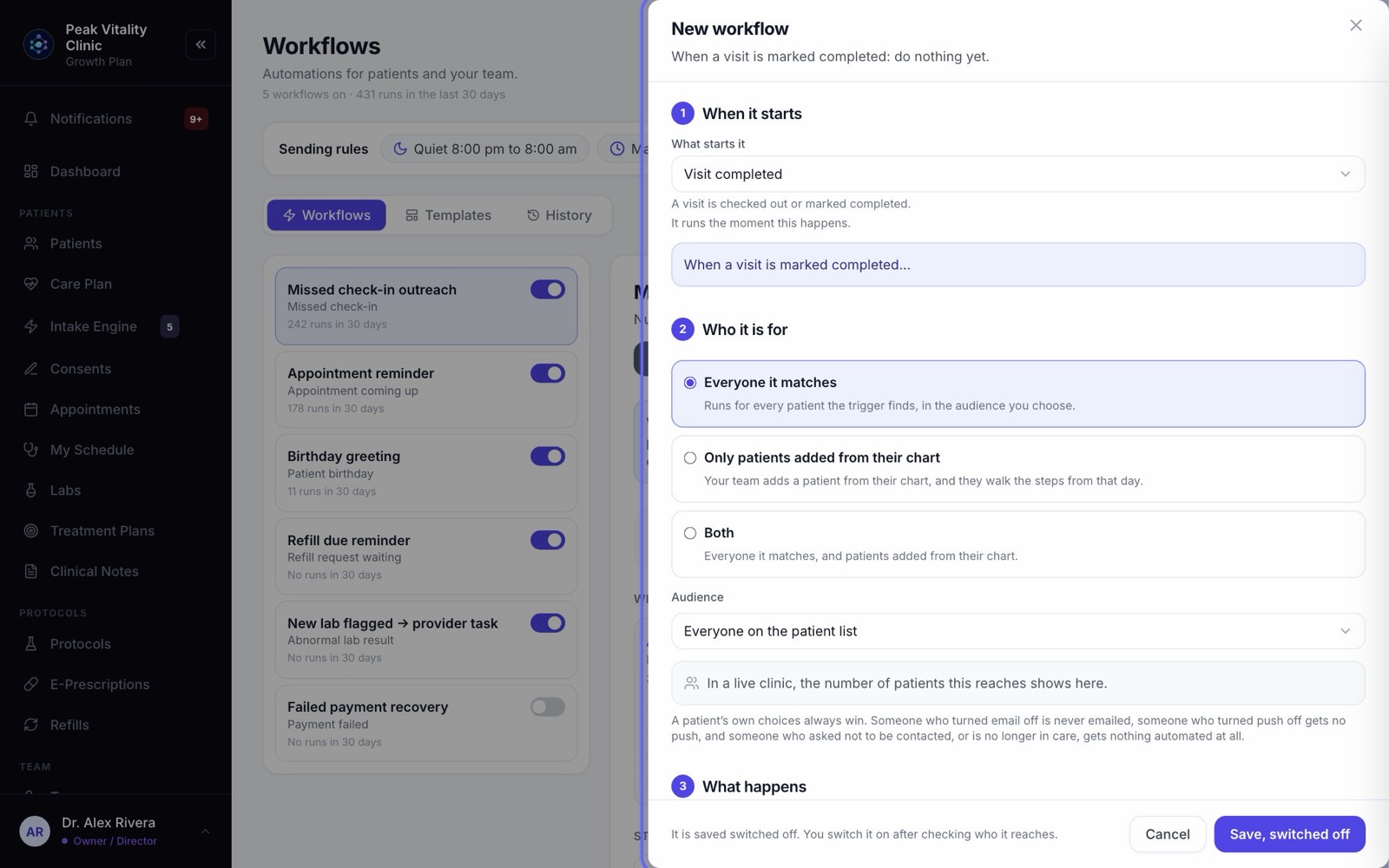
- 1Click New workflow. The builder opens on the right in four parts.
- 2Under When it starts, open What starts it and pick an event. You can search the list.
- 3Some starts run the moment it happens. Others are checked every hour. The builder says which.
- 4Some starts ask for more, like which lab marker or which form.
8Who it is for
- 1Everyone it matches runs for every patient the start finds, in the Audience you pick.
- 2Only patients added from their chart runs only for patients your team adds by hand.
- 3Both does both.
- 4Pick the Audience: everyone, active patients, new patients, patients with a visit soon, patients who owe money, members, or one protocol. The count below shows who that is right now.
9What happens
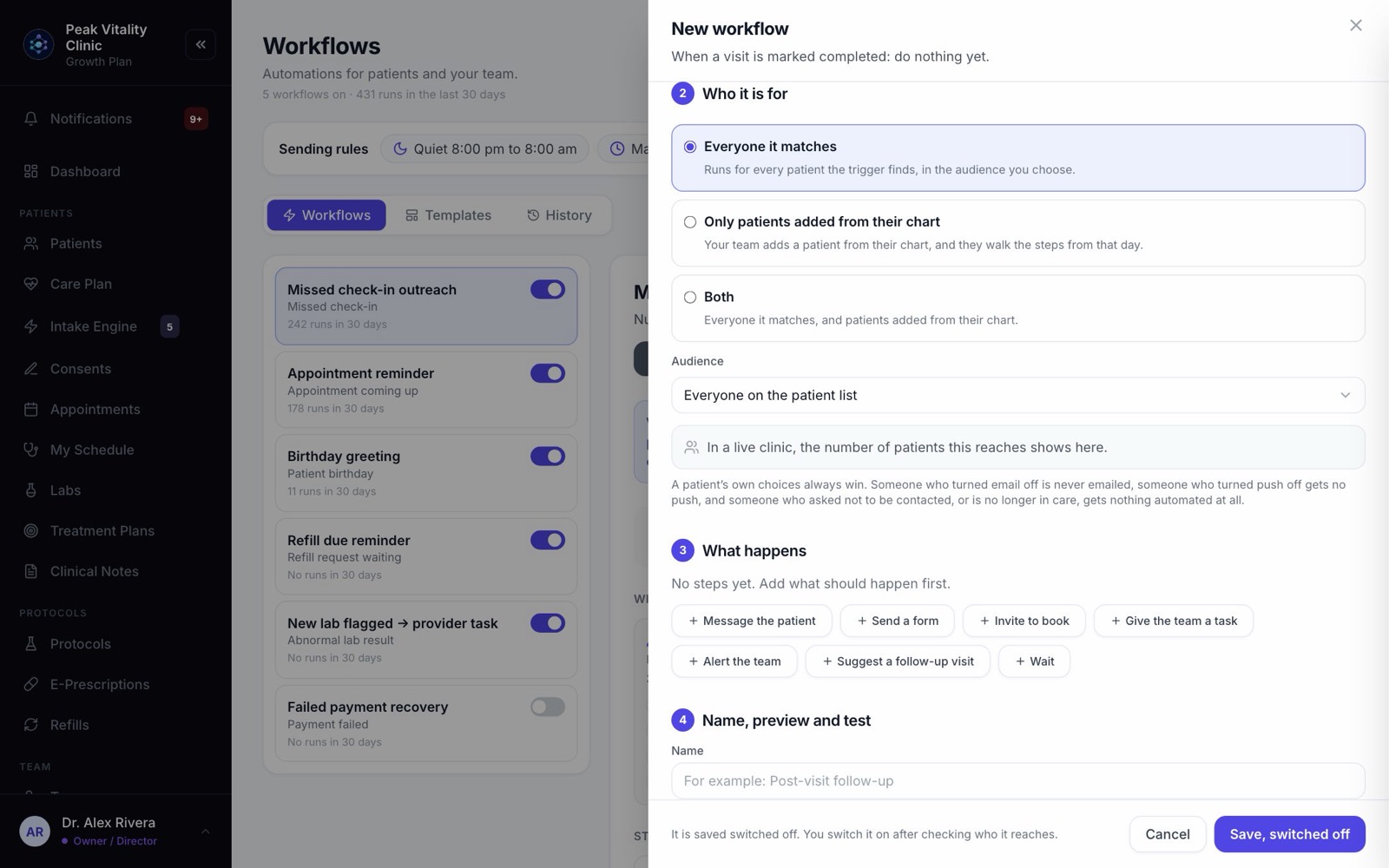
- 1Add steps with the buttons: Message the patient, Send a form, Invite to book, Give the team a task, Alert the team, Suggest a follow-up visit or Wait.
- 2Write the words for each message, or leave the box empty to use the standard words shown.
- 3Put a Wait between steps to space them out.
- 4Under Stop here if, tick what should end it, like the patient booking a visit or replying.
10Name it, test it, save it
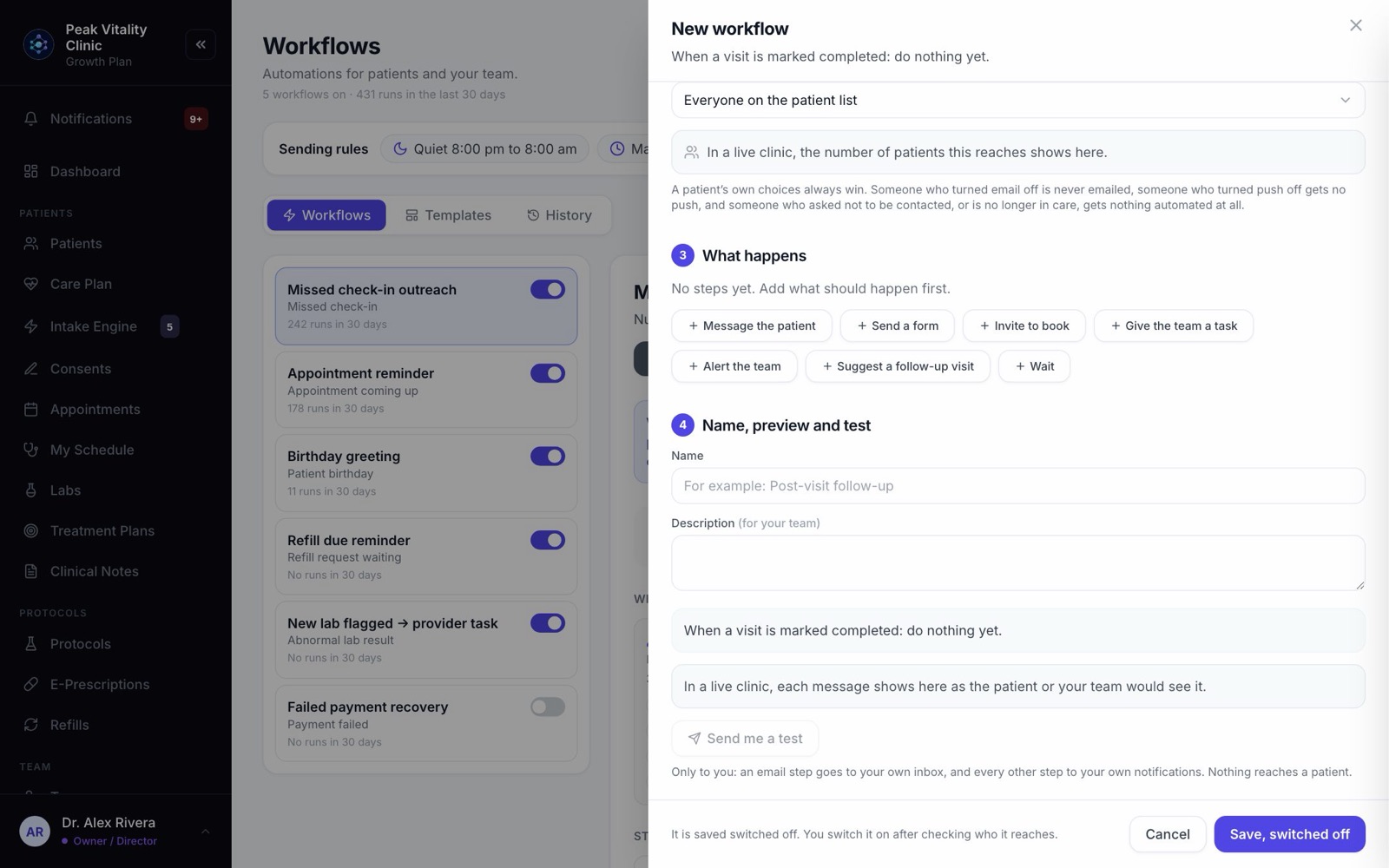
- 1Give it a Name, and a Description for your team if you like.
- 2The preview shows each message, written for a sample patient.
- 3Press Send me a test. It goes only to you: email steps to your inbox, the rest to your notifications. Nothing reaches a patient.
- 4Press Save, switched off.
11Switch it on
- 1Press Switch on, or flip its switch in the list.
- 2A box says Who it will reach, When it acts, and What protects patients.
- 3Check it, then press Switch it on.
Nothing is sent while a workflow is off. A new workflow, and every template you add, starts off.
12Add a patient from their chart
- 1For a workflow set to Only patients added from their chart or Both, open the patient’s chart.
- 2On the Overview, click Automations.
- 3Under Add to a workflow, choose it, pick a Start date if you like, and press Add. They start its steps from that day.
- 4The workflow’s own page lists them under Patients added from their charts, with Pause, Resume and Stop.
13Run history
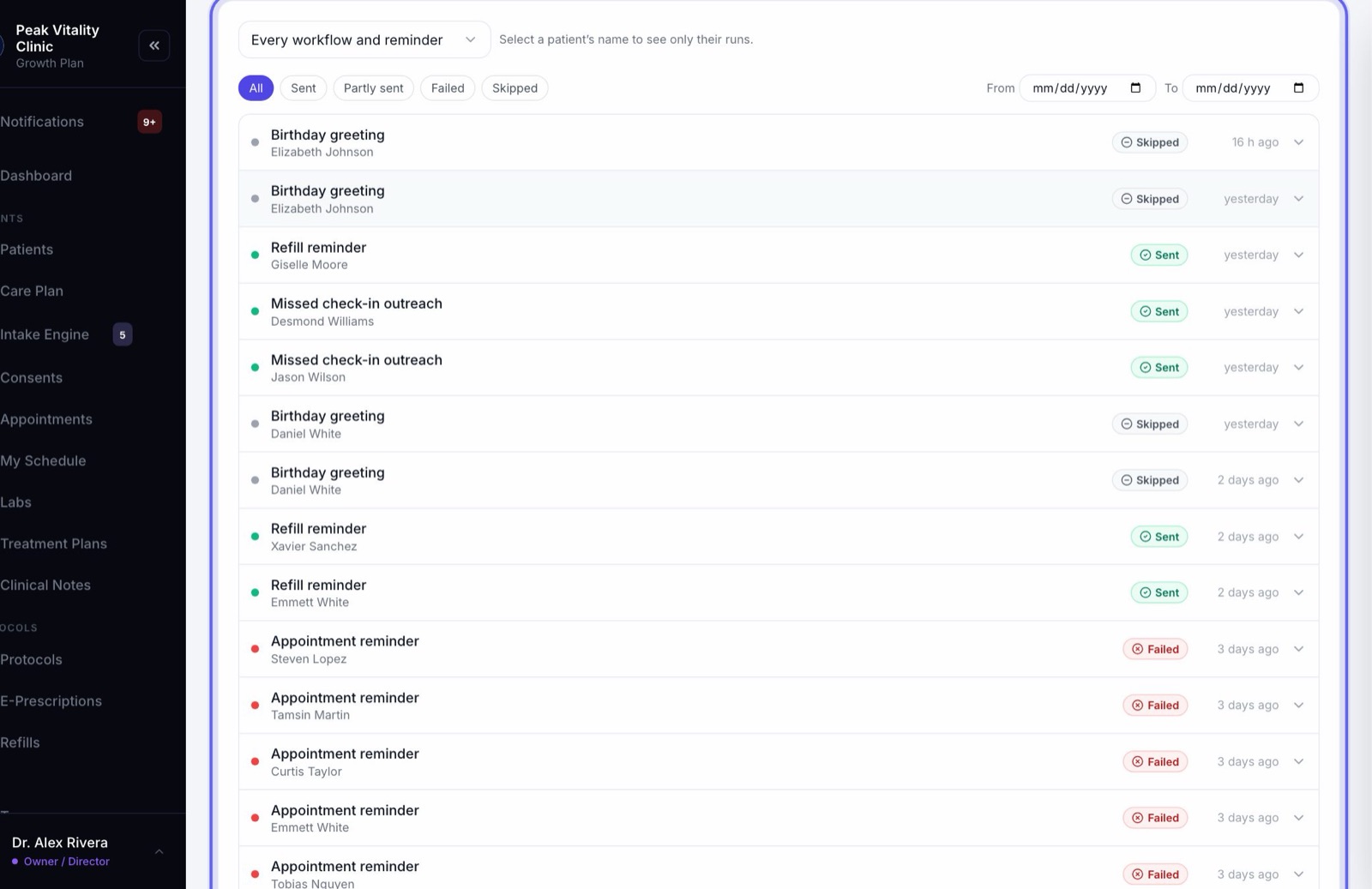
- 1Open the History tab. Every run is here, newest first.
- 2Pick one workflow, or leave it on Every workflow and reminder.
- 3Filter by Sent, Partly sent, Failed or Skipped, or pick dates.
- 4Click a run to see what each step did, and why anything didn’t go.
Your practice patient never gets emails or texts from a workflow.
Keep going
Messaging and reminders
How your clinic reaches patients: messages, booking confirmations, appointment reminders and other notices. What goes out on its own, how you control it, and what patients can turn off.
Read the guideCommunications
Send one message to a group of patients, build courses patients work through in their portal, and set how your emails look.
Read the guideThe patient chart
Everything about one patient on one page. The header says who they are and what’s next; the tabs below hold each part of their record.
Read the guideIntake Engine
Build the forms patients fill in, choose where their answers go, and review what they send you.
Read the guideConsents
Your consent forms, and who has signed them. Send forms, hand the tablet over in the office, and keep your library of forms in order.
Read the guideRather be shown?
Inside Aminova, the tutorial walks you through every page, and the Getting started checklist shows you each task click by click. Or book a live training session with our team.