1The page at a glance
On the left is the list of conversations, with a switch between patients and your team. On the right is the conversation you open. The top of the page says how many messages are unread.
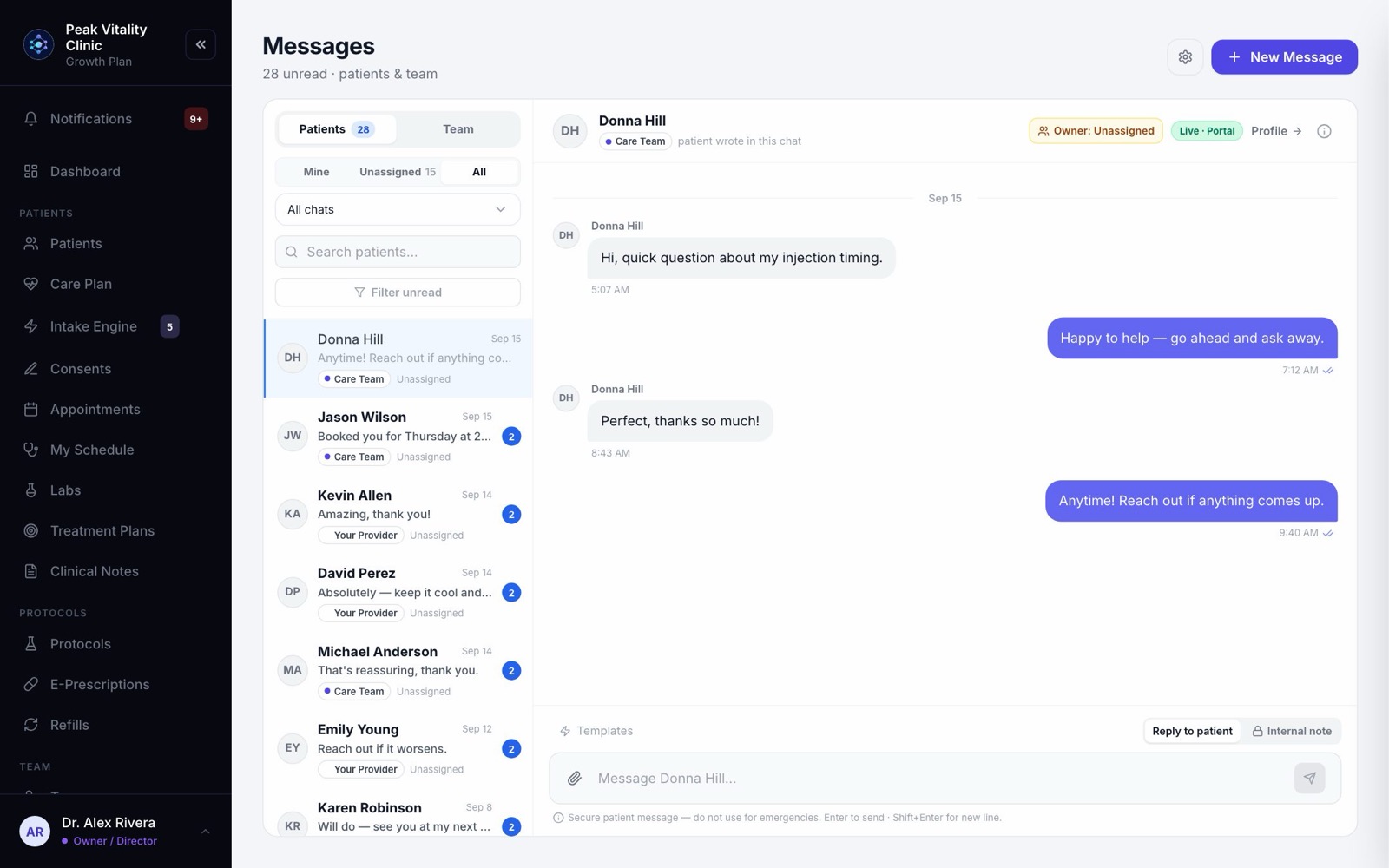
2Write to a patient
- 1Click New Message.
- 2Under To, search by name or patient ID. People you talked with recently are listed first.
- 3If your clinic has more than one chat, pick the Chat it goes out on.
- 4If you have talked before, the last few messages show, so you don’t repeat yourself.
- 5Type your Message and press Send.
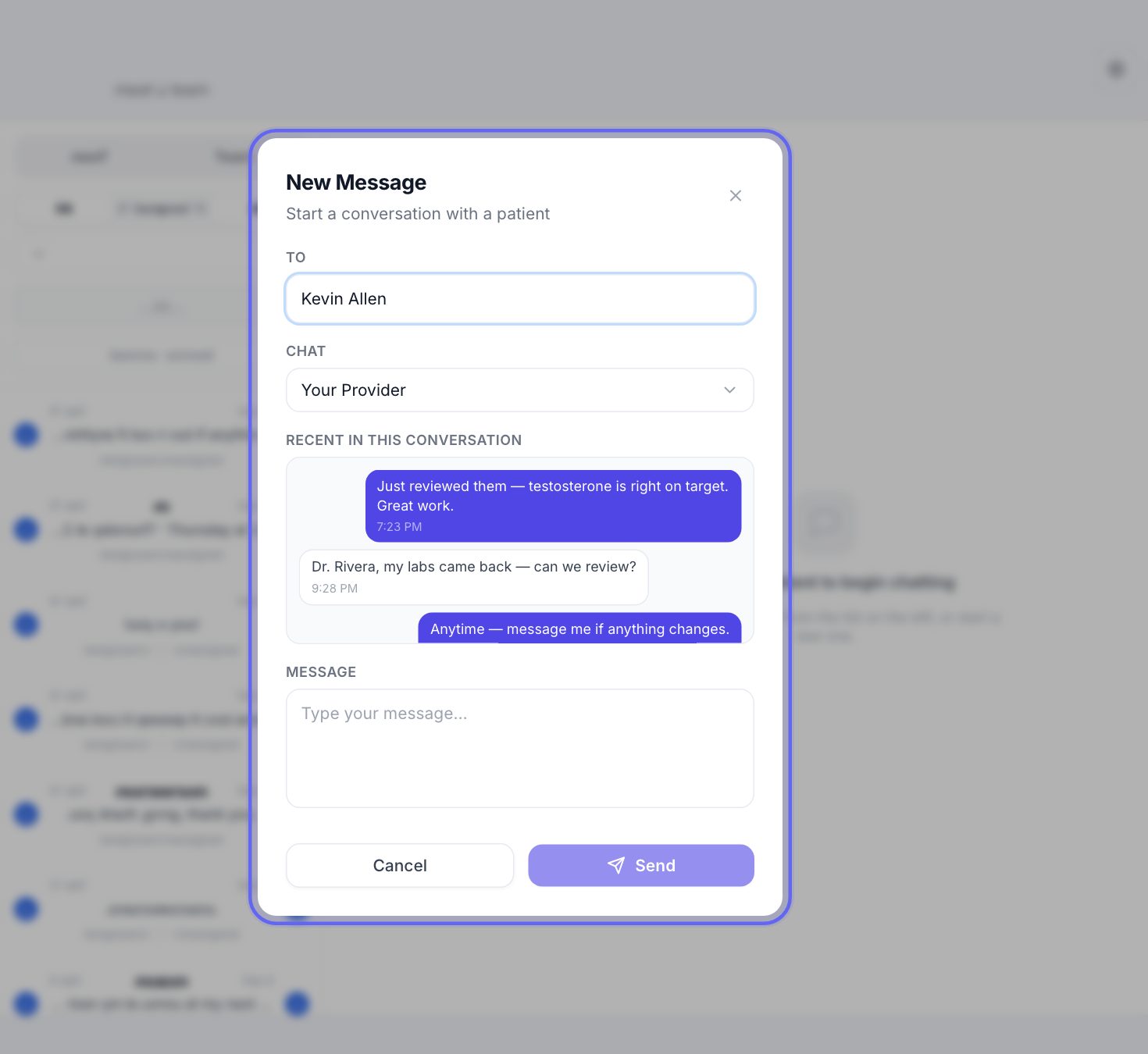
3Patients, team, and whose it is
- 1Patients and Team switch between patient conversations and your team’s chats. The number is what’s unread.
- 2Mine shows conversations you own. Unassigned shows the ones nobody owns yet. All shows everything.
- 3If your clinic has more than one chat, All chats narrows the list to one.
- 4Search finds a conversation by name, or by words in its last message. Filter unread hides the rest.
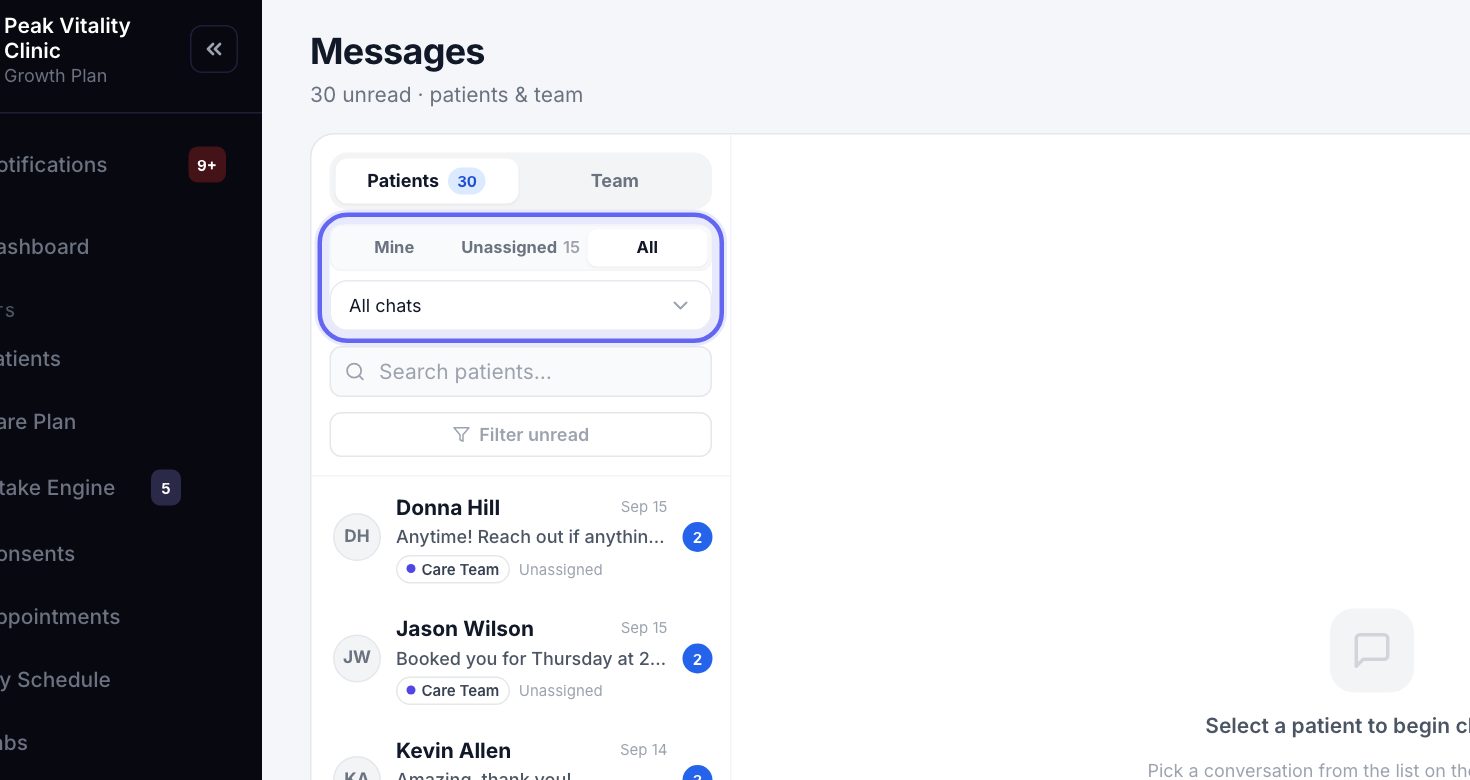
4The conversation list
- 1Each row shows the patient, the last message, and when it came in.
- 2The colored tag is the chat the patient wrote in. Beside it is who owns the conversation.
- 3A blue number means unread messages. A red dot means a Care Team conversation needs a reply.
5Open a conversation
- 1Click a conversation to open it. The header shows the chat the patient wrote in.
- 2Profile opens the patient’s chart.
- 3The info button beside it shows a quick Patient Snapshot: protocol, adherence and next refill.
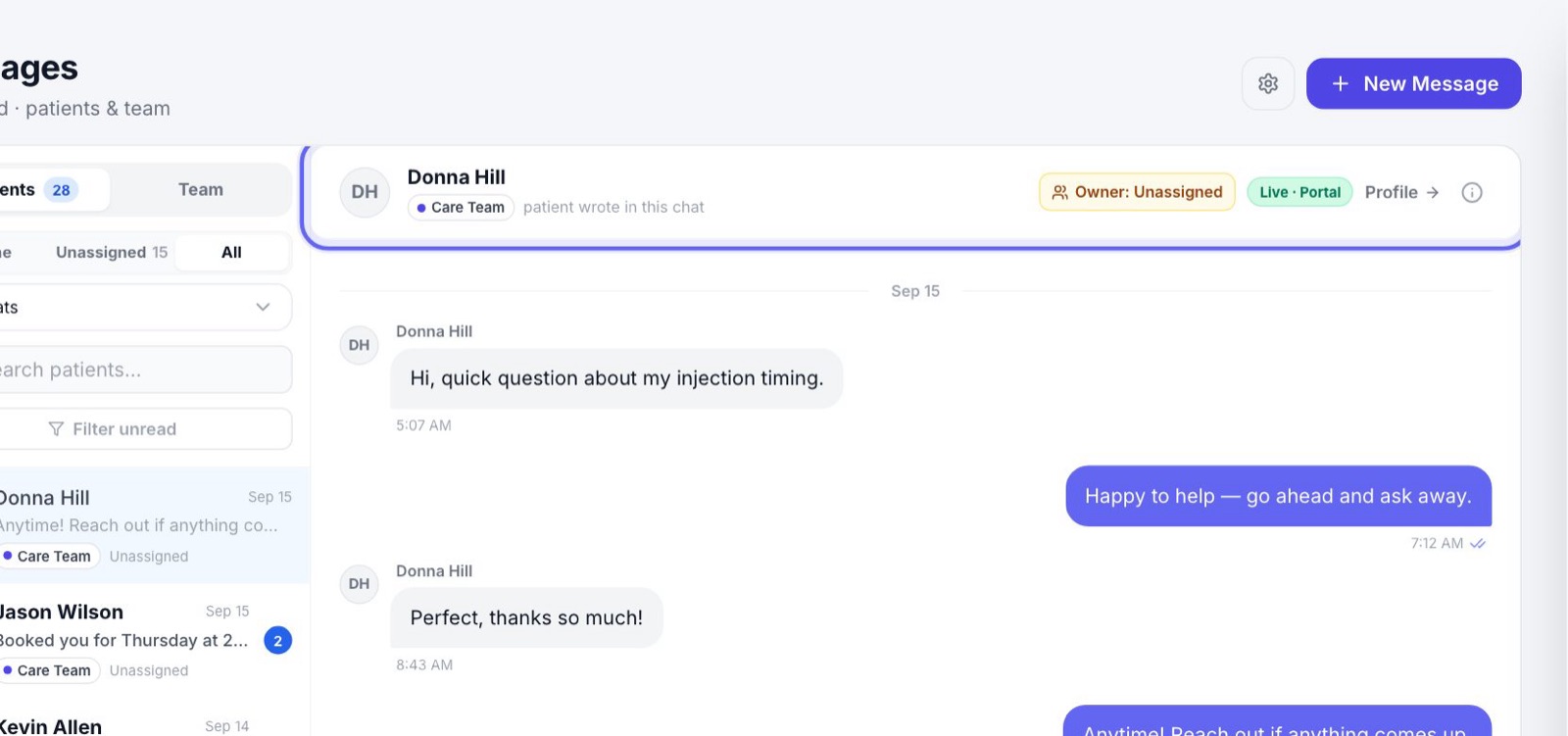
6Who answers
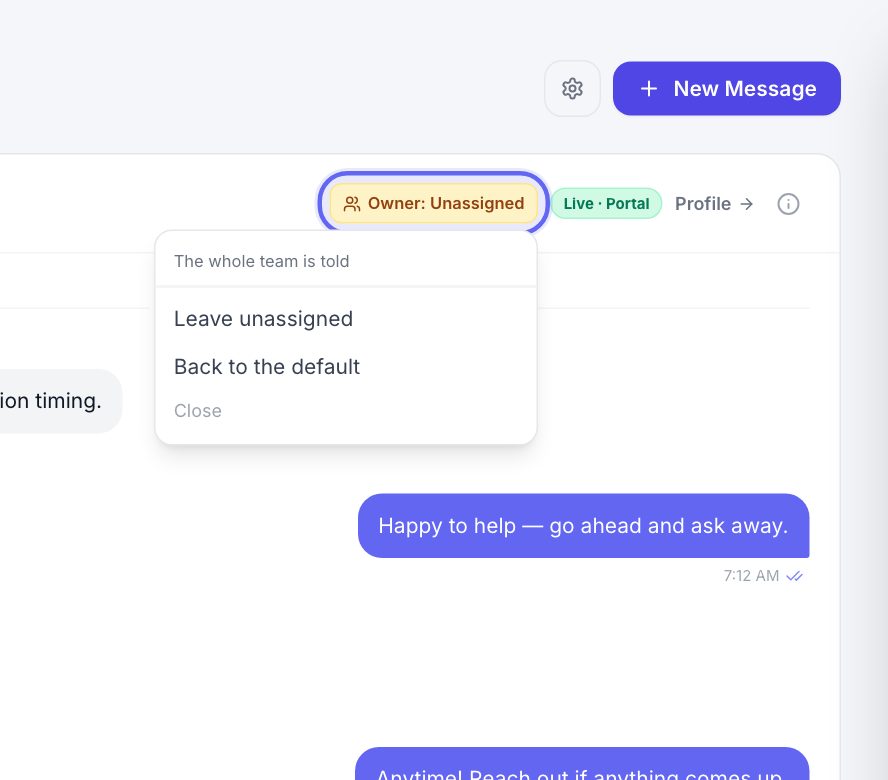
- 1Every patient conversation has an owner. The owner is told when the patient writes.
- 2Click Owner to hand the conversation to someone else.
- 3Leave unassigned tells the whole team instead. Back to the default returns it to the chat’s usual owner, like the patient’s own provider.
7Reply to the patient
- 1Make sure Reply to patient is selected, type, and press Enter to send. Shift and Enter starts a new line.
- 2Templates fills in a common reply, like a refill update. Edit it before you send.
- 3The paperclip sends a PDF or photo, up to 15 MB.
- 4The patient sees your reply in their app chat, with a notice.
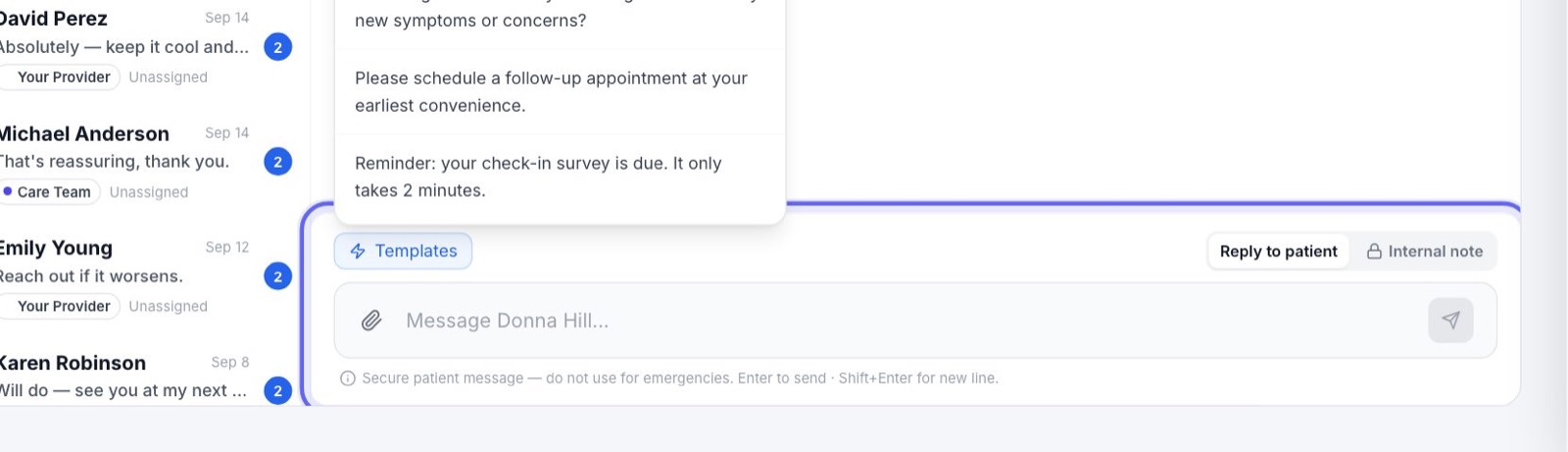
Patient messages are not for emergencies. The line under the box says so.
8Internal notes
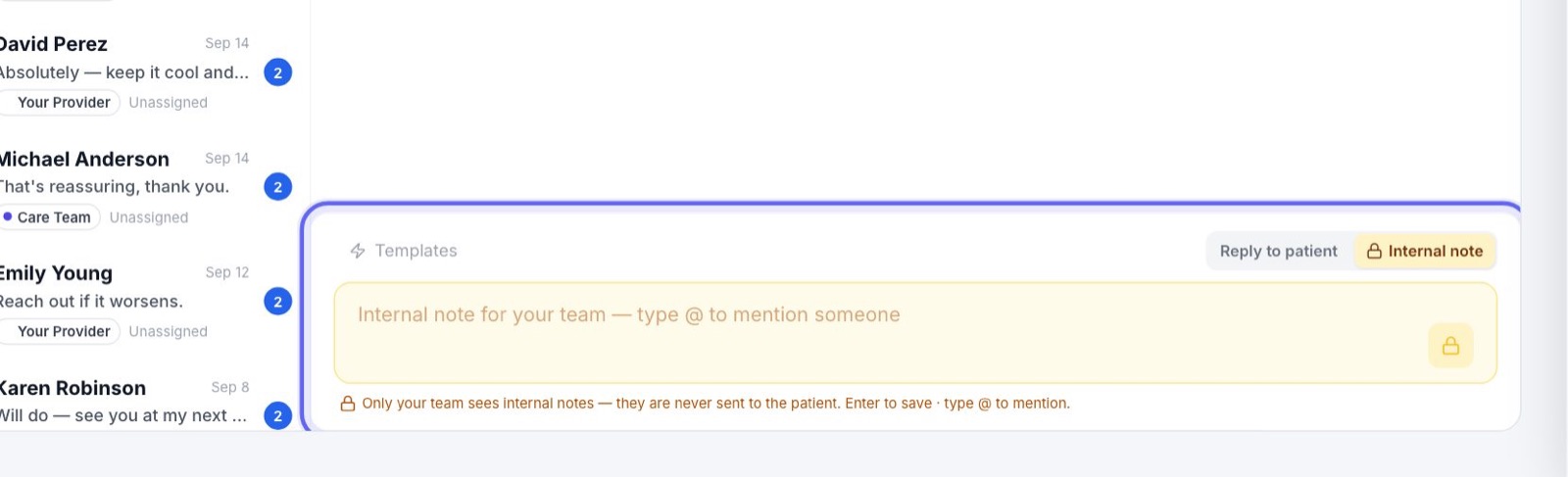
- 1Click Internal note. The box turns amber.
- 2Write a note for your team. Type @ to mention someone, and they are told.
- 3Internal notes show in the conversation for your team only. They are never sent to the patient.
9Hand a message to someone
- 1Hover over a message from the patient and click Assign to….
- 2Pick Who should handle it, add a note if you like, and press Assign to with their name. They get a task.
- 3The message shows who has it. At the top of the conversation, Mark handled or Reassign it.
- 4When that person replies to the patient, it is marked handled for them.
Team members who can’t read every patient conversation still see the ones assigned to them.
10The Care Team chat
- 1In the Care Team chat, the care assistant may answer a patient first. Anything it can’t handle is marked Needs reply.
- 2A tag in the header shows where it stands: Assistant handling, Needs reply, Assistant paused or Resolved.
- 3Giving a Care Team conversation an owner pauses the assistant for it.
- 4Press Resolve when it’s done. Reopen brings it back.
11Team chats
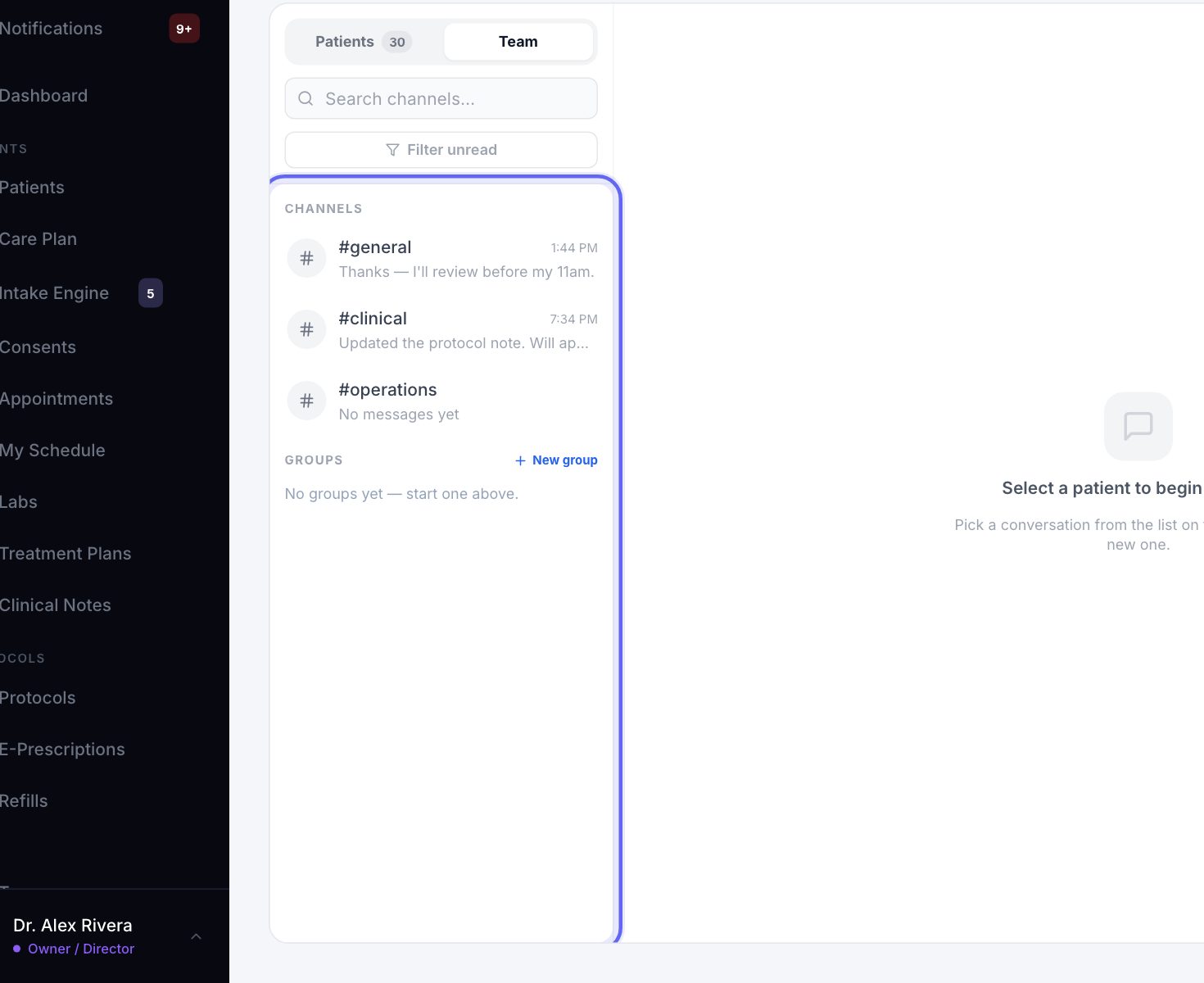
- 1Switch to Team. You’ll see Channels, Groups and Direct Messages.
- 2To start a group, click New group, give it a name if you like, pick the Members, and press Create group.
- 3Pin a group to keep it at the top.
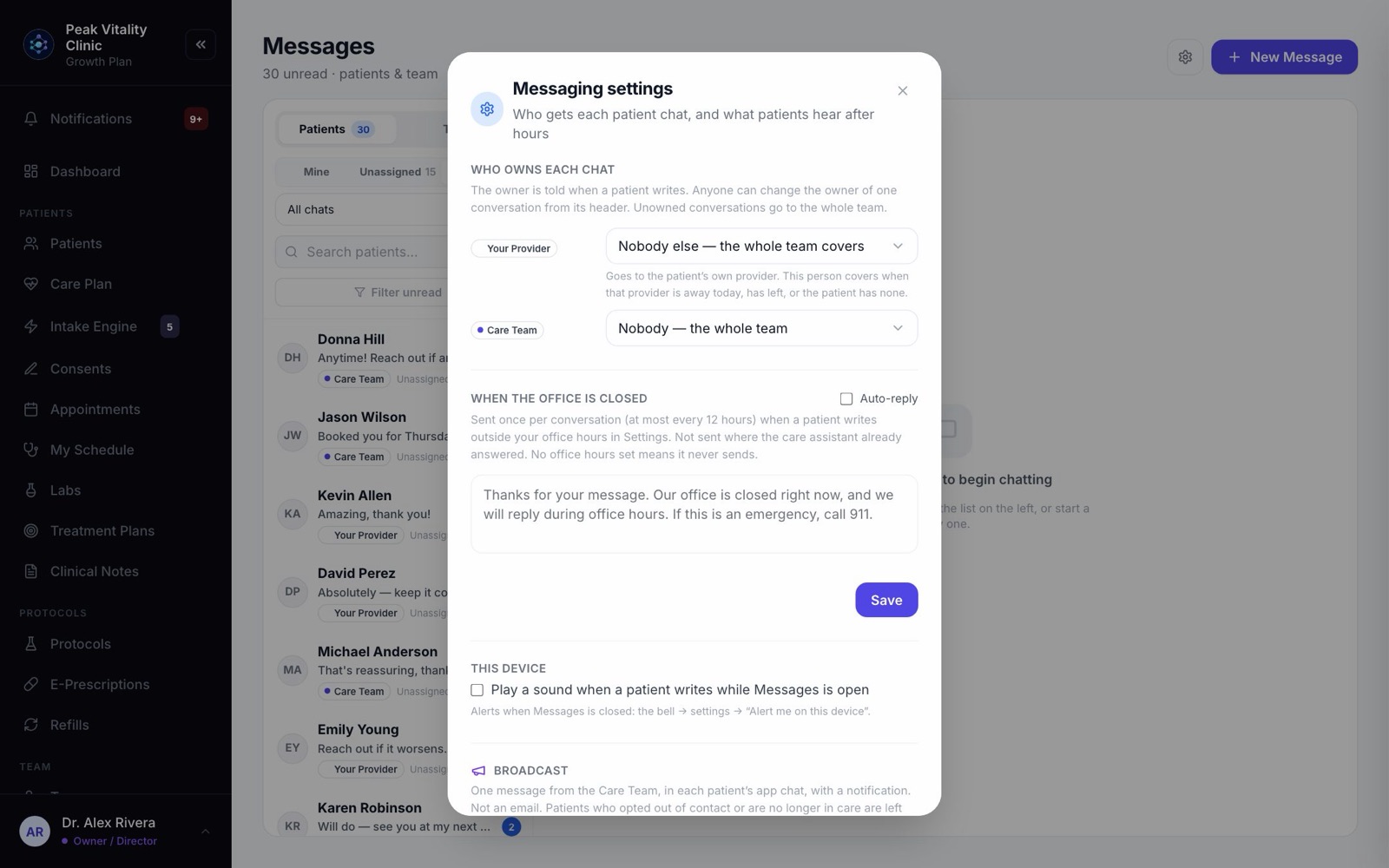
12Messaging settings
- 1Owners and managers click the gear next to New Message.
- 2Who owns each chat picks who is told when a patient writes in each chat. Nobody means the whole team.
- 3When the office is closed turns on an Auto-reply for messages that come in outside your office hours in Settings. Press Save.
- 4This device can play a sound when a patient writes while Messages is open.
- 5Owners also get Broadcast: one message to many patients, in their app chat. See the messaging and reminders manual.
Keep going
Messaging and reminders
How your clinic reaches patients: messages, booking confirmations, appointment reminders and other notices. What goes out on its own, how you control it, and what patients can turn off.
Read the guideThe patient app
Your patients’ side of Aminova, screen by screen: how they get in, what each tab does, and where each thing they do shows up for your team.
Read the guideCommunications
Send one message to a group of patients, build courses patients work through in their portal, and set how your emails look.
Read the guideThe patient chart
Everything about one patient on one page. The header says who they are and what’s next; the tabs below hold each part of their record.
Read the guideRather be shown?
Inside Aminova, the tutorial walks you through every page, and the Getting started checklist shows you each task click by click. Or book a live training session with our team.