1Two roles
Nurse / NP / PA is a clinical role. You open full charts, write notes, work on care plans and treatment plans, and order labs. You can’t sign prescriptions or approve refills unless an owner allows it.
Medical Assistant supports the clinic floor: the schedule, check-ins and the dispensary. On a chart, a medical assistant sees contact details only.
Your role shows under your name at the bottom of the sidebar.
3Your dashboard
- 1For a nurse, the numbers across the top are My Patients, Active Protocols and Refills Pending.
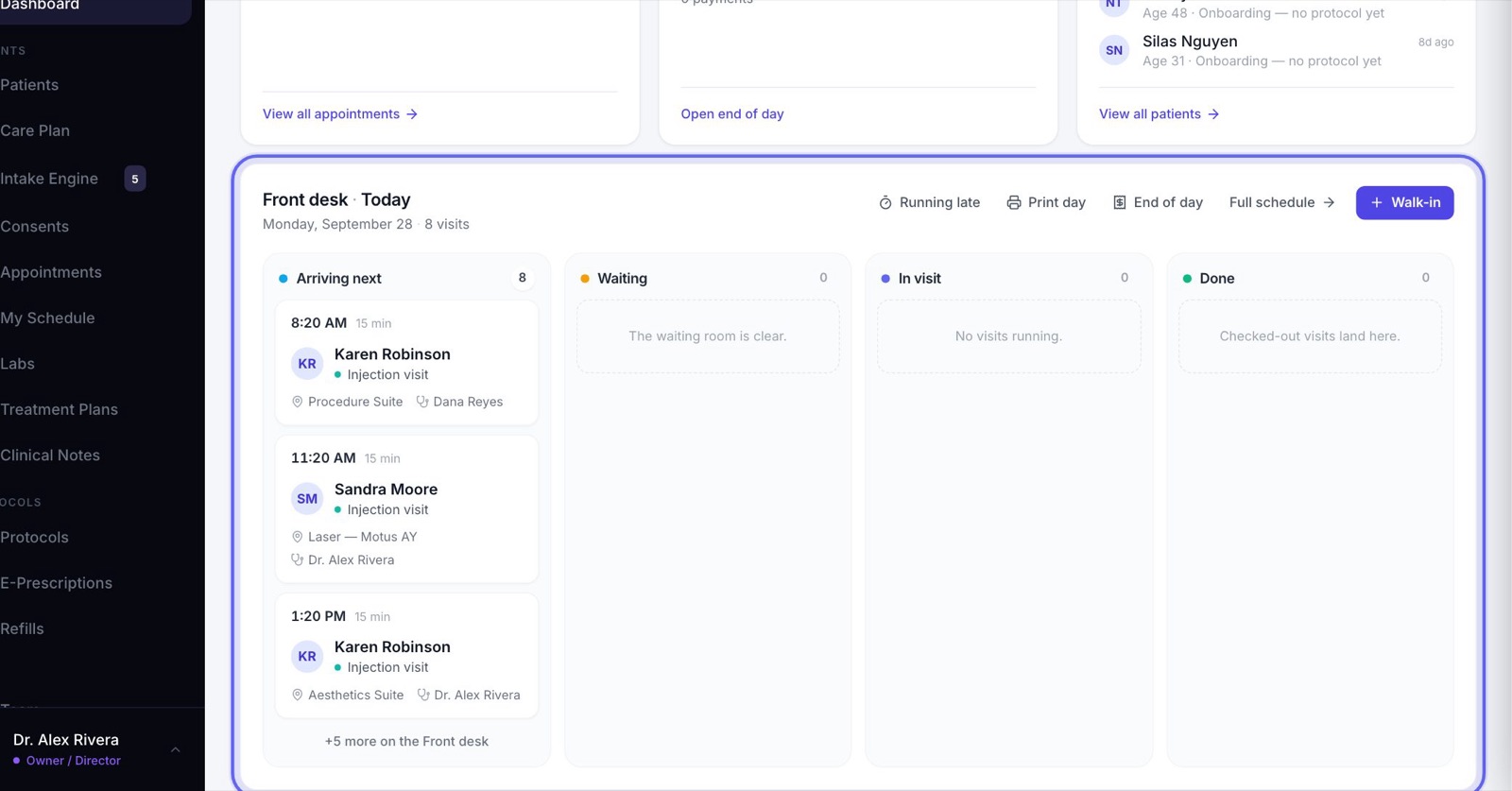
- 2Front desk · Today shows the day in lanes: arriving, waiting, in a visit and done.
- 3Nurses also see the Operations Queue with refills and shipments that need a person. Clicking a refill opens it on Refills.
4Check a patient in
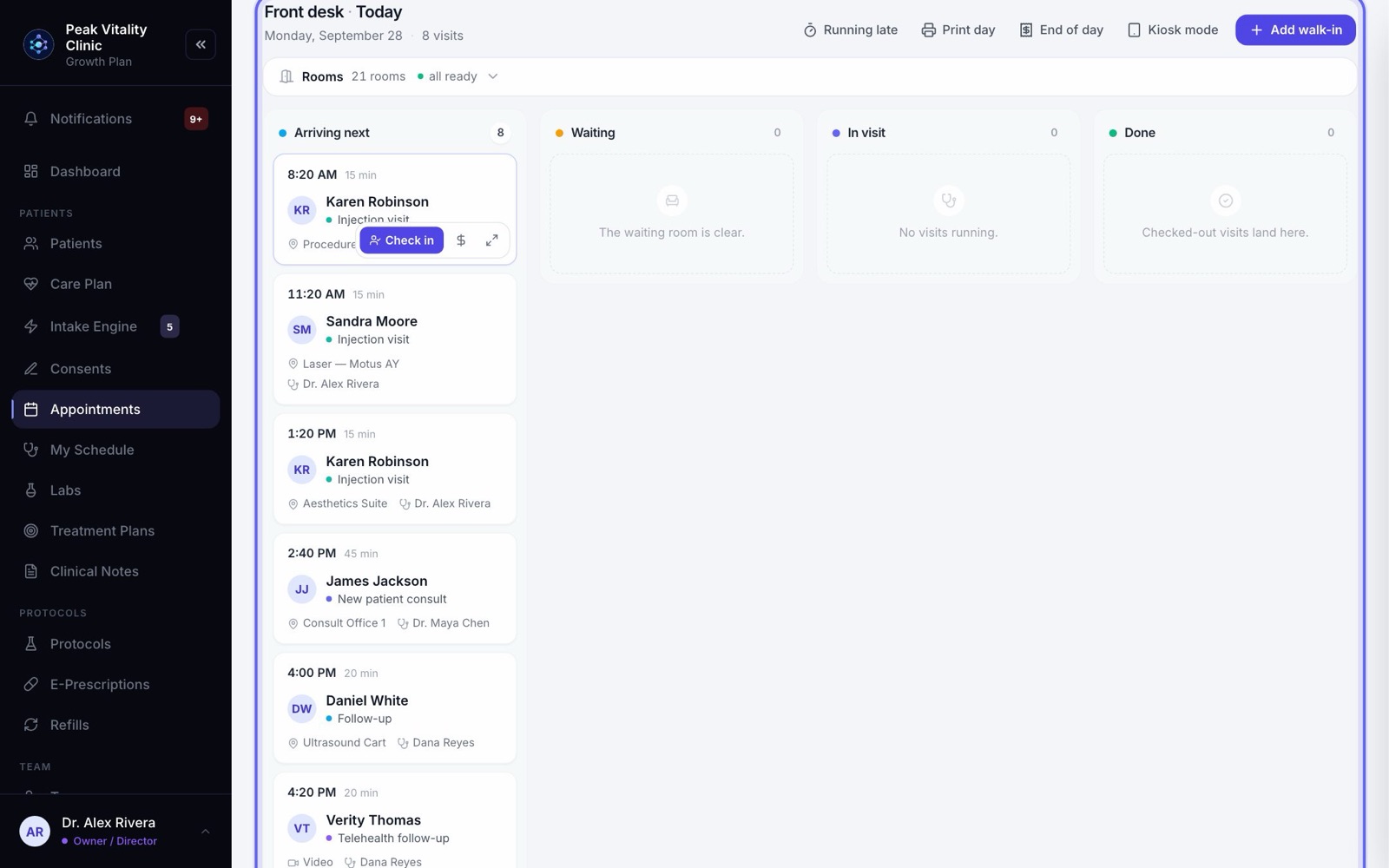
- 1Go to Appointments and open the Front desk tab.
- 2Click the patient in the arriving lane, and press Check in.
- 3Move them along as the visit goes: in a visit, then done. The provider is told their patient is waiting.
- 4Allergies show as a red tag at the top of every visit.
5Your own visits (nurses)
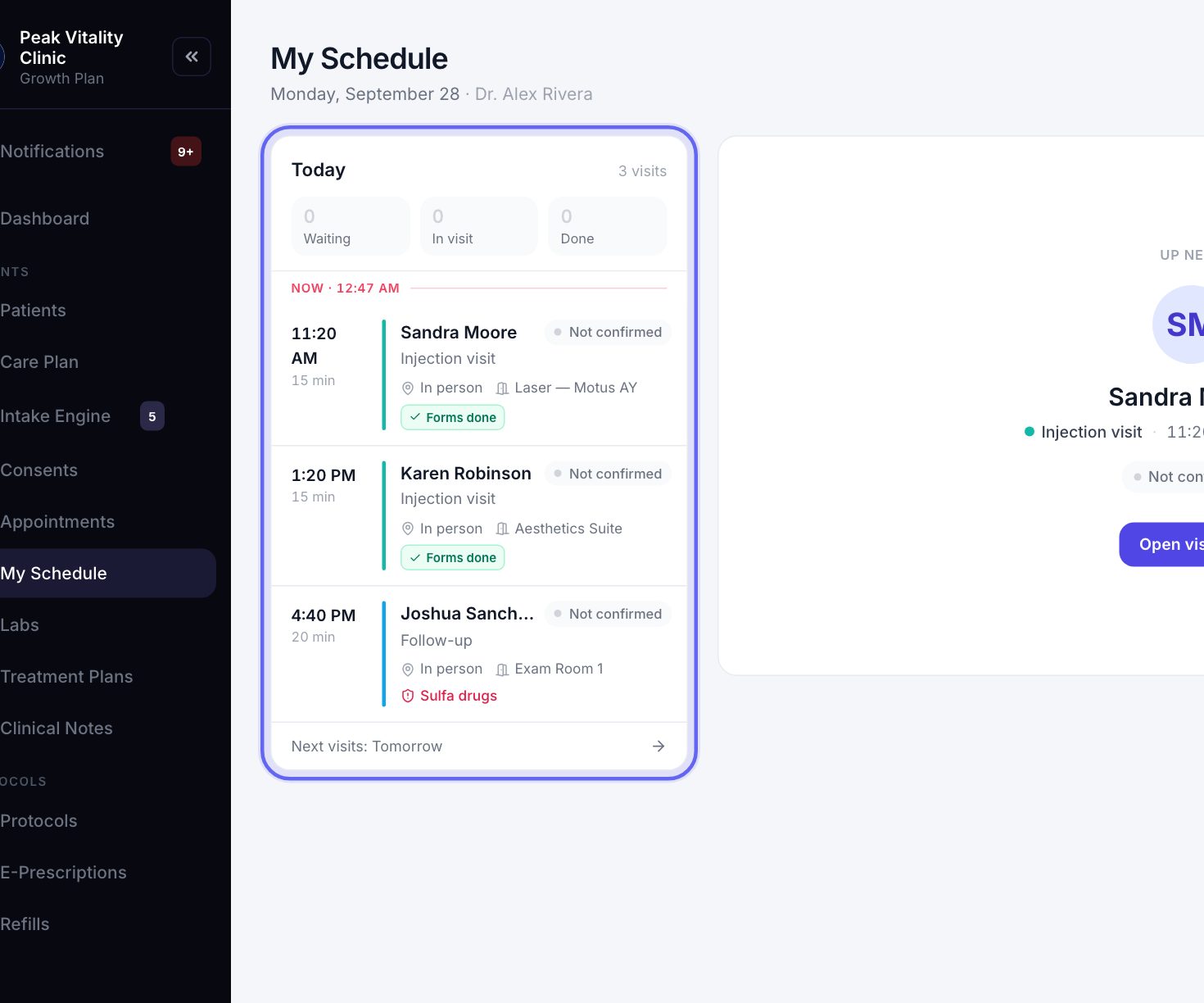
- 1My Schedule lists the visits you are the provider on, covering, or helping with.
- 2Open one to read the Pre-Visit Brief, start it, and write your note on Post-Visit Note.
- 3Start visit also opens Quick Visit, where you record vitals and a short note.
6Charts
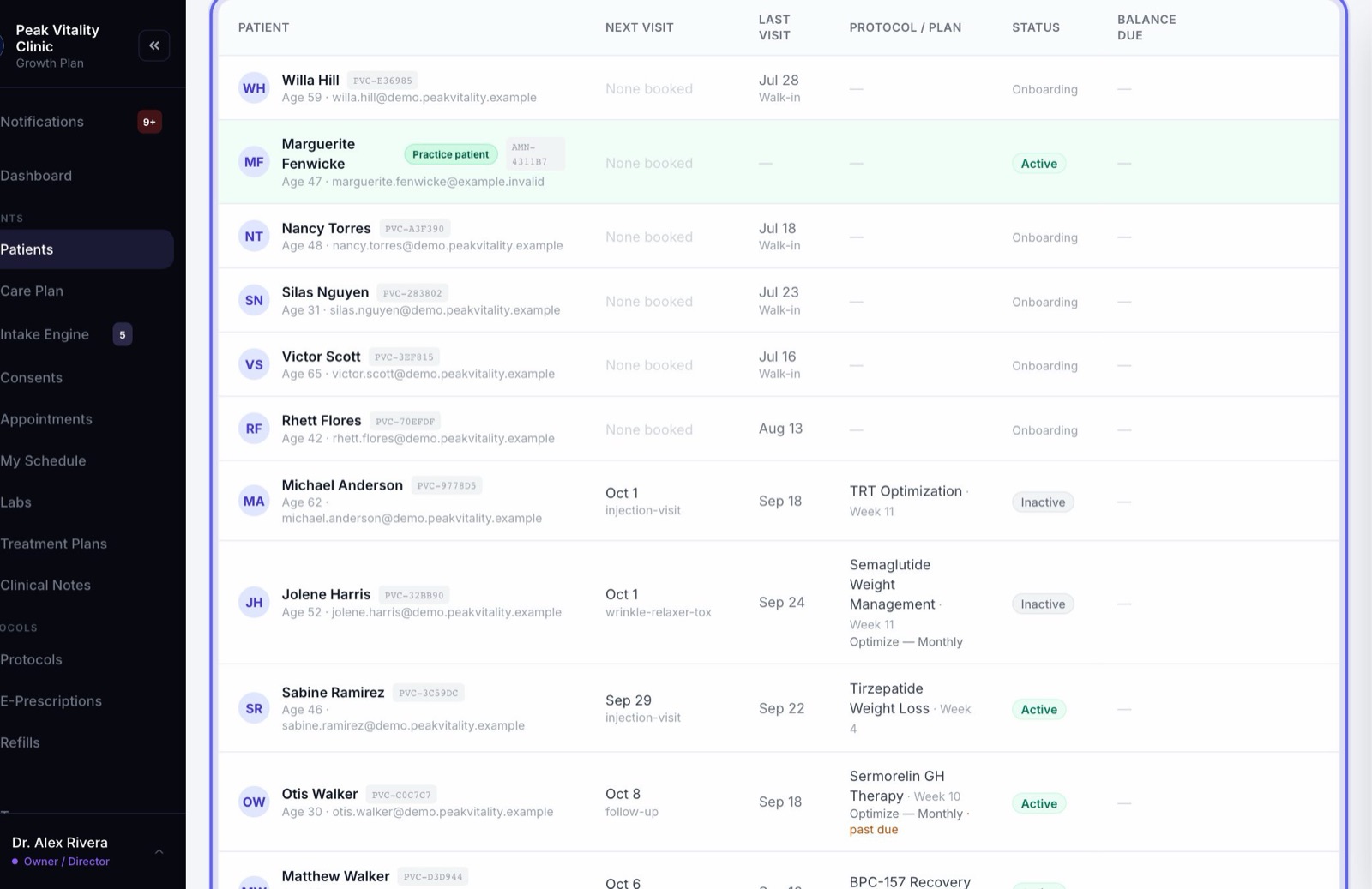
- 1On Patients, search by name, email, chart number or portal ID.
- 2Nurses: All Patients is the whole clinic, and My Patients is only yours. Click a patient to open the full chart.
- 3Medical assistants: the page says Demographics view. A patient opens as a contact card: allergies, date of birth, phone, email, preferred pharmacy and emergency contact.
- 4On the contact card, tap the phone number to call. You’re then asked how the call went, so it’s logged.
7Notes and plans (nurses)
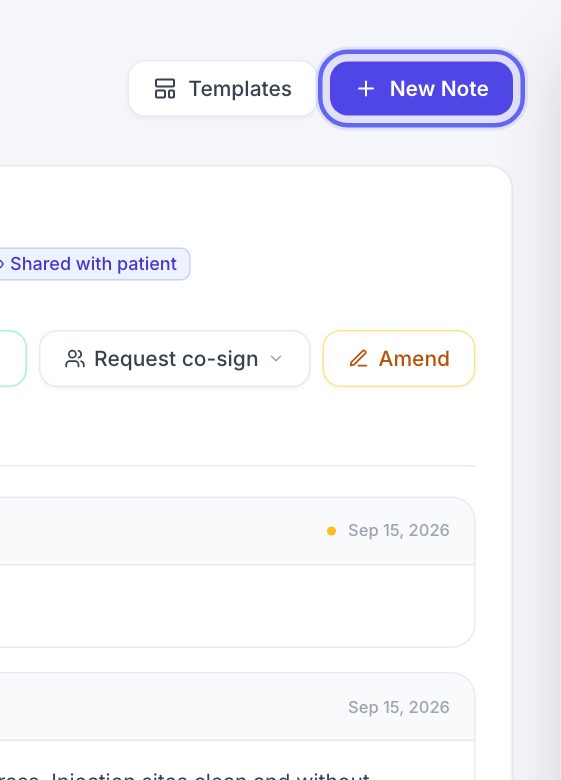
- 1On Clinical Notes, click New Note, pick the patient and the kind of note, and type. Save a draft, or sign it.
- 2Care Plan walks a visit step by step, including today’s vitals.
- 3Treatment Plans holds every patient’s plan: the medicines, the doses and the weeks they run.
- 4If your clinic has co-signature rules, some of your notes also go to a reviewer.
8Labs (nurses)
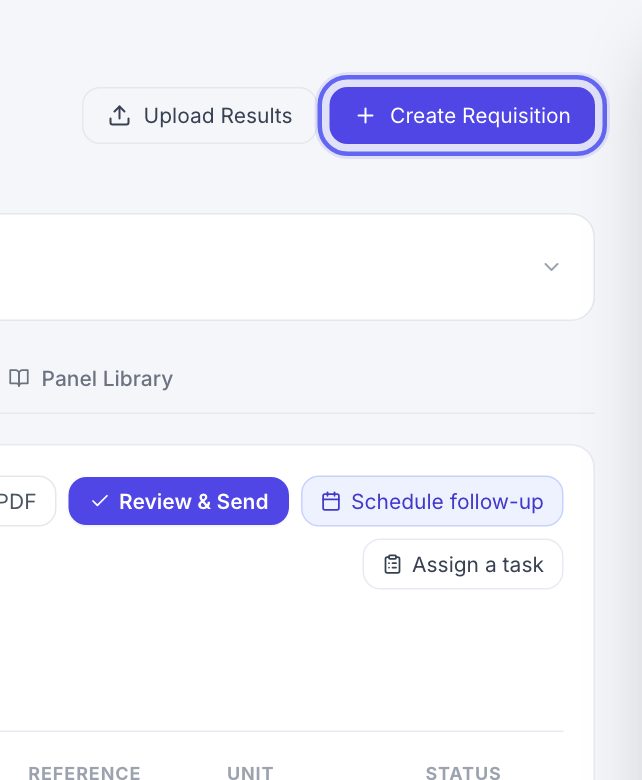
- 1On Labs, press Order labs, then pick the patient and the tests.
- 2Have a result as a PDF or photo? Upload it, pick the patient, check the values and save.
- 3The list shows the labs you ordered.
9Prescriptions and refills (nurses)
- 1On E-Prescriptions you can find any prescription and see where it stands. The page says View only — only prescribers can sign and send prescriptions.
- 2A prescription waiting to be sent says Pending physician sign-off.
- 3On Refills, you see the queue and where each refill is. A prescriber approves or declines.
- 4Are you an NP or PA who prescribes? An owner can switch on Sign & send prescriptions for your role in Settings → Roles & Permissions.
10Hand out supplements
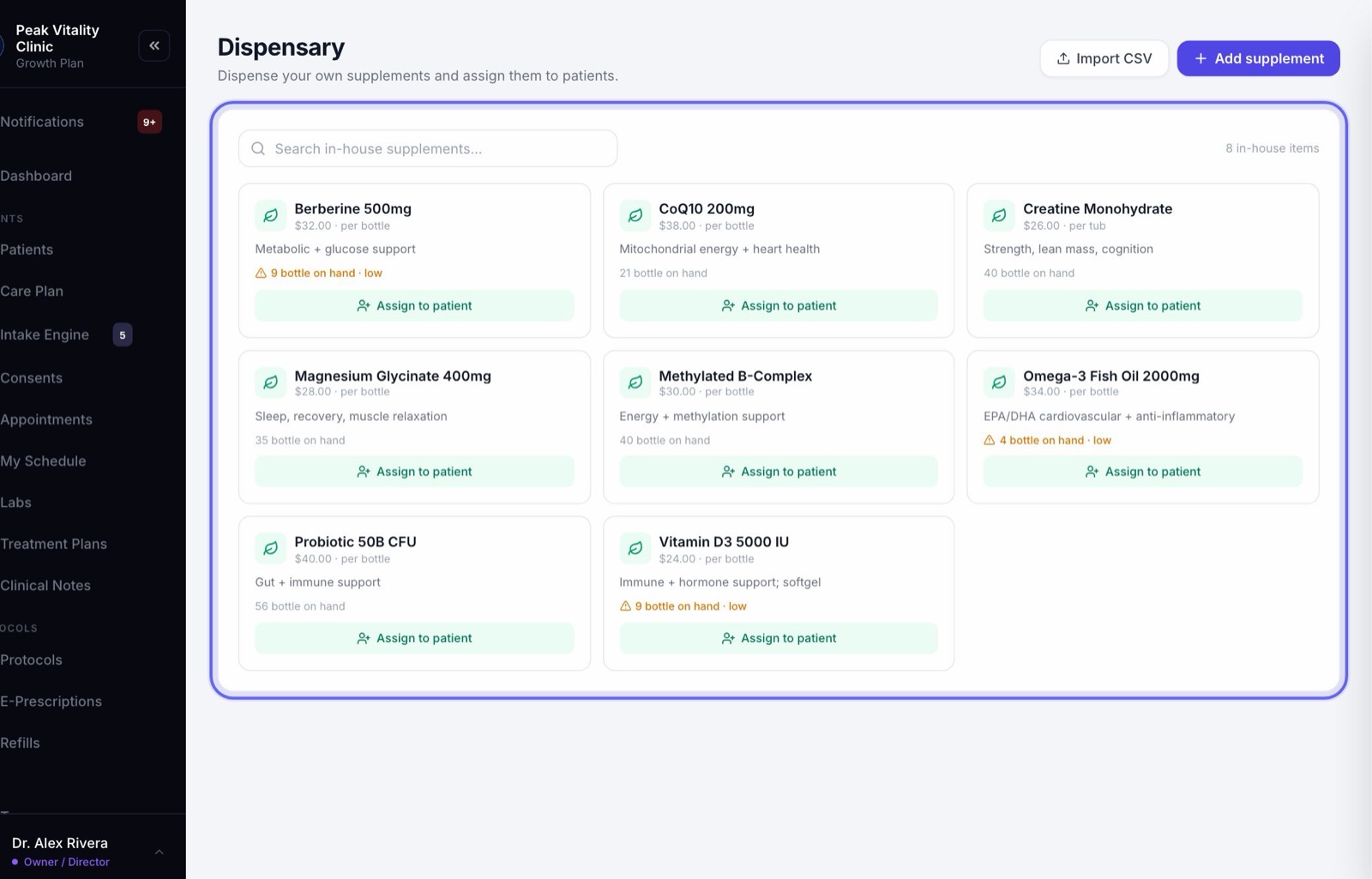
- 1Medical assistants: open Dispensary. Nurses: open Treatment Plans and its Dispensary tab.
- 2Each supplement you stock is on the shelf, with how many are on hand. Type part of a name to find one.
- 3Press Assign to patient. Pick the patient, the dose, and pickup or shipping. It goes on their plan.
- 4Your role doesn’t take payments by default, so the charge is left for checkout.
11Messages
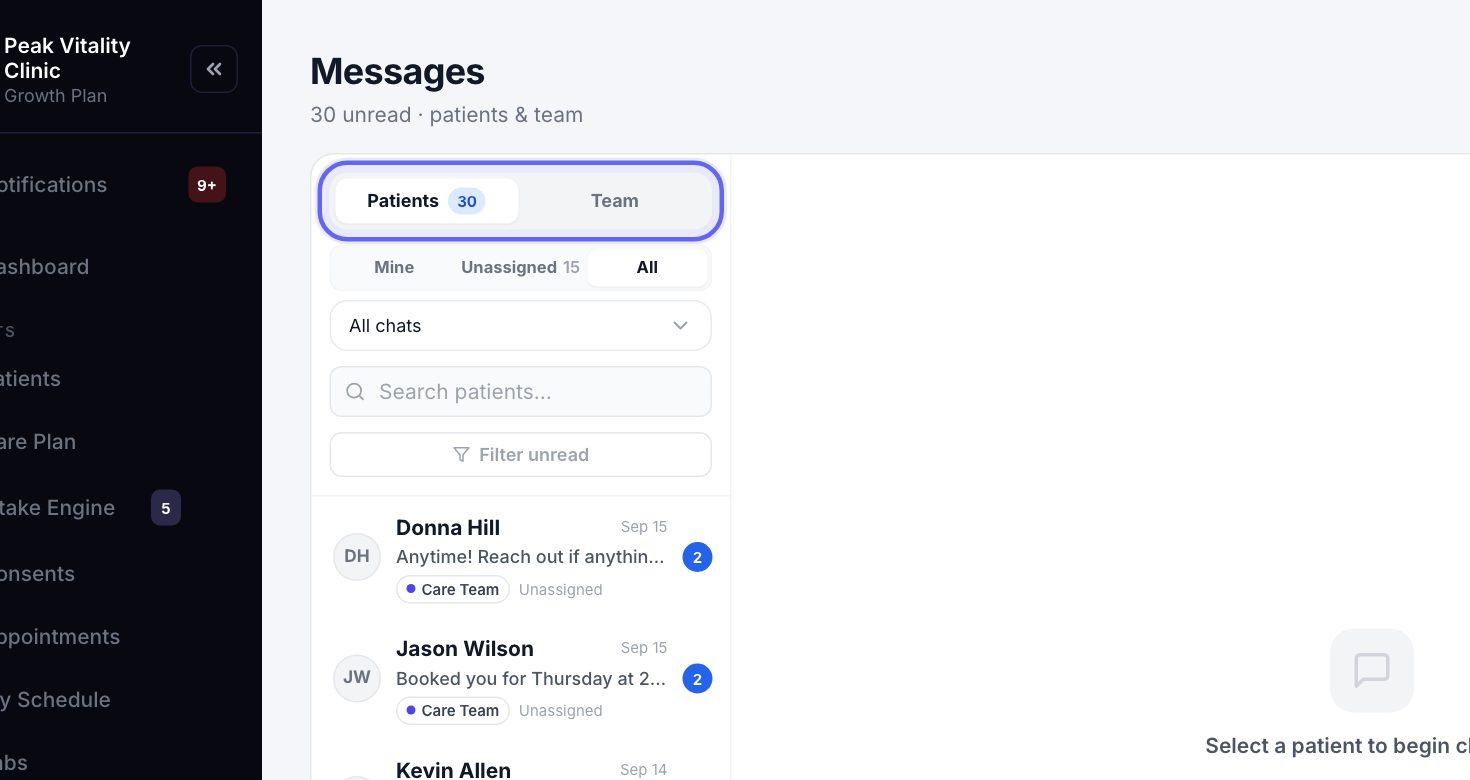
- 1Nurses see every patient conversation, and choose Mine, Unassigned or All.
- 2Medical assistants see team chats, and any patient conversation someone hands to them. They can answer those in plain text.
- 3Pick Internal note instead of a reply to write to your team. The patient never sees it. Type @ to mention someone.
12Clock in and out
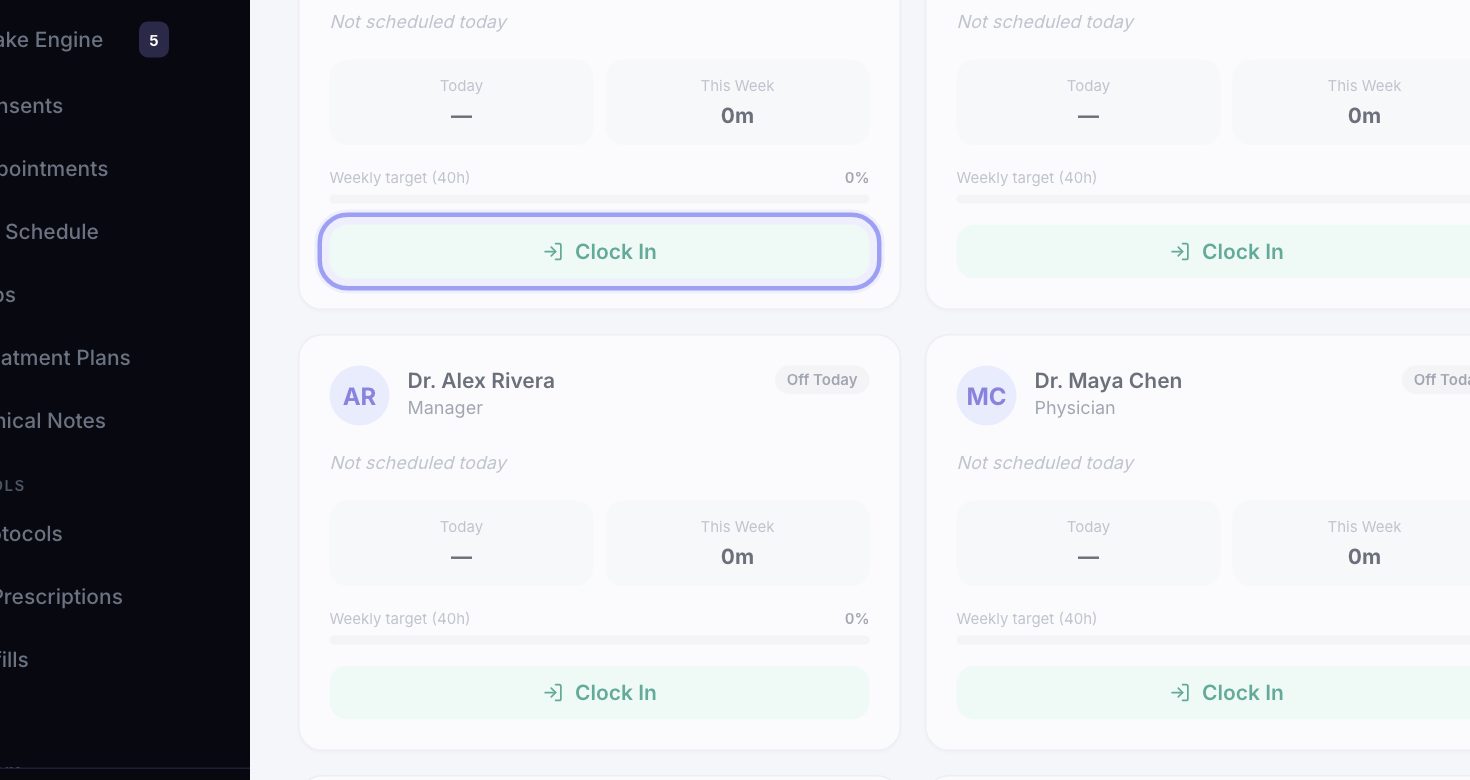
- 1On Time Clock, press Clock In when you arrive and Clock Out when you leave.
- 2Break stops paid time until you end it.
- 3You see only your own hours. If you forget to clock out, ask a manager to fix it.
13What your role can’t do by default
- 1Neither role signs prescriptions, approves refills, or takes payments.
- 2Neither role opens Billing, Analytics, Team, Staff Scheduling or Settings.
- 3Medical assistants don’t see clinical notes, lab results or signed forms, and can’t order labs or add a patient.
- 4An owner or manager can change what your role can do in Settings → Roles & Permissions.
Keep going
Appointments
Every visit, for everyone. Book visits, run the front desk, and open any appointment to check a patient in, move it or charge it.
Read the guideMy Schedule
Your own day, one visit at a time. Open a visit to see who it is, start it, read the brief, record it with the AI scribe and write your note.
Read the guidePatients
Every patient in your clinic. Find anyone, sort and filter the list, add a new patient, put patients in groups, and open a chart.
Read the guideThe patient chart
Everything about one patient on one page. The header says who they are and what’s next; the tabs below hold each part of their record.
Read the guideClinical Notes
Every note for every patient, in one place. Write a note, sign it, find it again later, and change a signed note the right way.
Read the guideCare Plan
A visit, one step at a time: pick the patient, choose a protocol, build and sign the plan, record vitals, write prescriptions, and finish.
Read the guideTreatment Plans
Every patient’s plan: the medicines, the doses and the weeks they run. Build a plan in phases, approve it, and see it the way the patient does.
Read the guideLabs
Order tests, bring results in, and review them before patients see them. Every lab in the clinic, on one page.
Read the guideDispensary
Your clinic’s own supplements, and how many are on the shelf. Hand one to a patient, take the payment, and add supplements to the shelf.
Read the guideMessages
One inbox for every conversation with your patients and your team. Reply, hand a message to the right person, and leave notes only your team can see.
Read the guideTime Clock
Clock in and out, and take breaks. Hours and overtime add up on their own, and owners and managers fix mistakes and export hours for payroll.
Read the guideRoom steps
For visits that move through more than one room: vitals, then treatment, then recovery. Set the steps once, then move the patient on with one tap.
Read the guideRather be shown?
Inside Aminova, the tutorial walks you through every page, and the Getting started checklist shows you each task click by click. Or book a live training session with our team.