1The page at a glance
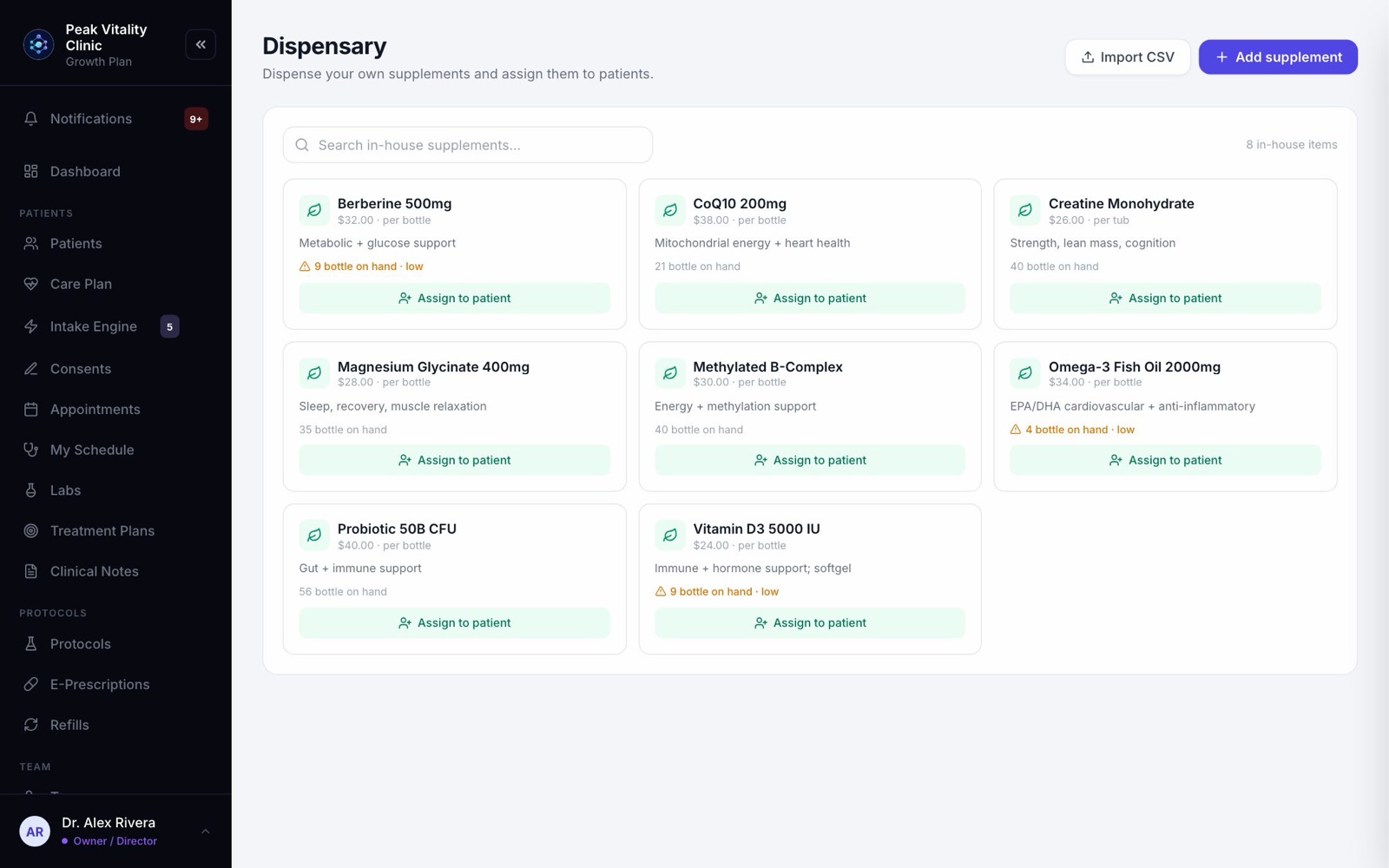
The Dispensary is the supplements your clinic keeps on its own shelf and hands to patients. Each one is a tile with its price and how many are on hand.
Above the shelf are a search box and, for people who manage the shelf, Import CSV and Add supplement.
2Where you find it
Medical assistants and the front desk have Dispensary in the sidebar.
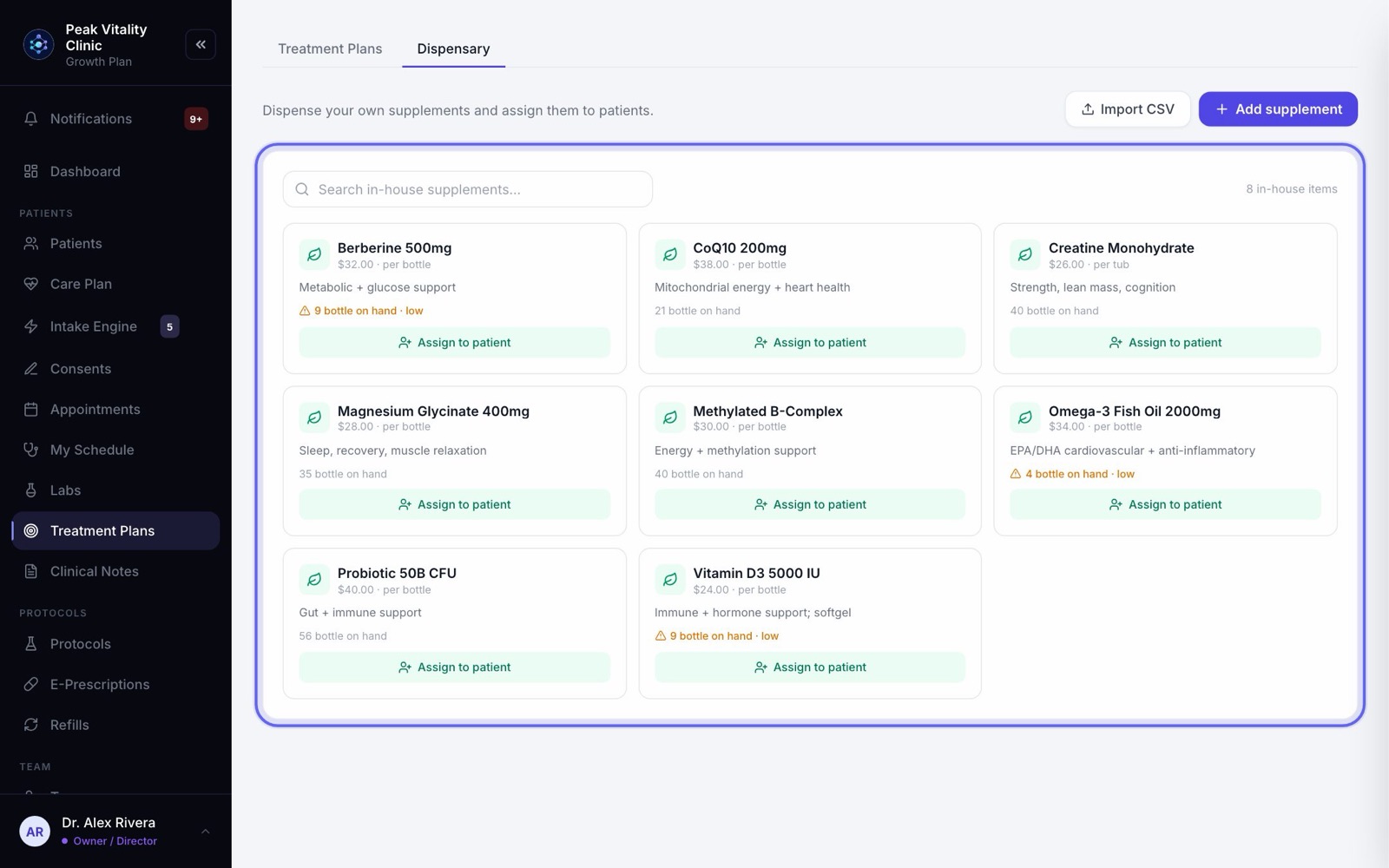
Owners, managers, physicians and nurses open it as the Dispensary tab on Treatment Plans instead. It is the same screen. The billing role doesn’t dispense.
3Your shelf
- 1Each tile shows the supplement’s name, its price per unit, and a short description.
- 2Under that is how many are on hand. It turns amber when stock is low, and red at Out of stock. It also warns about a lot that is expiring or expired.
- 3Not inventory-tracked means the supplement isn’t linked to your Inventory, so there is no count to show.
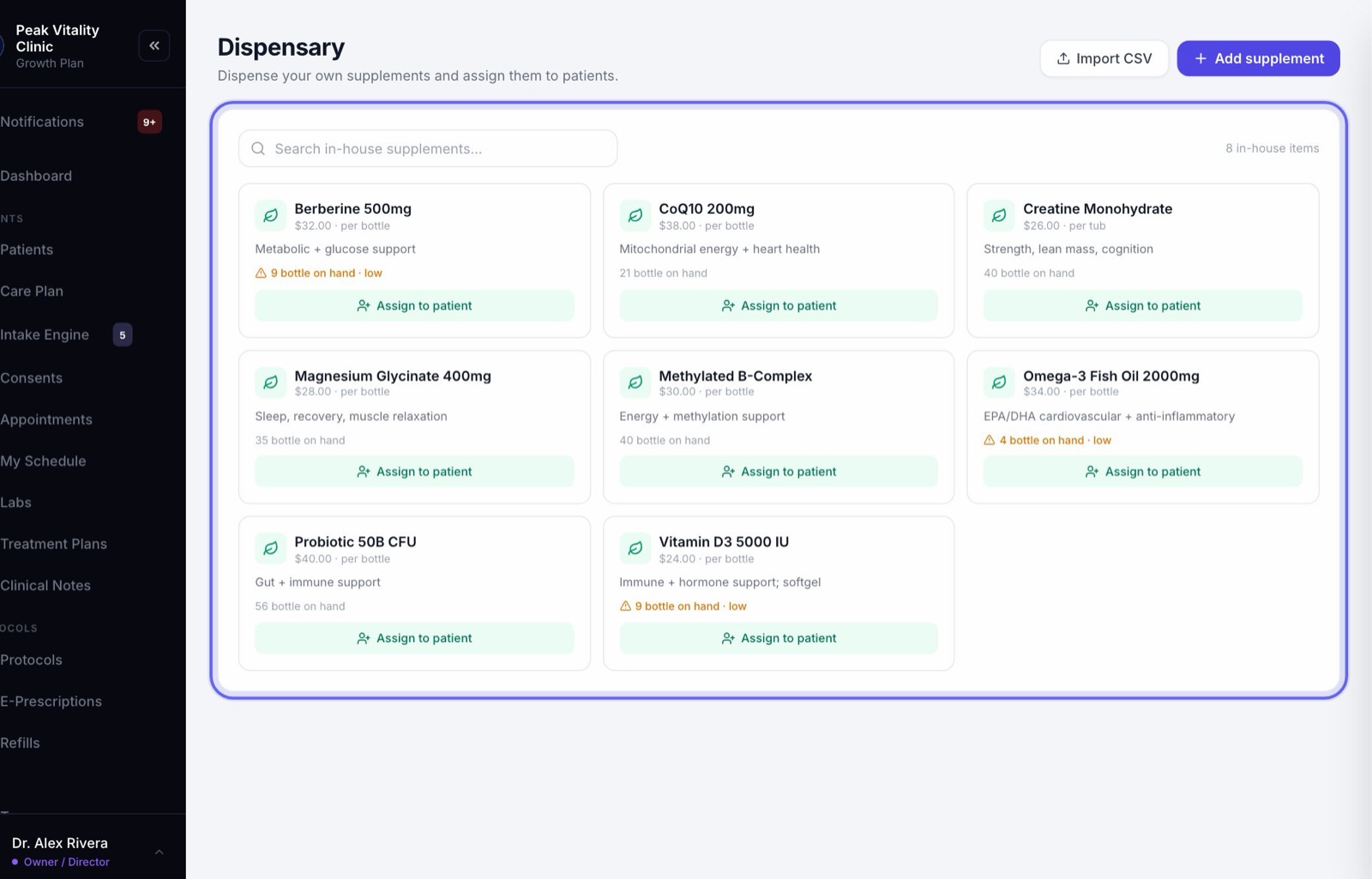
An empty shelf means no products are tagged as supplements yet. Add them here, or on the Products page.
4Find one fast
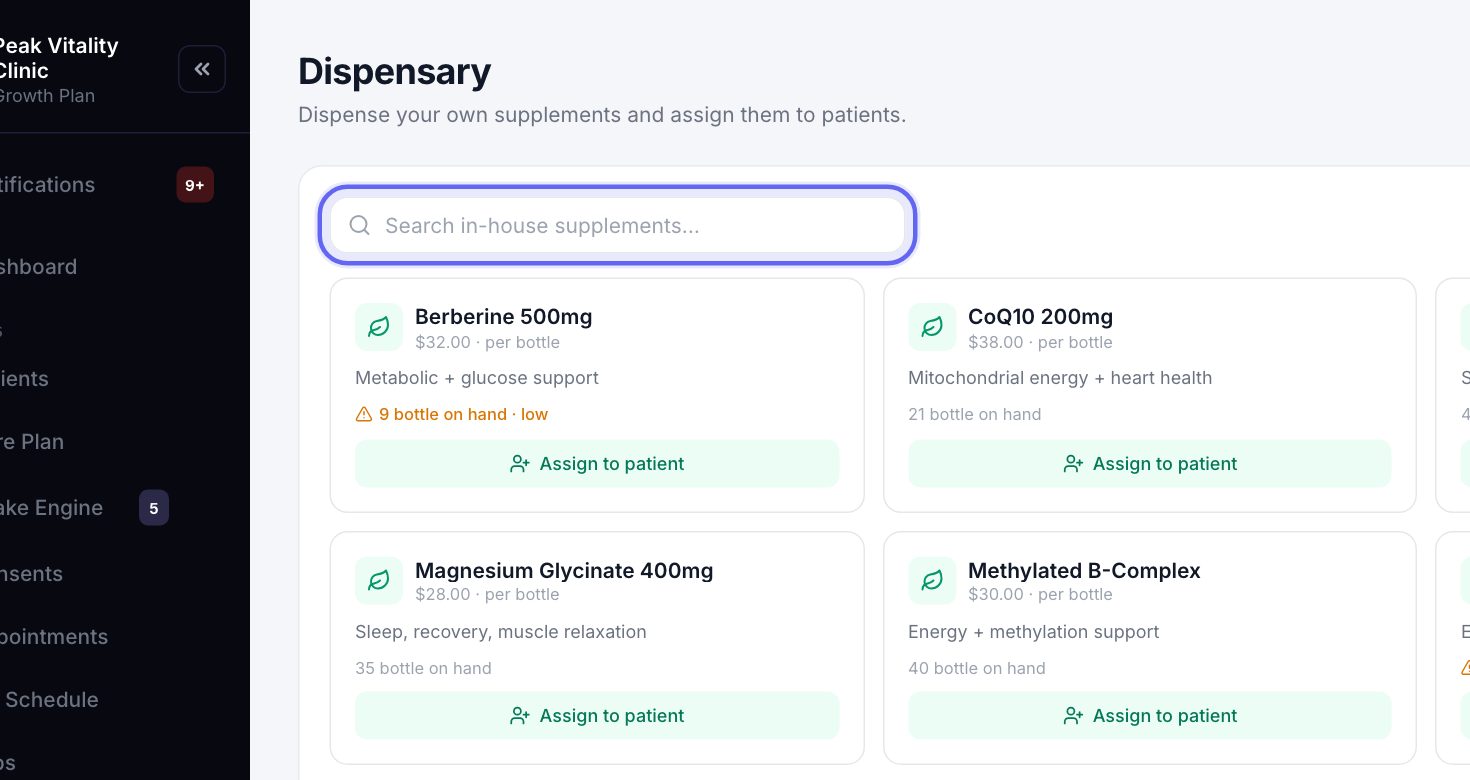
Type part of a name in the search box. The shelf shows only the supplements that match.
5Hand one to a patient
- 1Click Assign to patient on the supplement’s tile.
- 2Under Patient, search for the patient and pick them. If they have a visit today, it shows under their name.
- 3Fill in the Dose, how many Weeks (leave it blank for ongoing), the Qty you are handing over, and how many days it Lasts.
- 4Under When to take, pick Morning, Midday, Evening or Bedtime, and With food if it applies. You can also add instructions, like what to expect.
- 5Choose Pick up or Ship, then press Dispense supplement.
6Take the payment
- 1Tick Charge card on file to charge a card the patient has saved.
- 2Or tick Send to the terminal. The patient taps or inserts their card at the counter.
- 3The main button then says what it will charge. After a charge, you can print or email a receipt.
- 4If your role can’t take payments, the screen says so. It can be charged at checkout instead.
A practice patient is never charged.
7What happens next
- 1The supplement goes on the patient’s plan, with your dose and times, and shows in their app. If their plan hasn’t been shared with them yet, the screen tells you it won’t show until it is.
- 2It is logged as an order. Ship puts it on the shipping board with the address on file.
- 3With Lasts set, a reorder shows in the refills queue that many days later, and the patient can ask for it from their app.
Stock is a guide, not a stop. If you hand over more than the count says you have, you are warned first, but you can still go ahead.
8Add a supplement
- 1Click Add supplement.
- 2Fill in the Name, the Price patients pay, your Cost, and the Unit, like bottle. With a price and a cost, it shows your margin.
- 3Add the SKU, the code your Inventory uses for it, so the tile can show how many are on hand. A description is optional.
- 4Press Add supplement. It is saved to your product list as a supplement, and goes straight onto the shelf.
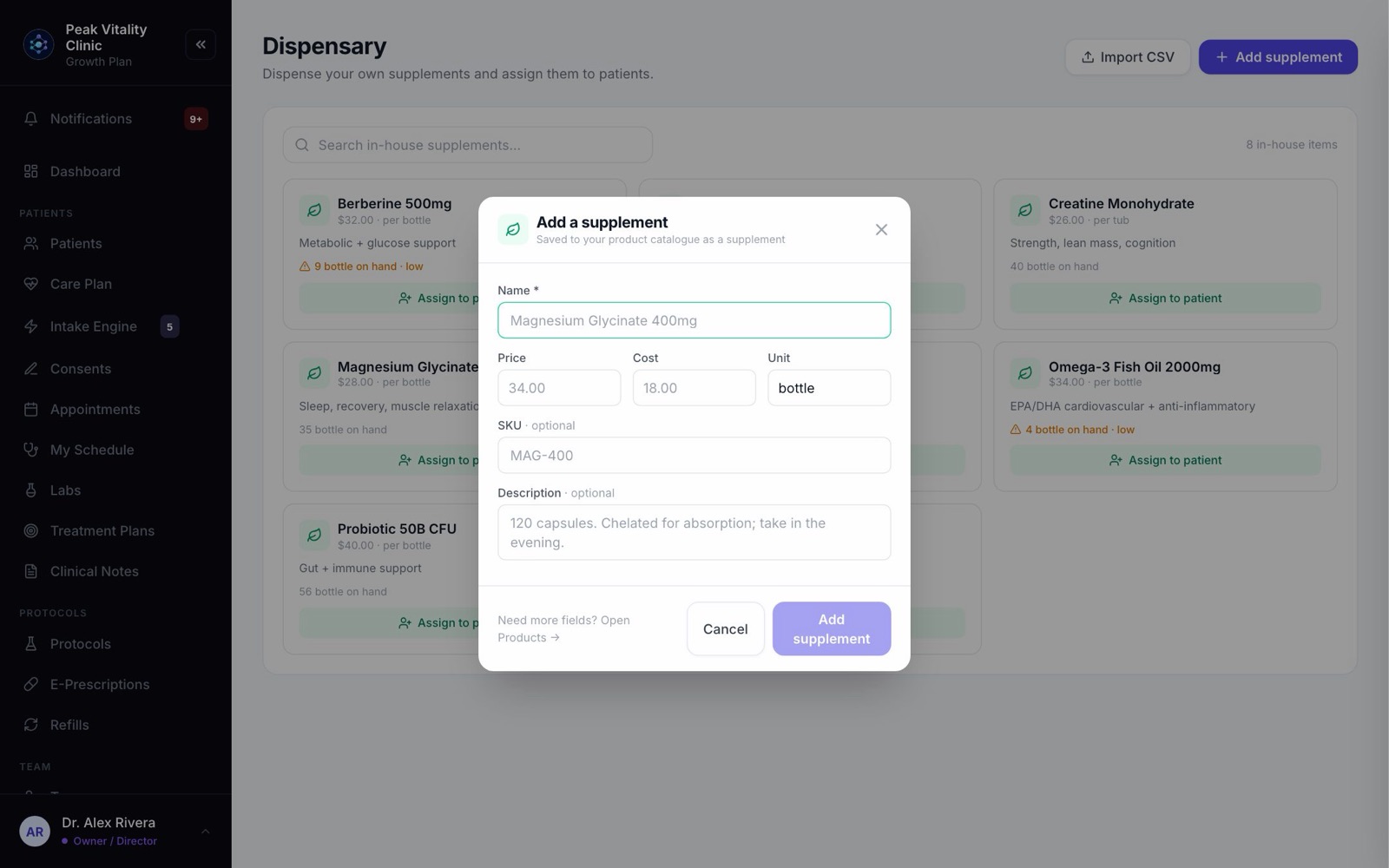
Owners, managers and physicians can add to the shelf. Everyone else who dispenses sees the shelf without these buttons.
9Add many at once
- 1Click Import CSV.
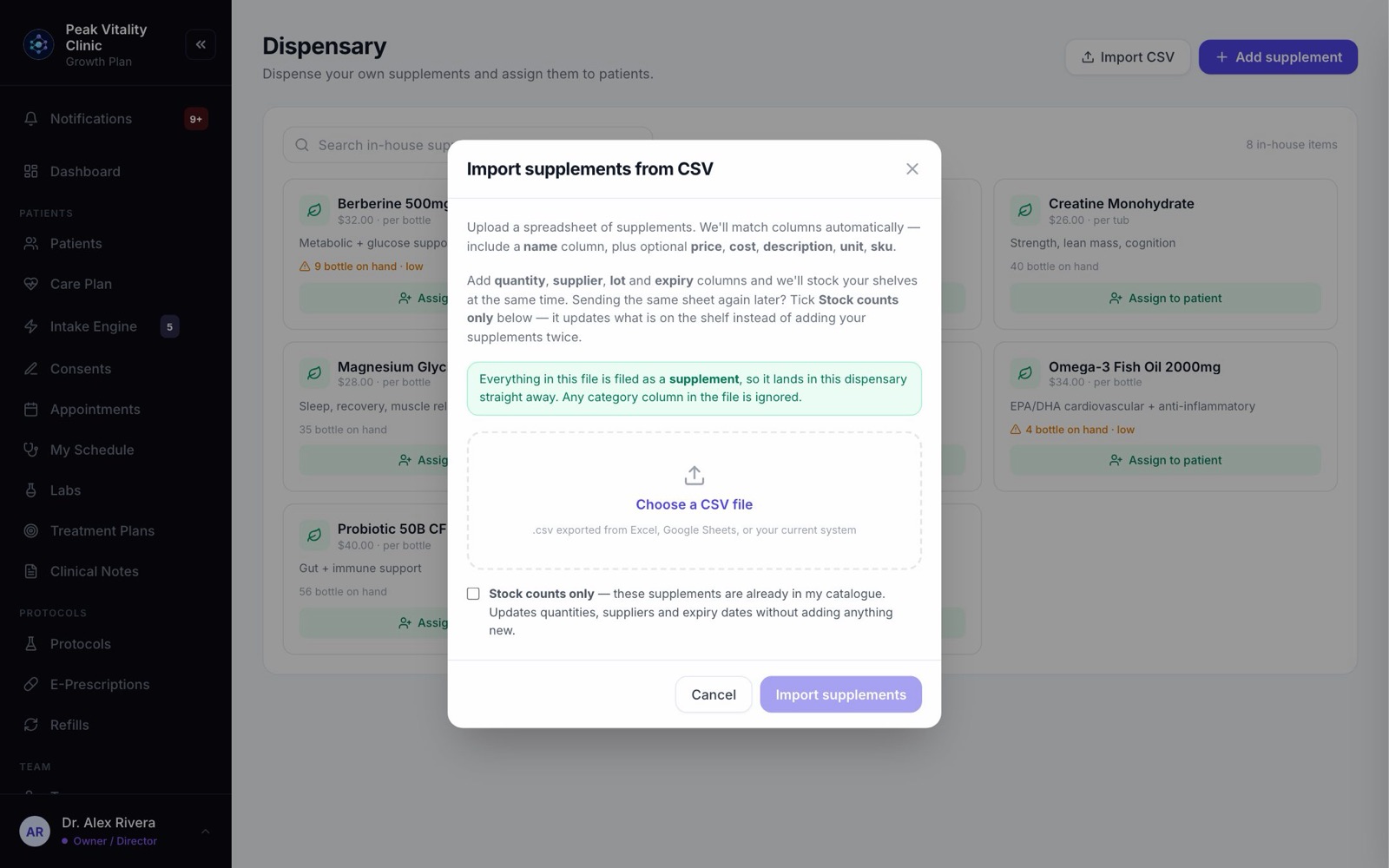
- 2Use a spreadsheet with a name column. Price, cost, description, unit and SKU columns are optional.
- 3Add quantity, supplier, lot and expiry columns to stock the shelf at the same time.
- 4Press Choose a CSV file, check the preview, and import. Everything in the file is filed as a supplement.
- 5Sending the same sheet again later to update counts? Tick Stock counts only, so nothing is added twice.
Keep going
Treatment Plans
Every patient’s plan: the medicines, the doses and the weeks they run. Build a plan in phases, approve it, and see it the way the patient does.
Read the guideProducts
Everything you sell, and what you charge for it. Add compounds, services, supplies and supplements, set their cost and price, and see every patient order.
Read the guideInventory
What is on your shelves, what is running low, and what is on order. Count stock, record lots, reorder from your suppliers and receive deliveries.
Read the guideInventory and dispensing
How your stock counts keep themselves. Deliveries add to them; doses given, prescriptions dispensed and orders handed over take away. Every move is recorded.
Read the guideFor nurses and medical assistants
Your day as a nurse, NP, PA or medical assistant: the schedule, checking patients in, your own visits, charts, labs, the dispensary and your messages.
Read the guideRather be shown?
Inside Aminova, the tutorial walks you through every page, and the Getting started checklist shows you each task click by click. Or book a live training session with our team.