1What it is
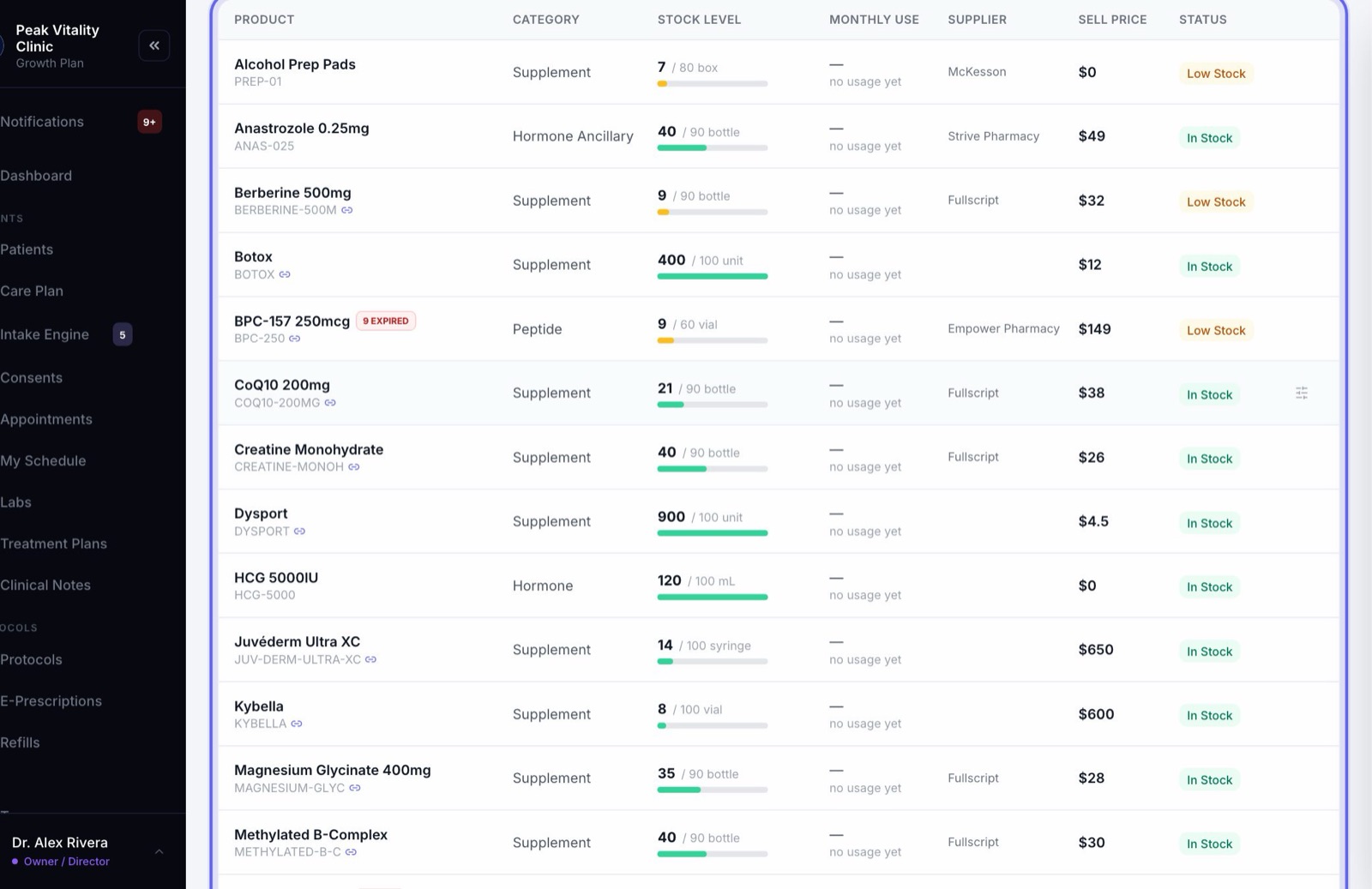
Every item on your shelf has one count on the Inventory page. That count is meant to match what you would find if you went and counted the cupboard.
So it changes only when something really moves: a delivery comes in, a dose is given, a prescription is handed over, or an order leaves. Each of those updates the count on its own. You don’t have to go back to Inventory and change it by hand.
2Products and stock are linked
- 1On the Products page, a product set to In-house dispensing gets its own row on the Inventory page when you save it.
- 2The two are tied by the product’s Inventory SKU. On Inventory, a small link icon beside the SKU shows the tie.
- 3Open the item on Inventory to jump to its product. Open the product to see how many are on hand, and Open in Inventory.
- 4A Pharmacy-routed product has no count. The pharmacy holds that stock.
3How stock comes in
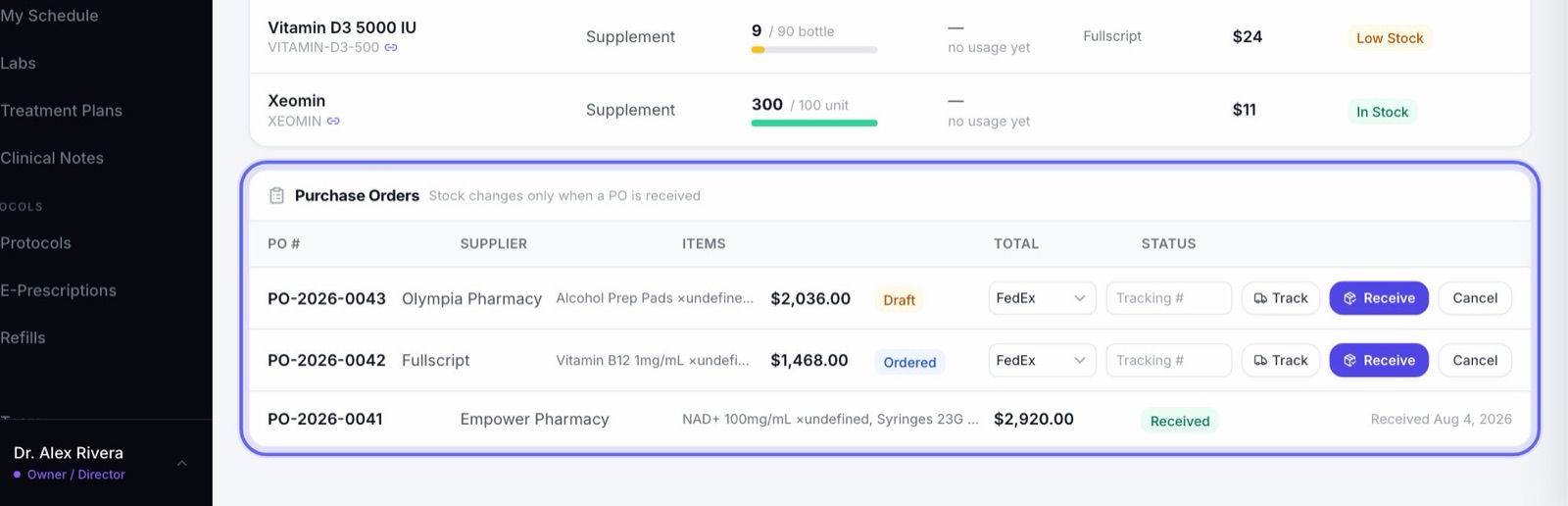
- 1Order more with Reorder on the item. That makes a purchase order and emails it to the supplier if you have their email. The count doesn’t change yet.
- 2When the box arrives, press Receive on the order and type the lot number and expiry off each carton. Now the count goes up, and the lot is recorded.
- 3Stock that arrives another way goes in through Adjust Stock, as Received Shipment.
4A dose given in the clinic
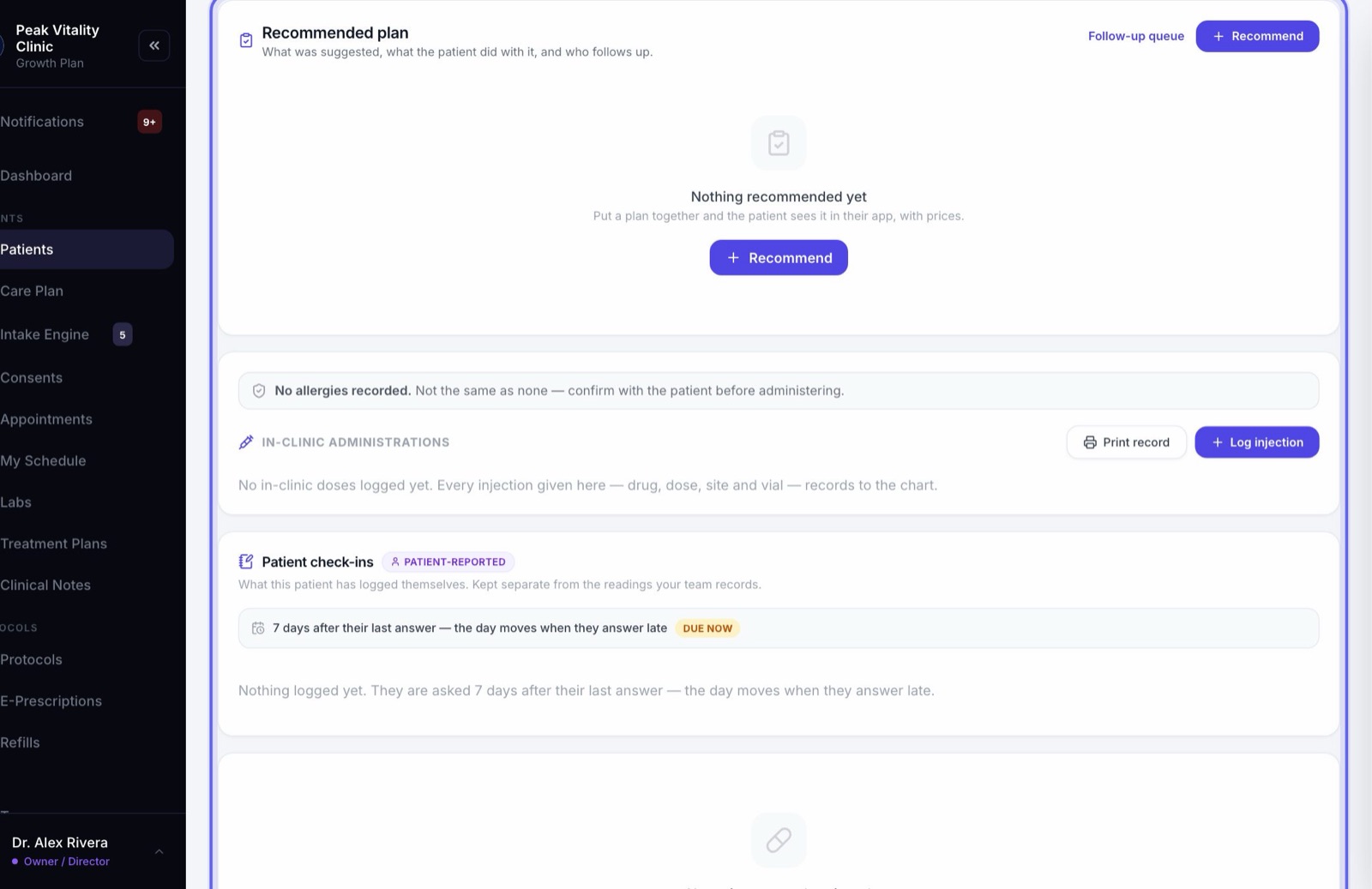
- 1On the patient’s chart, open the Protocol tab and find In-clinic administrations.
- 2Press Log injection and pick the medication. Items you stock are listed first.
- 3The vial that expires first is picked for you under Lot.
- 4Type how much was Drawn, then press Log it. That amount comes off the item and off that lot.
5An aesthetic session
On the chart’s Aesthetics tab, you mark each injection on the face map. When you save the session, the product used comes off your stock, and the invoice is drafted.
Only products marked Aesthetic injectable on the Products page are offered there.
6A prescription you hand over
- 1When writing a prescription, set Destination to Dispense in-house. Nothing is sent to a pharmacy.
- 2On e-Prescriptions, the To dispense filter lists every one waiting to be handed over.
- 3Open it and press Dispense from stock. It shows the item on your shelf, how many are left, and its lots.
- 4Press Dispense and record. The count goes down, the dispensing is recorded, and you can print the label.
Owners, managers, physicians, nurses and medical assistants can dispense. A controlled substance can be dispensed by owners, managers, physicians and nurses only.
7Supplements from the dispensary
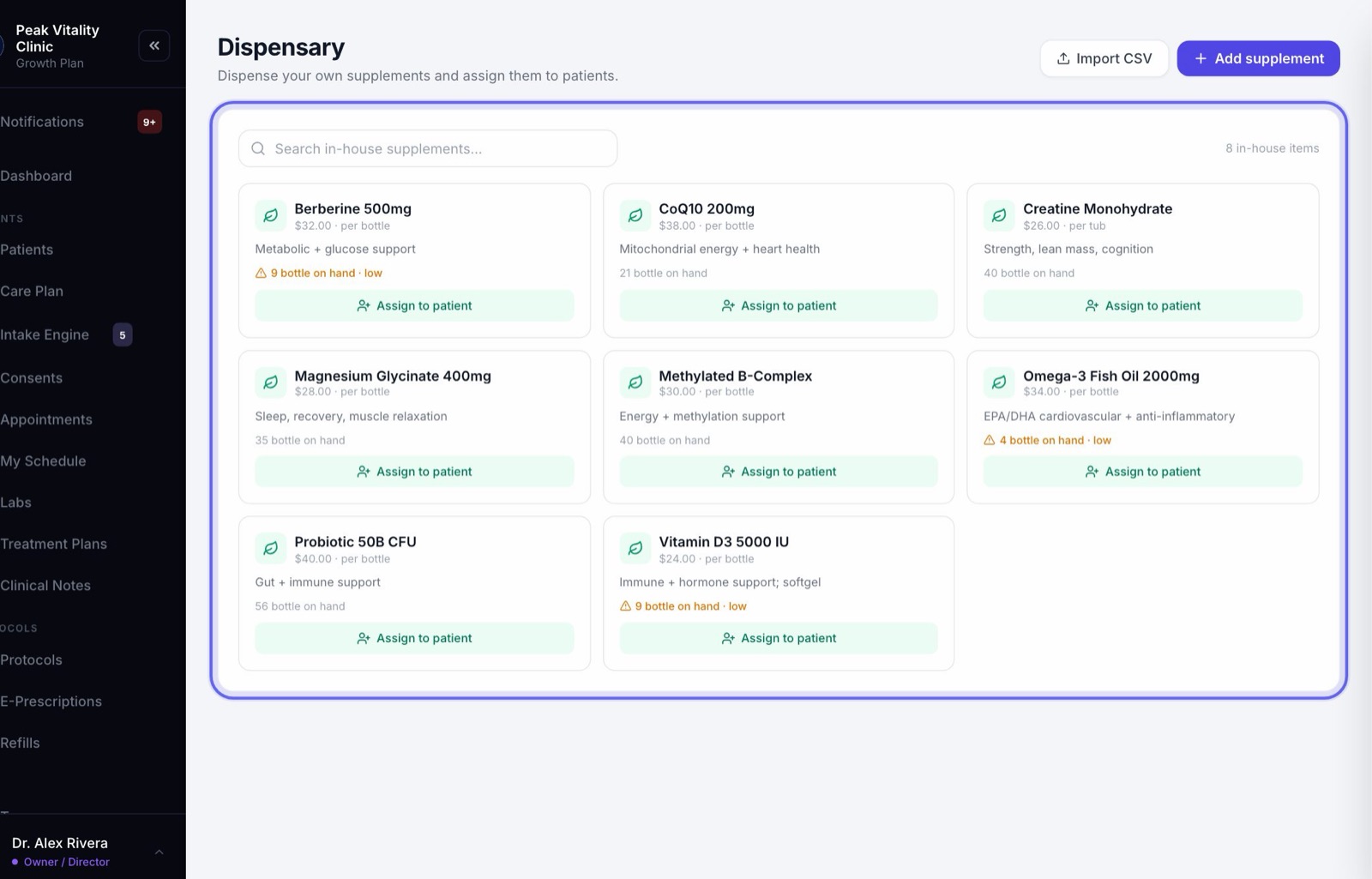
- 1On the Dispensary, Assign to patient puts the supplement on their plan and makes an order.
- 2Choose Pick up or Ship.
- 3The stock comes off when the order is handed over: Mark collected for a pickup, or Mark Shipped for a shipment.
8Orders, returns and cancels
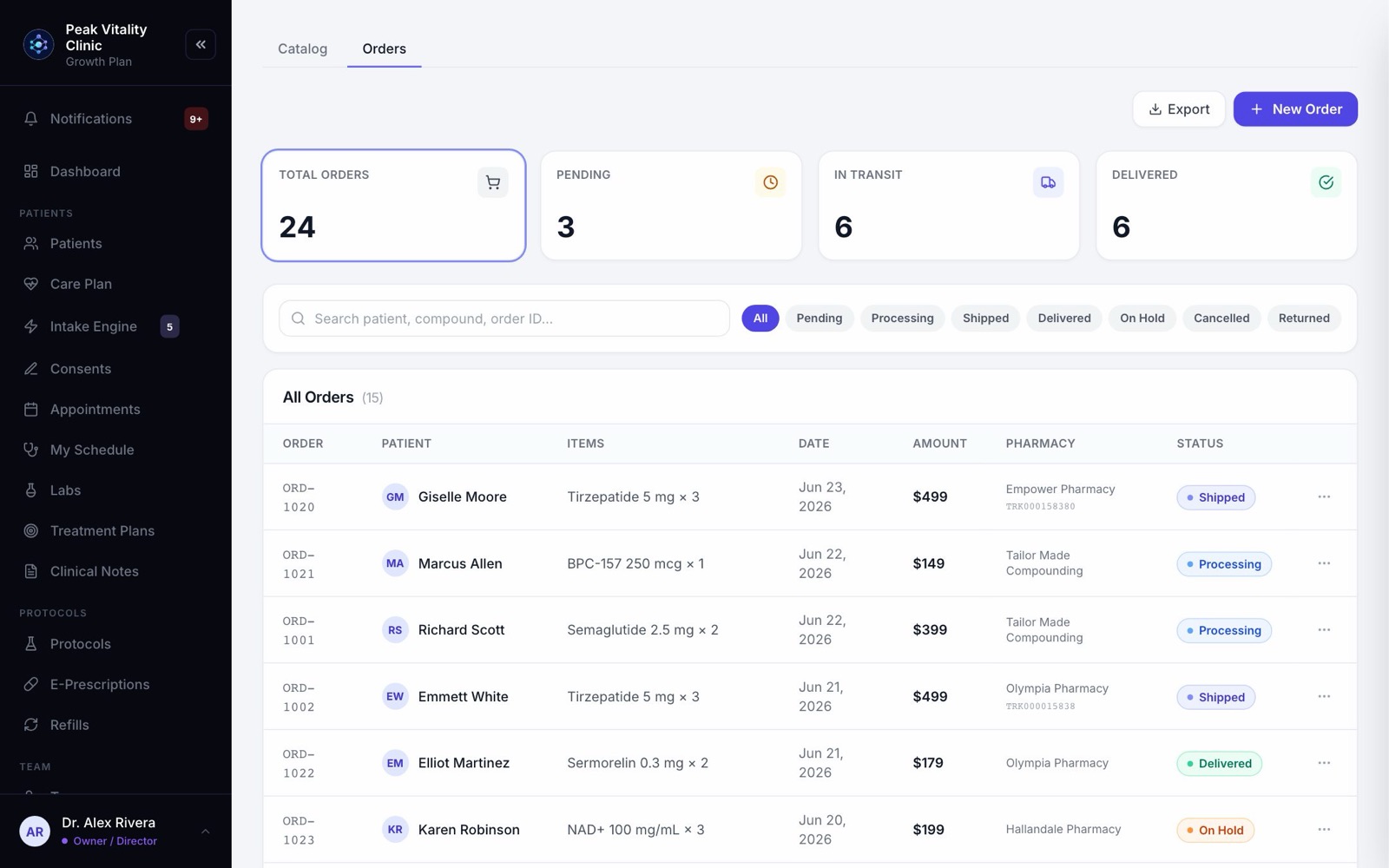
- 1Every order is on Products → Orders.
- 2An in-house item on an order comes off your stock once, when the order is marked shipped, collected or delivered.
- 3Mark Returned or Cancel Order on one that already came off puts the stock back.
9Stock a plan has promised
When a treatment plan with in-house items is approved, those items are reserved for that patient. The count doesn’t change, because the stock is still on the shelf.
On Inventory, the row shows a purple reserved tag. Hold your mouse over it to see how many are still free to promise. When the item is given or handed over, its reservation is let go.
10Which lot is used
When a dose is logged or a prescription is dispensed, the lot that expires first is picked for you. Expired lots are not offered for a patient. When stock is thrown away, expired lots are used up first.
Each item’s Lots / Batches shows what is left in each lot. If a recall comes, you can see which lots you have.
11Controlled substances
An item with a DEA schedule has a Controlled-Substance Ledger on the Inventory page. Every dose, dispense, waste and delivery of it is written there with the new balance.
Its count can’t be typed in. Anything else goes through Dispense / Waste, which asks who did it, and a witness for waste.
12When it runs low
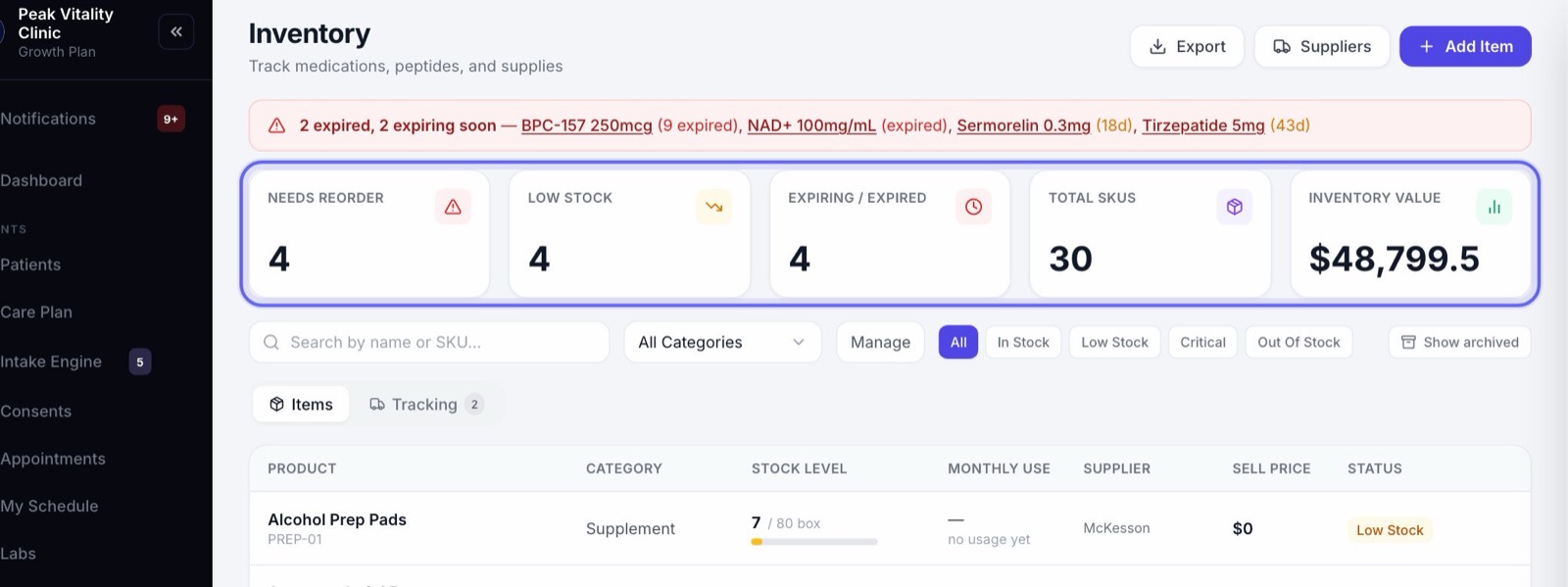
- 1An item at or below its reorder point turns Low Stock. At half of it, Critical.
- 2Needs Reorder at the top of Inventory counts what is critical or out.
- 3Monthly Use and the days left come from what really moved, so they get more exact as you use Aminova.
Keep going
Inventory
What is on your shelves, what is running low, and what is on order. Count stock, record lots, reorder from your suppliers and receive deliveries.
Read the guideSet up your inventory
Put your shelves into Aminova once: your categories, your suppliers, every item and how many you have. From then on, the counts keep themselves.
Read the guideProducts
Everything you sell, and what you charge for it. Add compounds, services, supplies and supplements, set their cost and price, and see every patient order.
Read the guideDispensary
Your clinic’s own supplements, and how many are on the shelf. Hand one to a patient, take the payment, and add supplements to the shelf.
Read the guideE-Prescriptions
Write, sign and send prescriptions, and see where each one really is. Pharmacy messages, the state drug check and medication history live here too.
Read the guideRather be shown?
Inside Aminova, the tutorial walks you through every page, and the Getting started checklist shows you each task click by click. Or book a live training session with our team.