1The page at a glance
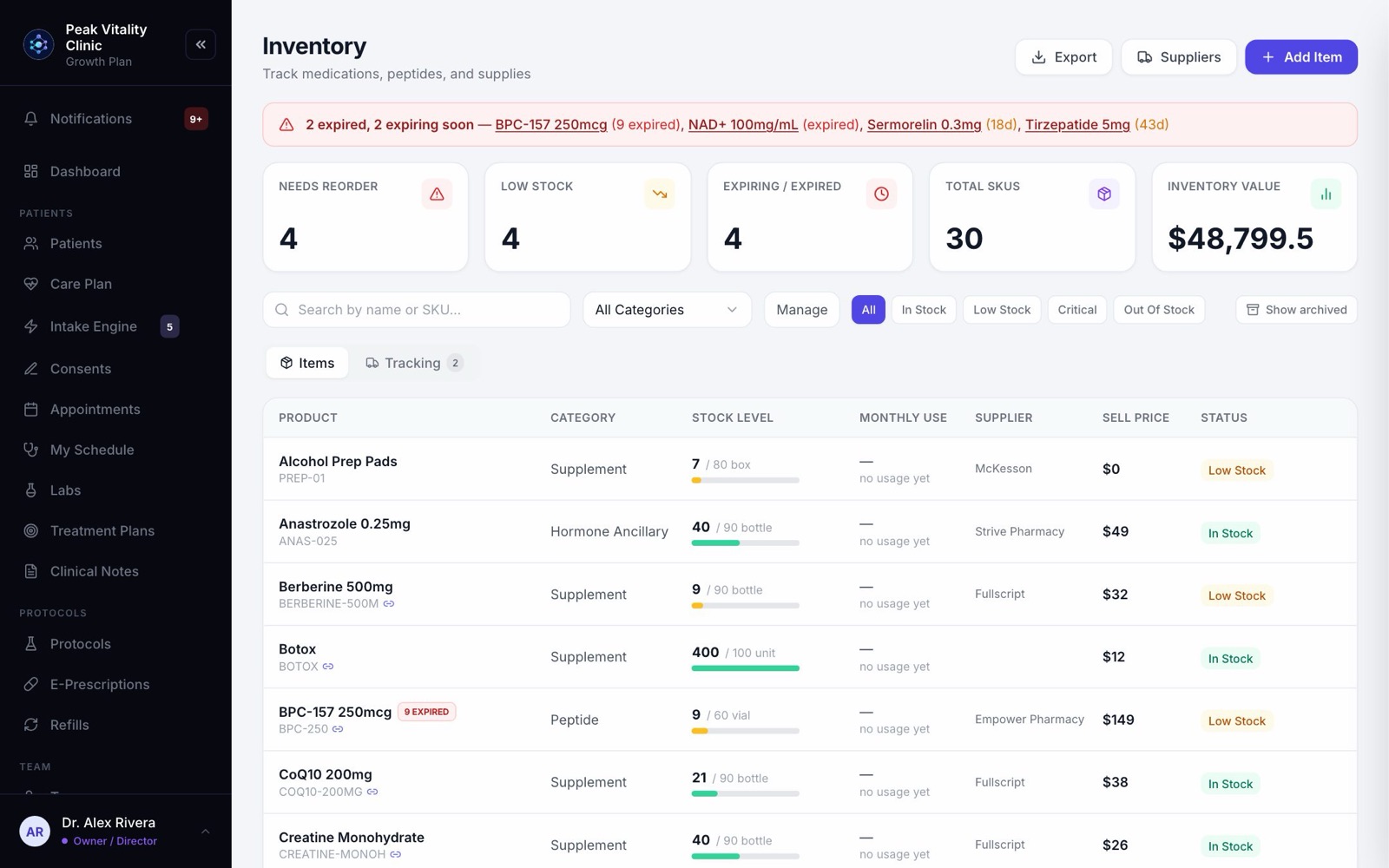
Inventory is every item your clinic keeps on the shelf and how many are left. Your stock numbers sit across the top. Under them are the search and filters, two tabs, and your stock list.
Three buttons sit in the top right: Export, Suppliers and Add Item. Owners, managers and physicians can add or change stock. Other roles need Approve operations queue switched on for them in Settings.
2Stock at a glance
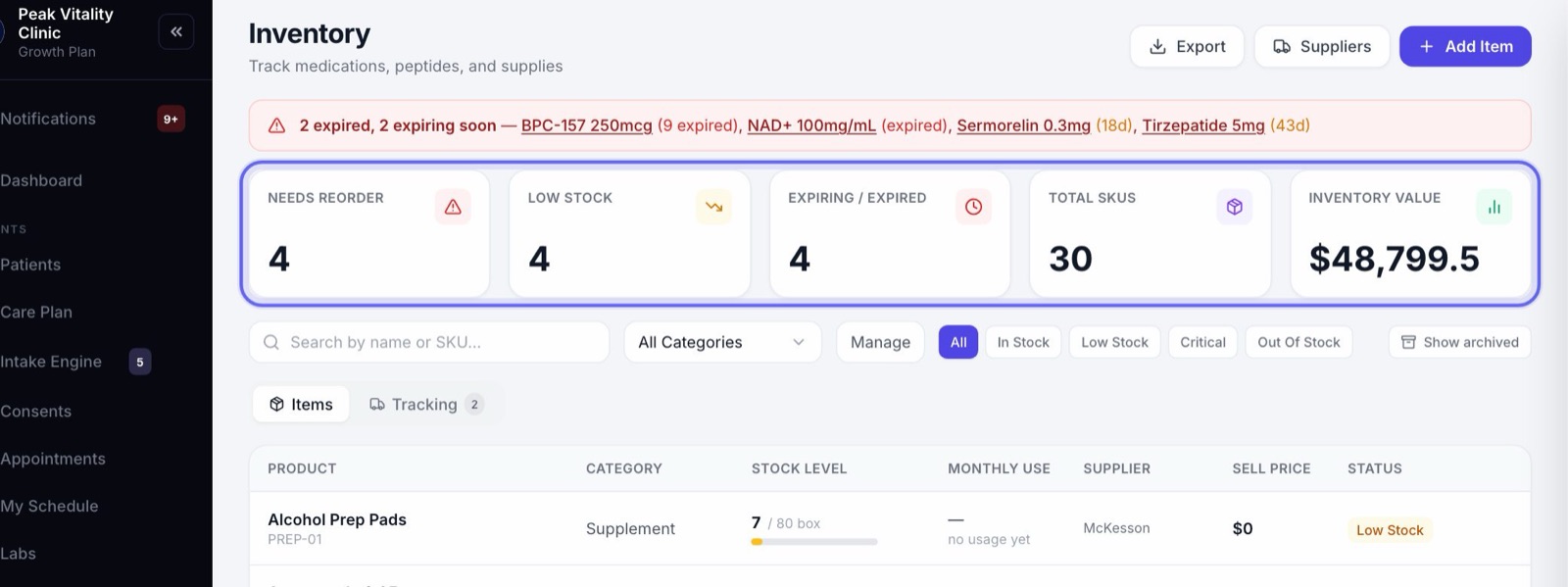
- 1Needs Reorder counts items that are critical or out of stock.
- 2Low Stock counts items at or below their reorder point.
- 3Expiring Soon counts items with stock that expires in the next 60 days. When something has already expired, it reads Expiring / Expired.
- 4Total SKUs is how many items you track. Inventory Value is what the stock on your shelves cost you.
- 5Click Needs Reorder or Low Stock to show only those items. Click it again to show everything.
3The expiry warning
When stock is expiring or has expired, a colored bar appears above the numbers. It names each item and how many days it has left. Click a name to jump to that item.
The row itself carries a small tag too, like exp 21d or EXPIRED.
4Find an item
- 1Type a name or SKU in the search box. The SKU is the short code for an item.
- 2Use the menu beside it to show one category. Manage lets you add, rename or delete your categories.
- 3Click In Stock, Low Stock, Critical or Out of Stock to show one level. All shows everything.
- 4Items you archived are hidden. Click Show archived to see them again.
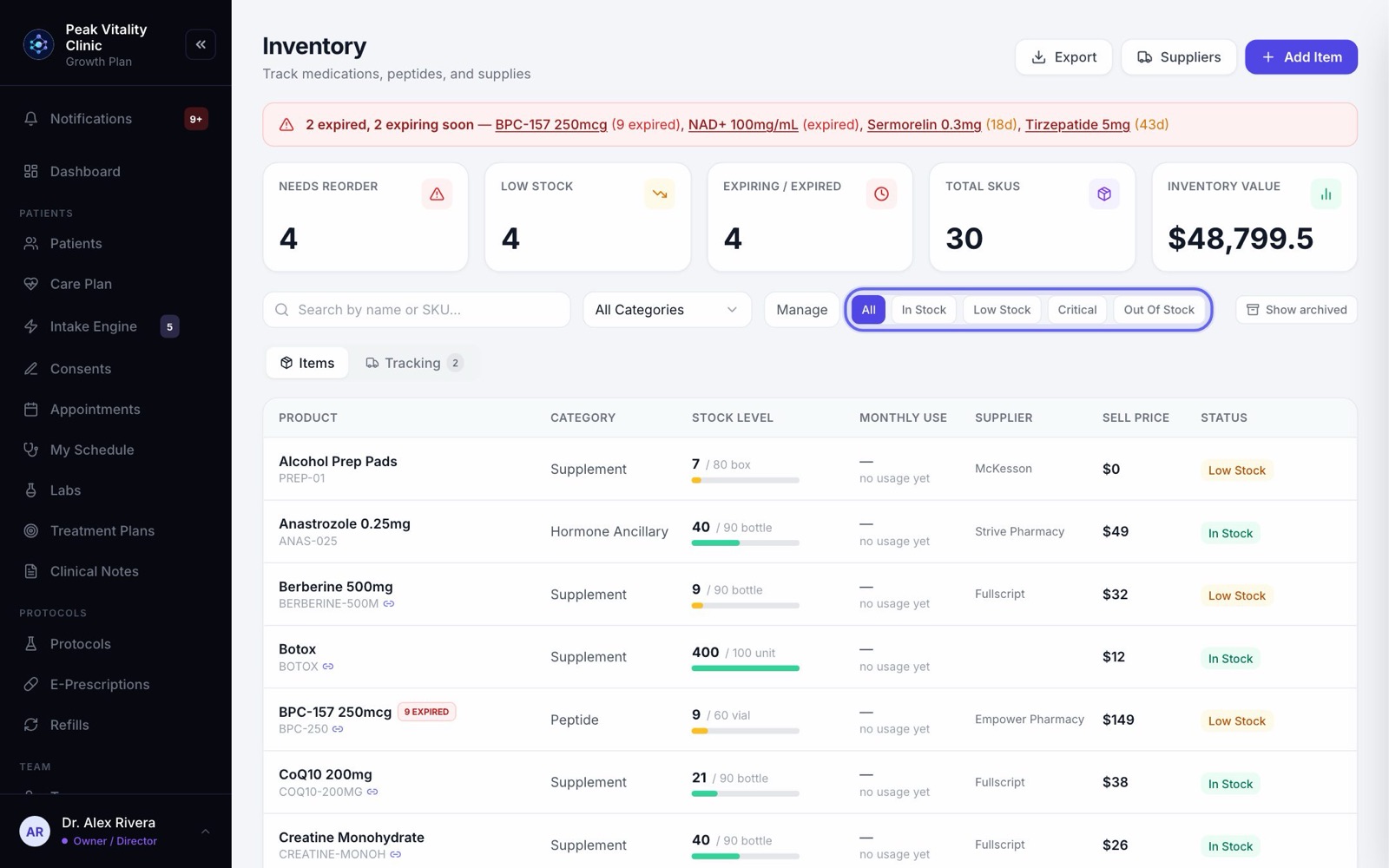
Low means at or below the reorder point. Critical means at or below half of it.
5Your stock
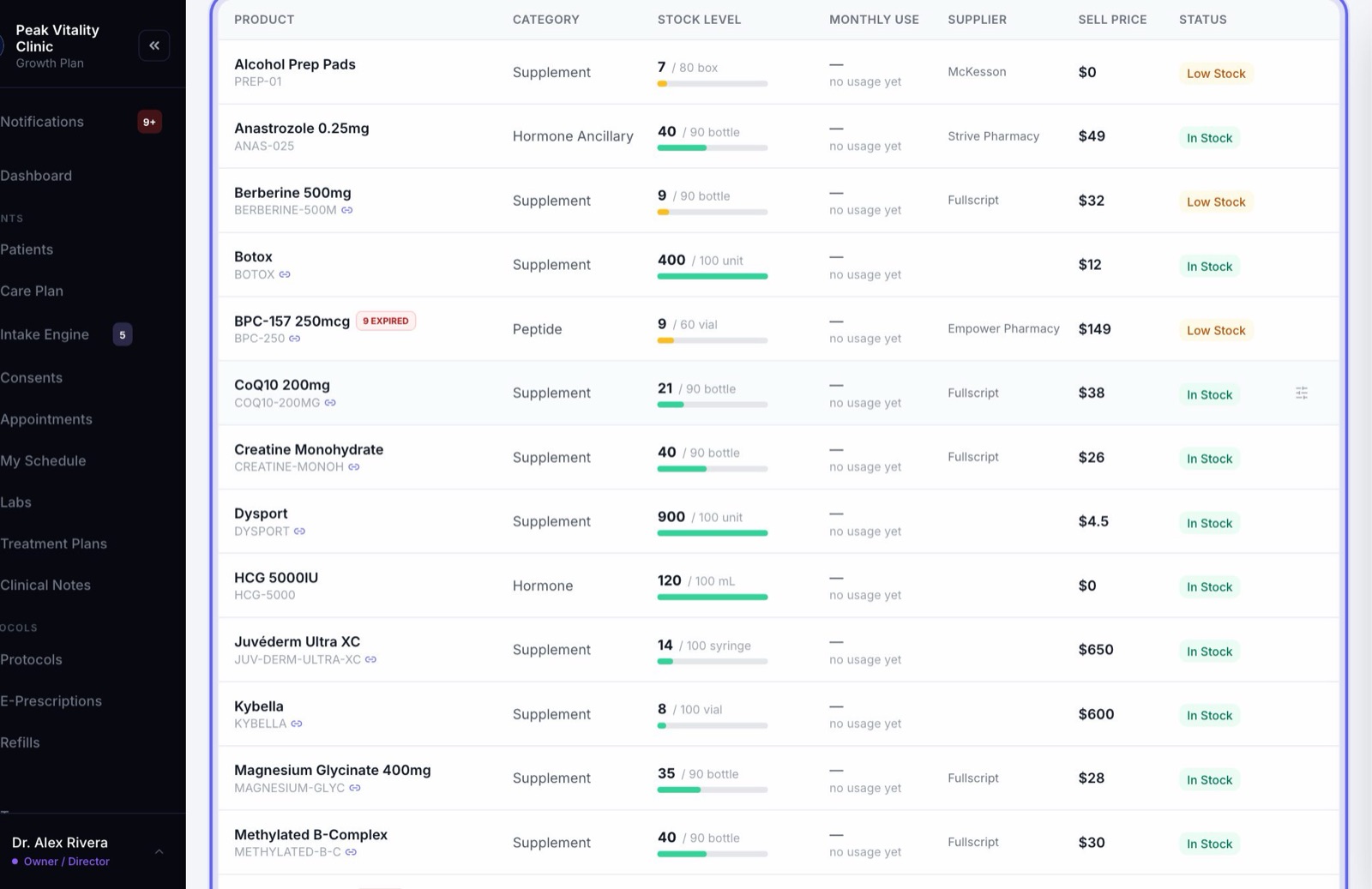
- 1The Items tab lists every item, one row each.
- 2Stock Level is how many you have. With a max stock set, a bar shows how full the shelf is.
- 3Monthly Use is how much you used, and about how many days it will last. It says no usage yet until stock starts moving.
- 4Supplier, Sell Price and Status fill the rest of the row.
- 5A purple reserved tag means an approved treatment plan has already promised some of it to a patient. It is still on the shelf.
6Open an item
- 1Click a row. It opens right under itself.
- 2The top line shows the item’s SKU and category, and the product it is linked to. Click the product name to open it on the Products page.
- 3Set the DEA schedule if it is a controlled substance.
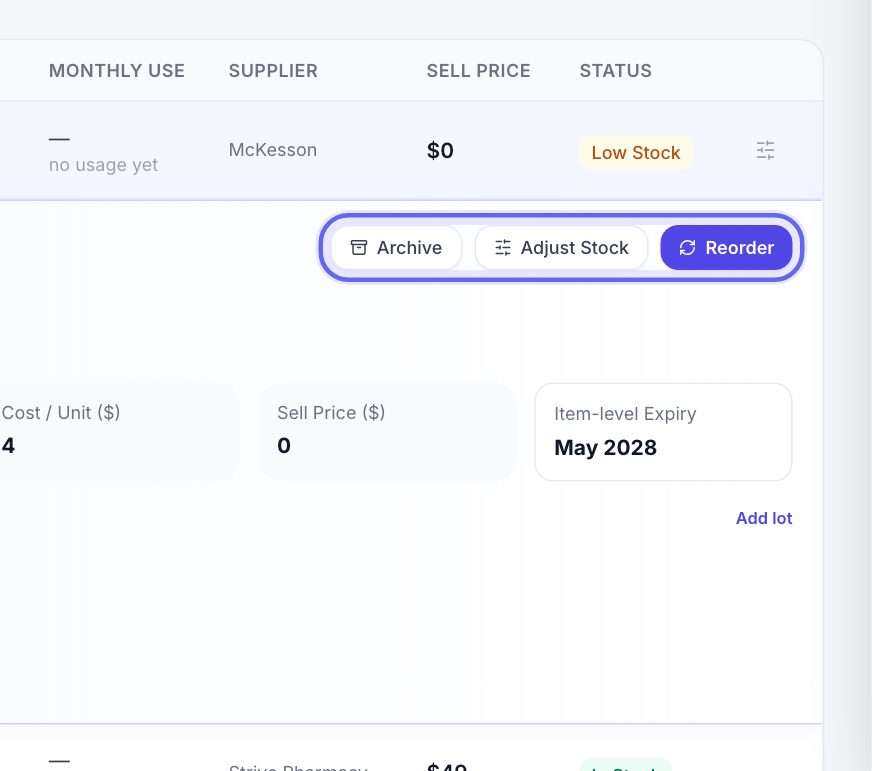
- 4The buttons are Archive, Adjust Stock and Reorder. A controlled substance has Dispense / Waste in place of Adjust Stock.
- 5Below them are its lots, and its recent movement: what came in and what went out.
7Change a number
- 1Hold your mouse over a box, like Max Stock or Sell Price ($), and click the pencil.
- 2Type the new number. Press Enter to save, or Esc to stop.
- 3You can change Current Stock, Max Stock, Cost / Unit ($) and Sell Price ($). Items counted in mL or tablets also have Container Size, like 30 mL per vial.
- 4A controlled substance’s count can’t be typed. It says Moves with Dispense / Waste.
Leave Max Stock empty if you don’t want one. It then reads No max.
8Adjust the count
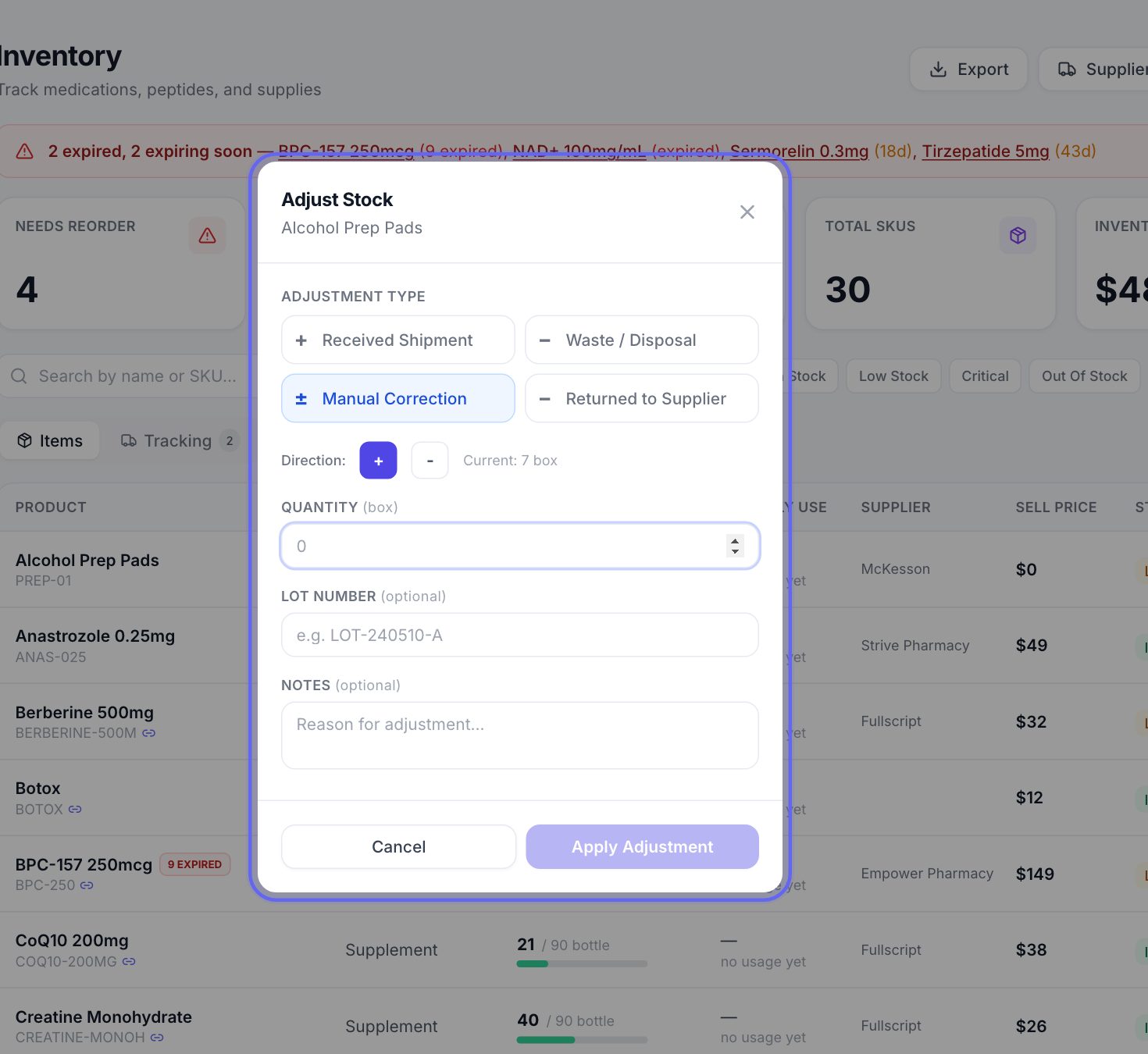
- 1Click Adjust Stock on an open item, or the small sliders icon at the end of its row.
- 2Pick why it changed: Received Shipment, Waste / Disposal, Manual Correction or Returned to Supplier. For a correction, choose + or −.
- 3Type the Quantity. It shows the new count before you save.
- 4For a shipment of vials, pens or mL, the Lot Number from the box is required. Add the Lot Expiry too.
- 5Add a note if you like, then press Apply Adjustment.
9Lots and expiry
Lots / Batches lists each lot of the item: its number, how many are left, when it expires, and when it came in. The lot that expires first is used first.
Stock you counted in before you tracked lots can be labeled. Click Add lot, type the Lot number, how many are in it, and the expiry, then press Save lot. The count doesn’t change.
A controlled substance’s lots are recorded when a purchase order is received, so Add lot is not offered for it.
10Controlled substances
- 1Open the item and click Dispense / Waste.
- 2Pick the Action: Dispensed, Wasted, Received or Adjusted.
- 3Type the quantity, and pick the lot. A receipt needs the lot number typed off the vial.
- 4Performed By is always needed. Witnessed By is needed for waste.
- 5Press Record Entry. It goes on the item’s Controlled-Substance Ledger with the new balance.
11Reorder
- 1Open the item and click Reorder.
- 2The Order Quantity is filled in for you: enough to reach max stock, or twice the reorder point if no max is set. Change it if you need to.
- 3Add a note, then press Create Order.
- 4If the item’s supplier has an email saved, the order is emailed to them.
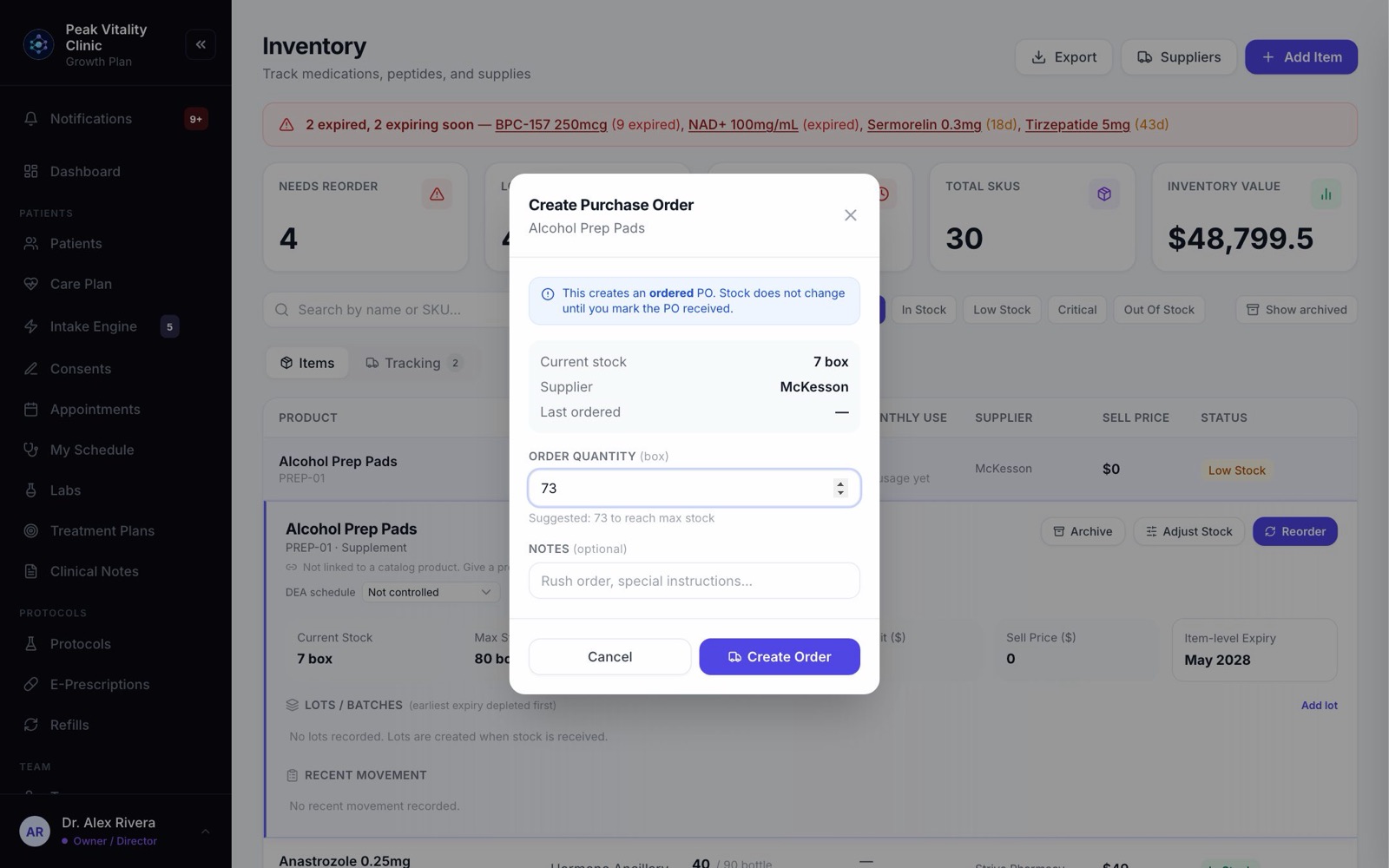
Ordering doesn’t change the count. Stock goes up only when you receive the order.
12Purchase orders
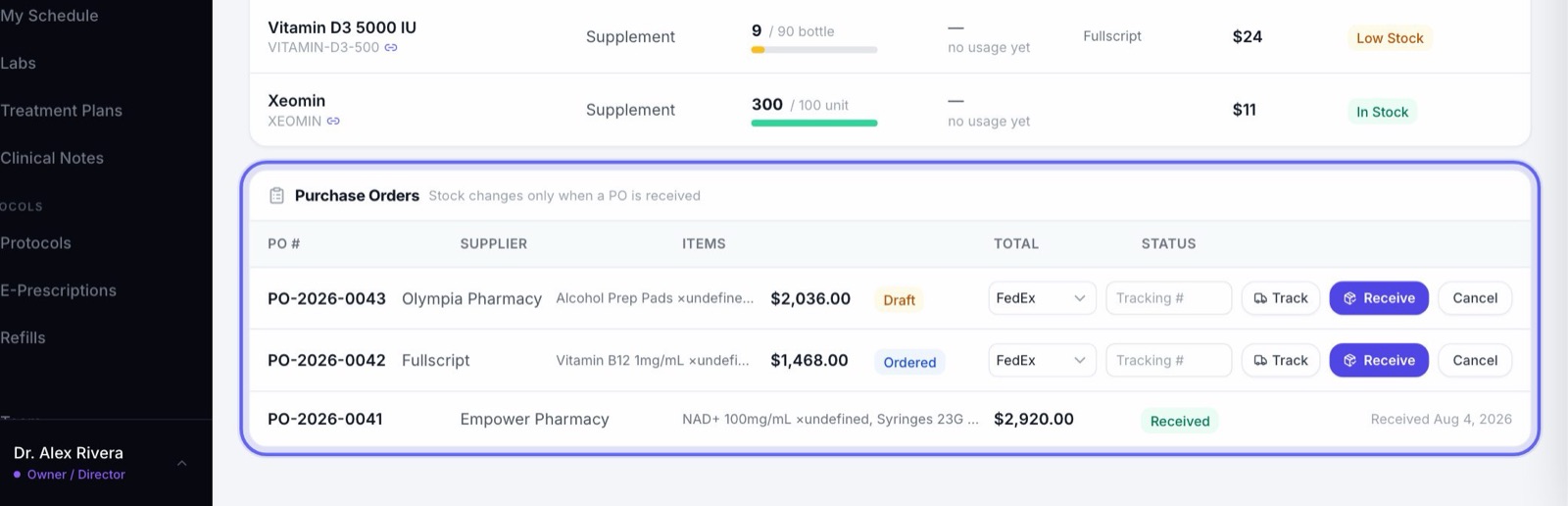
- 1Purchase Orders, under your stock, lists every order with its supplier, items, total and status.
- 2To add the supplier’s tracking number, pick the carrier, type it, and click Track.
- 3When the box arrives, click Receive. Type the lot number and expiry printed on each carton, then press Receive. The stock goes up.
- 4Cancel cancels an order you no longer need.
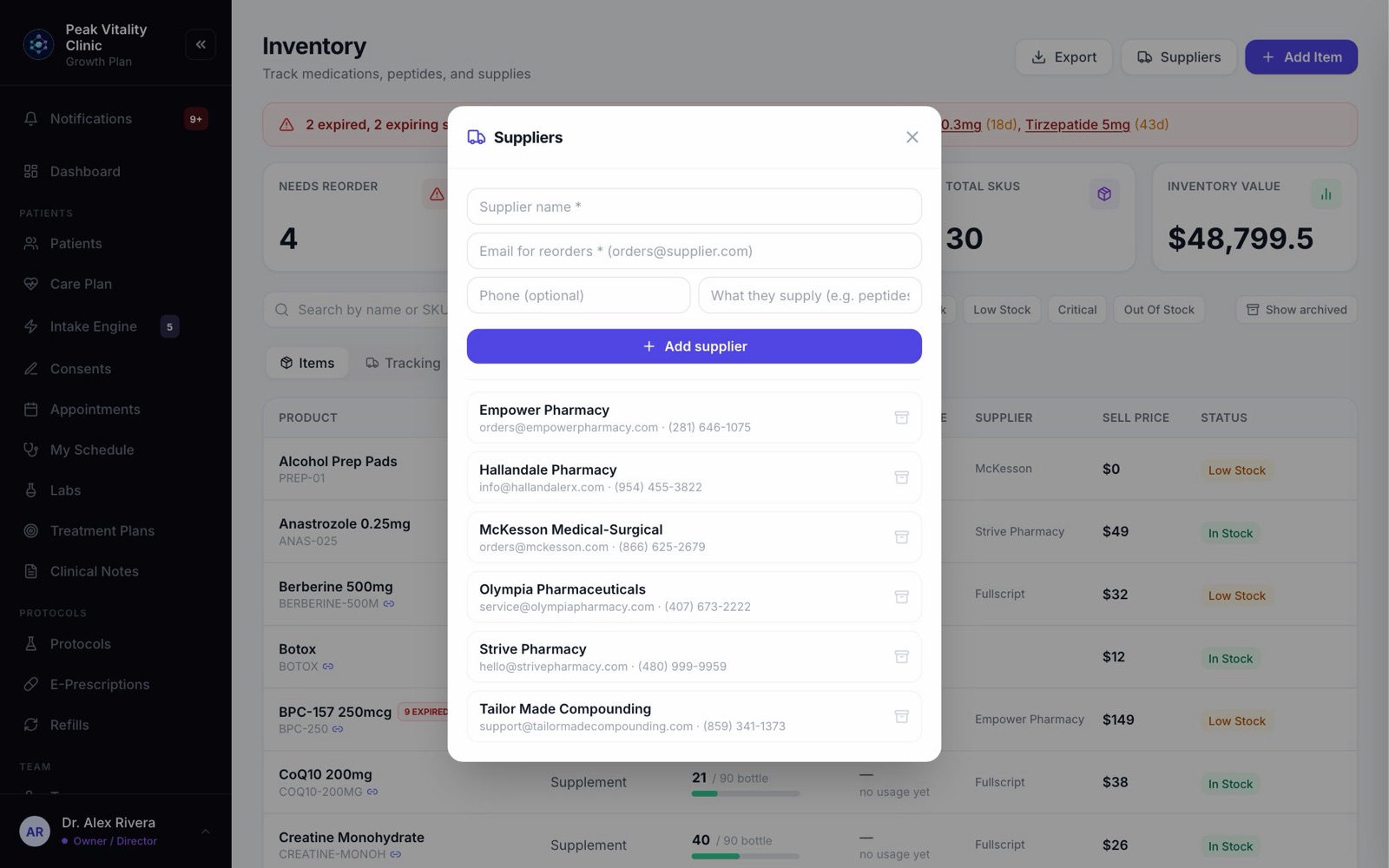
13Suppliers
- 1Click Suppliers at the top.
- 2Type the supplier’s name and the email reorders should go to. Both are needed. A phone and what they supply are optional.
- 3Press Add supplier.
- 4The box icon beside a supplier archives them.
14Track a delivery
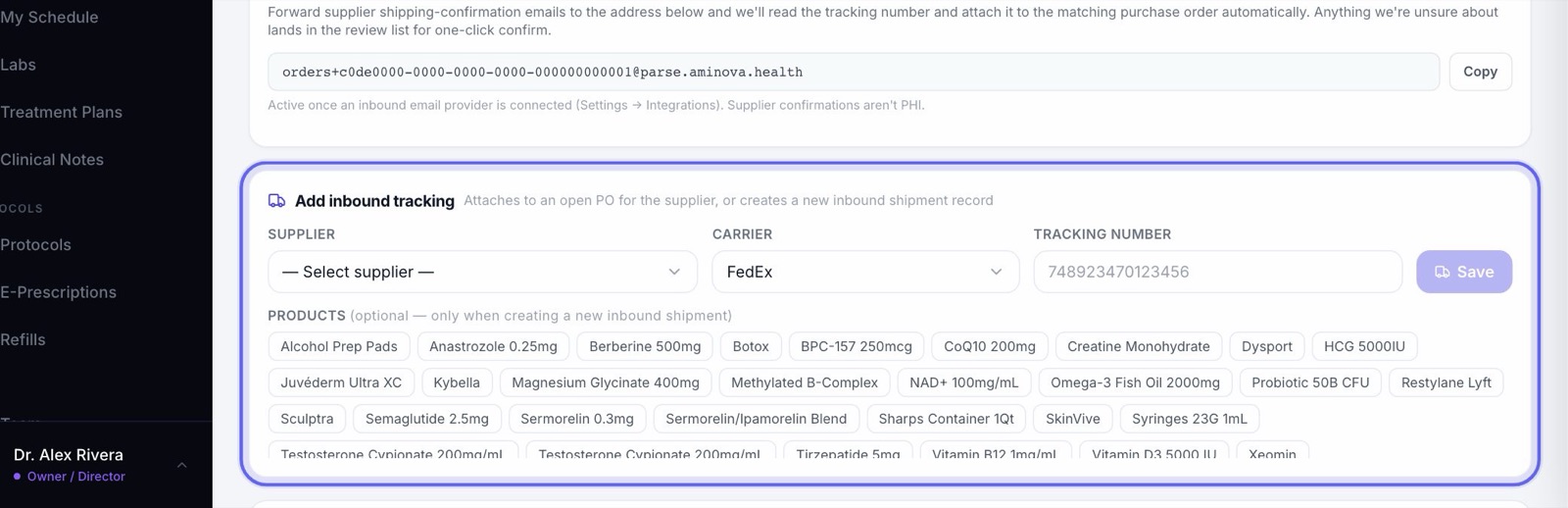
- 1Open the Tracking tab.
- 2Under Add inbound tracking, pick the Supplier and Carrier and type the Tracking number. Press Save.
- 3It is added to that supplier’s open order. If there isn’t one, a new shipment is made, and you can tick the products in it.
- 4Inbound supplier shipments lists every order with its tracking. Click a number to follow it on the carrier’s site.
15Add an item
- 1Click Add Item.
- 2Start typing. Pick one of your products to track its stock, or pick Create new item for something that isn’t a product.
- 3Choose the Category and Unit, and type the Initial Stock and Reorder Point.
- 4More details holds the SKU, supplier, container size, max stock, prices, DEA schedule and expiry.
- 5Press Add and link for a product, or Add Item for a new item.
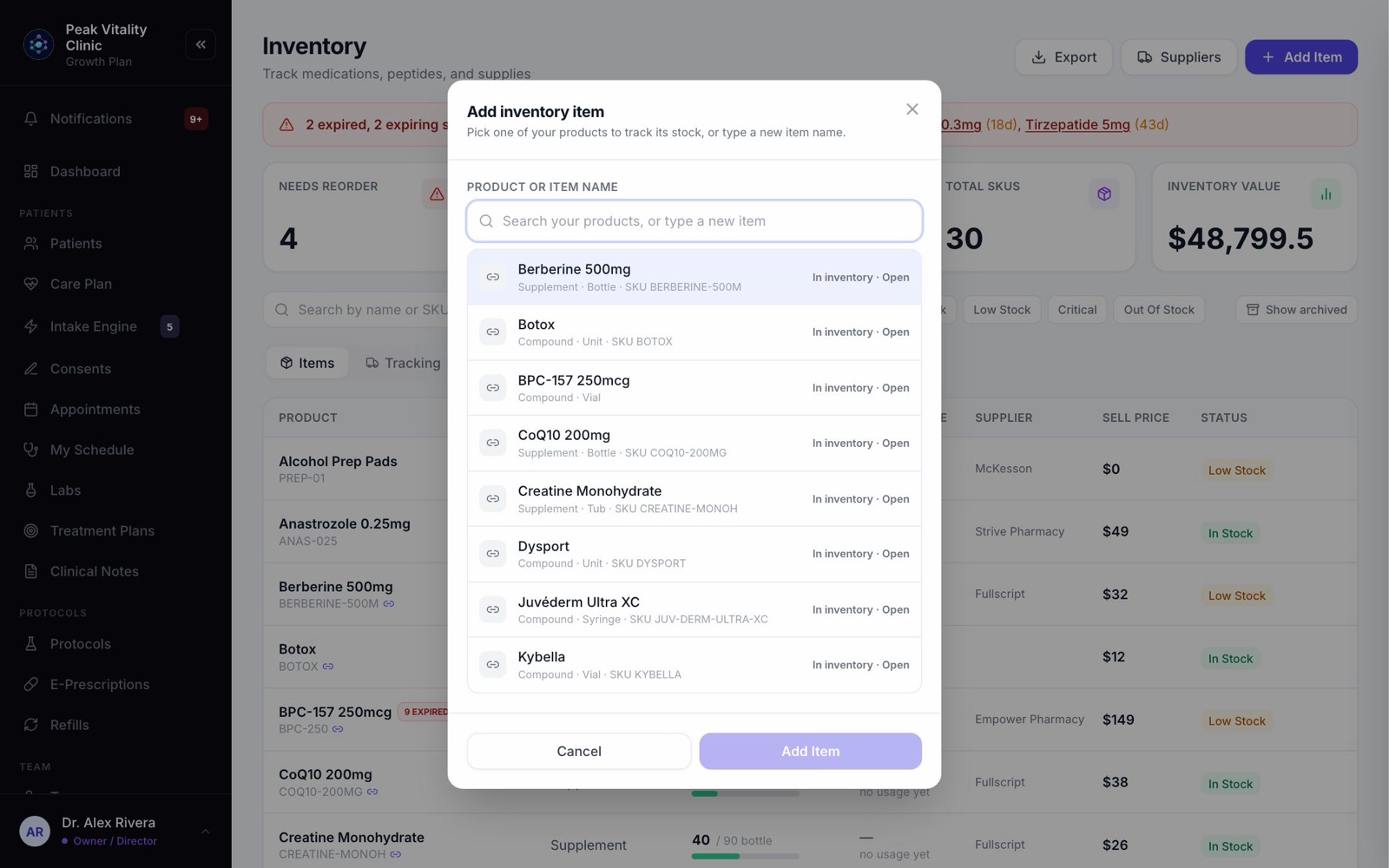
A product that is already on the shelf opens its row instead, so nothing is counted twice.
16Export
Export downloads your whole stock list as a spreadsheet: counts, reorder points, monthly use, status, prices, value, expiry and supplier.
Keep going
Set up your inventory
Put your shelves into Aminova once: your categories, your suppliers, every item and how many you have. From then on, the counts keep themselves.
Read the guideInventory and dispensing
How your stock counts keep themselves. Deliveries add to them; doses given, prescriptions dispensed and orders handed over take away. Every move is recorded.
Read the guideProducts
Everything you sell, and what you charge for it. Add compounds, services, supplies and supplements, set their cost and price, and see every patient order.
Read the guideDispensary
Your clinic’s own supplements, and how many are on the shelf. Hand one to a patient, take the payment, and add supplements to the shelf.
Read the guideRather be shown?
Inside Aminova, the tutorial walks you through every page, and the Getting started checklist shows you each task click by click. Or book a live training session with our team.