1What you are setting up
Inventory keeps one count for each thing on your shelves: vials, pens, supplements, supplies. It warns you when something runs low or is about to expire, and it orders more from your suppliers.
Setting it up means telling it what you stock and how many you have today. Owners, managers and physicians can do this. Anyone else needs Approve operations queue switched on for their role in Settings → Roles & Permissions.
2Name your categories
- 1Go to Inventory in the sidebar.
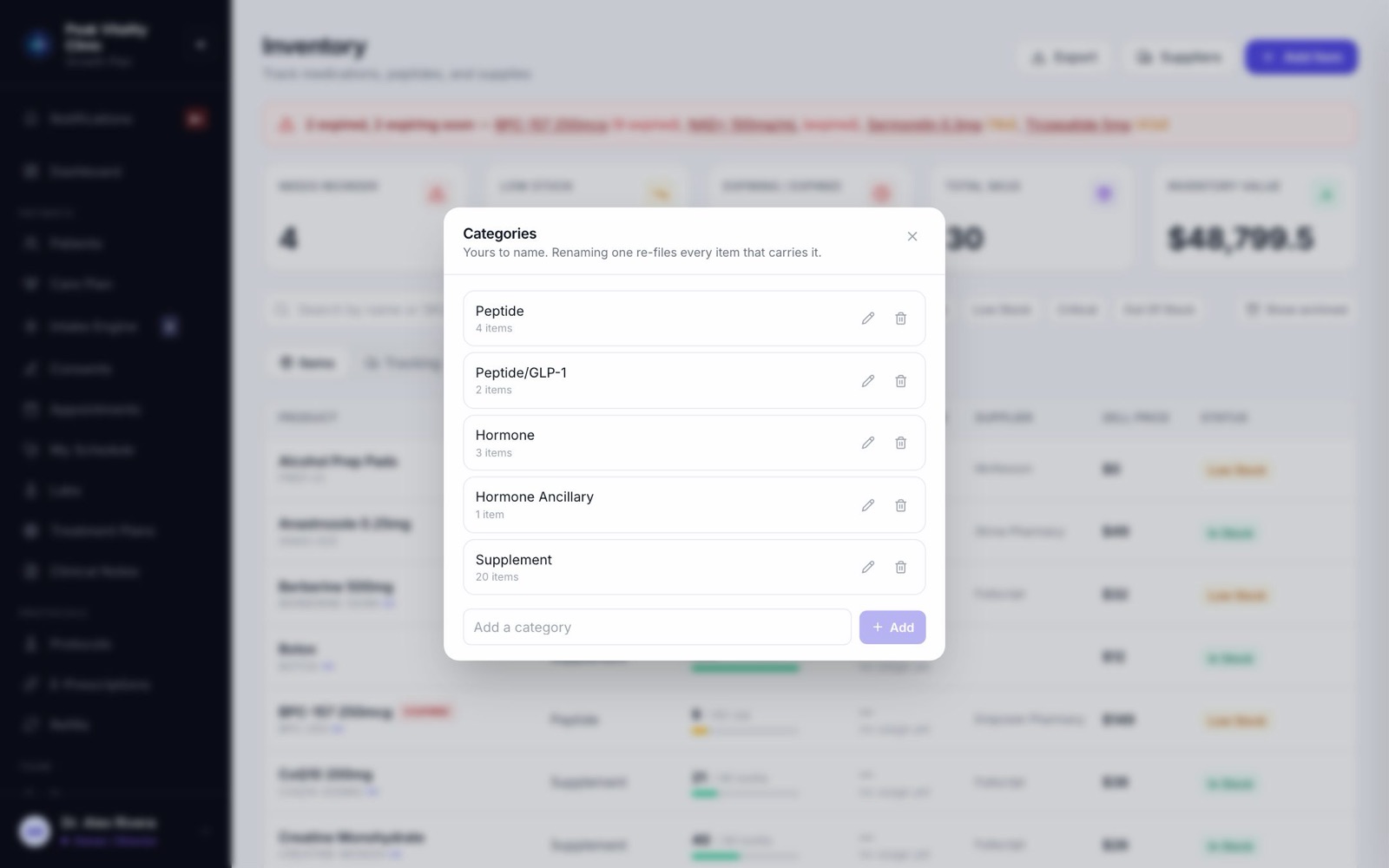
- 2Click Manage, beside the category menu.
- 3Type a name in Add a category and press Add. Use the pencil to rename one, or the bin to delete one.
- 4Renaming a category moves every item in it along with it.
3Add your suppliers
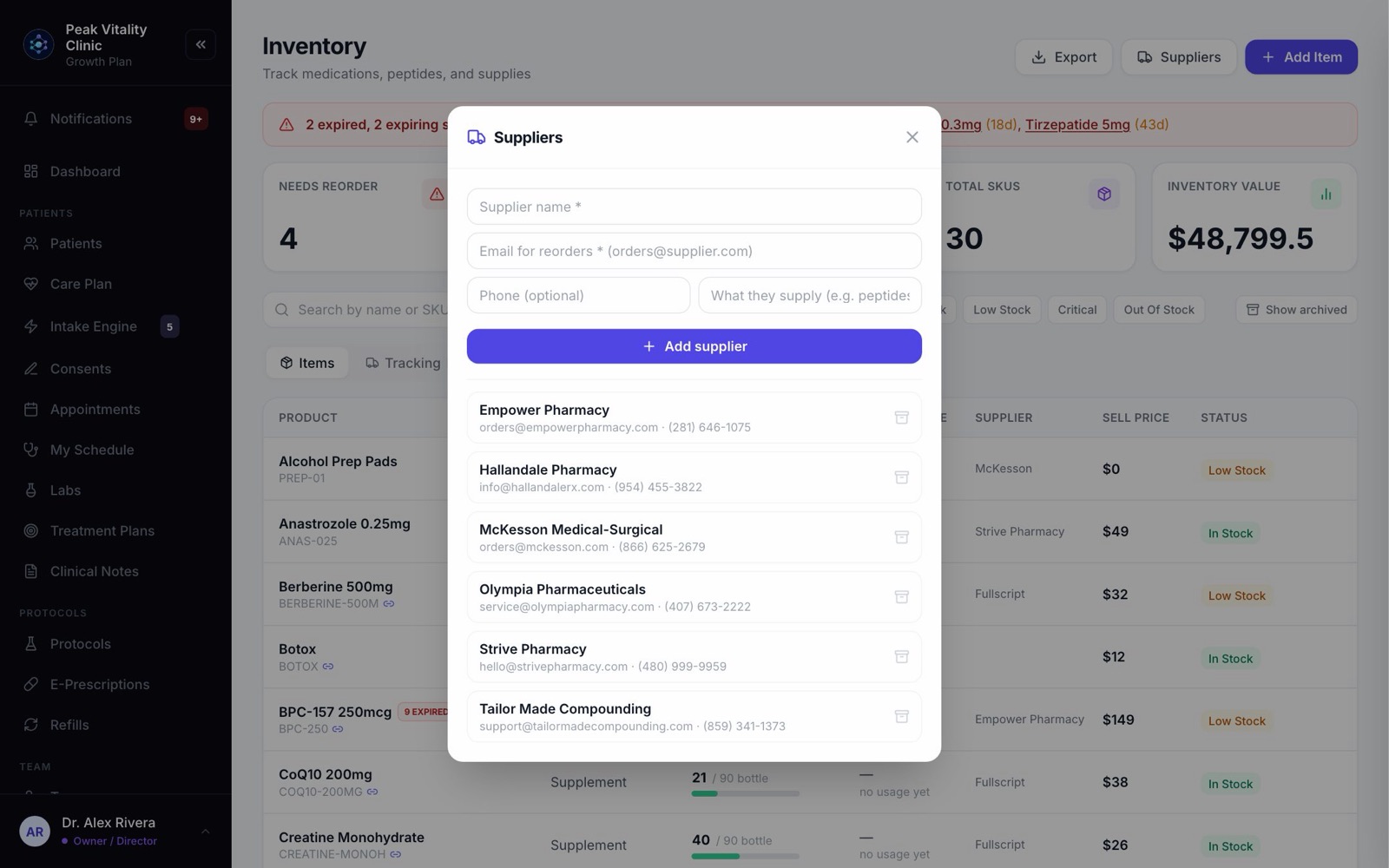
- 1Click Suppliers at the top of Inventory.
- 2Type the Supplier name and the Email for reorders. Both are needed: a reorder is emailed to that address.
- 3Add a phone and what they supply if you like.
- 4Press Add supplier. Do this for each one.
4Stock your in-house products
- 1Most of what you stock is also something you sell. Go to Products and open each one you keep on your own shelf.
- 2Click Edit. Under Fulfillment, choose In-house dispensing, and pick its Unit.
- 3Save it. It now has its own row on the Inventory page, linked to the product.
- 4Supplements are set to in-house on their own.
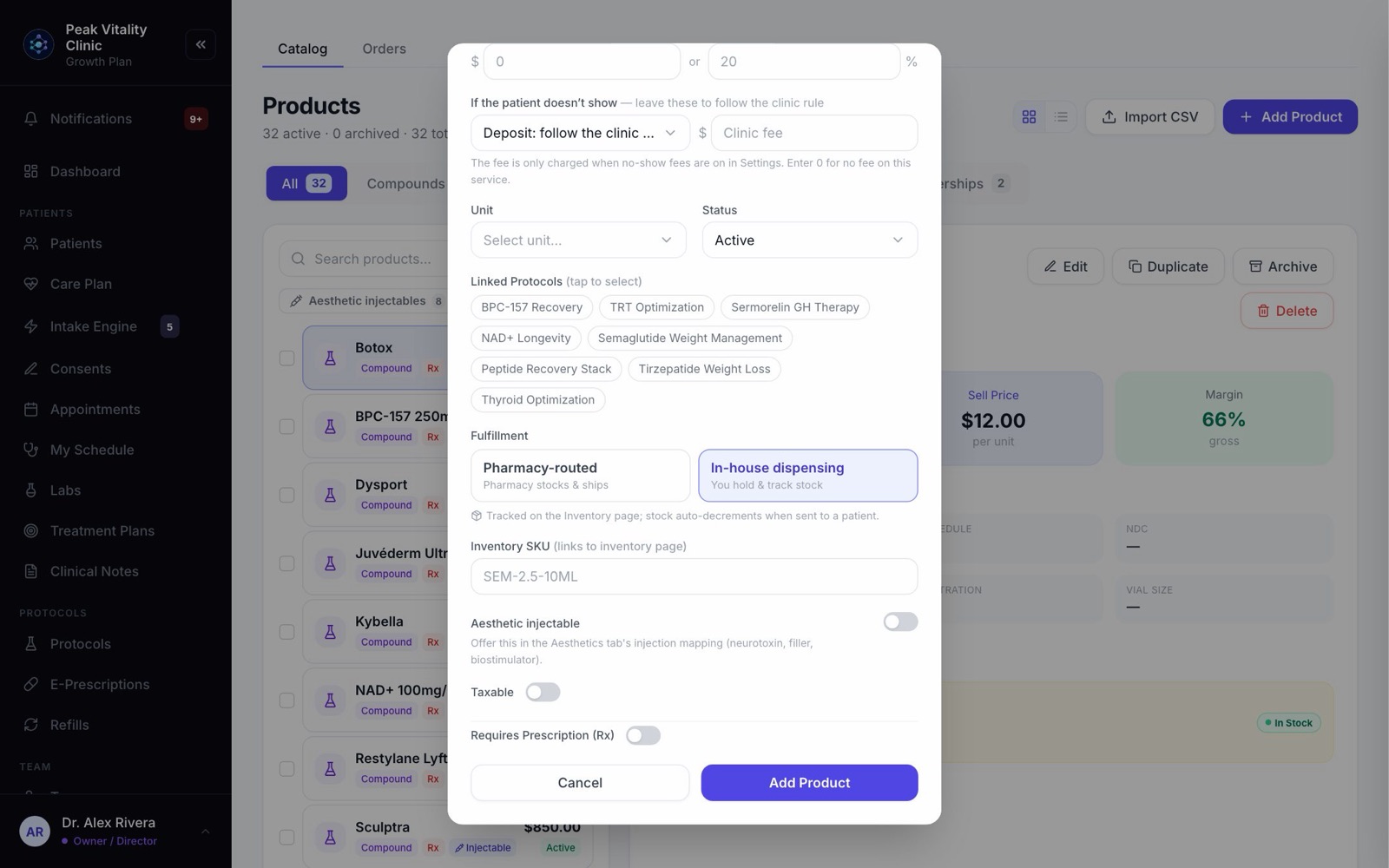
Pharmacy-routed products are not counted. The pharmacy holds that stock, not you.
5Add everything else
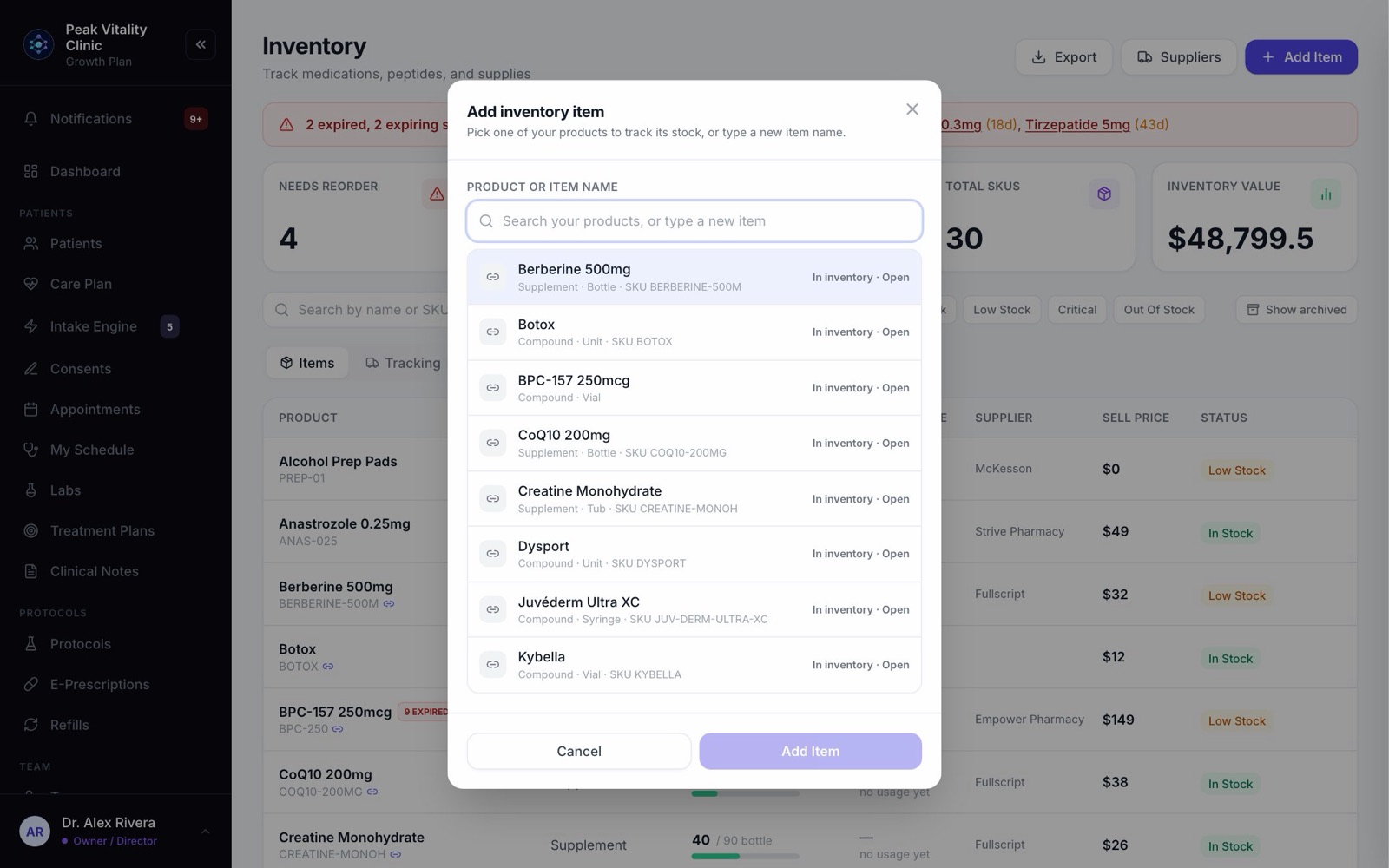
- 1On Inventory, click Add Item.
- 2Start typing. Pick a product to track it, or pick Create new item for a supply you don’t sell, like gloves.
- 3Choose the Category and the Unit. If yours isn’t listed, pick Custom… and type it.
- 4Type the Initial Stock: how many you have right now. Set the Reorder Point, the count that means it is time to order more.
- 5Press Add and link or Add Item.
6Or bring in a whole list
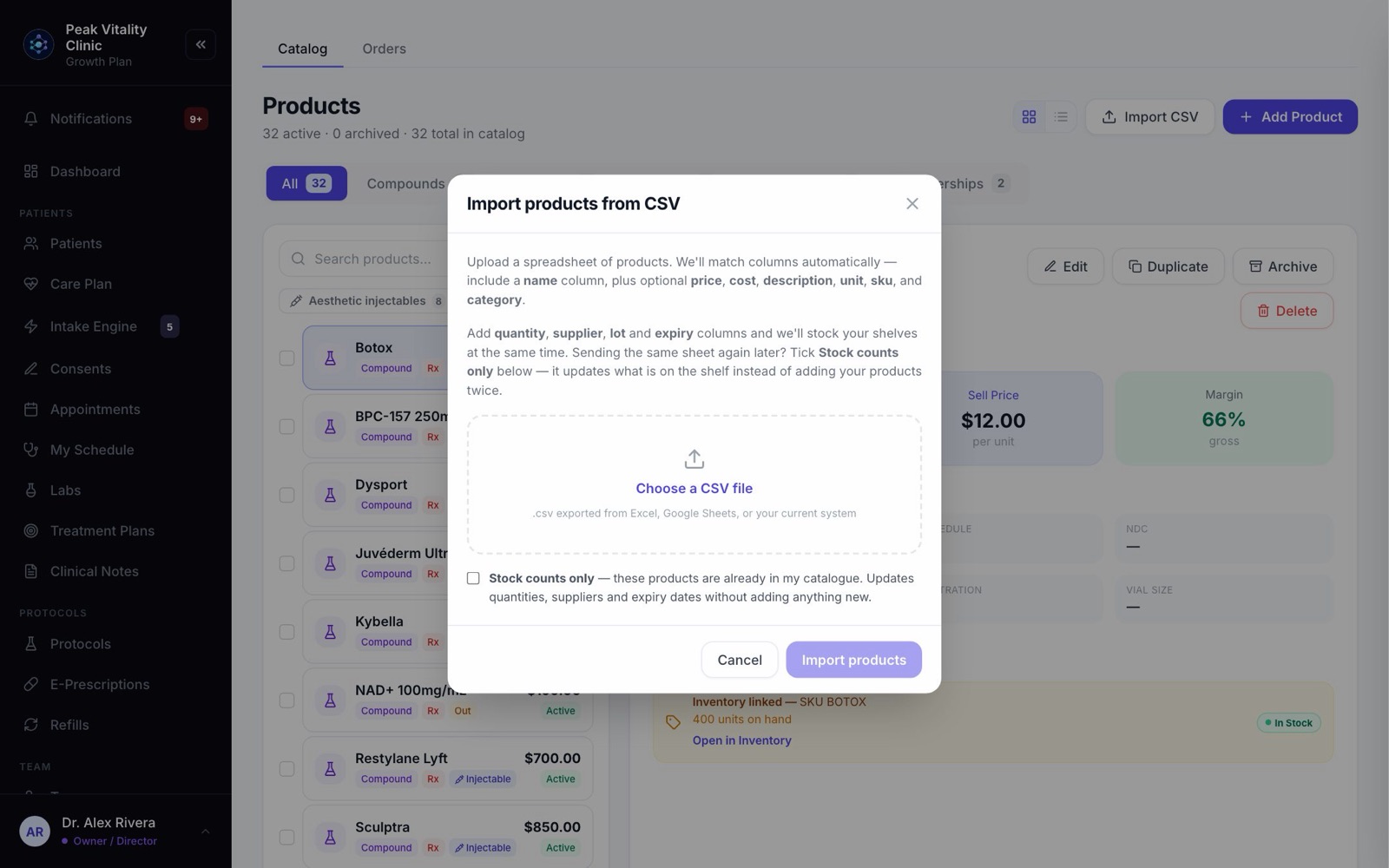
- 1Have your stock in a spreadsheet already? Go to Products and click Import CSV.
- 2Include a name column, plus quantity, supplier, lot and expiry columns.
- 3Press Choose a CSV file and check the preview. Importing adds the products and stocks the shelves in one go.
- 4Already imported your products? Tick Stock counts only so only the counts change.
7Set when to reorder
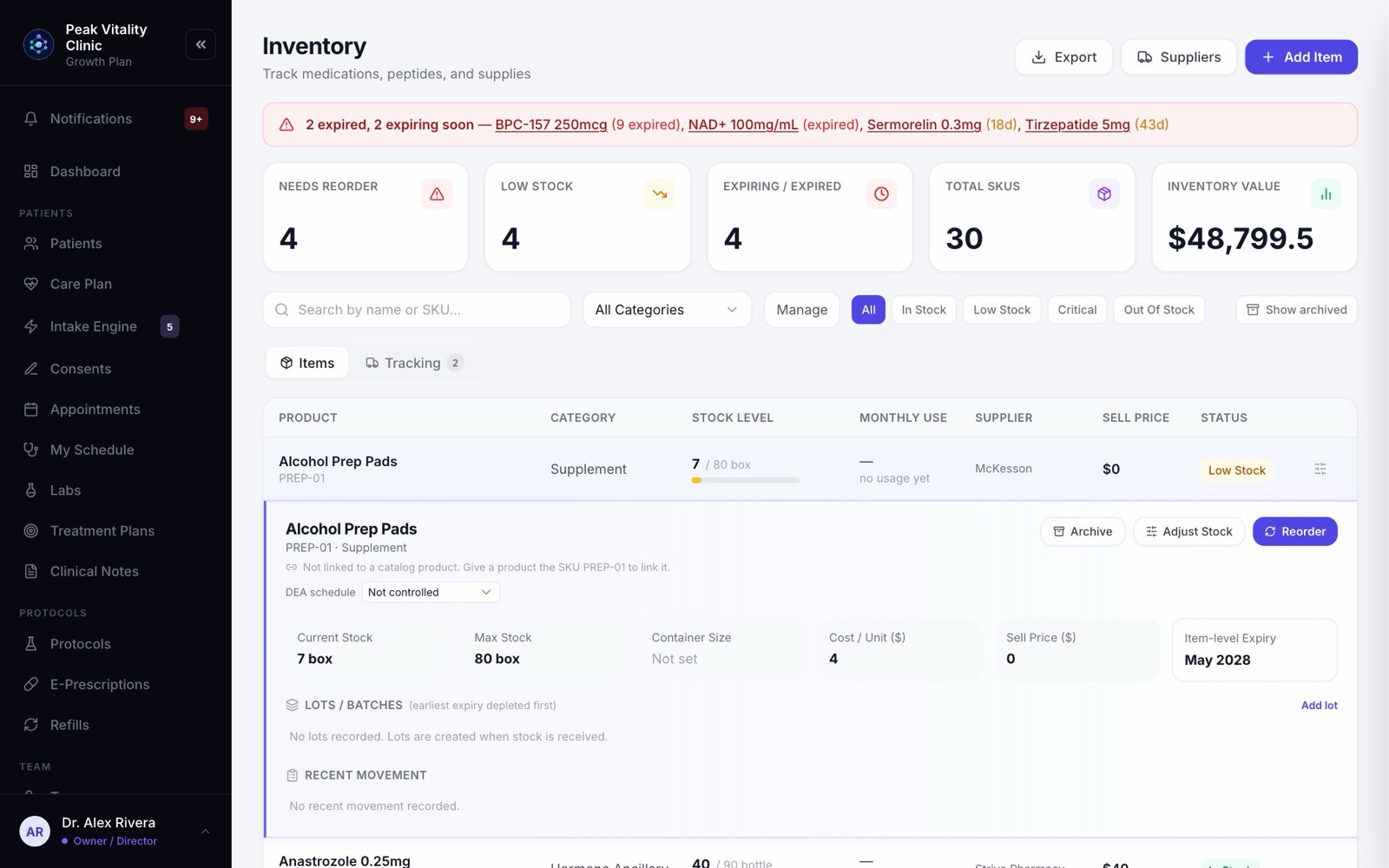
- 1On Inventory, click an item to open it.
- 2Hold your mouse over Max Stock, click the pencil, and type the most you like to keep. A reorder then fills you back up to it.
- 3Check Cost / Unit ($) and Sell Price ($) the same way.
- 4The reorder point you set decides the warnings. At or below it is Low Stock. At half of it, Critical.
8Items you draw from
A 30 mL vial is used a little at a time. Count it in mL, and set its Container Size: 30 mL per vial. The count stays in mL, and a delivery can be entered as vials.
Set it in More details when you add the item, or in the Container Size box on the open item.
9Record the lots you have
- 1Open an item. Under Lots / Batches, click Add lot.
- 2Type the Lot number from the box, how many are in that lot, and the expiry.
- 3Press Save lot. The count doesn’t change. This only labels stock that is already there.
- 4Do this for each lot on the shelf. The lot that expires first is then used first, and expiry warnings are right.
10Mark controlled substances
For anything scheduled, set the DEA Schedule when you add it, or on the open item. Its opening count is written into its controlled-substance record.
From then on its count can’t be typed in. It moves each time it is given, dispensed, wasted or received, and each of those is written into the record.
Its lots are recorded when you receive a purchase order for it, not with Add lot.
11Check it’s done
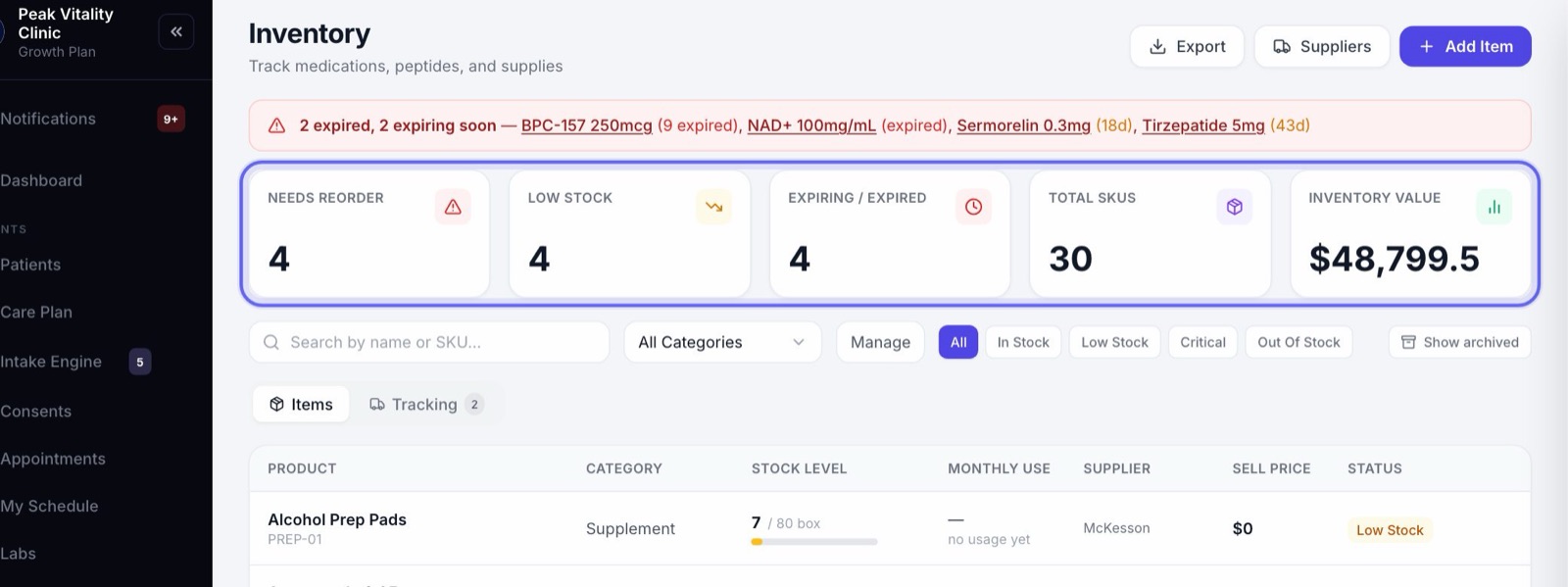
- 1Total SKUs at the top should match how many things you stock.
- 2Inventory Value is what your shelves cost you. It should look about right.
- 3Needs Reorder and Low Stock show what to order first. Open one and press Reorder.
12From here on
You don’t count by hand anymore. Stock goes up when you receive an order, and comes down when it is given, dispensed or sent to a patient.
The Inventory and dispensing manual explains each of those.
Keep going
Inventory
What is on your shelves, what is running low, and what is on order. Count stock, record lots, reorder from your suppliers and receive deliveries.
Read the guideInventory and dispensing
How your stock counts keep themselves. Deliveries add to them; doses given, prescriptions dispensed and orders handed over take away. Every move is recorded.
Read the guideProducts
Everything you sell, and what you charge for it. Add compounds, services, supplies and supplements, set their cost and price, and see every patient order.
Read the guideDispensary
Your clinic’s own supplements, and how many are on the shelf. Hand one to a patient, take the payment, and add supplements to the shelf.
Read the guideRather be shown?
Inside Aminova, the tutorial walks you through every page, and the Getting started checklist shows you each task click by click. Or book a live training session with our team.