1The page at a glance
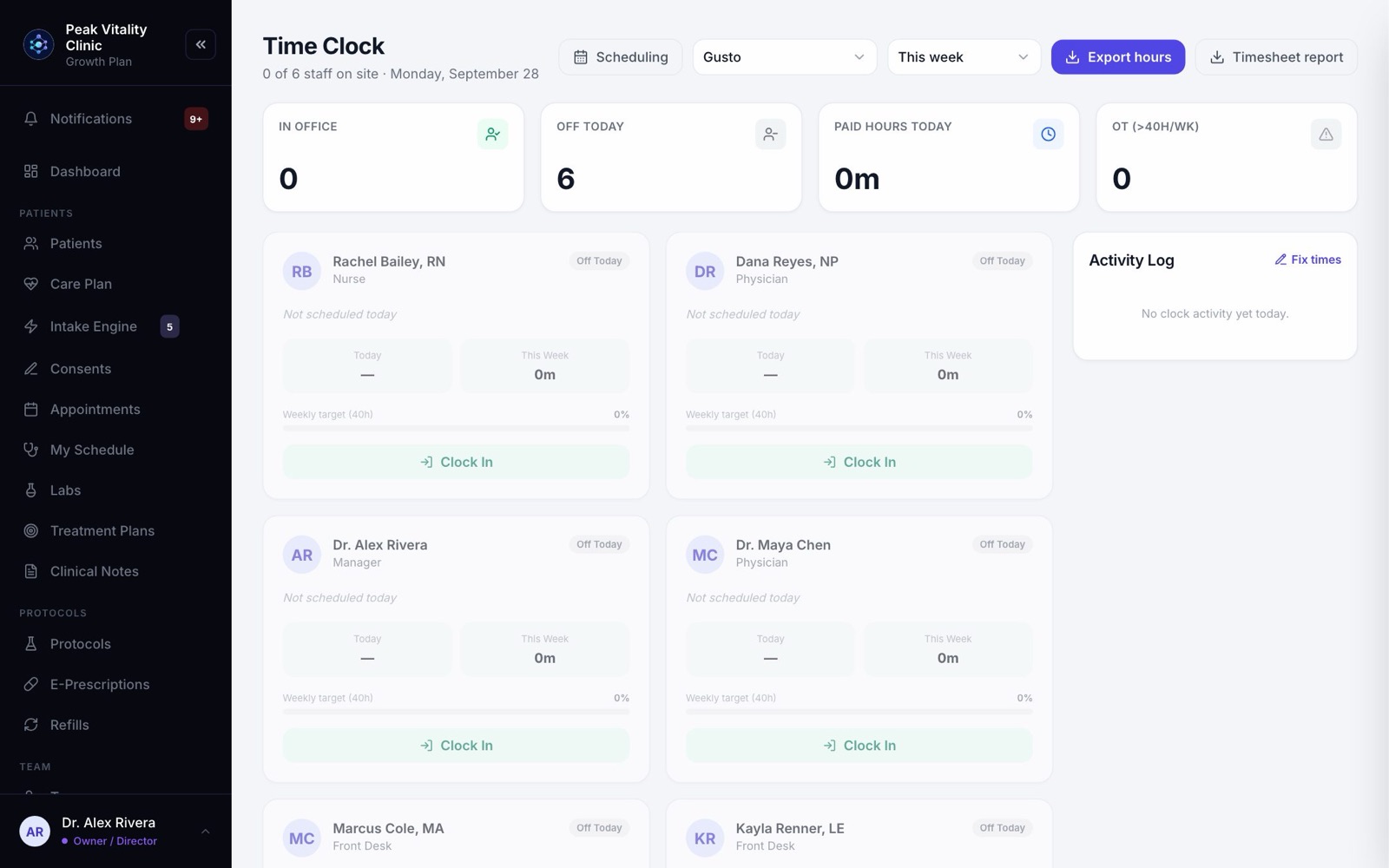
Time Clock is where your team clocks in and out. Each person has a clock card. Beside the cards is today’s activity log.
Most people see only their own card. Owners and managers see everyone’s card, today’s numbers across the top, and the payroll buttons.
2Clock in and out
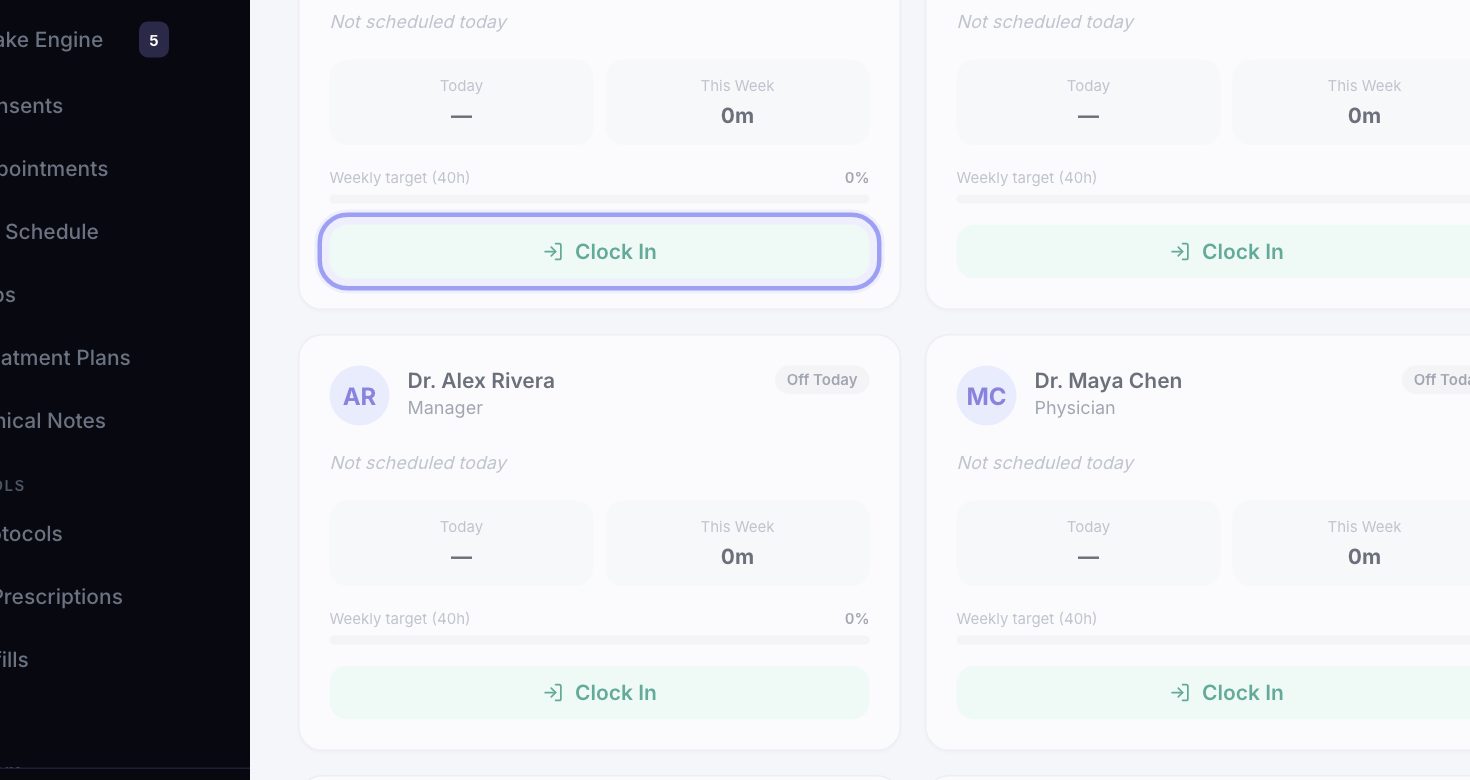
- 1Press Clock In when you arrive.
- 2Press Clock Out when you leave.
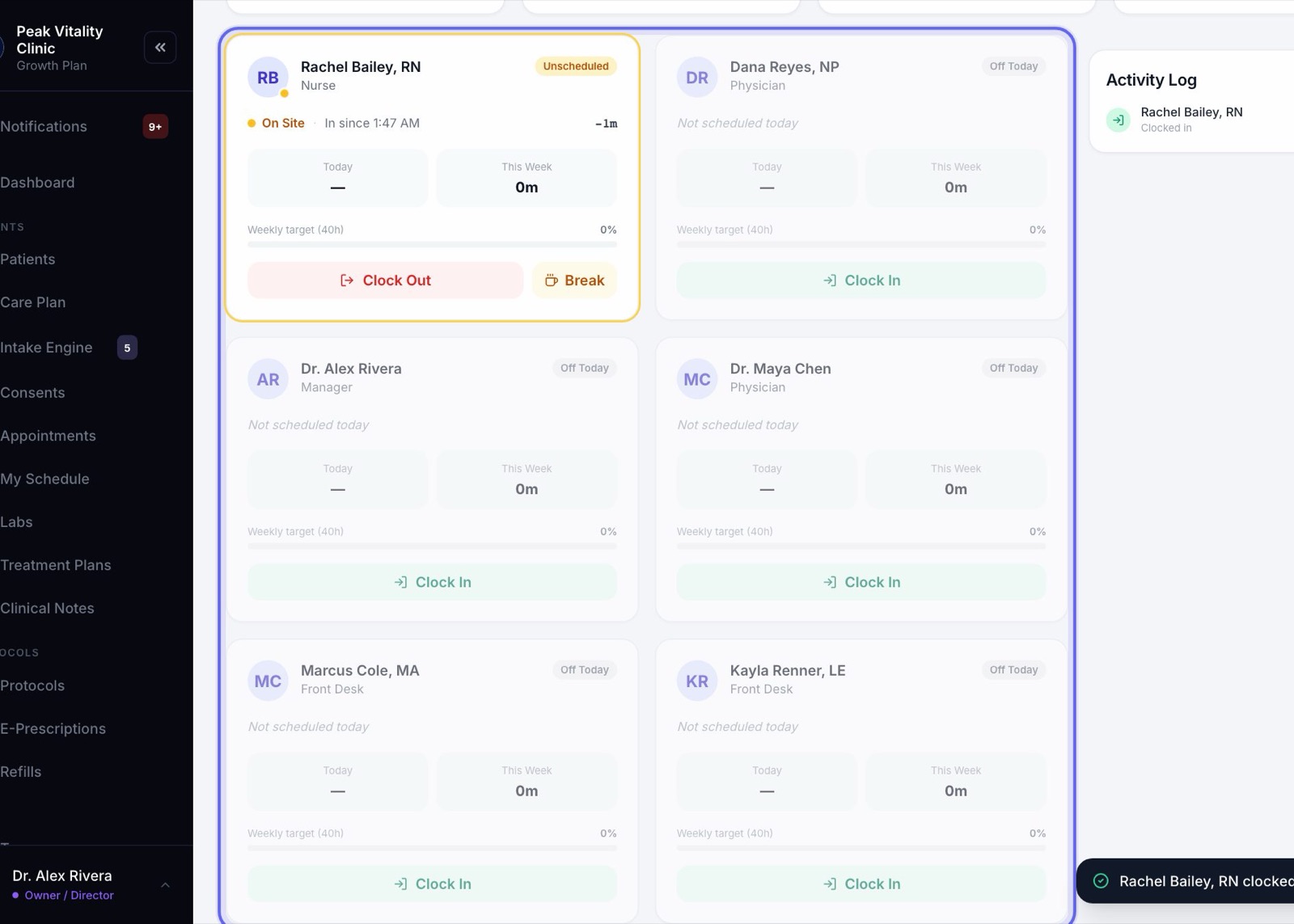
- 3A note at the bottom right shows the time it was recorded.
- 4Owners and managers can clock anyone in or out from their card.
3Take a break
- 1Once you are clocked in, press Break to start an unpaid break.
- 2Press End when you are back. The time in between isn’t counted as paid time.
- 3Clocking out also ends a break that is still going.
4Your clock card
- 1The tag in the corner is today’s shift from Staff Scheduling, like Full, AM or PM. Off Today means no shift today.
- 2While you are in, it says On Site, when you came in, and how long you have been in.
- 3Today and This Week are your paid hours.
- 4The bar fills toward your weekly target. Past it, you see an OT tag and the extra time in red.
- 5An amber Unscheduled tag means someone clocked in on a day they have no shift.
5Today at a glance
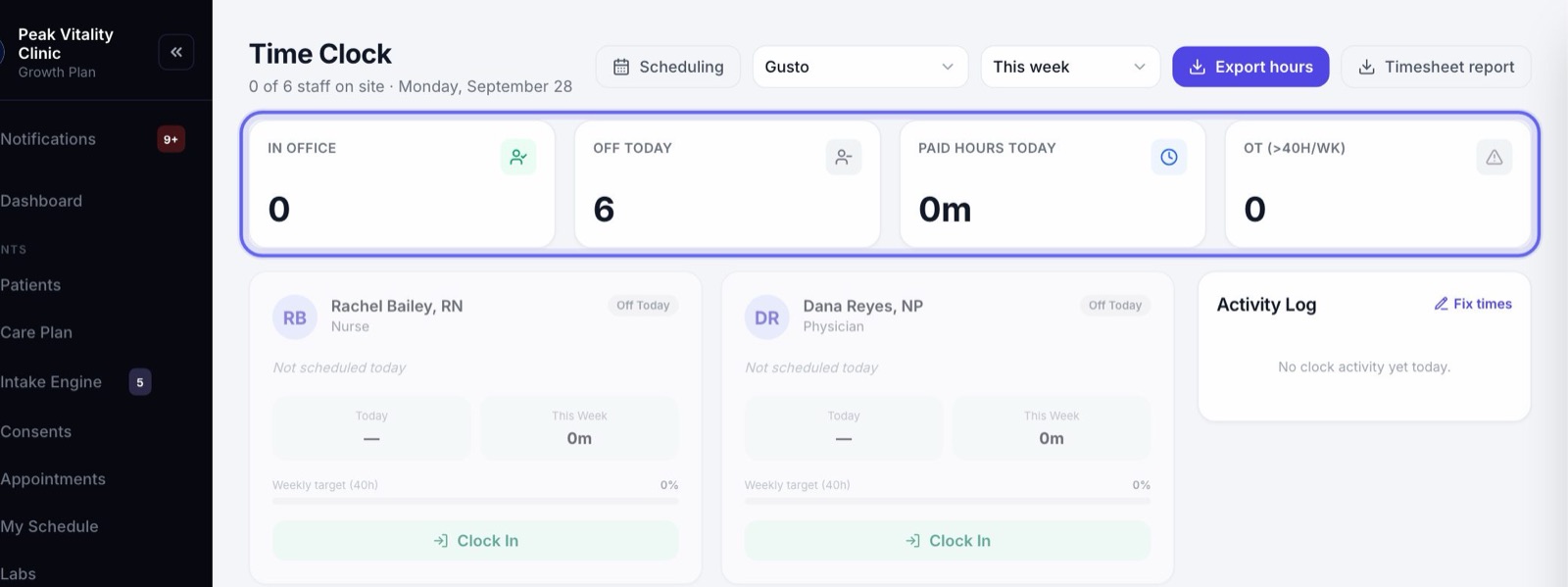
- 1In Office is how many people are clocked in now.
- 2Off Today is how many have no shift today, or are marked Out, and aren’t clocked in.
- 3Paid Hours Today adds up everyone’s paid time today.
- 4The last tile counts people into overtime. Its name says your rule, like OT (>40h/wk).
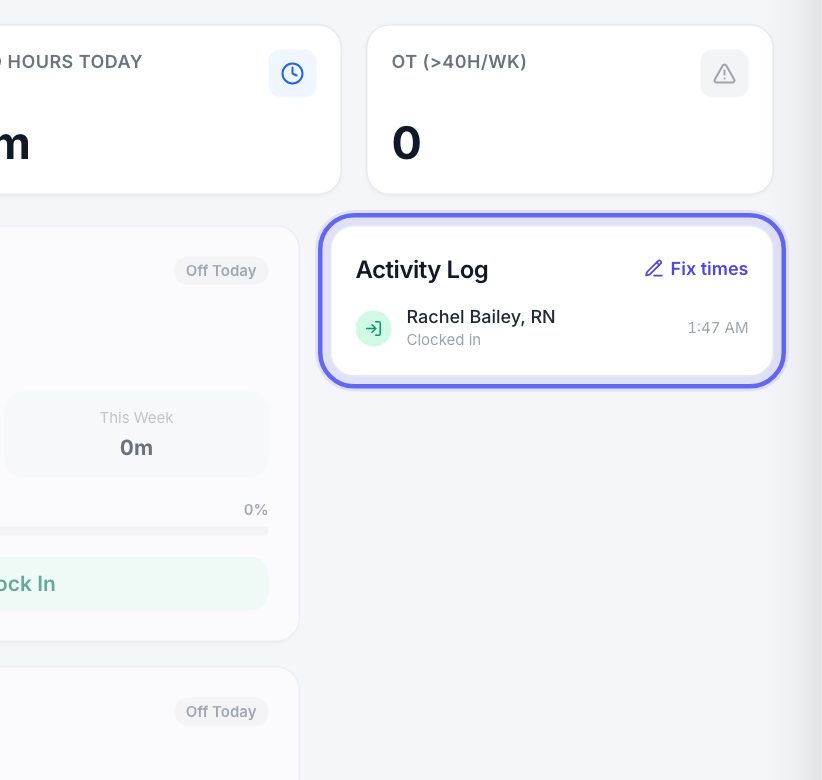
6Activity Log
Every clock in, clock out and break today, newest on top. It starts fresh each day.
A punch someone corrected says edited. Most people see only their own punches here.
7Fix a mistake
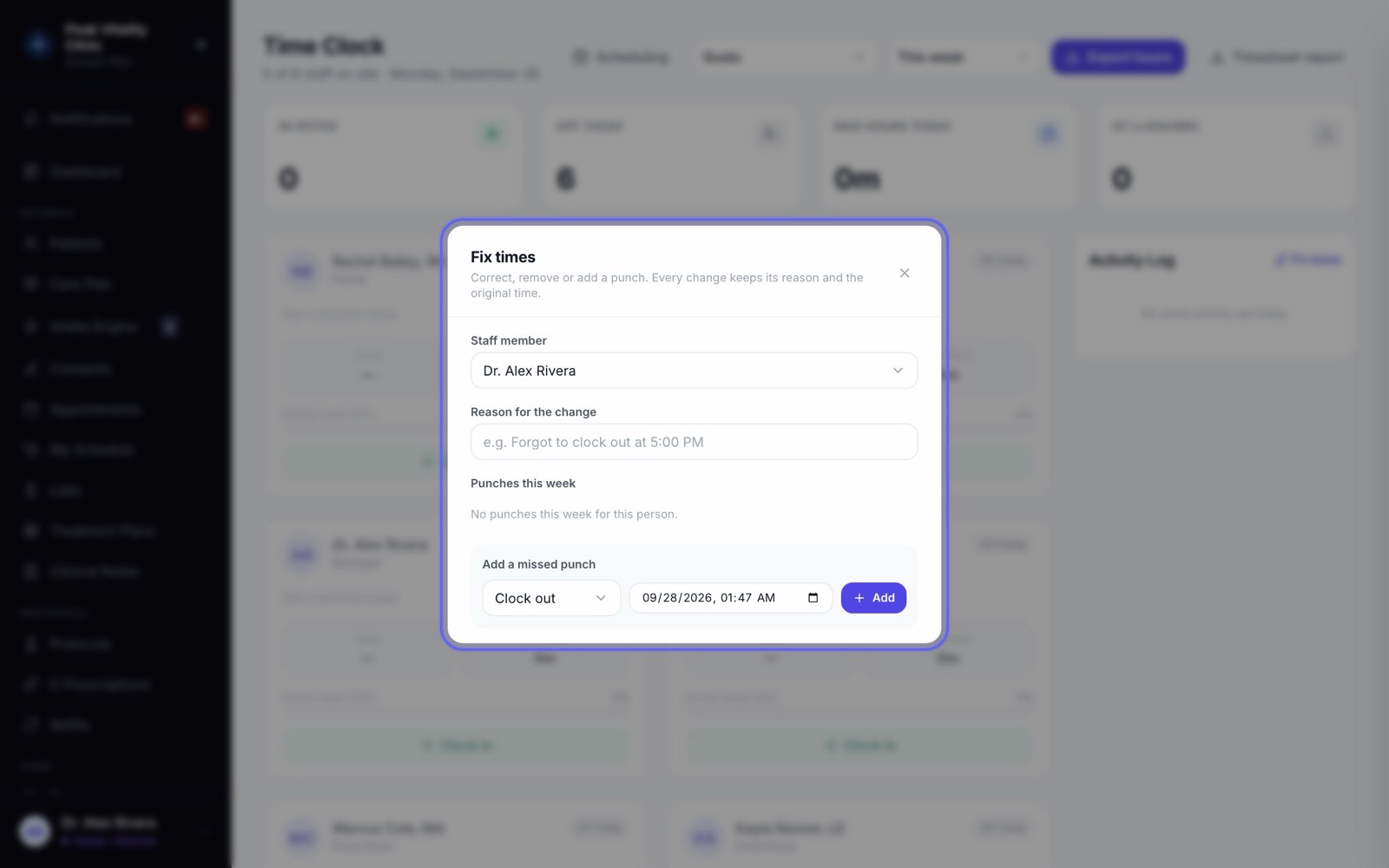
- 1Someone forgot to clock out? Press Fix times above the log.
- 2Pick the Staff member and write the Reason for the change. You can’t save a change without one.
- 3Under Punches this week, change a time and press the save icon beside it. The bin removes a punch.
- 4Under Add a missed punch, pick the kind of punch and the time, then press Add.
- 5The page reloads with the hours worked out again. The old time and your reason are kept with the punch.
8Your payroll company
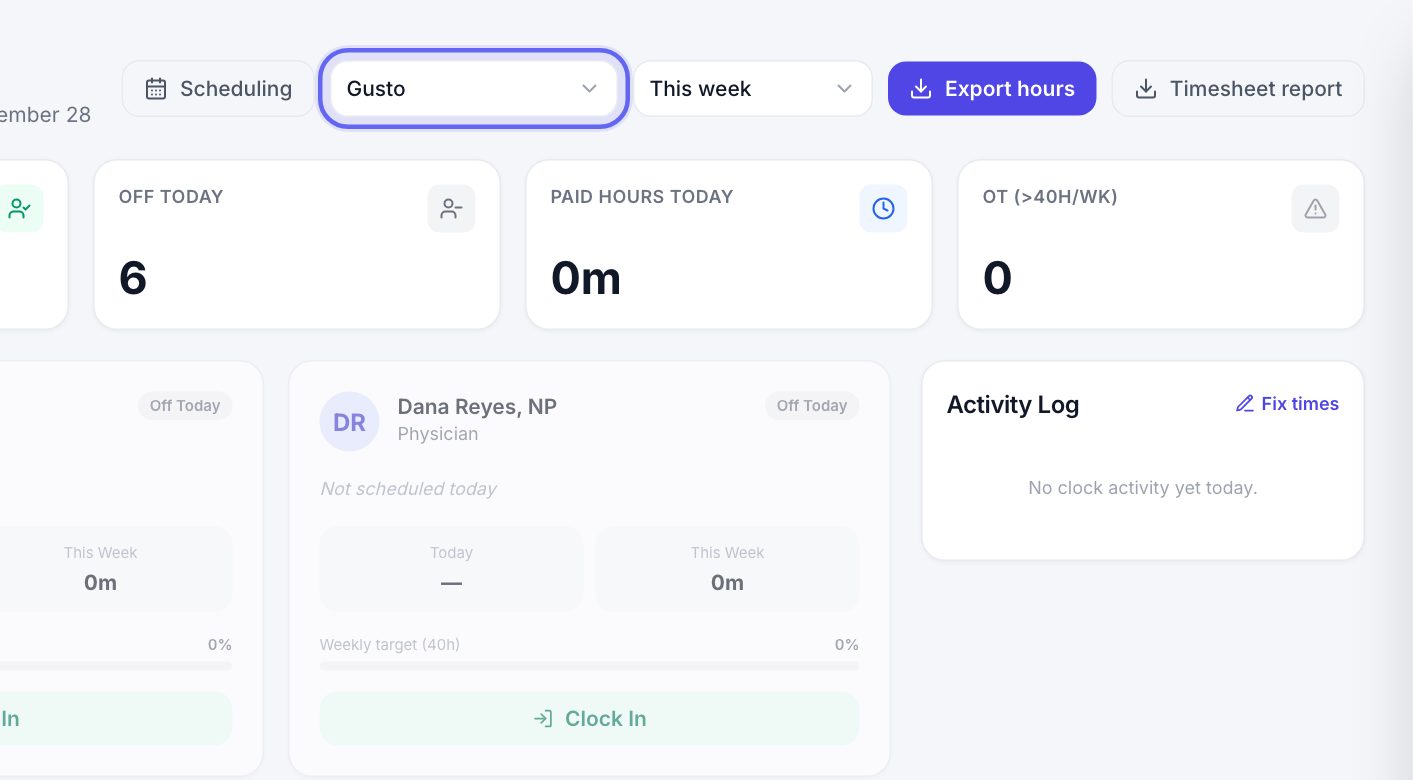
- 1Owners and managers see a payroll list at the top of the page.
- 2Pick the company that runs your payroll, so the hours file fits its import. Pick Other / spreadsheet for plain columns.
9Pay period
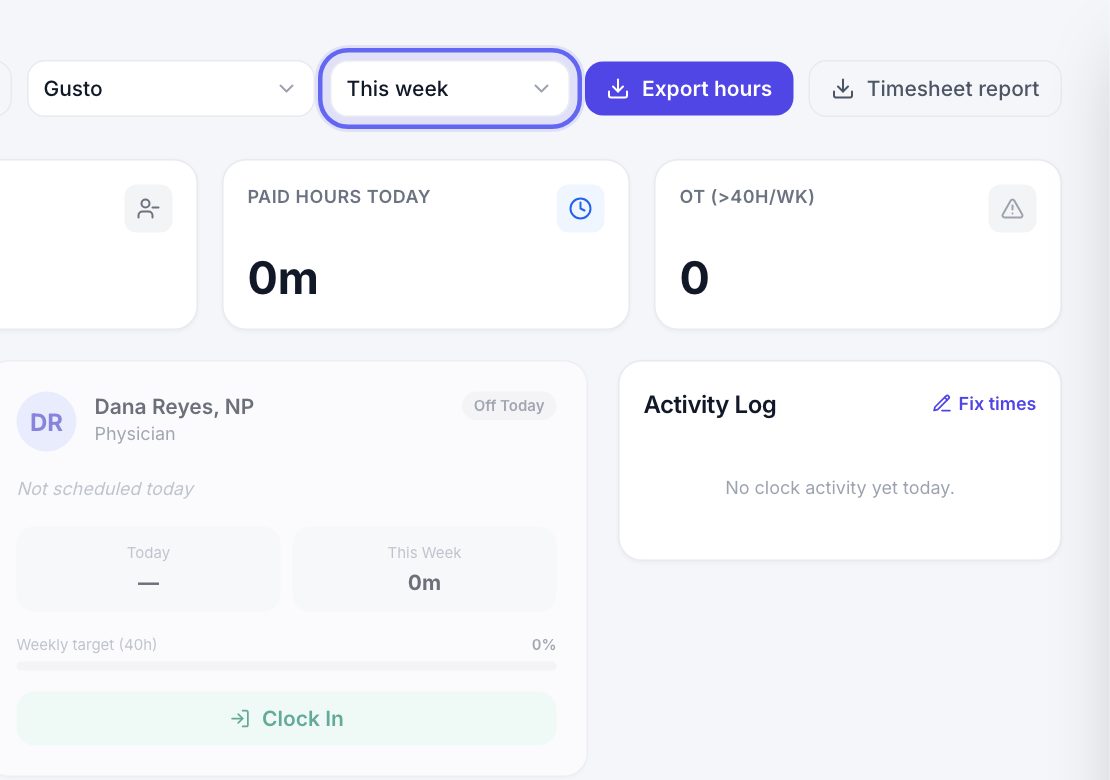
- 1Pick This week, Last week or Last 2 weeks.
- 2Or pick Choose dates and set the first and last day.
10Export hours
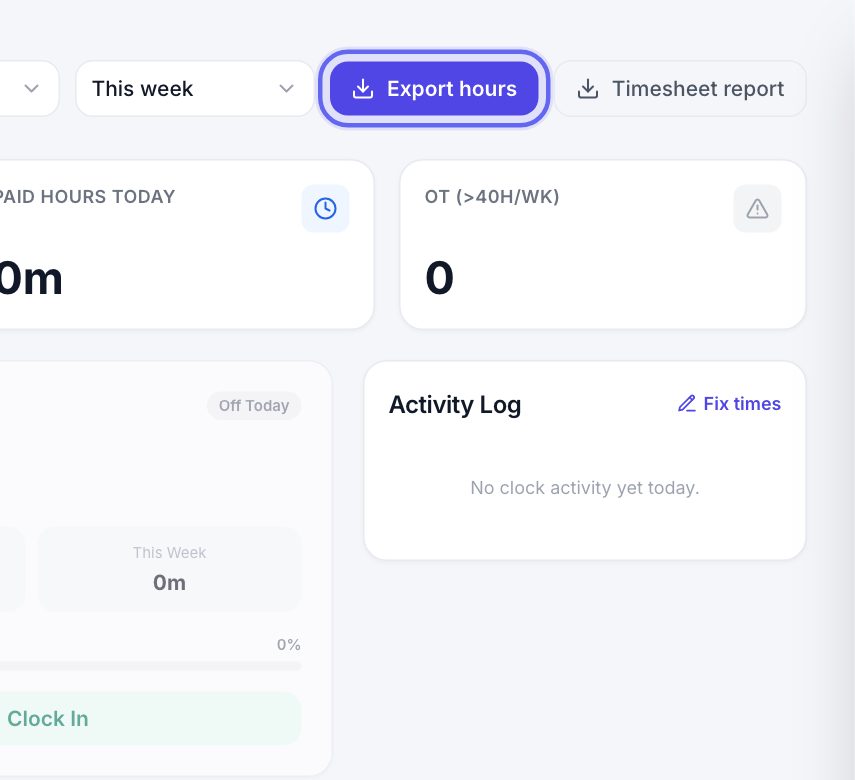
- 1Press Export hours. A file downloads with each person’s regular and overtime hours for that period.
- 2People with no hours are left out, so the file never overwrites what payroll already has for them.
- 3If someone has no email on file, the note after the export names them. Payroll may not be able to match them.
11Timesheet report
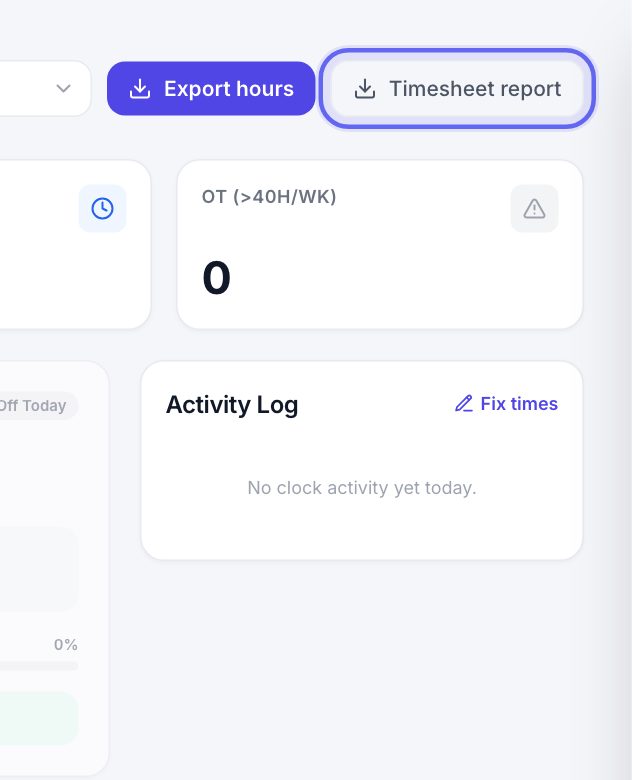
Timesheet report downloads an easy-to-read file for your own records. It has this week’s regular, overtime and total hours and unpaid breaks for each person, then every punch.
A corrected punch shows who changed it, what it was before, and why.
12Shifts come from Staff Scheduling
The shift on each card comes from Staff Scheduling. Scheduling at the top of the page takes you there.
Keep going
Staff Scheduling
Who works when, and who is away. Set shifts, see who is on right now, ask for time off, and approve it.
Read the guideTeam
Everyone who works at your clinic. Invite people, give each a role, keep their credentials up to date, and remove someone who has left.
Read the guideSet up staff shifts
Put everyone’s working hours on the roster. For providers, those shifts are the hours patients can book.
Read the guideDashboard
Your clinic at a glance. Today’s numbers, who is coming in, the money taken, work that needs a person, and the bell where anything new for you lands.
Read the guideFor owners and practice managers
Everything you need to set up the clinic, bring your team in, decide who can do what, and keep an eye on the money and the day.
Read the guideRather be shown?
Inside Aminova, the tutorial walks you through every page, and the Getting started checklist shows you each task click by click. Or book a live training session with our team.