1The page at a glance
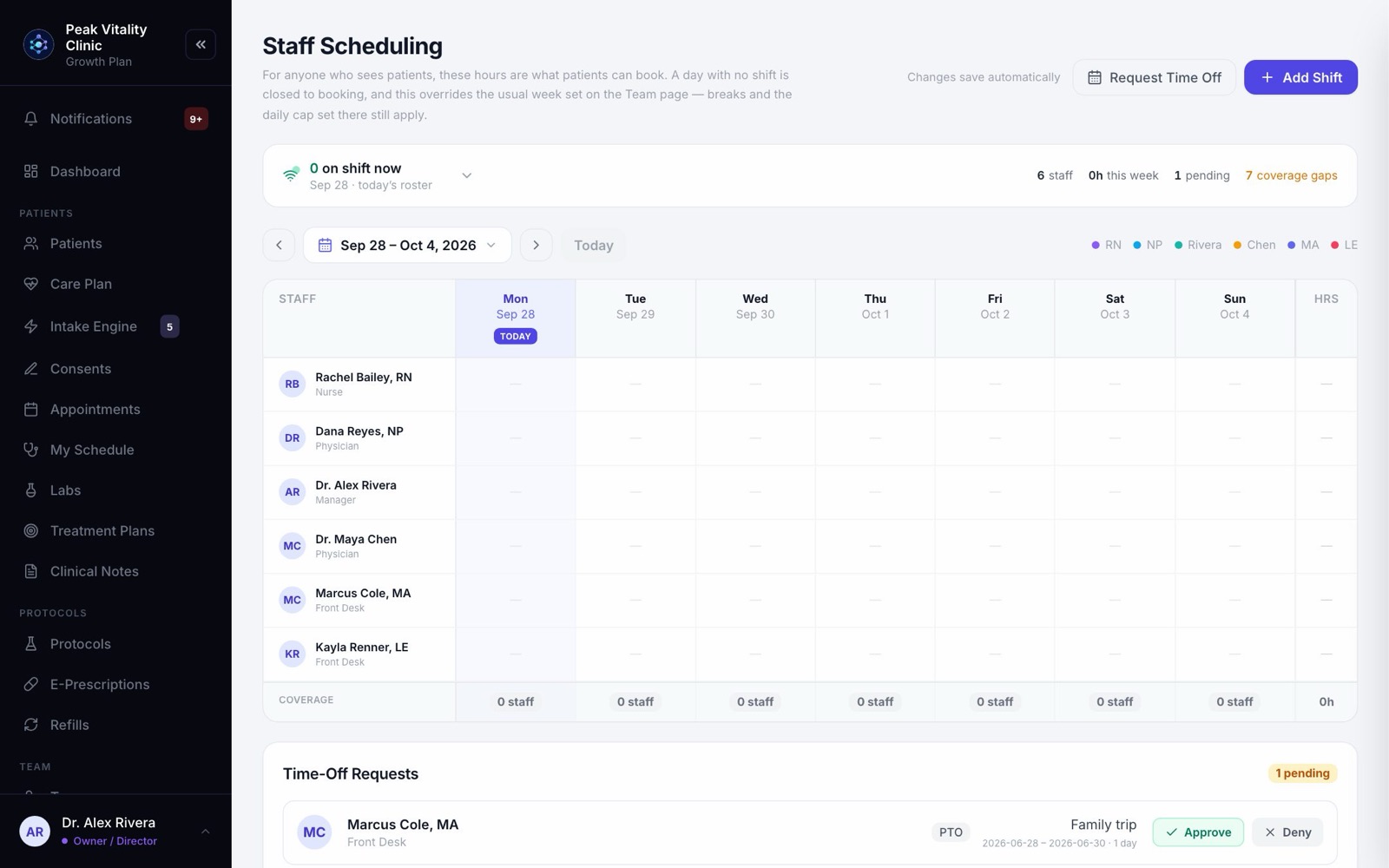
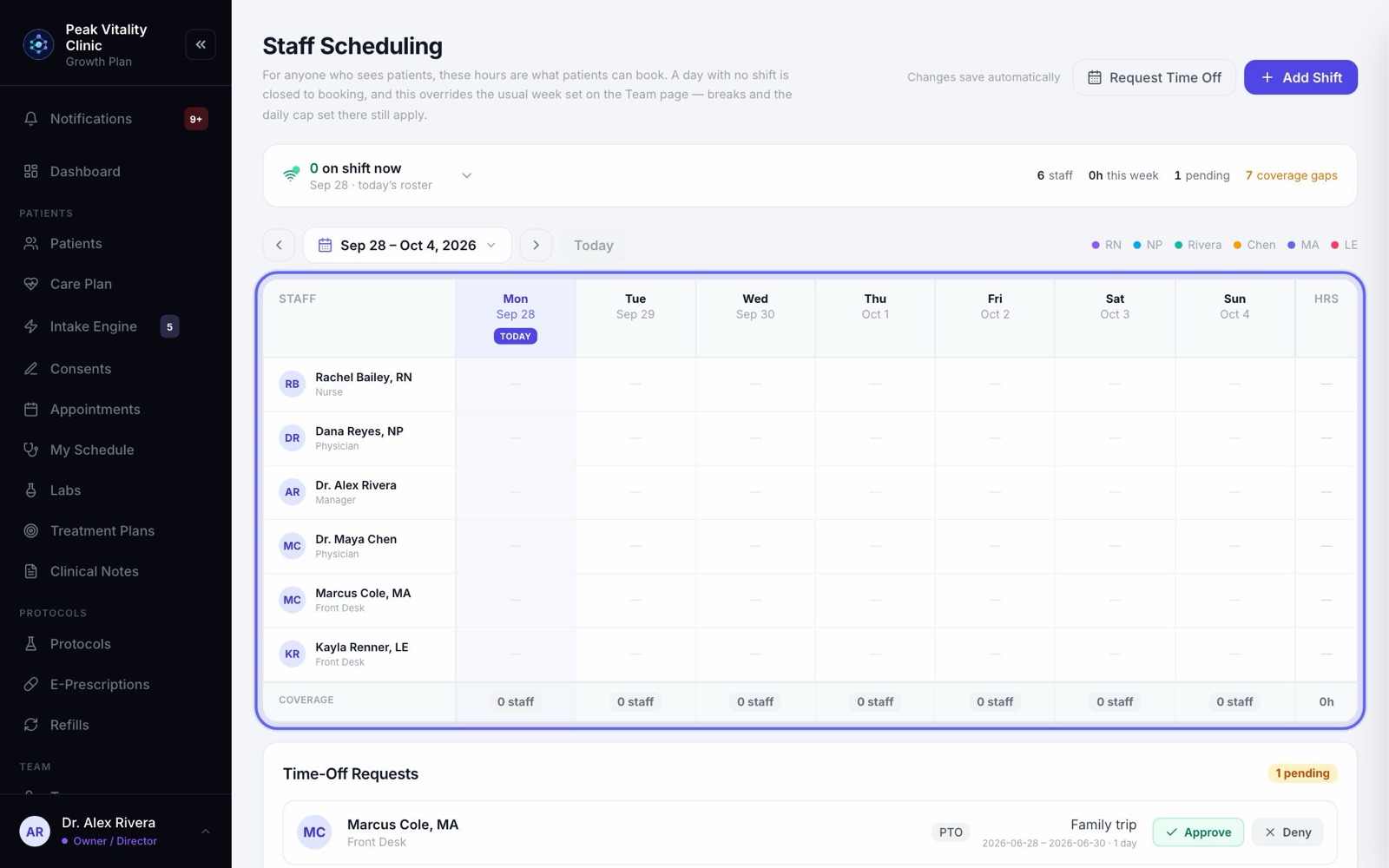
Staff Scheduling is your clinic’s roster. At the top is who is on shift now. Below it is the week, one row per person, with a coverage count under each day. Time-off requests and approved time off sit under the roster.
By default, owners and managers see this page. Settings → Roles & Permissions decides who else can. Only people who manage staff can change shifts and approve time off.
2Shifts set booking hours
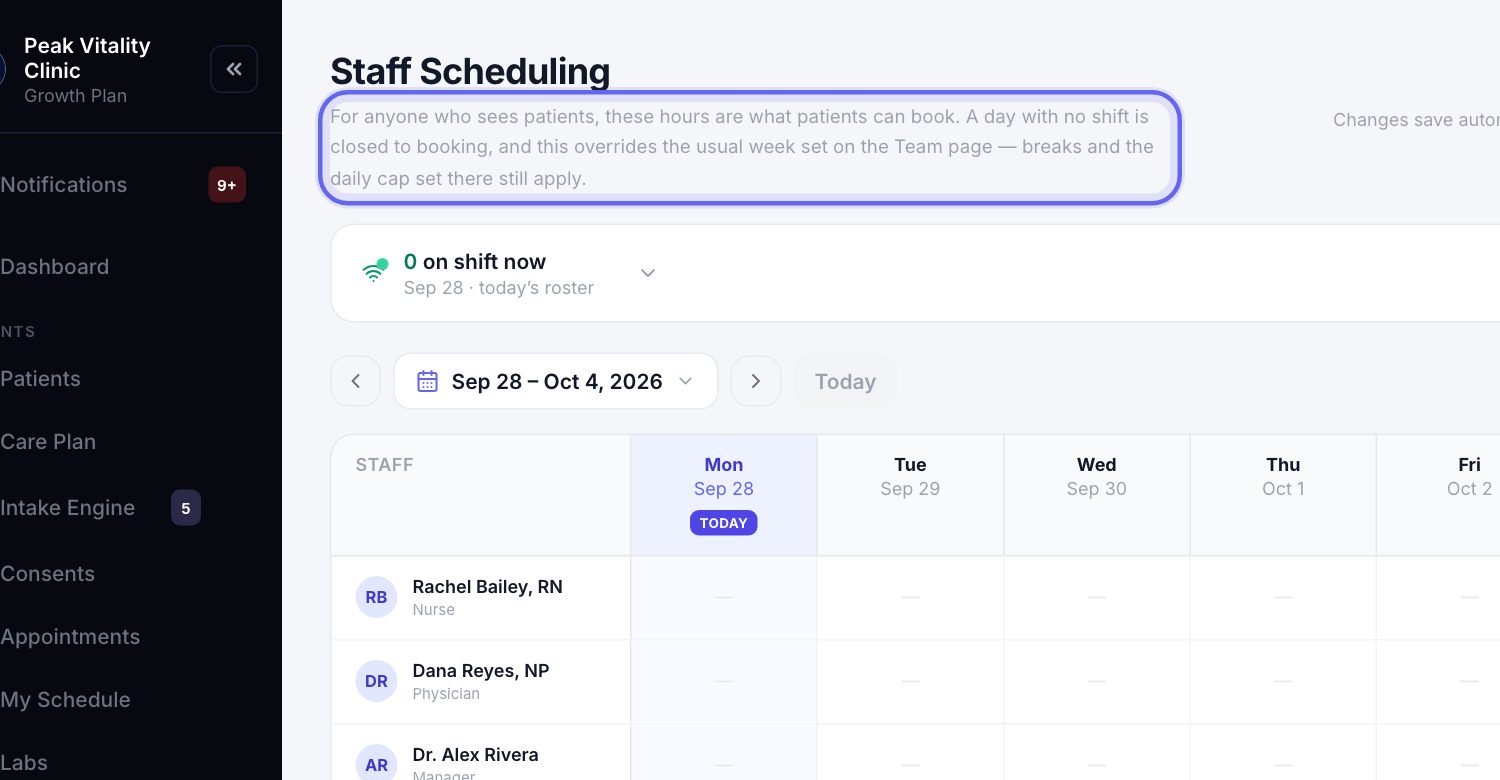
For anyone who sees patients, the shifts here are the hours patients can book them. A day with no shift is closed to booking.
Breaks and the daily cap set on the Team page still apply on every working day.
3Who’s on now
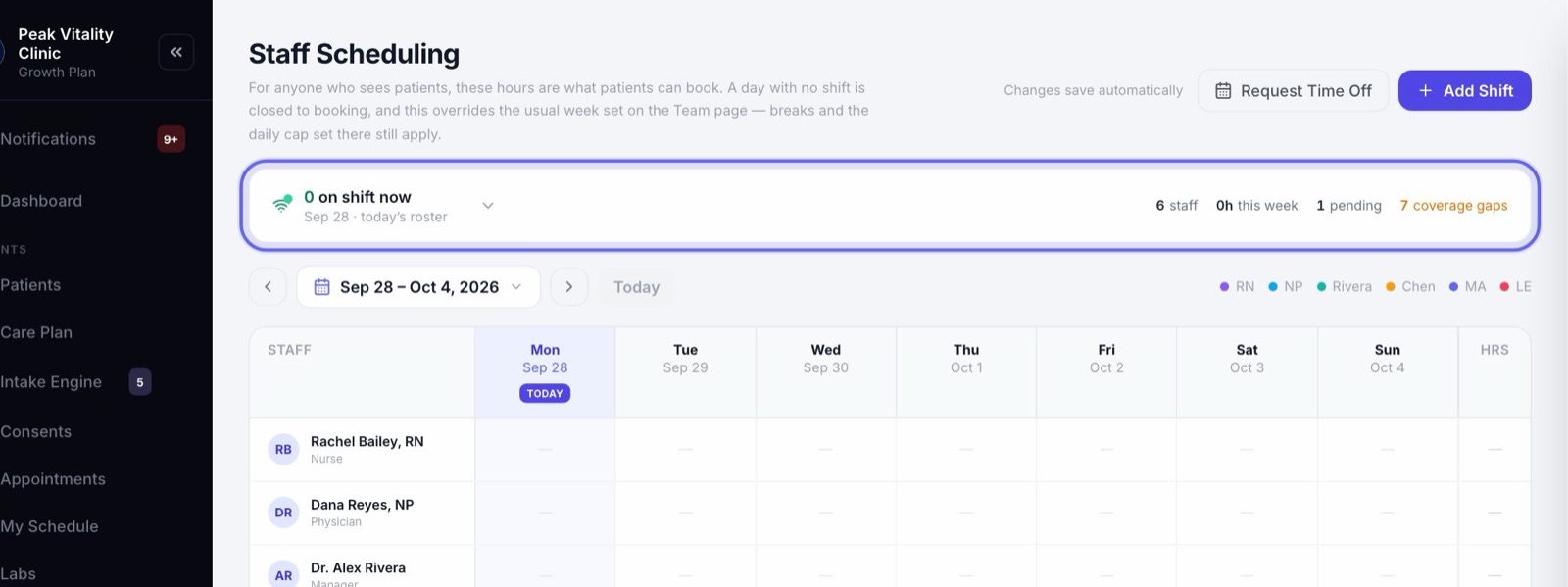
- 1The bar at the top counts who is on shift right now, and who is arriving later today.
- 2Click it to see each person, with their shift or the time they arrive.
- 3On the right: how many staff, the hours scheduled this week, pending time-off requests, and any coverage gaps.
- 4On any other week, the count shows a dash. It only has an answer for today.
4Pick a week
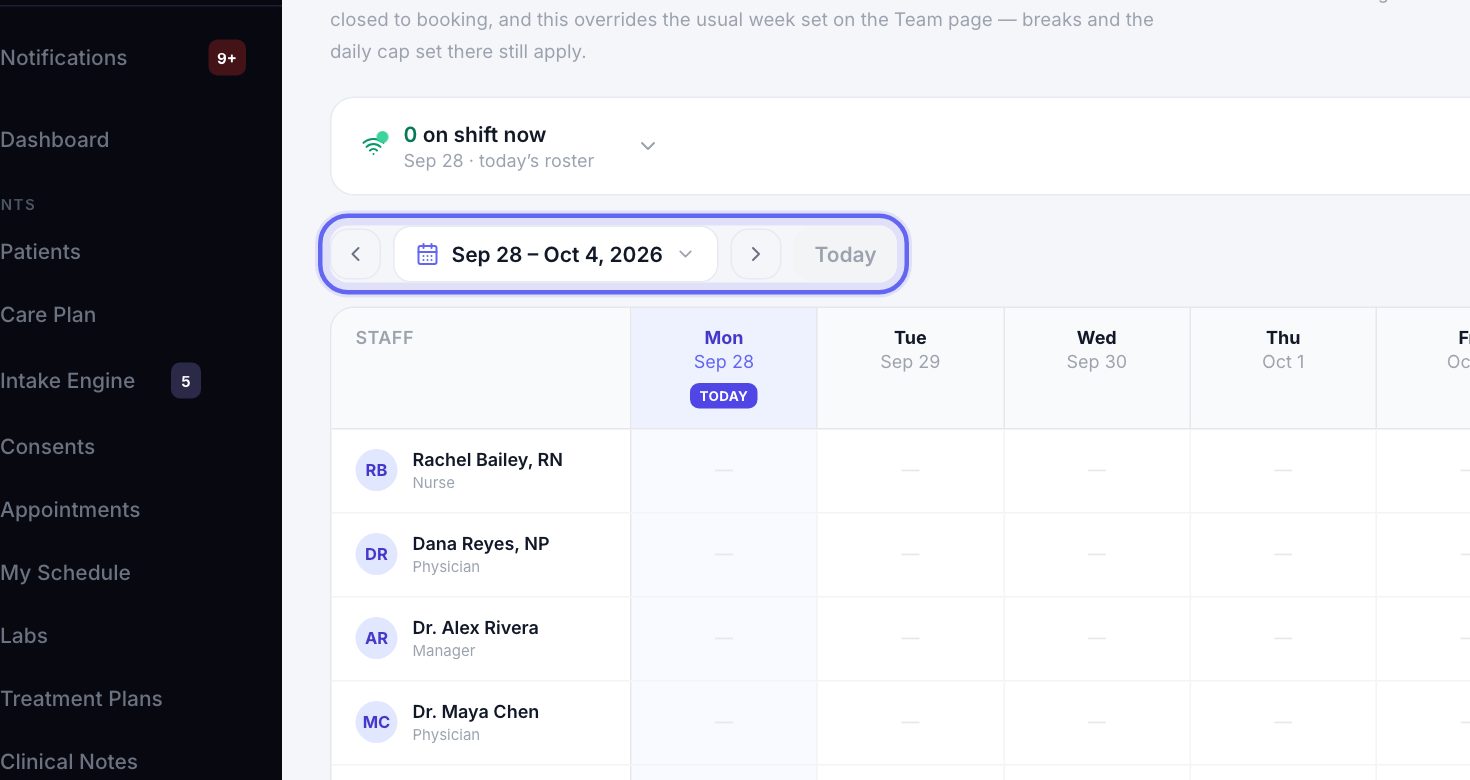
- 1The arrows move one week at a time.
- 2Click the dates to jump to any week.
- 3Today brings you back to this week.
5The roster
- 1One row per person, one column per day, Monday to Sunday. Today’s column is highlighted.
- 2Each shift shows its hours. A lunch shows as a soft red band and a line like “Lunch 12:30p–1p”.
- 3Approved time off replaces the shift: Off for a full day, or a short note like “In 10:00” for part of one.
- 4Hrs at the end of each row is that person’s hours this week.
- 5Owners and managers can click an empty day to add a shift for that person on that day.
6Add a shift
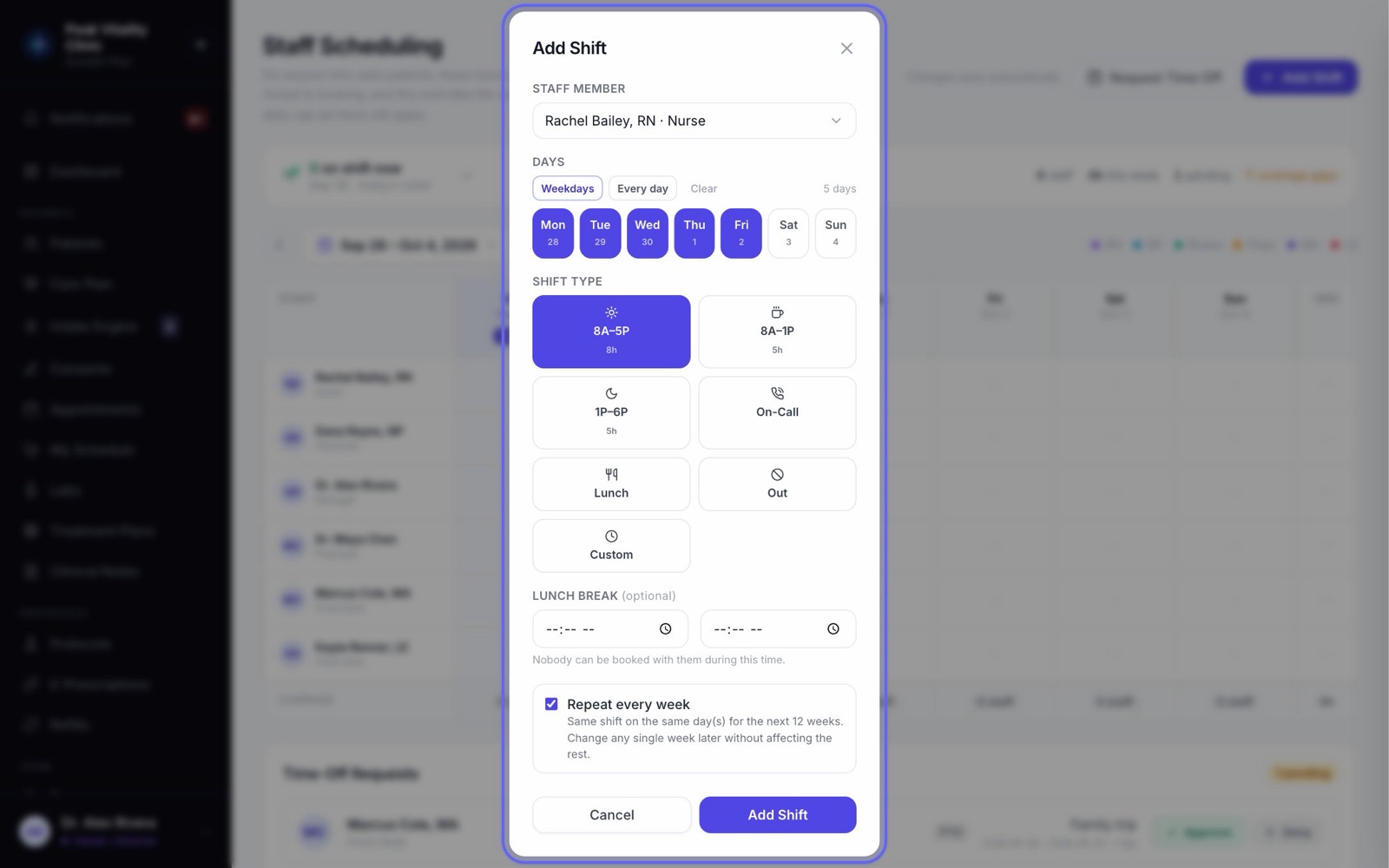
- 1Click Add Shift.
- 2Pick the Staff Member.
- 3Under Days, tap each day, or press Weekdays or Every day.
- 4Pick the Shift Type. For your own hours, pick Custom and set Start and End.
- 5Add a Lunch break if you like. Nobody can be booked with them during it.
- 6Leave Repeat every week ticked to put the same shift on the same days for the next 12 weeks. Then press Add Shift.
7The shift types
- 18A–5P is a full day. 8A–1P is a morning and 1P–6P an afternoon.
- 2On-Call marks someone on call.
- 3Lunch blocks 12 to 1 that day. Out marks them away all day, so nobody can book them.
- 4Custom is any hours you choose.
8Open a shift
- 1Click a shift on the roster. A card shows the person, the day, the hours, the lunch and the working hours.
- 2Edit shift opens it with its hours filled in. Change what you need and press Add Shift.
- 3Remove takes the shift off that day.
- 4Changing one week leaves the other weeks as they are.
9It saves on its own
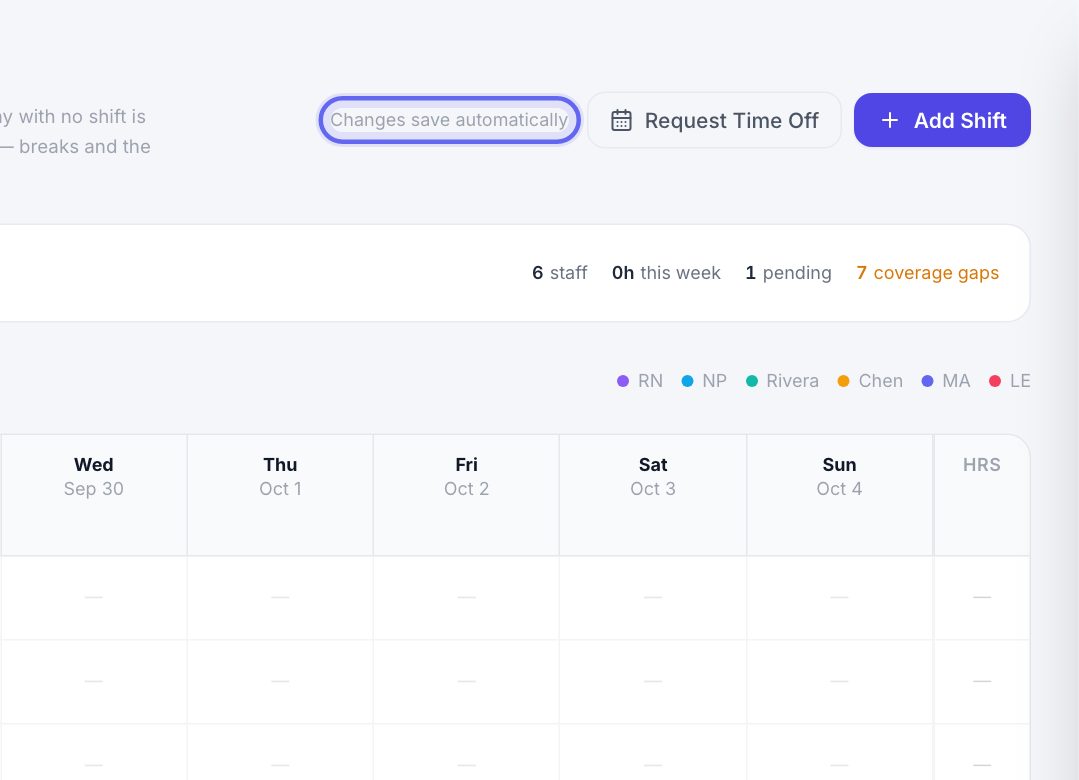
Every change saves the moment you make it. There is no Save button. The top of the page says Saving…, then Saved with the time.
If a change doesn’t save, it says Not saved. Press Reload to see what is really stored.
10Coverage
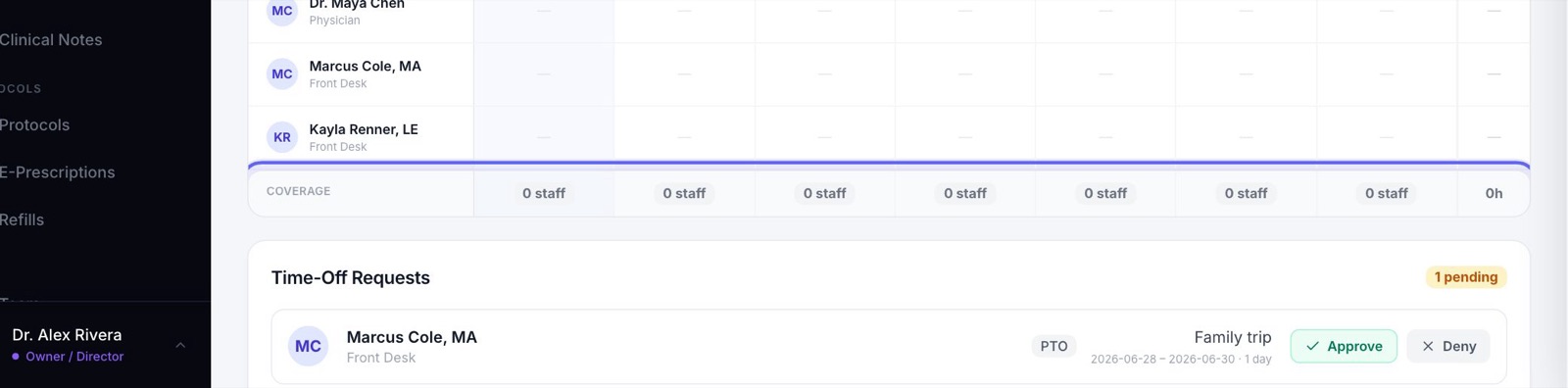
The Coverage row under the roster counts how many people work each day. Anyone on a full day off isn’t counted.
The bottom right cell is the total hours for the week.
11Ask for time off
- 1Click Request Time Off. A request is always for you.
- 2Pick the Type: Vacation, Sick, Personal, Bereavement, Unpaid or Other.
- 3Pick the Duration: Full day(s), Arriving late, Leaving early or Partial (time range). Then set the dates and times.
- 4Add a reason if you like, and press Submit Request. Your managers are told in their notifications.
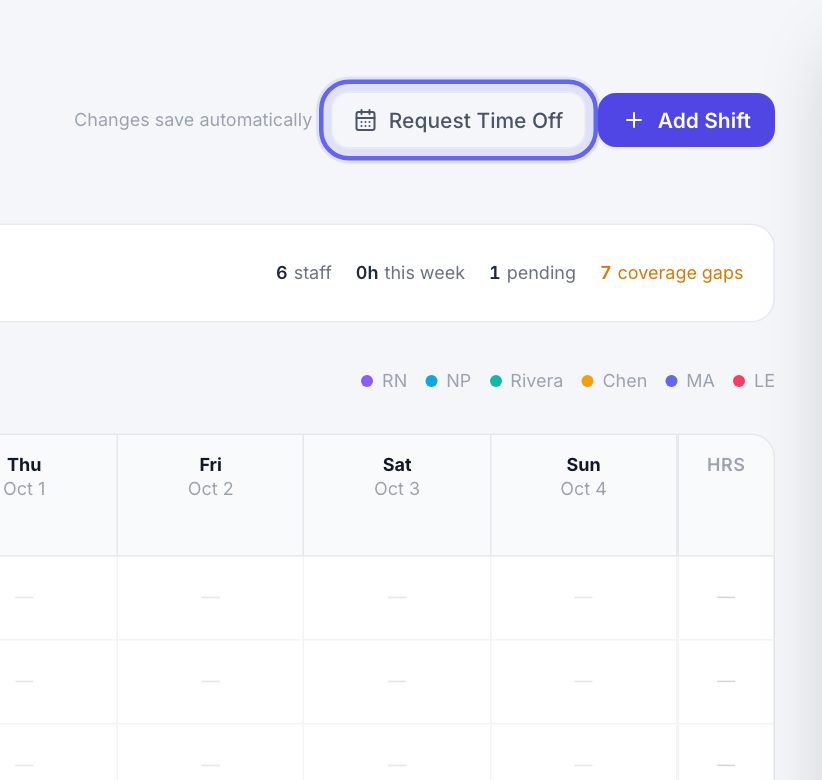
If the button is grayed out, your login isn’t linked to the staff list yet. Ask an owner to add you on the Team page.
12Time-off requests
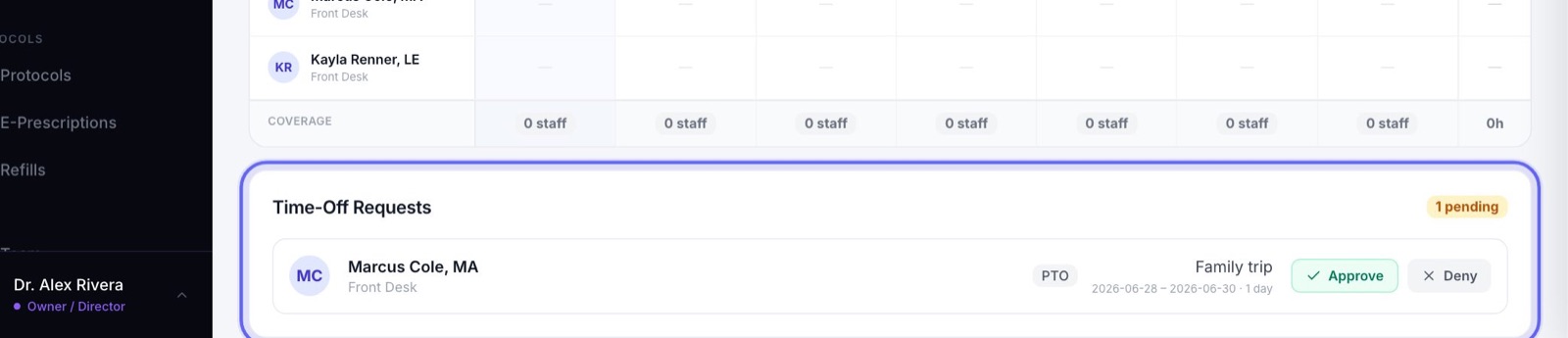
- 1Owners and managers see Time-Off Requests: who, the type, the reason and the dates.
- 2Press Deny to turn it down.
- 3Press Approve. Aminova first checks for visits booked with them in that time.
- 4The person is told in their notifications either way.
13Approving over booked visits
- 1If they have visits booked in that time, the list shows each one.
- 2Pick a name under Give to a free provider to move a visit to someone free at that time.
- 3Press Approve anyway to approve. Any visit you didn’t move stays booked, for the front desk to sort out.
- 4With no visits in the way, just press Approve.
14Approved Time Off
- 1Time off you have granted, still to come, is listed under Approved Time Off. It blocks their calendar for booking.
- 2To take it back, press Cancel, then Cancel time off. Their calendar opens again. Keep leaves it as it is.
15Needs coverage
- 1When a provider is off for the day, their visits that week are listed under Needs coverage.
- 2Pick someone under Assign substitute. Only people working then, not off and not booked are listed. The patient keeps their usual provider. This is a one-day cover.
- 3If nobody is free, press Request reschedule from patient. The patient gets a message in their app asking them to pick a new time.
Keep going
Set up staff shifts
Put everyone’s working hours on the roster. For providers, those shifts are the hours patients can book.
Read the guideTeam
Everyone who works at your clinic. Invite people, give each a role, keep their credentials up to date, and remove someone who has left.
Read the guideTime Clock
Clock in and out, and take breaks. Hours and overtime add up on their own, and owners and managers fix mistakes and export hours for payroll.
Read the guideAppointments
Every visit, for everyone. Book visits, run the front desk, and open any appointment to check a patient in, move it or charge it.
Read the guideMy Schedule
Your own day, one visit at a time. Open a visit to see who it is, start it, read the brief, record it with the AI scribe and write your note.
Read the guideSet up your visit types and booking link
Build each kind of visit once: its length, providers, rooms, price and forms. Then turn on the link patients book from.
Read the guideRather be shown?
Inside Aminova, the tutorial walks you through every page, and the Getting started checklist shows you each task click by click. Or book a live training session with our team.