1What two-step sign-in is
Two-step sign-in means a password alone can’t open your clinic’s Aminova. After the password, each person types a 6-digit code from an authenticator app on their phone. The code keeps changing, so a stolen password isn’t enough.
It is on for every clinic from the start. Nobody gets locked out by it: anyone who hasn’t set it up is walked through it the next time they sign in.
2Get an authenticator app
Each person needs a free authenticator app on their phone. Any of the common ones works. Install it from your phone’s app store before you start.
3Check it’s required
- 1Go to Settings, then Security.
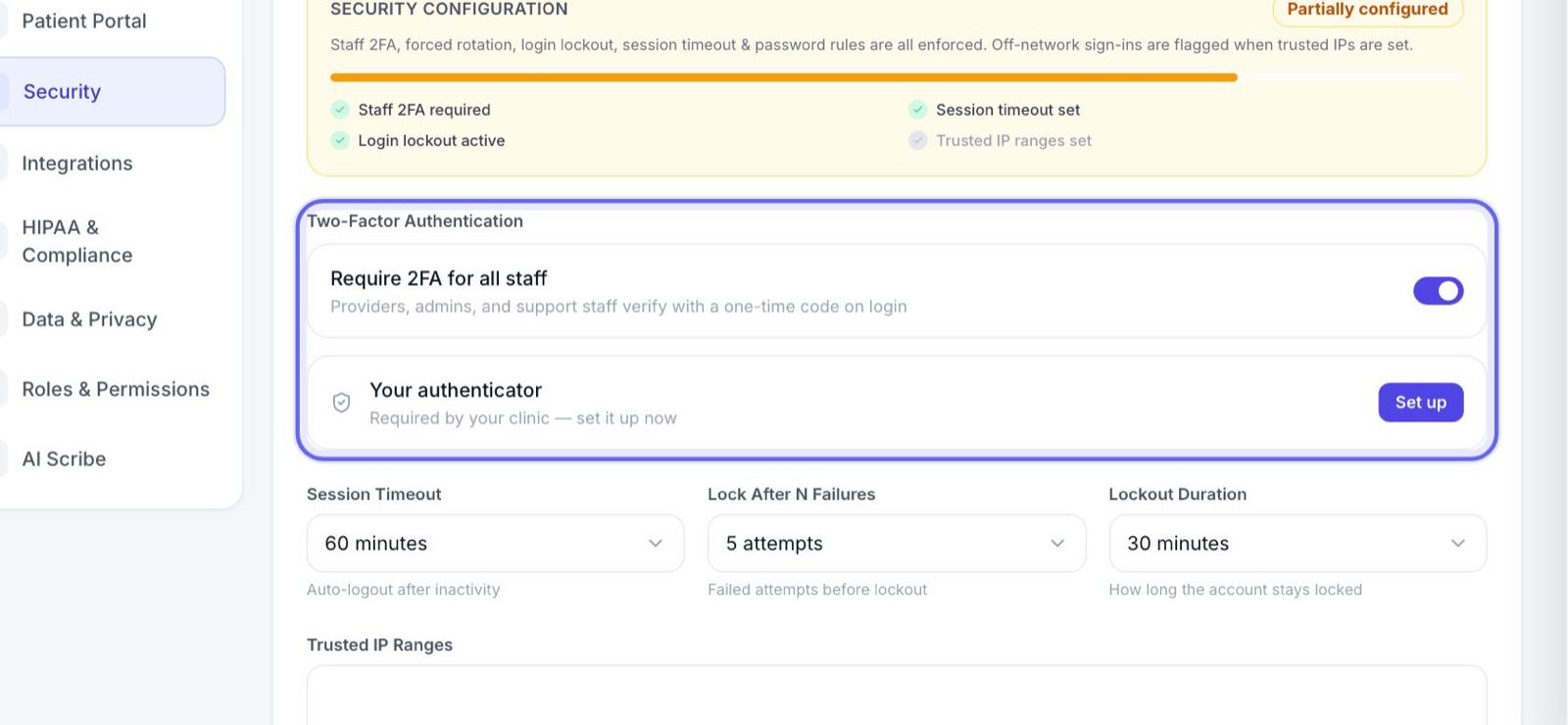
- 2Under Two-Factor Authentication, make sure Require 2FA for all staff is switched on.
- 3It saves on its own.
4Set up your own
- 1Just below, find Your authenticator and press Set up.
- 2Open the authenticator app on your phone, add an account, and scan the square code on screen.
- 3Can’t scan it? Click Can’t scan? Enter the key manually and type the key into the app instead.
- 4Type the 6-digit code the app shows, then press Verify & enable.
5Save your backup codes
- 1Next you see a list of backup codes. They are shown only this once.
- 2Press Copy all and keep them somewhere safe, away from your phone, like a password manager or a locked drawer.
- 3Each code works one time, if you ever lose your phone.
- 4Press Done. Your authenticator now says Enabled, with how many backup codes you have left.
6What your team sees
- 1The next time each person signs in, after their password, they see a square code to scan.
- 2They scan it with their authenticator app, type the code under Verification Code, and press Verify & enable.
- 3They save their backup codes, tick I’ve saved my backup codes, and press Continue to workspace.
Tell your team before their next sign-in, so they have the app ready.
7Signing in each day
- 1After the password, open the app and type the code under Authenticator Code. Press Verify.
- 2On your own work computer, leave Remember this computer ticked. You won’t be asked for a code on it again for 30 days.
- 3Untick it on a shared or public computer.
Some important actions, like sending a prescription, ask for a fresh code even on a remembered computer.
8If you lose your phone
- 1On the code screen, press Lost your device? Use a backup code.
- 2Type one of your backup codes and press Verify.
- 3Once you’re in, set up your authenticator on your new phone.
- 4Running low on codes? Press Regenerate codes under Your authenticator for a fresh set, and save them again.
9Reset it for someone on your team
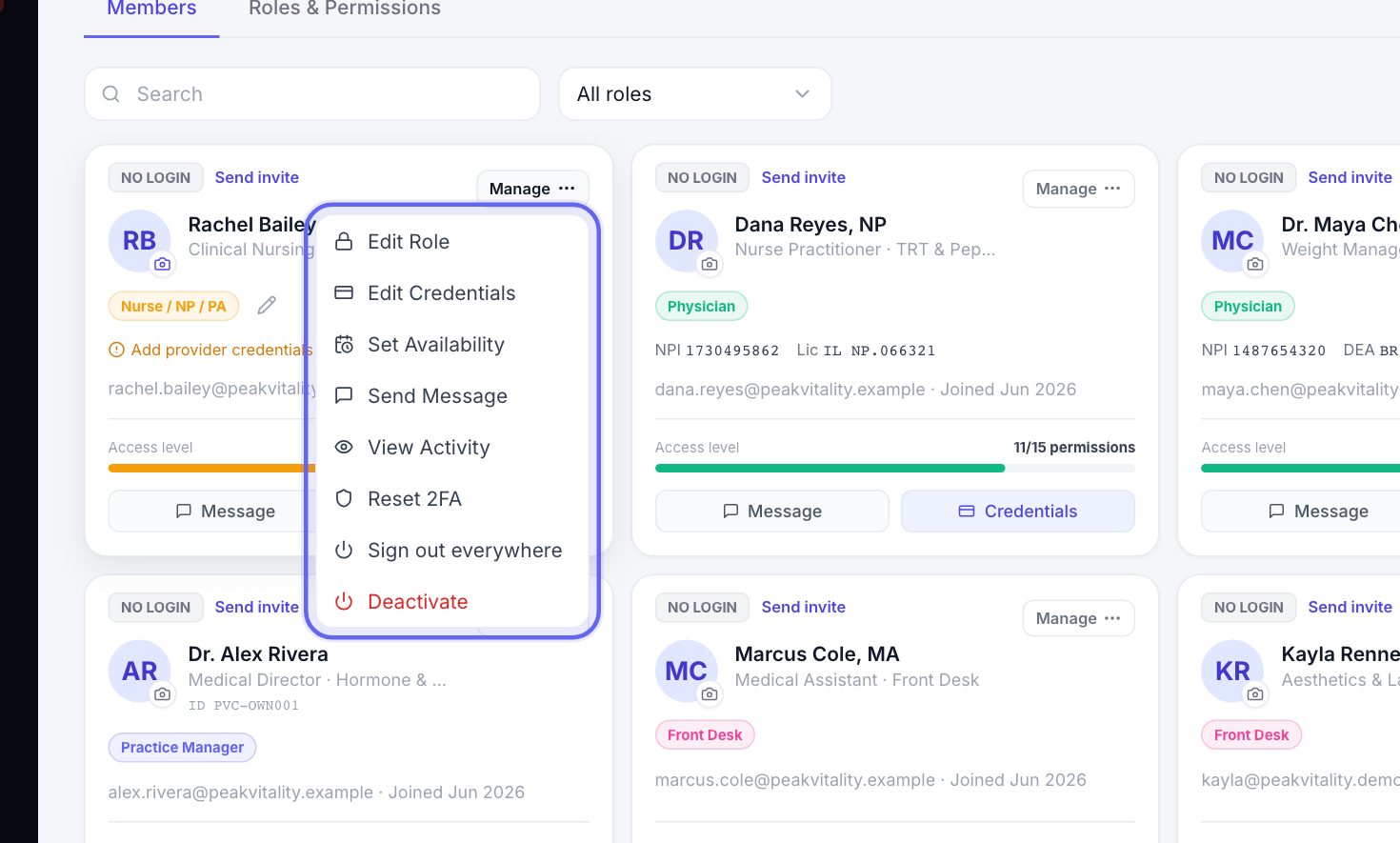
- 1If someone has lost both their phone and their backup codes, go to Team.
- 2Press Manage on their row, then Reset 2FA. You may be asked for your own code first.
- 3They set it up again the next time they sign in.
10More sign-in protection (optional)
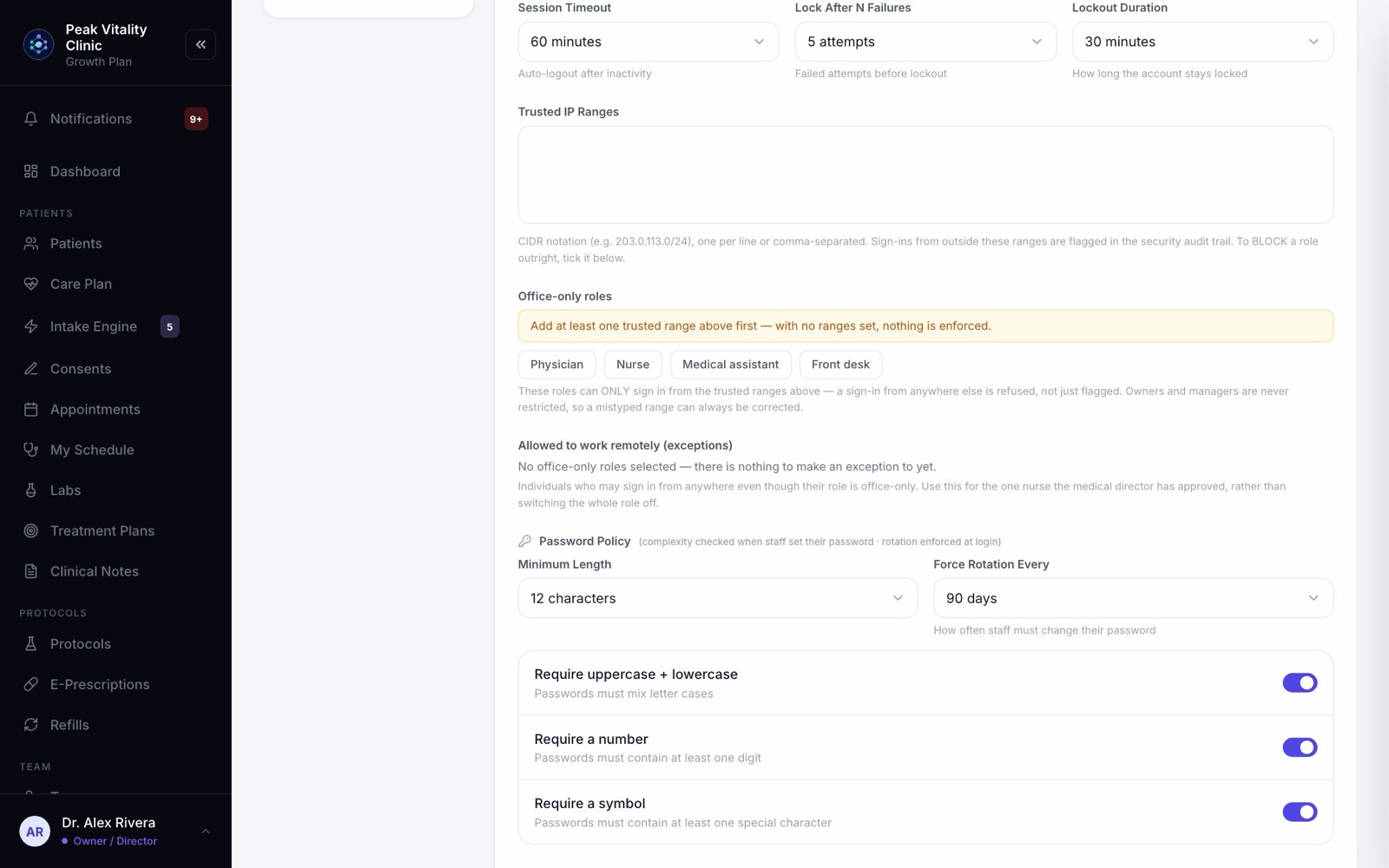
- 1On the same Security page, set the Session Timeout: how long an idle computer stays signed in.
- 2Set Lock After N Failures and the Lockout Duration. Wrong codes count the same as wrong passwords.
- 3Add your office’s Trusted IP Ranges to flag sign-ins from anywhere else.
Keep going
Settings
How your clinic runs: your details and hours, payments, what patients are told, the patient app, security, connected tools and who can do what.
Read the guideInvite your team
Give everyone at your clinic their own login, with the right role. Then add providers’ credentials so patients can be booked with them.
Read the guideTeam
Everyone who works at your clinic. Invite people, give each a role, keep their credentials up to date, and remove someone who has left.
Read the guideHIPAA Audit Trail
Who opened, changed or exported what, and when. Check flagged events, export the log, and keep your privacy records in one place.
Read the guideRather be shown?
Inside Aminova, the tutorial walks you through every page, and the Getting started checklist shows you each task click by click. Or book a live training session with our team.