1The page at a glance
The HIPAA Audit Trail is a record of what happens in your clinic’s Aminova: who looked at a chart, who changed something, who exported data, and who signed in. Every event says who, when, and from which computer.
Only owners and managers can open it. Nobody can edit or delete an event, and that includes you. It has two tabs: Audit Trail and Compliance.
2The log in numbers
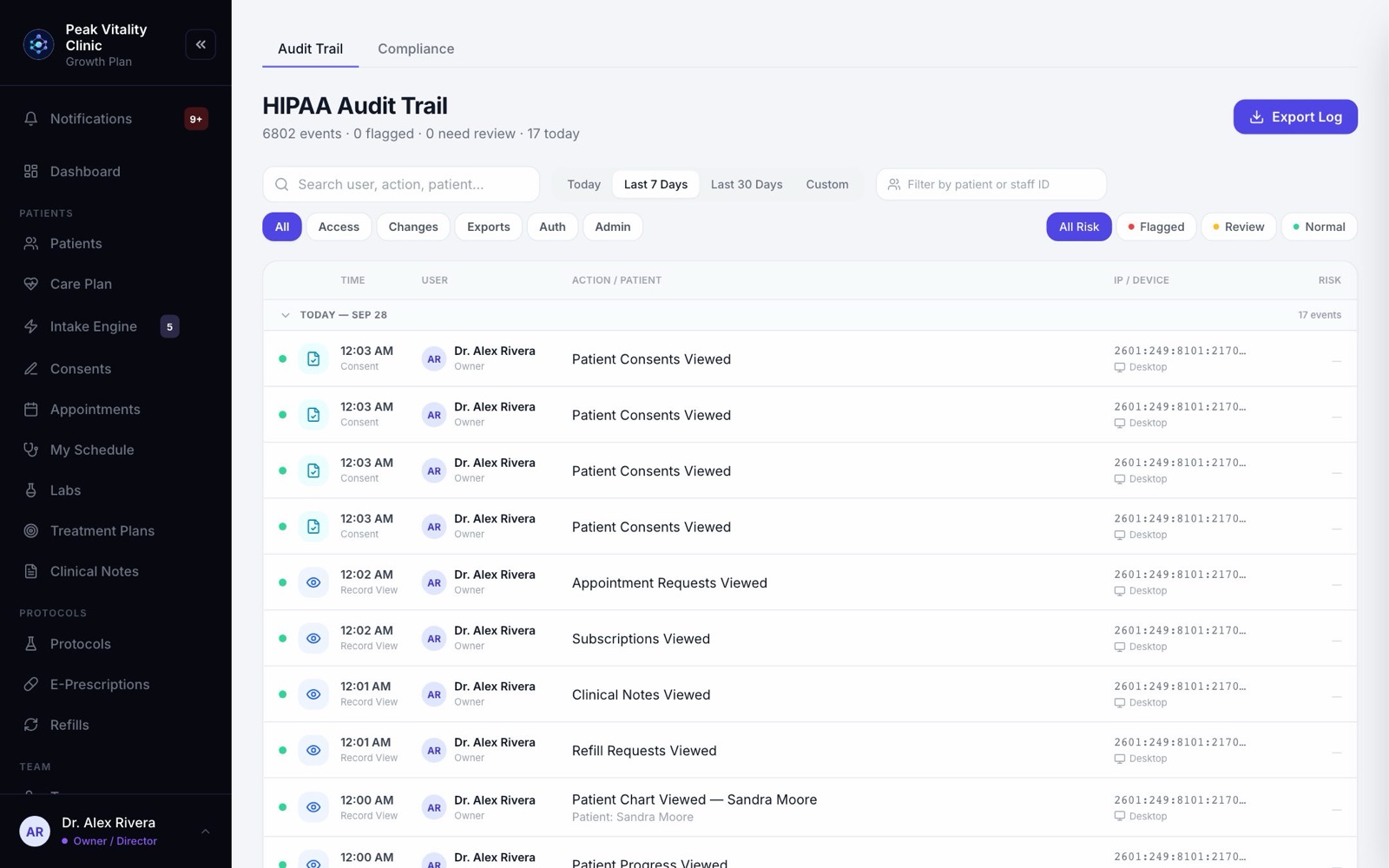
Under the page title you see how many events are on record, how many are flagged, how many need review, and how many happened today.
3Flagged events
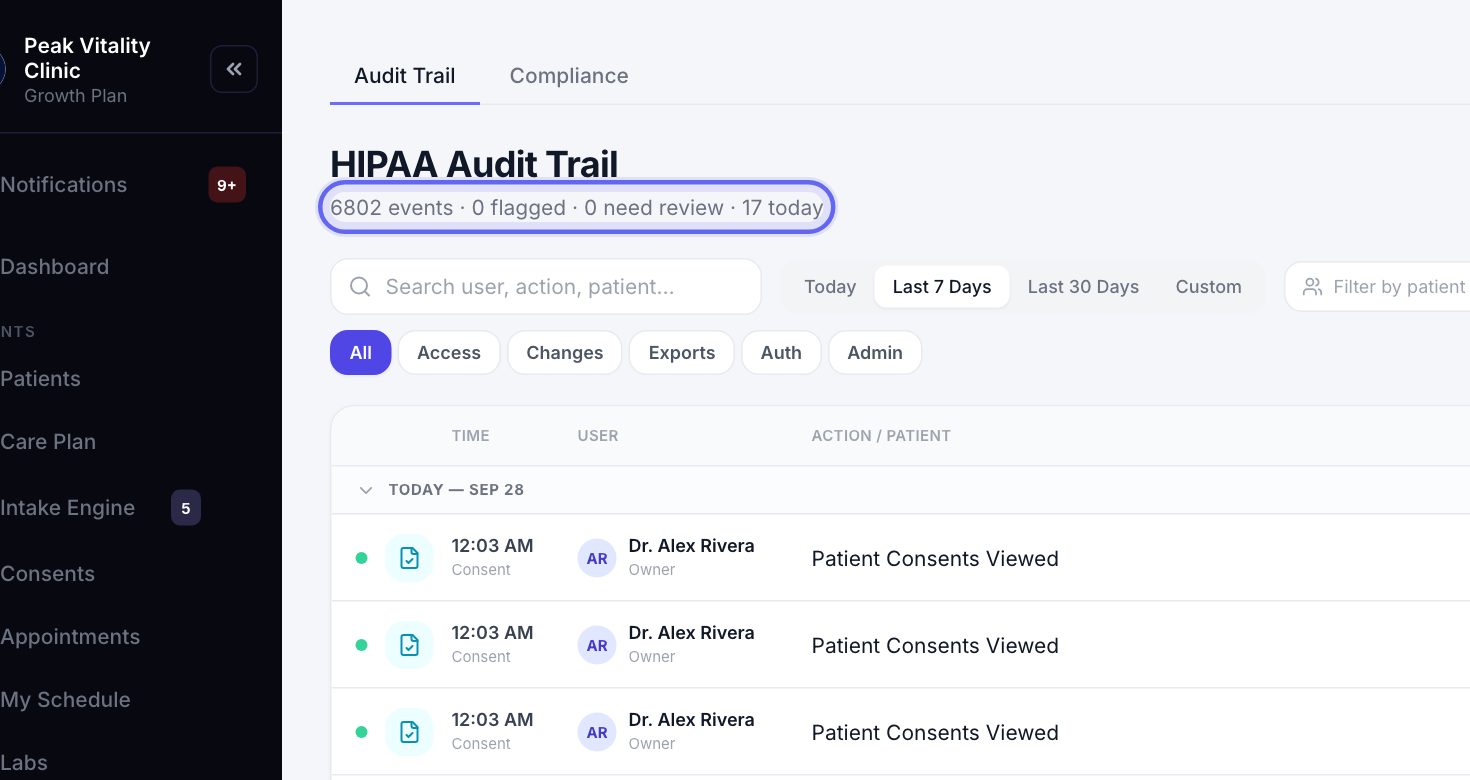
Aminova flags an event that deserves a look, like an account locked after too many wrong codes. When one is waiting, a red box at the top says how many.
Press View Flagged to see only those. Owners and managers also get a note in the bell when something is flagged.
4Search
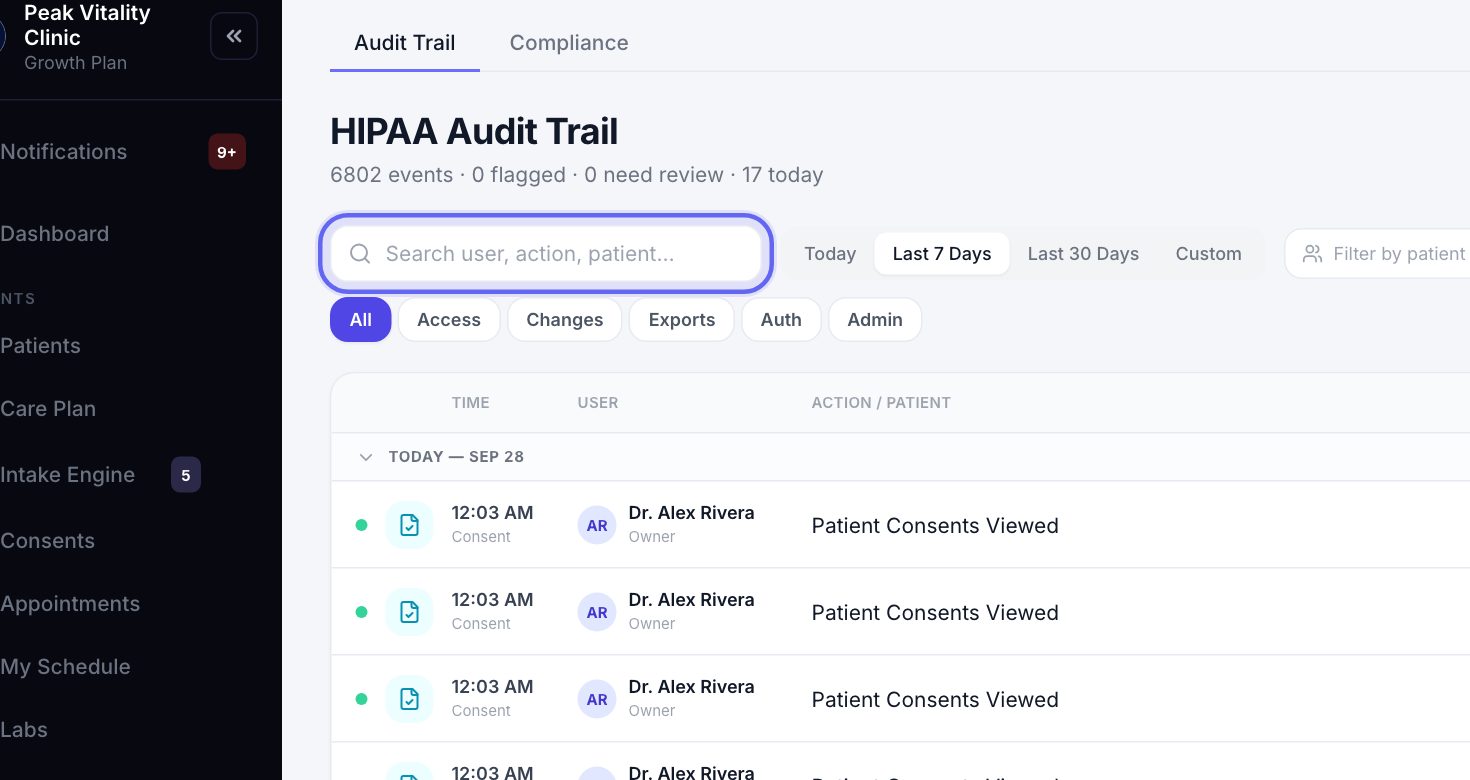
Type in Search user, action, patient… to find events by a staff member’s name, what they did, or a patient’s name.
5Pick the dates
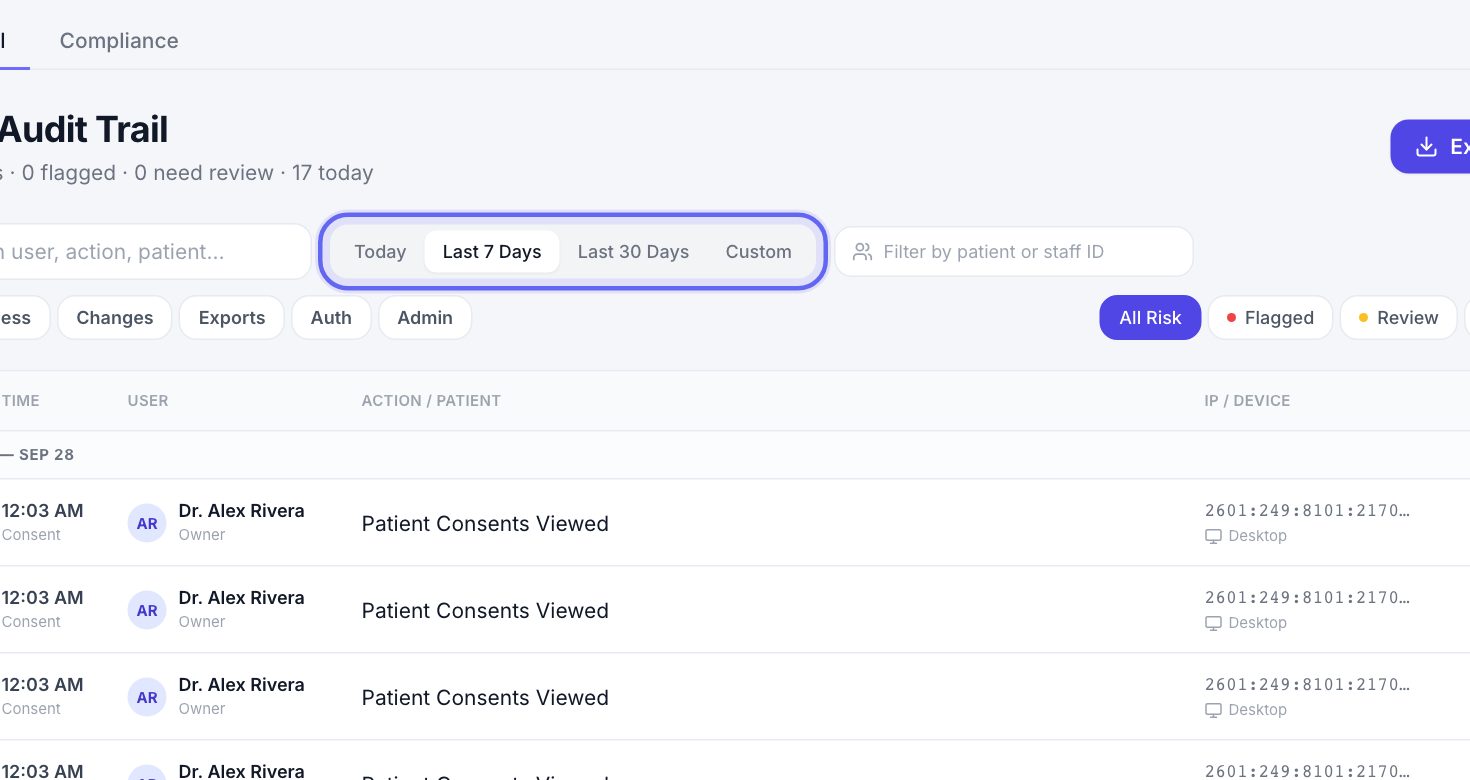
- 1The log opens on Last 7 Days.
- 2Switch to Today or Last 30 Days.
- 3Or press Custom and pick a start and end date.
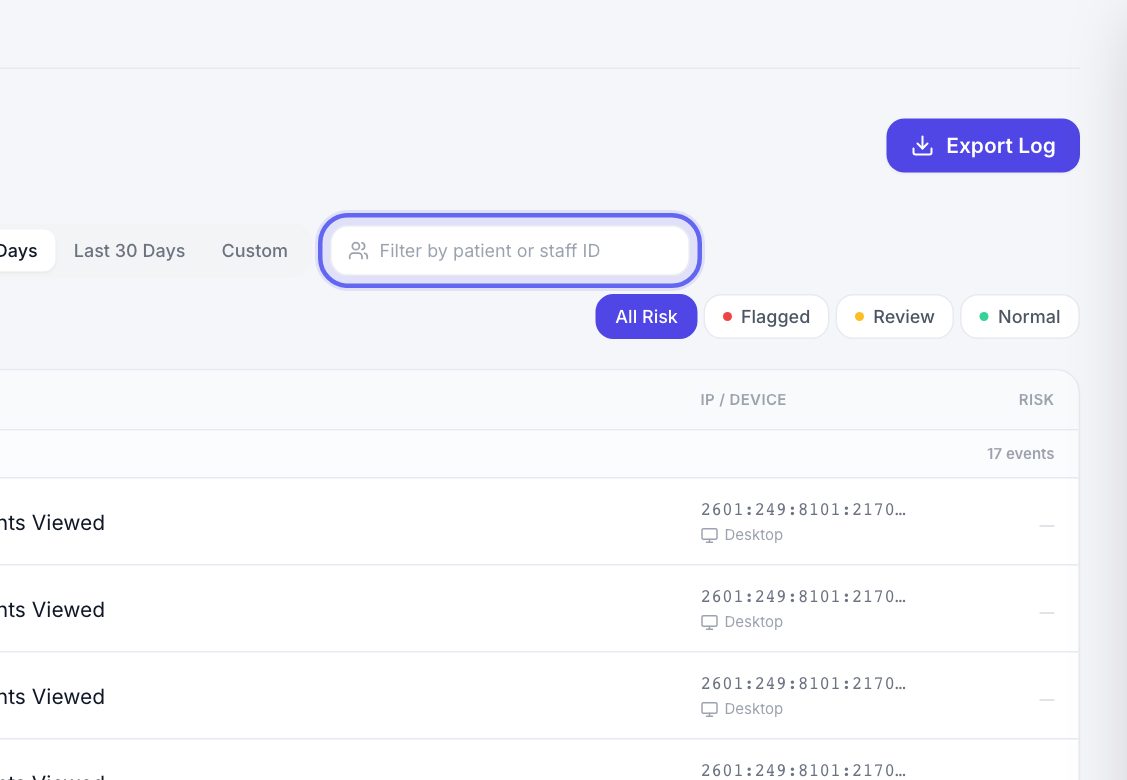
6One person only
In Filter by patient or staff ID, type a staff member’s name to see only what they did. Paste a patient’s ID to see only events about that patient. Press the small x to clear it.
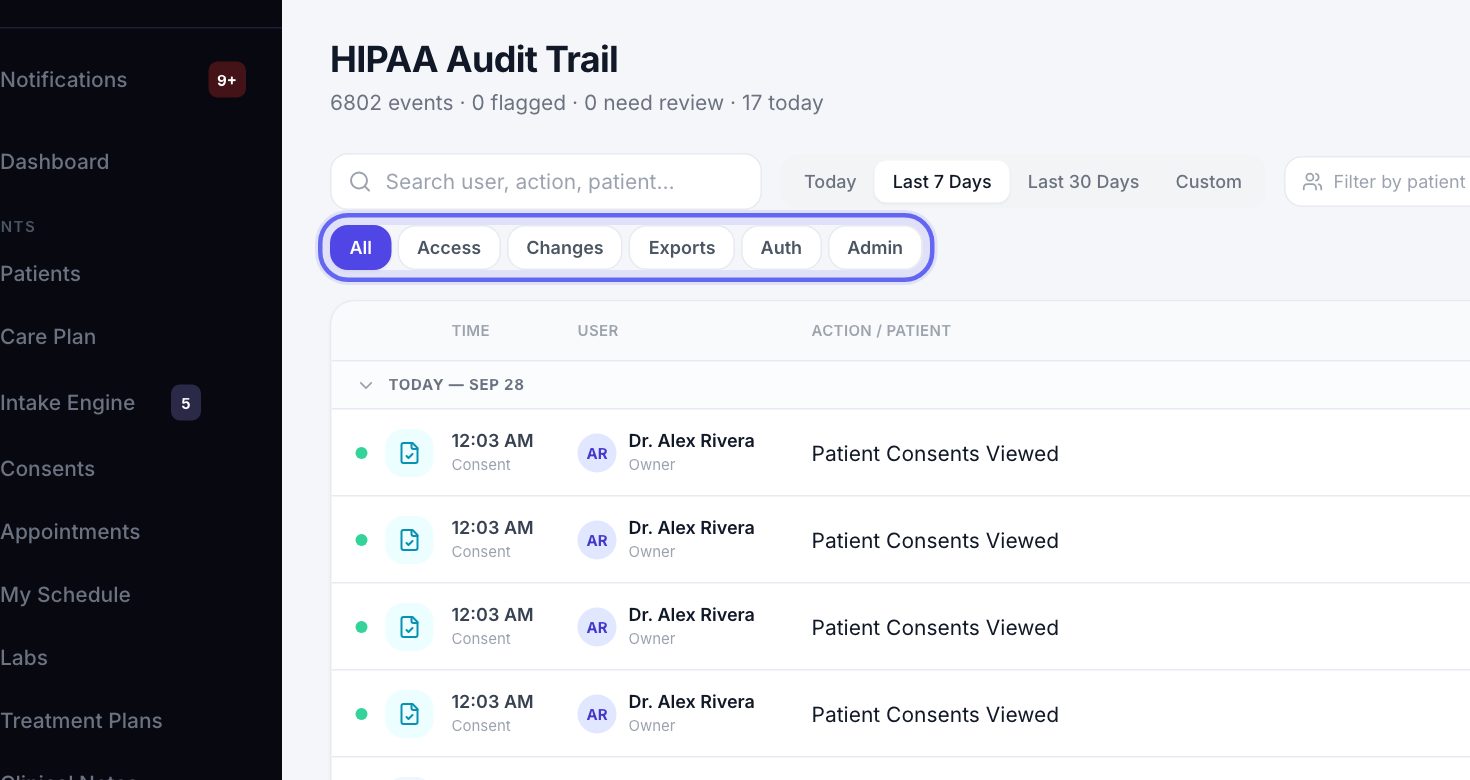
7By kind of event and by risk
- 1Access is charts and records opened, consents and messages. Changes is anything created, edited or released. Exports is anything downloaded. Auth is sign-ins and sign-outs. Admin is settings and staff changes.
- 2On the right, pick Flagged, Review or Normal to see one level of risk. All Risk shows everything again.
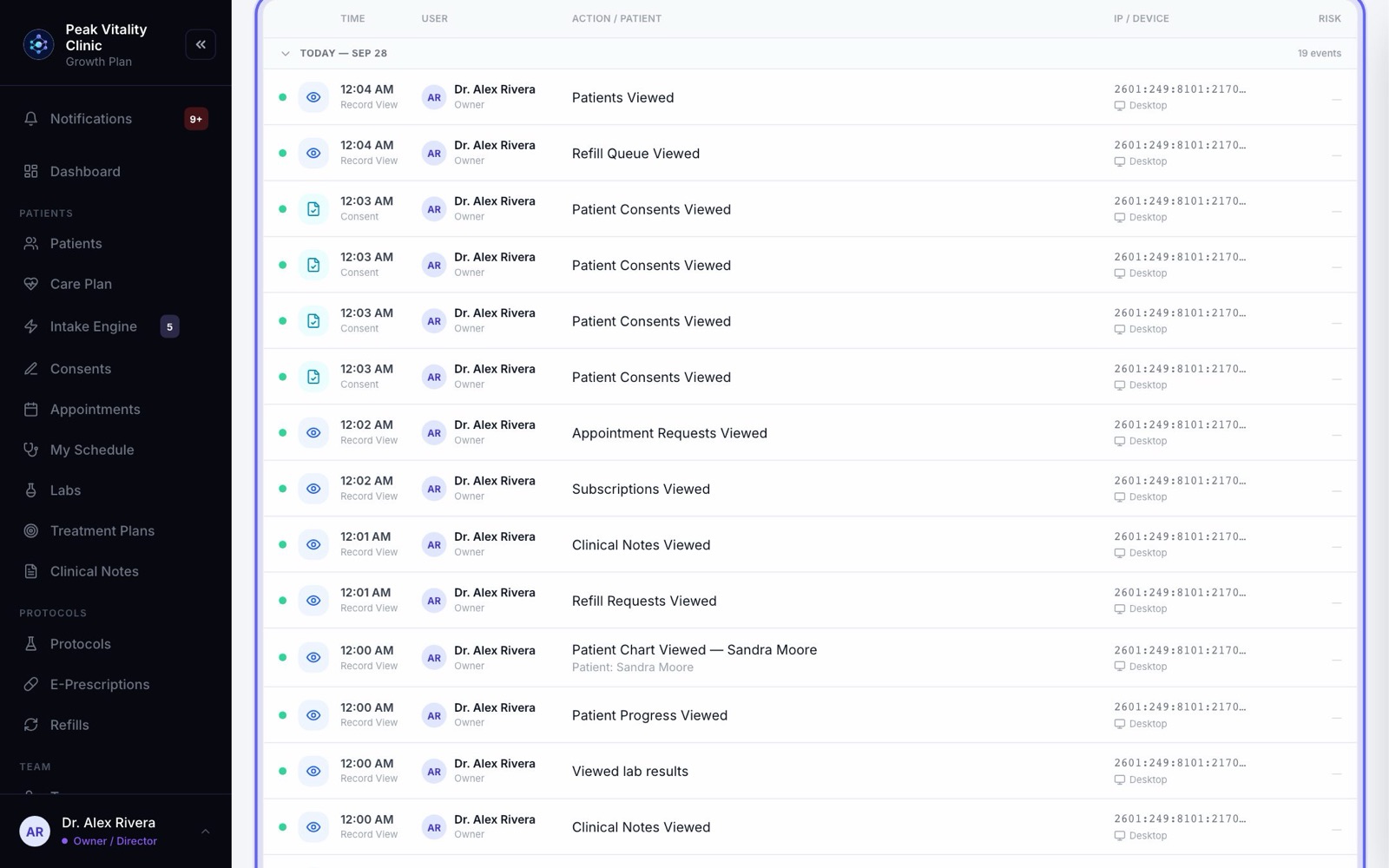
8Read the log
- 1Events are grouped by day, newest first. Click a day’s heading to fold it away.
- 2Each row shows the time, who did it and their role, what they did and to which patient, the computer it came from, and a risk tag.
- 3The page loads 20 events at a time. Press Load older entries at the bottom for more.
- 4All times are in your clinic’s time zone.
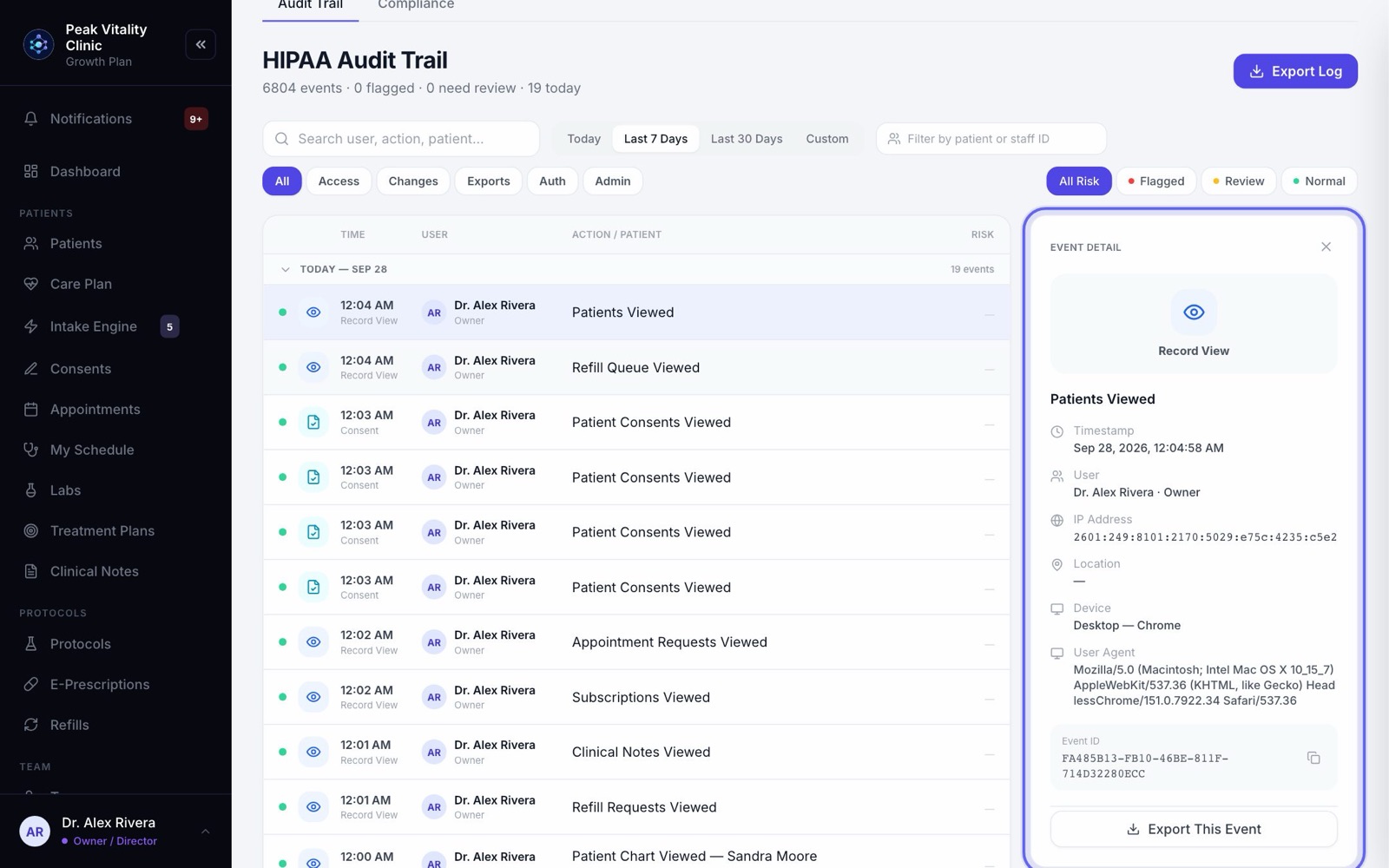
9Open one event
- 1Click a row. Event Detail opens beside the log.
- 2It shows the exact time, the person, the IP address, where it came from and the device.
- 3For a flagged event, read the reason, then press Mark as Reviewed. Your name and the time are added. The event itself doesn’t change.
- 4Press Export This Event to download just this one, or copy its event ID.
10Export the log
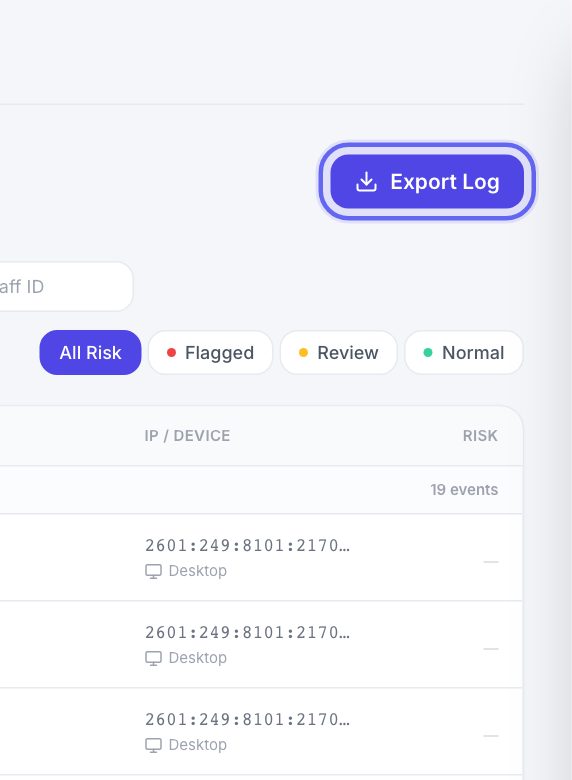
Press Export Log to download every event that matches your filters as a spreadsheet file, not just the ones on screen.
The export is recorded in the log too, before the file is made.
11The Compliance tab
Open Compliance for the privacy records you may be asked to show: Requests, Disclosures, Incidents and Training.
The audit trail shows your team doing their jobs. The Compliance tab holds the records you keep by hand.
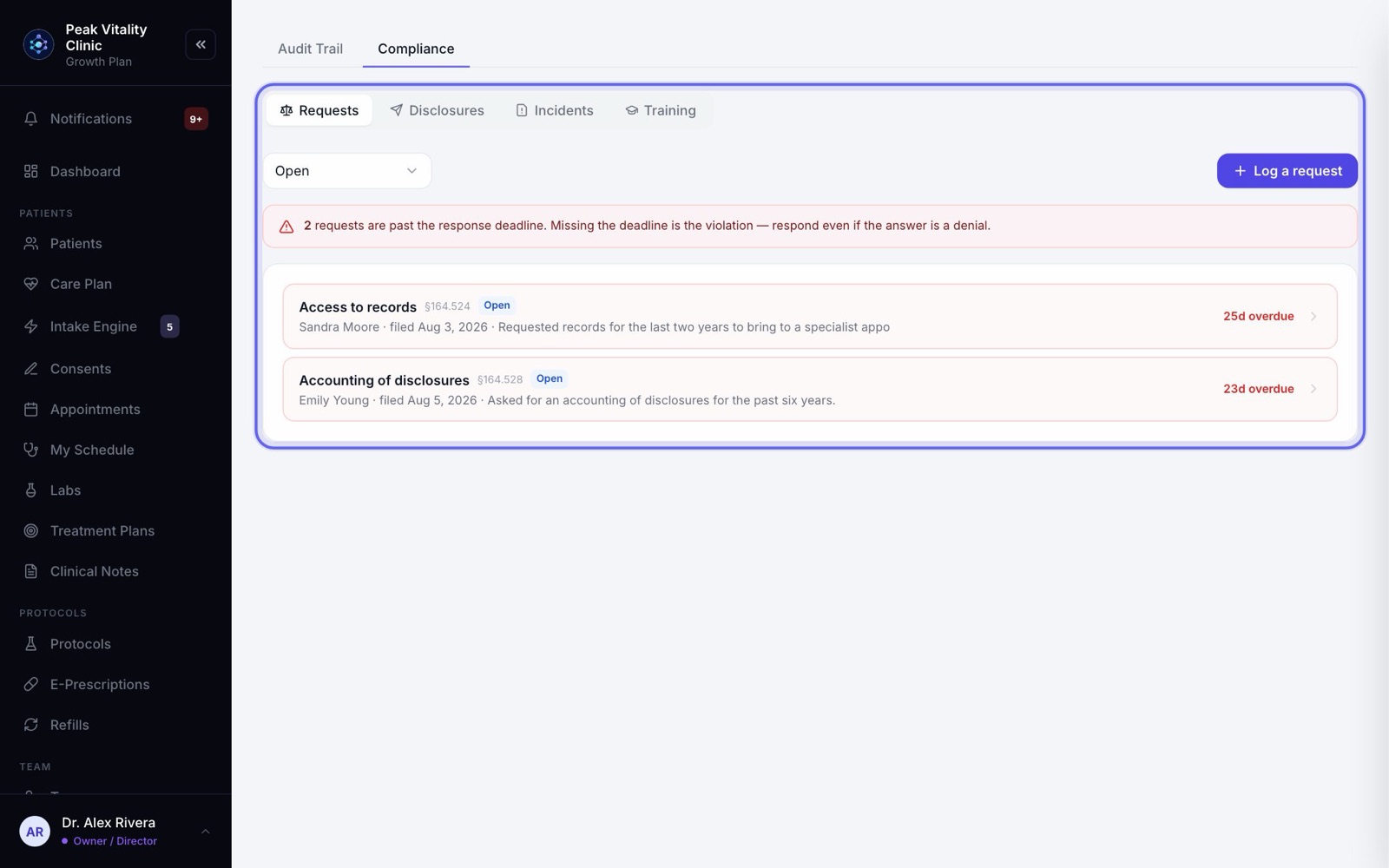
12Patient requests
- 1Requests lists what patients have asked for under their privacy rights, like a copy of their records or a change to them. Requests made from the patient app land here on their own.
- 2Press Log a request to add one that came by phone or letter: pick the Patient, the Request type and the Date received.
- 3Each request shows how many days are left to answer. Late ones turn red.
- 4Open one, choose the Outcome, write the Response to the patient, and press Record response. A denial asks you to pick an allowed reason.
13Disclosures
- 1Log a time you sent a patient’s information outside the practice, like records to another doctor or an answer to a court order. Press Log a disclosure.
- 2Fill in the Patient, Date, Recipient type, Who received it, Purpose and What was disclosed.
- 3Pick a patient under Filter by patient, then press Accounting for this patient to get their list of disclosures.
Staff opening a chart to do their job is not a disclosure. That is already in the audit trail.
14Privacy incidents
- 1Log every incident, big or small, with Log an incident. For example, a lab result emailed to the wrong patient.
- 2Enter the date it was Discovered on, the People affected, What happened and What information was involved.
- 3Fill in all four parts of the Risk assessment. Each incident then shows the days left to notify.
15Staff training
Training lists everyone on your team, when they last finished privacy training, and when it runs out. It lasts 12 months.
After someone finishes their training, press Record training on their row.
Keep going
Settings
How your clinic runs: your details and hours, payments, what patients are told, the patient app, security, connected tools and who can do what.
Read the guideTurn on two-step sign-in
Make everyone confirm their sign-in with a code from an app on their phone. Set up your own first, then your team is walked through it the next time they sign in.
Read the guideTeam
Everyone who works at your clinic. Invite people, give each a role, keep their credentials up to date, and remove someone who has left.
Read the guideFor owners and practice managers
Everything you need to set up the clinic, bring your team in, decide who can do what, and keep an eye on the money and the day.
Read the guideRather be shown?
Inside Aminova, the tutorial walks you through every page, and the Getting started checklist shows you each task click by click. Or book a live training session with our team.