1Get to the Rooms page
- 1Go to Appointments in the sidebar.
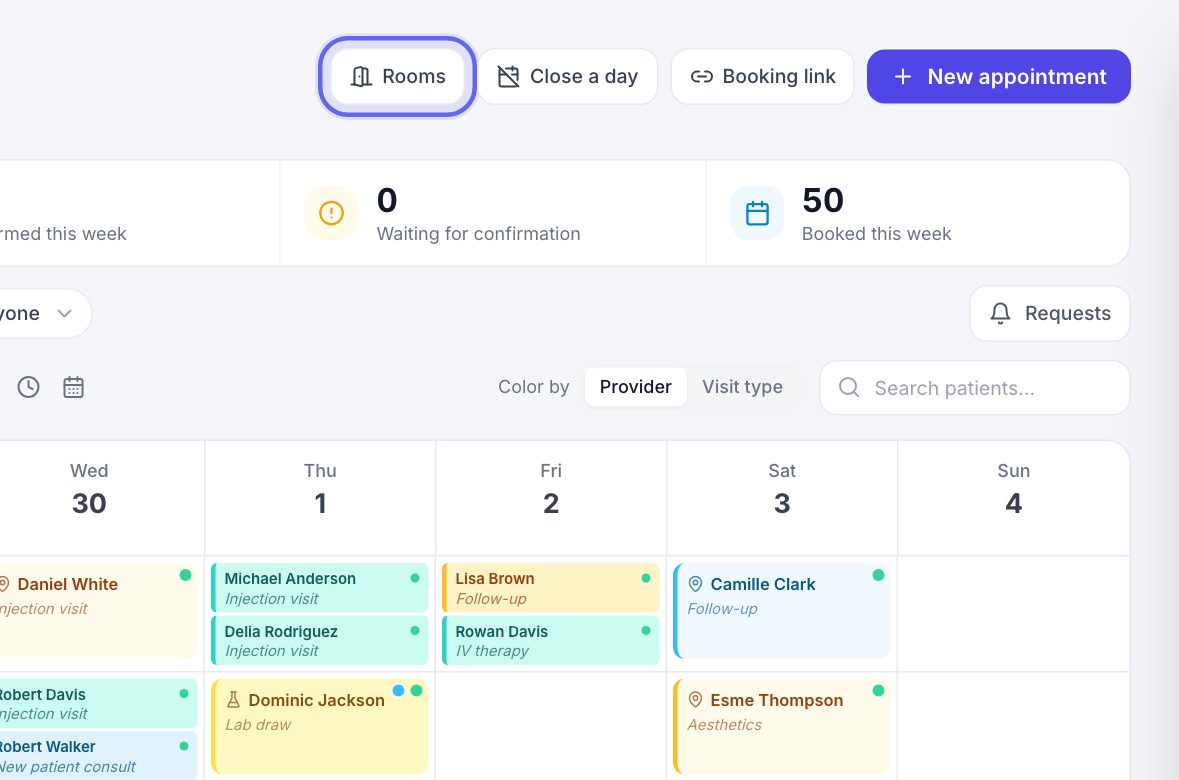
- 2Click Rooms at the top right.
- 3To go back, click Appointments above the page title.
2The page at a glance
The page has three tabs. Live is the floor right now. Day is today, one column per room. Rooms is where your rooms are set up.
The Events button at the top opens your group sessions, like classes.
3The floor right now
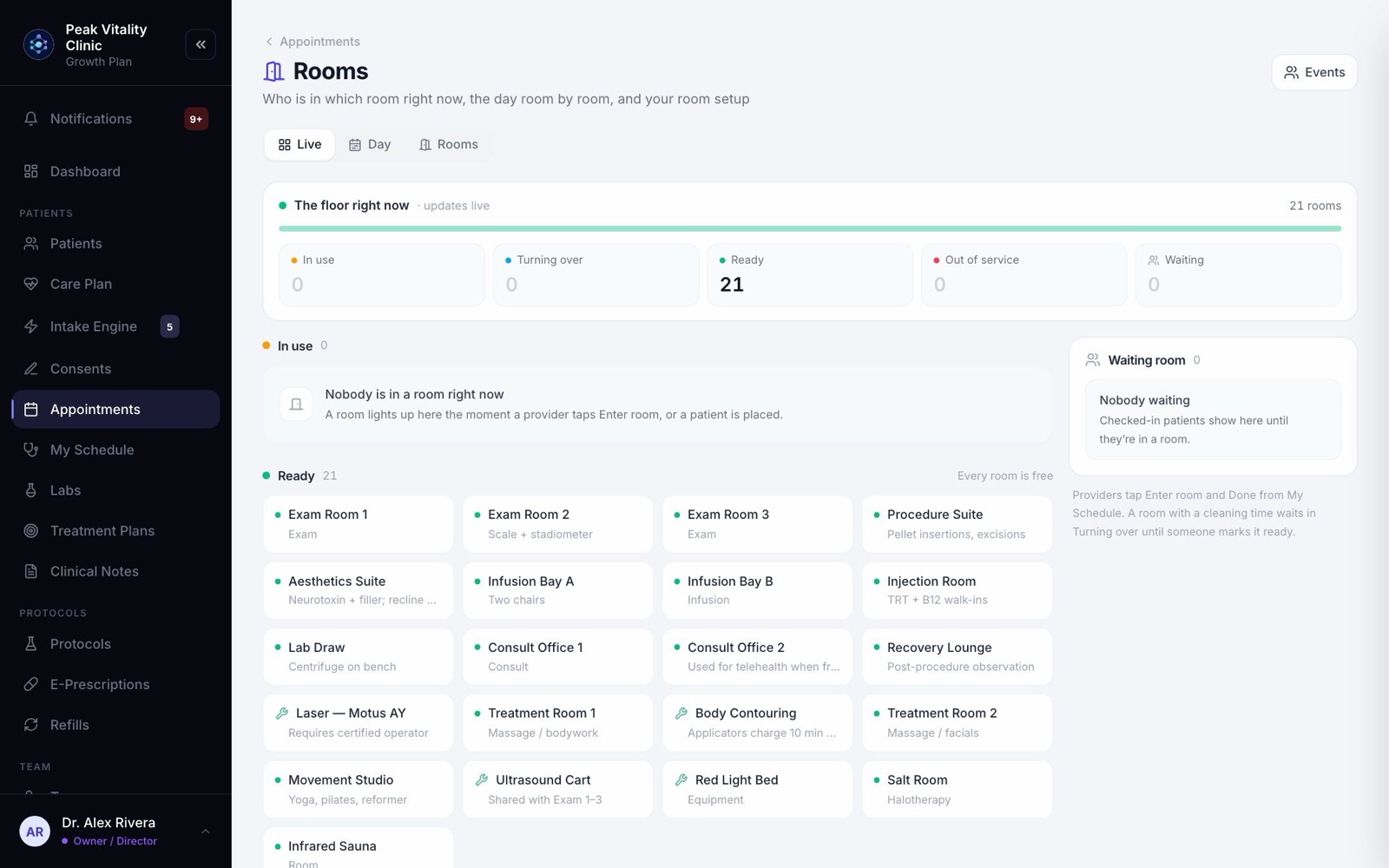
The box at the top counts your rooms: In use, Turning over, Ready and Out of service, plus how many patients are Waiting and the longest wait.
It updates live. You don’t need to refresh.
4Rooms in use
- 1Each busy room shows the patient, their visit, their provider, and a clock of how long they’ve been in.
- 2A bar shows the time left. It turns red, with how many minutes over, when the visit runs long.
- 3If the visit has room steps, it says which step they’re on and, near the end, which room is next.
- 4Click the patient to open their visit.
- 5When they leave, press Done — free room. In a room that holds more than one patient, press Free a seat.
5Rooms being turned over
- 1A room with a cleaning time goes to Turning over when the patient leaves. It shows how long is left.
- 2Use Assign… to pick who cleans it. They get a note saying the room needs turning over.
- 3Press Mark ready when it’s clean. If nobody does, it becomes ready when the time runs out.
6The waiting room
- 1On the right is everyone who has checked in but isn’t in a room yet, with how many minutes they’ve waited.
- 2The wait turns amber at 10 minutes and red at 20.
- 3When a room is free, press Place beside a patient. The best open room for their visit is chosen for you.
- 4If every room is busy, it says so, and the next room to free up shows here.
Providers use Enter room and Done on My Schedule. The Live tab changes the moment they do.
7Take a room out of service
- 1Owners and managers: hover a Ready room and click the small circle with a line through it, in its corner.
- 2Say what’s wrong, like “Sink leaking”, and press Take out of service.
- 3It moves to Out of service and is never booked or given to a patient.
- 4When it’s fixed, press Back in service.
8The Day tab
- 1Each booked room gets a column, with the day down the side. Each visit shows who, what, when and with whom, in its visit type’s color.
- 2The top line counts the visits, and warns you of visits with no room yet and of any room clashes.
- 3Visits with no room yet are listed in an amber box. Click one to open it.
- 4Switch between Booked rooms and All rooms. Rooms with nothing booked are listed under Free all day.
- 5Use the arrows, Today, or the date box to see another day.
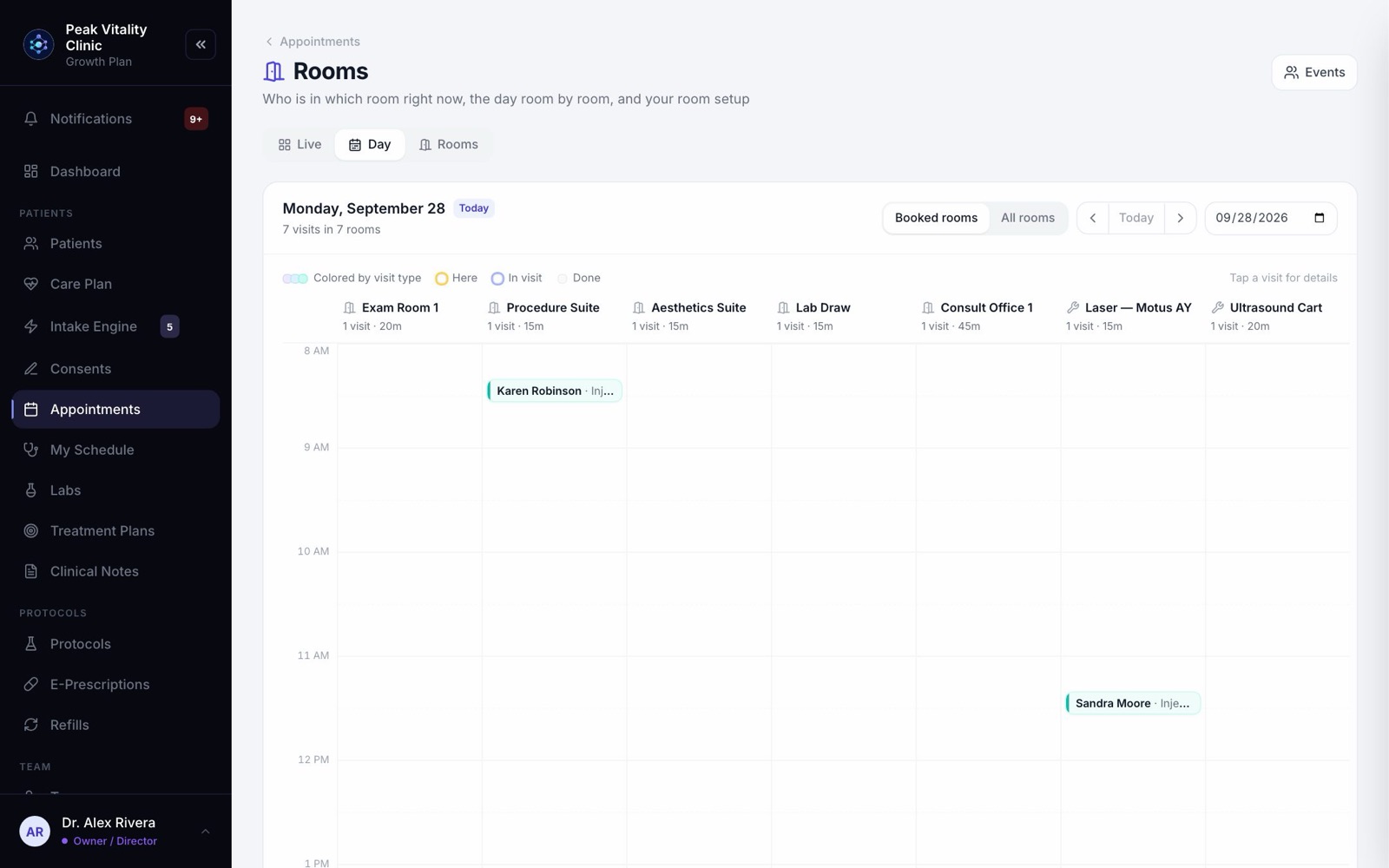
A thin gray bar beside a column shows when someone was actually in the room.
9The Rooms tab
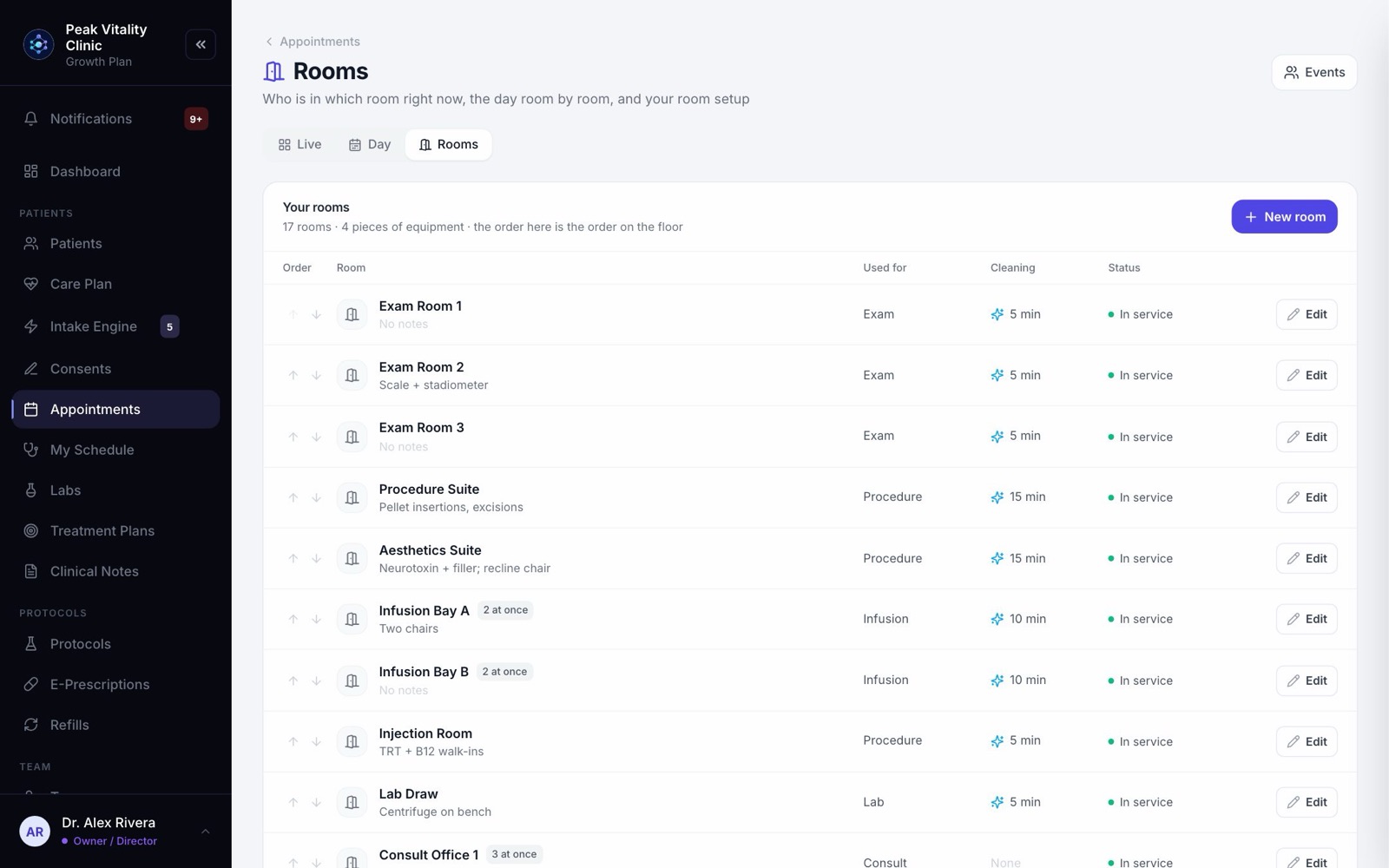
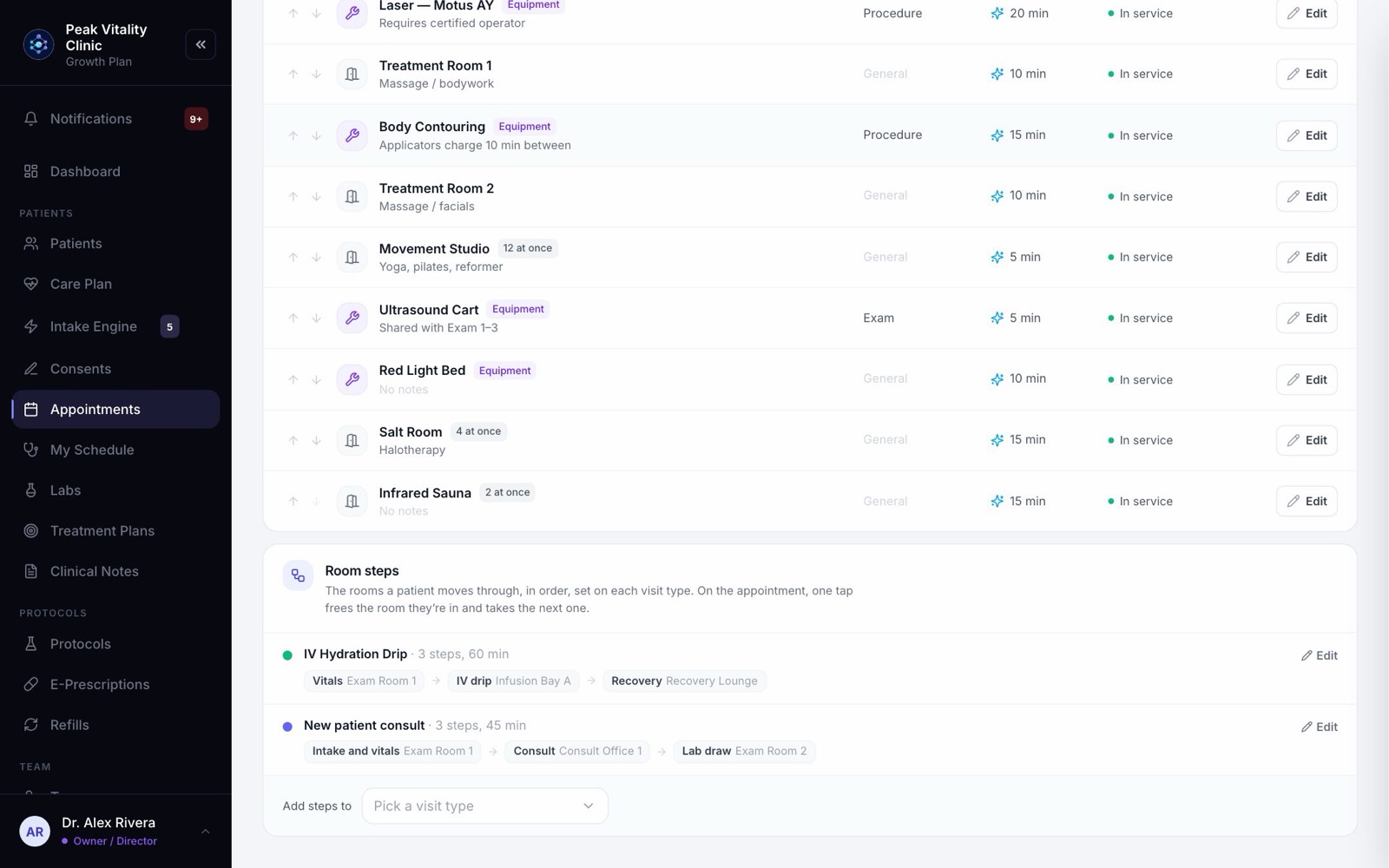
Your rooms and equipment, in the order they sit on your floor. Each row shows what it’s Used for, its Cleaning time and its Status.
Owners and managers can add, edit and reorder rooms here. Everyone else sees the list. See the rooms setup guide for how.
10Room steps
Under your rooms is Room steps: every visit type that moves the patient through more than one room, step by step.
Click Edit on one to change its steps, or pick a visit type under Add steps to.
Keep going
Set up your rooms
Add each room and each piece of equipment that gets booked, in the order they sit on your floor. Then tell each visit type which rooms it can use.
Read the guideRoom steps
For visits that move through more than one room: vitals, then treatment, then recovery. Set the steps once, then move the patient on with one tap.
Read the guideAppointments
Every visit, for everyone. Book visits, run the front desk, and open any appointment to check a patient in, move it or charge it.
Read the guideMy Schedule
Your own day, one visit at a time. Open a visit to see who it is, start it, read the brief, record it with the AI scribe and write your note.
Read the guideRather be shown?
Inside Aminova, the tutorial walks you through every page, and the Getting started checklist shows you each task click by click. Or book a live training session with our team.