1The page at a glance
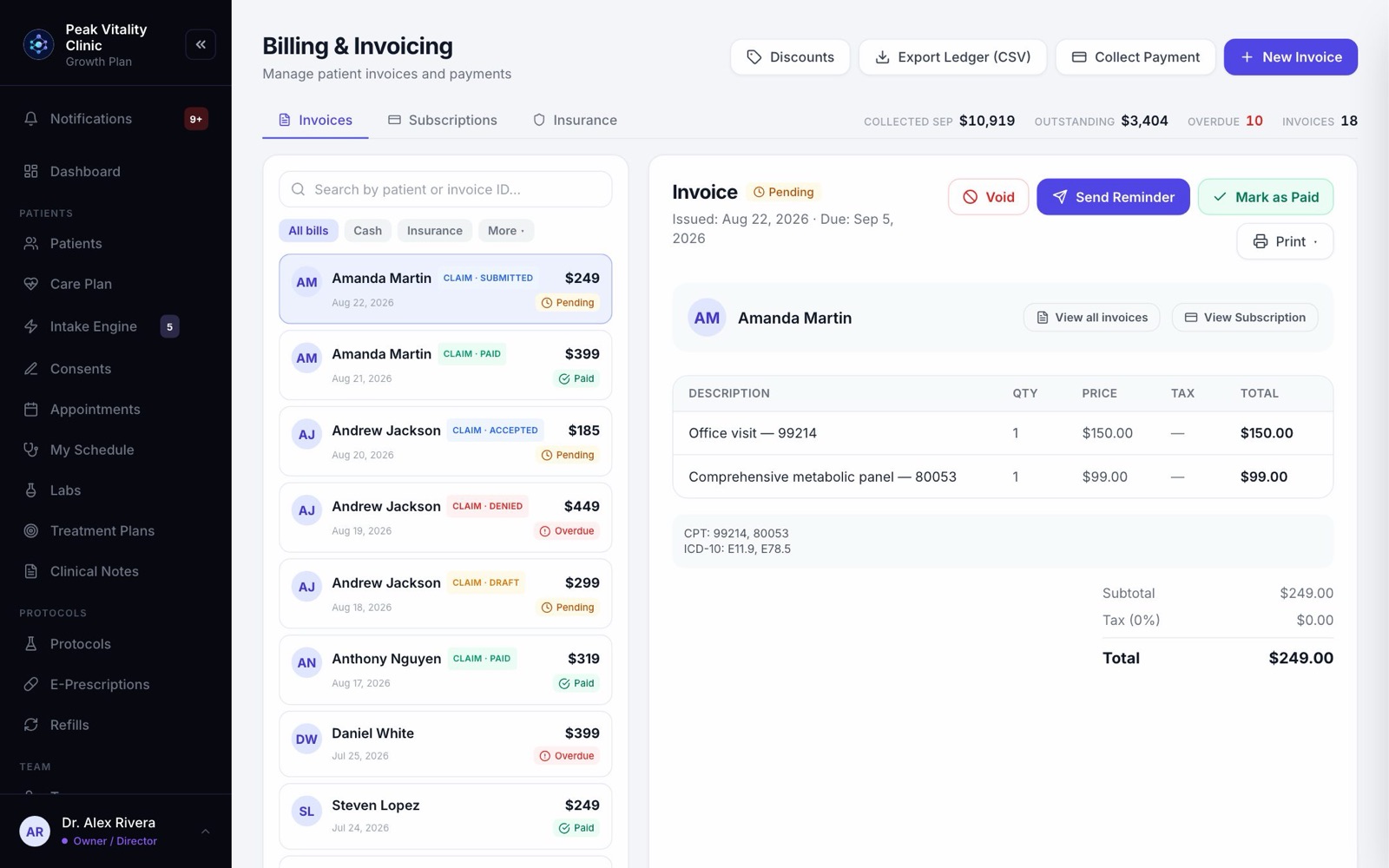
Billing is where you bill patients and follow the money. Four buttons sit at the top. Under them are three tabs, with this month’s numbers on the same line.
On the Invoices tab, your bills are listed on the left. The one you pick opens on the right. By default, owners, managers and billing staff can open this page.
2This month’s money
- 1Collected is every payment taken this month, in any way, less refunds.
- 2Outstanding is what patients still owe: open invoices, past-due memberships and unpaid deposits. Drafts don’t count.
- 3Overdue counts bills past their due date and memberships that are past due.
- 4Invoices is how many invoices you have, all time.
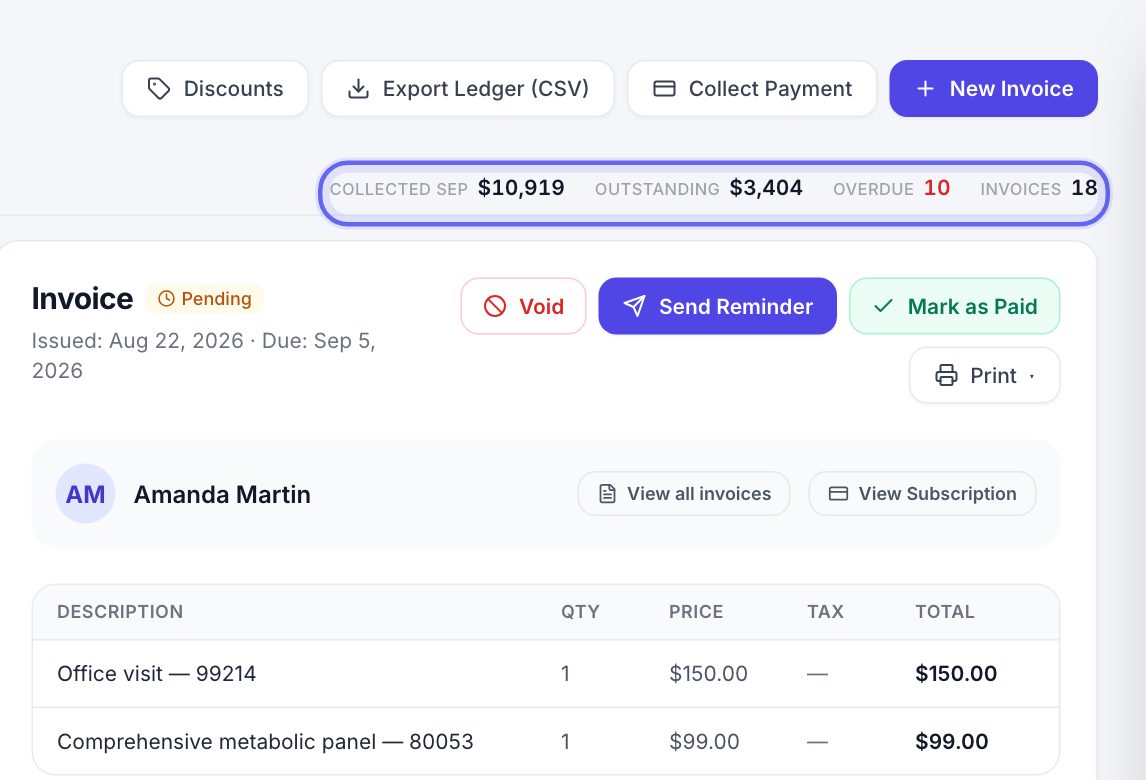
Hold your mouse over a number to see exactly what it counts.
3Three tabs
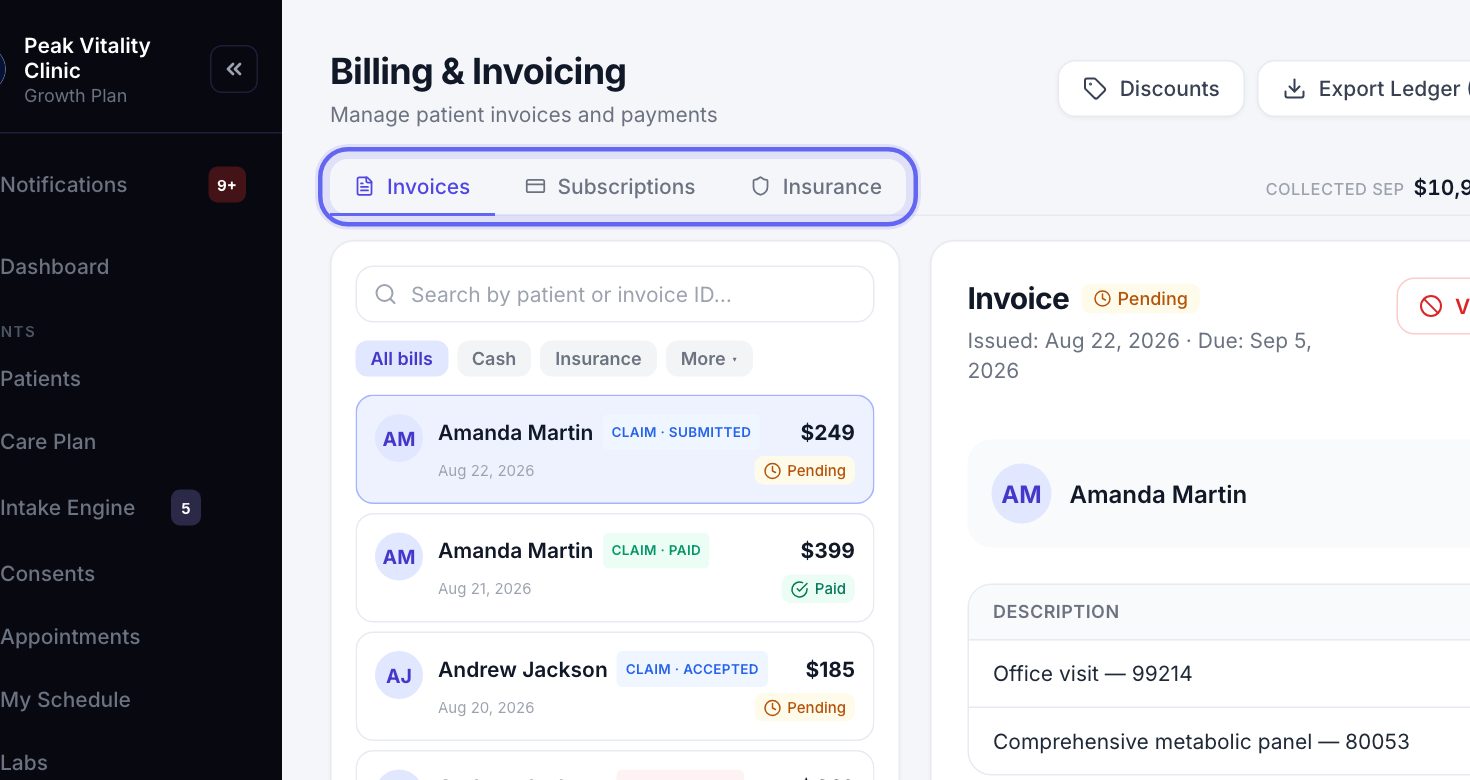
- 1Invoices is every bill, one at a time.
- 2Subscriptions is every patient on a membership or plan.
- 3Insurance is for billing a patient’s insurance. If your plan doesn’t include it, the tab is grayed out with a lock.
4Find an invoice
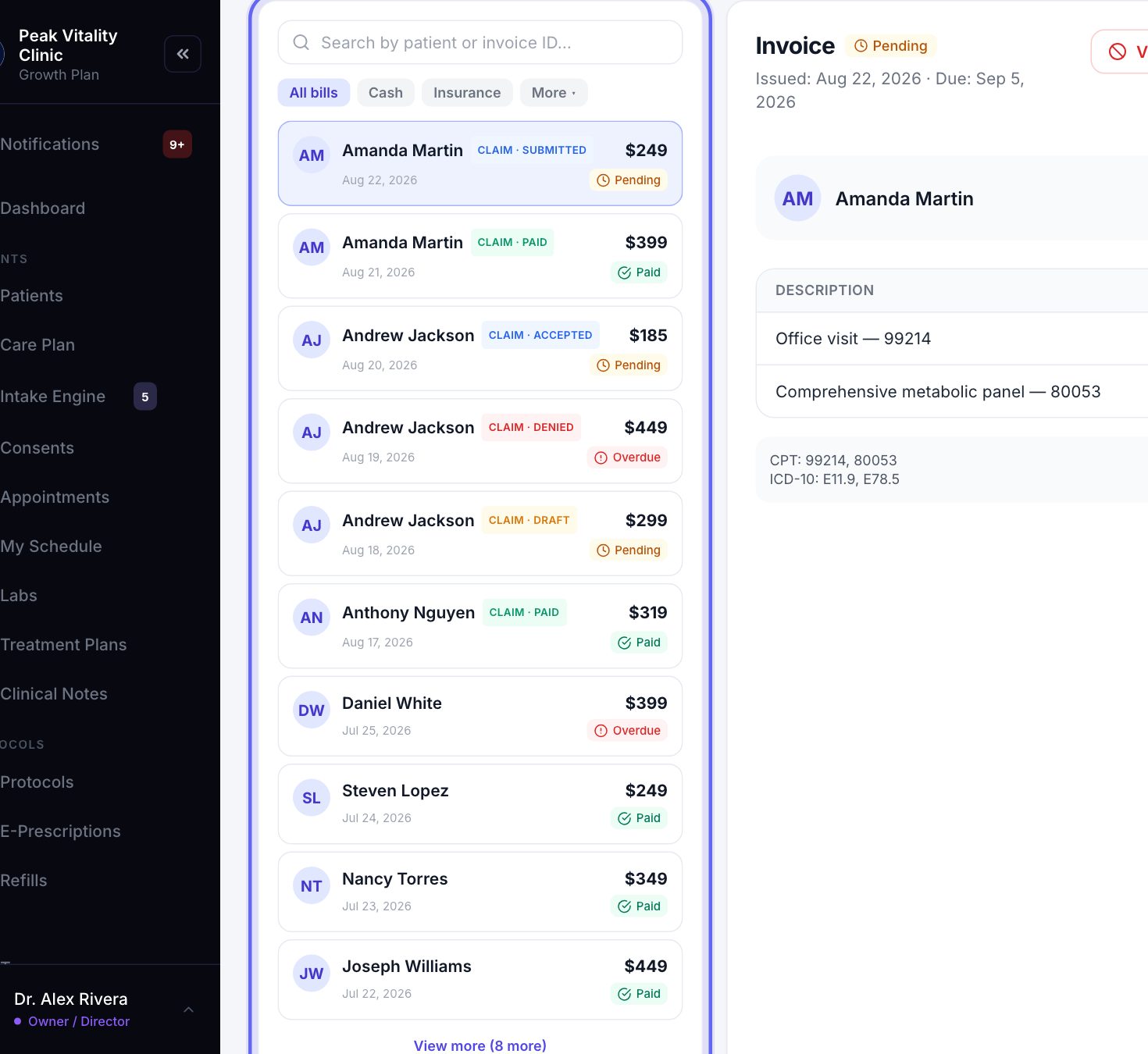
- 1Type a patient’s name or an invoice number in the search box.
- 2Pick All bills, Cash or Insurance.
- 3Use More to show one status only, like Overdue or Draft.
- 4Click an invoice to open it. View more shows the next ten.
5The open invoice
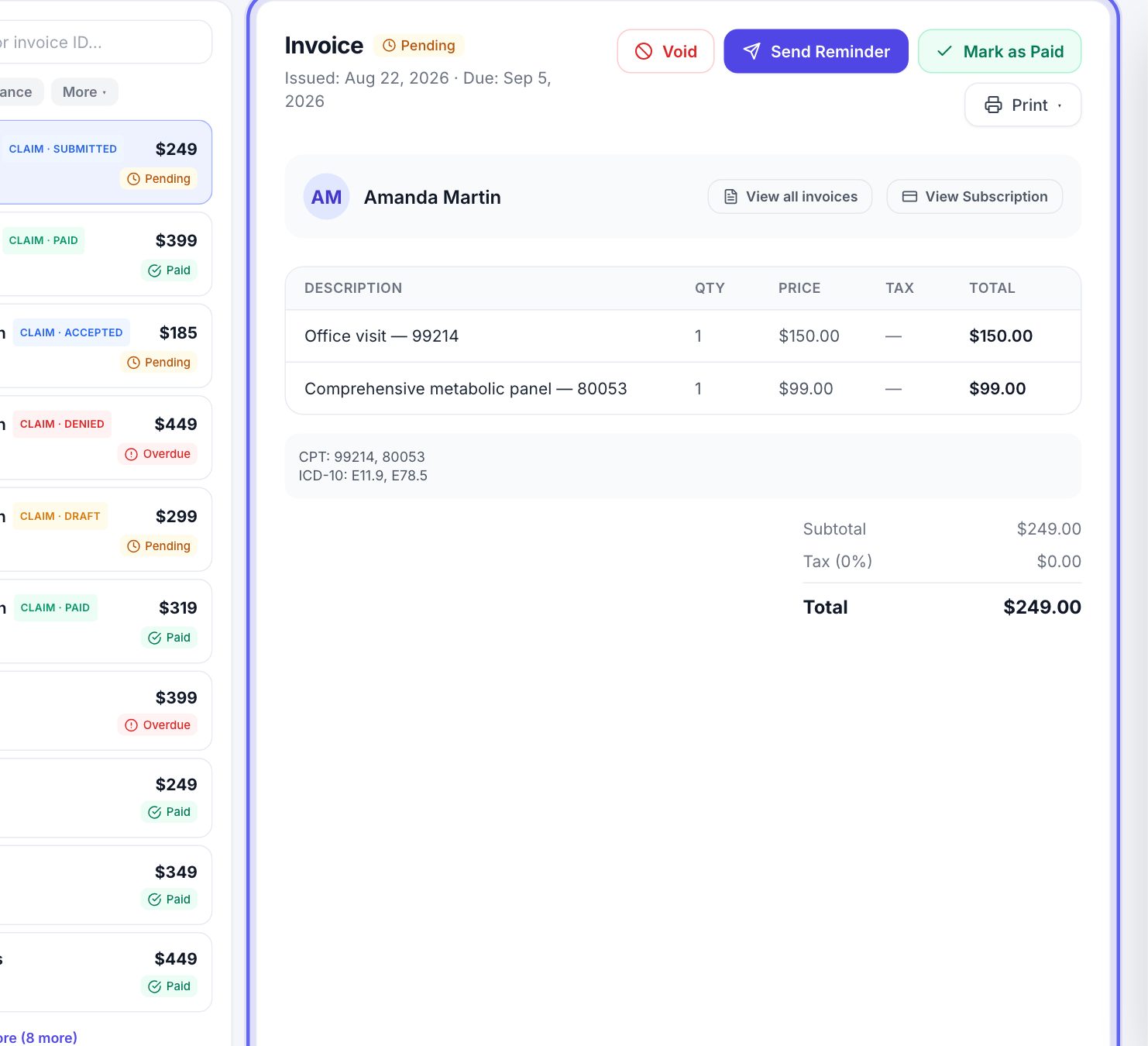
The invoice you picked shows its status, when it was issued and due, each line, and the total. Under the patient’s name you see how it was paid, and who took the payment.
View all invoices lists every bill for this patient. View Subscription shows the plans they’re on, without leaving the page.
6Make a new invoice
- 1Click New Invoice and pick the patient.
- 2Add lines from your price list: services, products, packages and memberships. Pick Custom line (type your own) for anything else.
- 3Tick Tax on any line that is taxed. The Tax Rate (%) starts at the rate saved in Settings.
- 4Add a saved discount, a + One-off discount, or credit the patient has on file.
- 5Set the Due Date. Left empty, it is 15 days from today.
- 6Press Create & send to email the patient a bill with a pay link and put it in their app. Or press Save draft to finish it later.
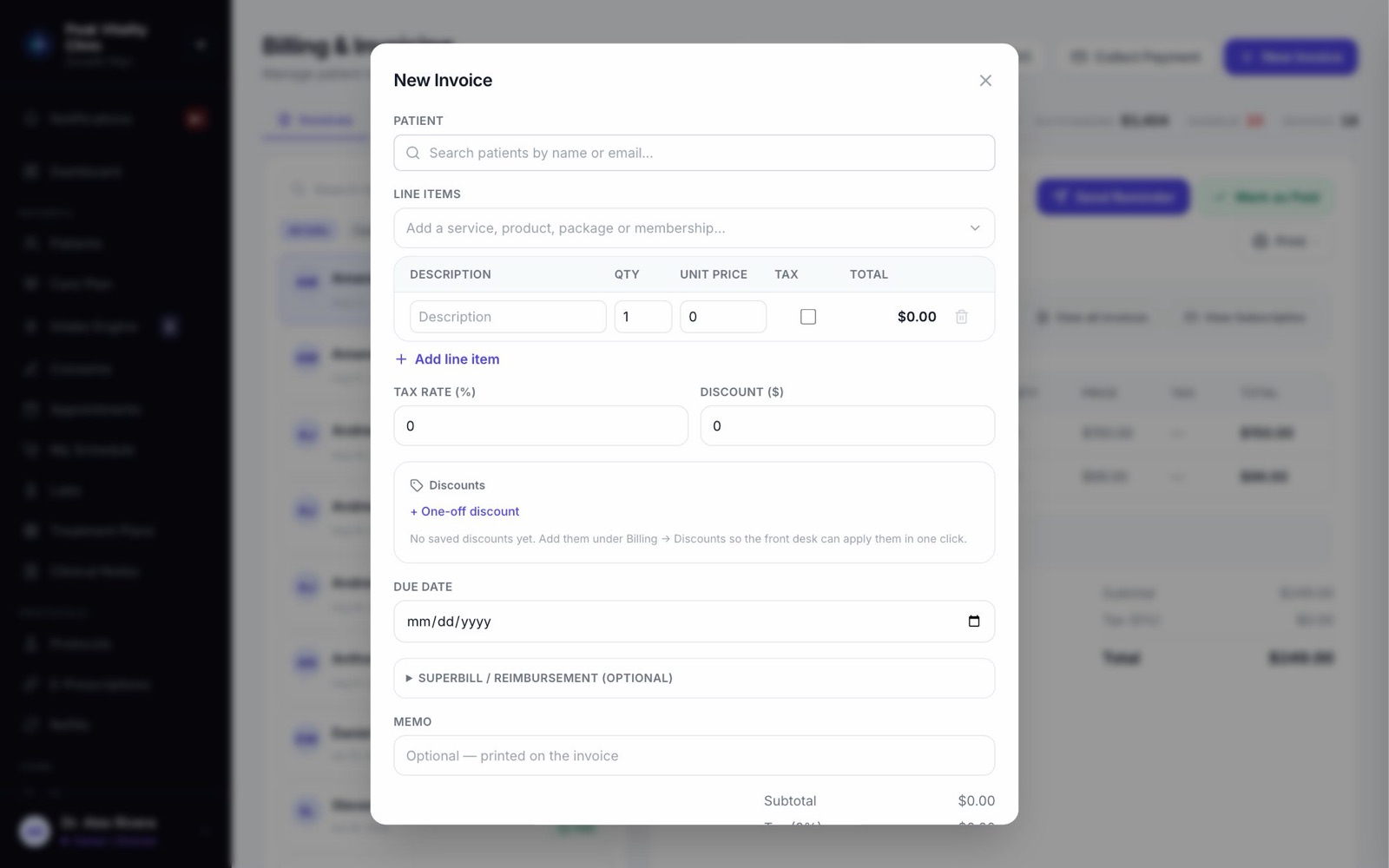
For a patient who files with their own insurance, open Superbill / Reimbursement (optional) and add the service and diagnosis codes. Practice patients never get emails, texts or bills.
7Get it paid
- 1A draft has Edit and Issue Invoice. Issuing it emails the patient a pay link and puts the bill in their app.
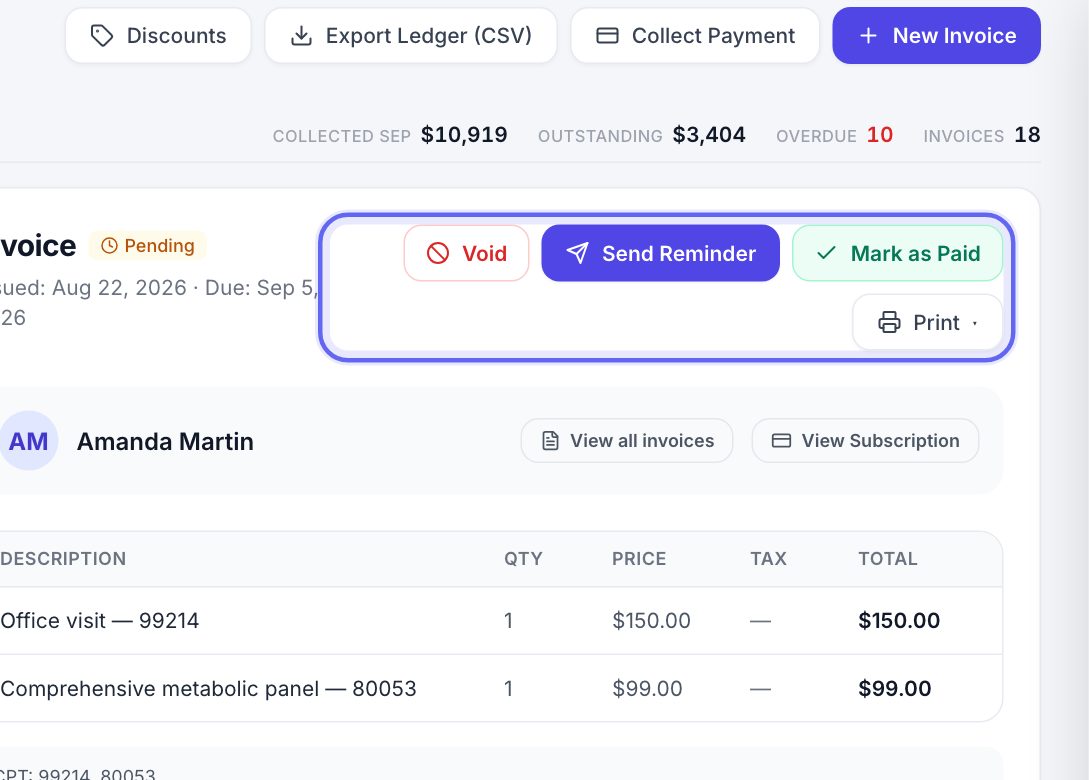
- 2A bill that is still owed has Send Reminder and Mark as Paid.
- 3Mark as Paid is for money you already took: cash, a check, or another way. Pick how they paid and press Confirm Payment. That writes it down. It doesn’t charge anyone.
- 4To take a card in person, pick Card (in person) in the same box. The amount goes to your card terminal, and the invoice turns paid when the card is approved.
- 5A message tells you whether the patient was emailed, or only told in their app.
8Void or refund
- 1Void takes a bill that wasn’t paid off the books. It stays on record as Void, stops counting as owed, and gets no more reminders.
- 2Voided one by mistake? Restore to Draft brings it back.
- 3A paid invoice can’t be voided. Press Refund instead.
- 4The refund box shows where the money goes back before you press anything. A card payment goes back to the card. Cash or another recorded payment is written down as a refund.
- 5Refund all of it, or type a smaller amount and a reason. Then press Issue Refund.
If Aminova can’t tell how an invoice was paid, it refunds nothing and tells you why.
9Receipts and copies
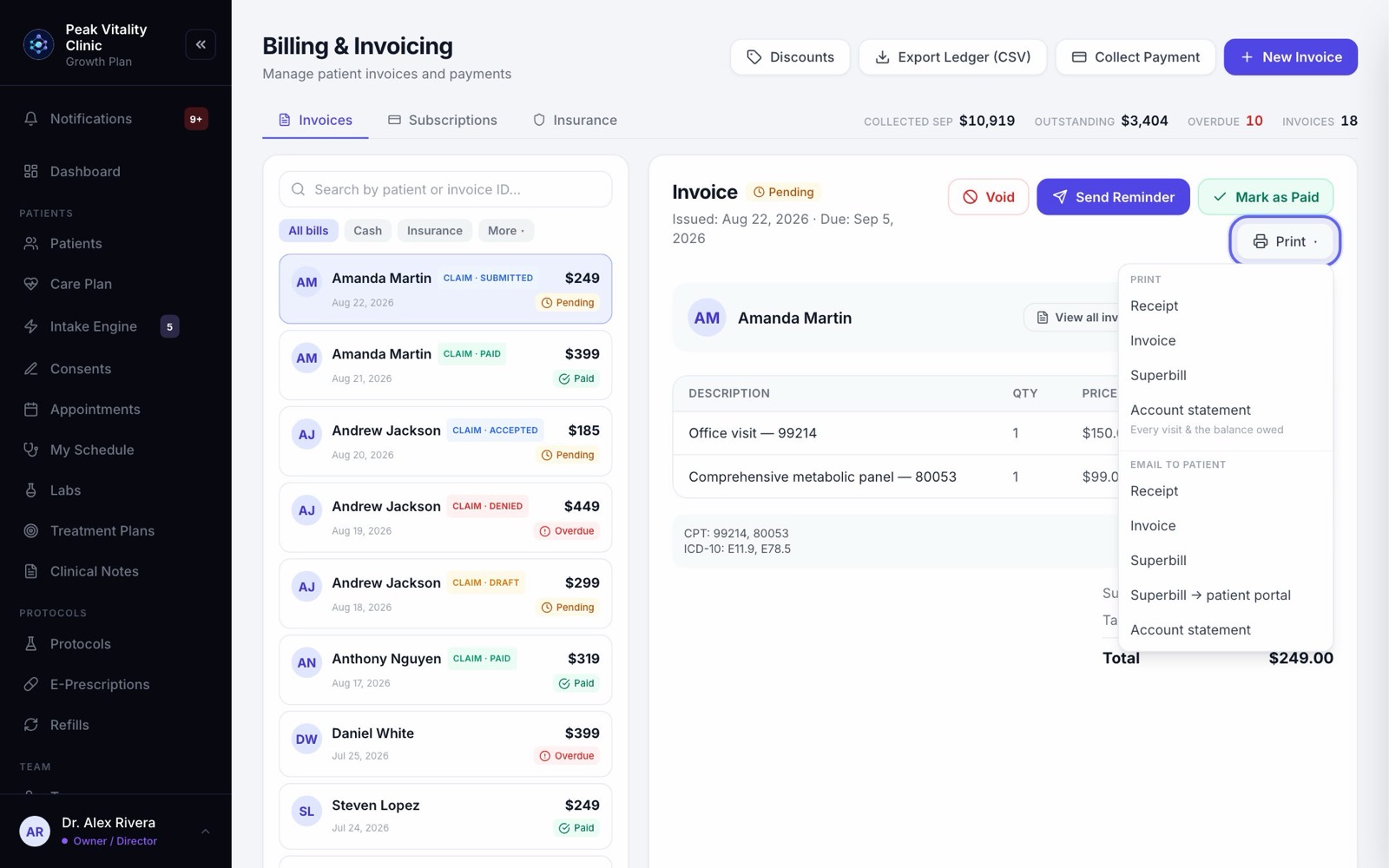
- 1Click Print on the open invoice.
- 2Print a Receipt, the Invoice, a Superbill, or an Account statement, which shows every visit and the balance owed.
- 3Or email any of them to the patient from the bottom half of the same menu.
- 4Superbill → patient portal puts the superbill in the patient’s app to keep.
- 5Right after you mark a bill paid, you’re asked if the patient wants a receipt: Print, Email, Print & email, or Skip — no receipt needed.
10Collect Payment
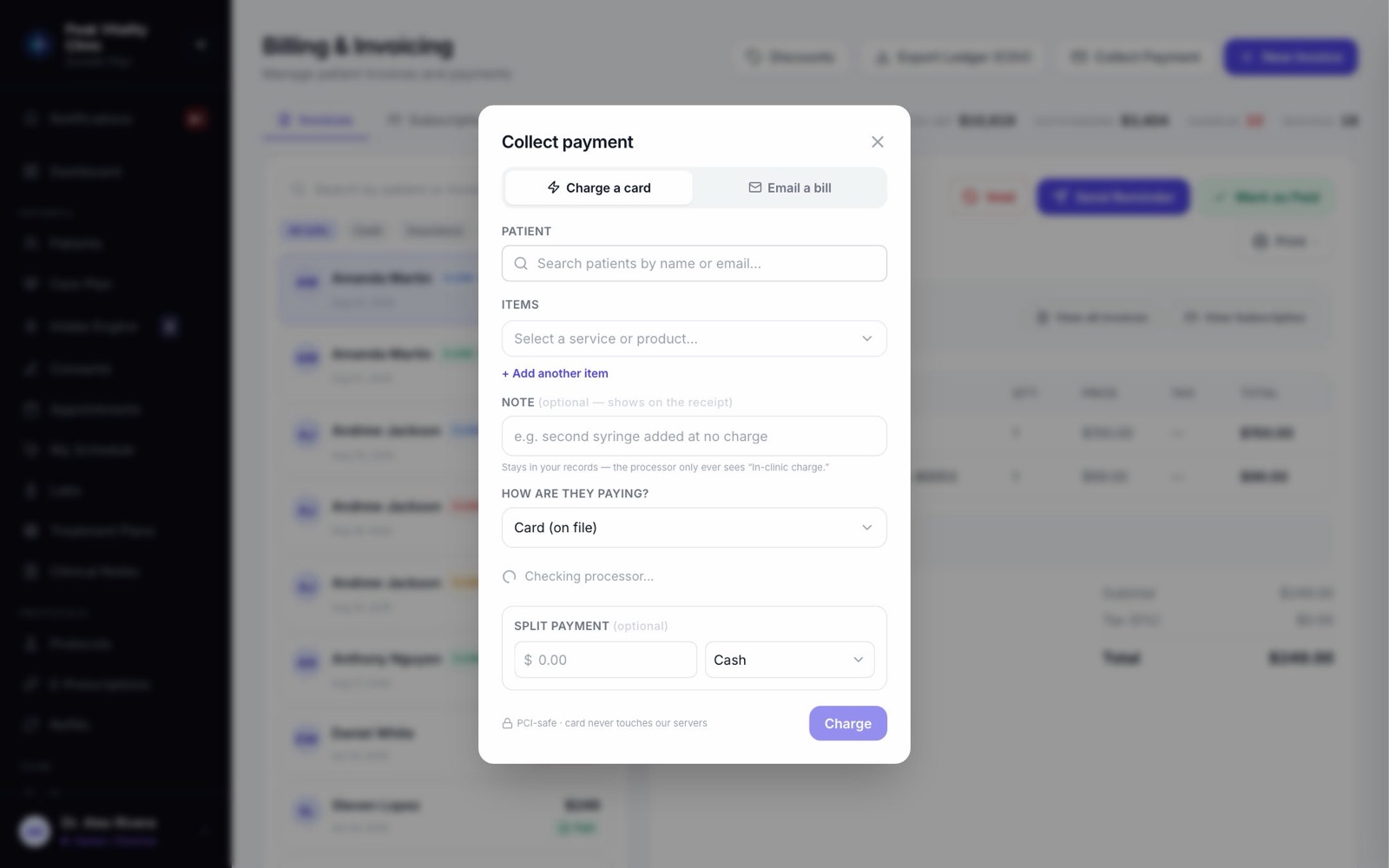
Collect Payment takes money without opening a visit first.
- 1Click Collect Payment and pick the patient.
- 2Charge a card: add what they’re buying, then choose How are they paying? Card (on file) charges a saved card right away, and Card (in person) sends the amount to your terminal. Every other way only records the payment.
- 3Email a bill: pick one of your plans and press Send bill. The patient pays it online, or a membership starts when they add a card.
11Saved discounts
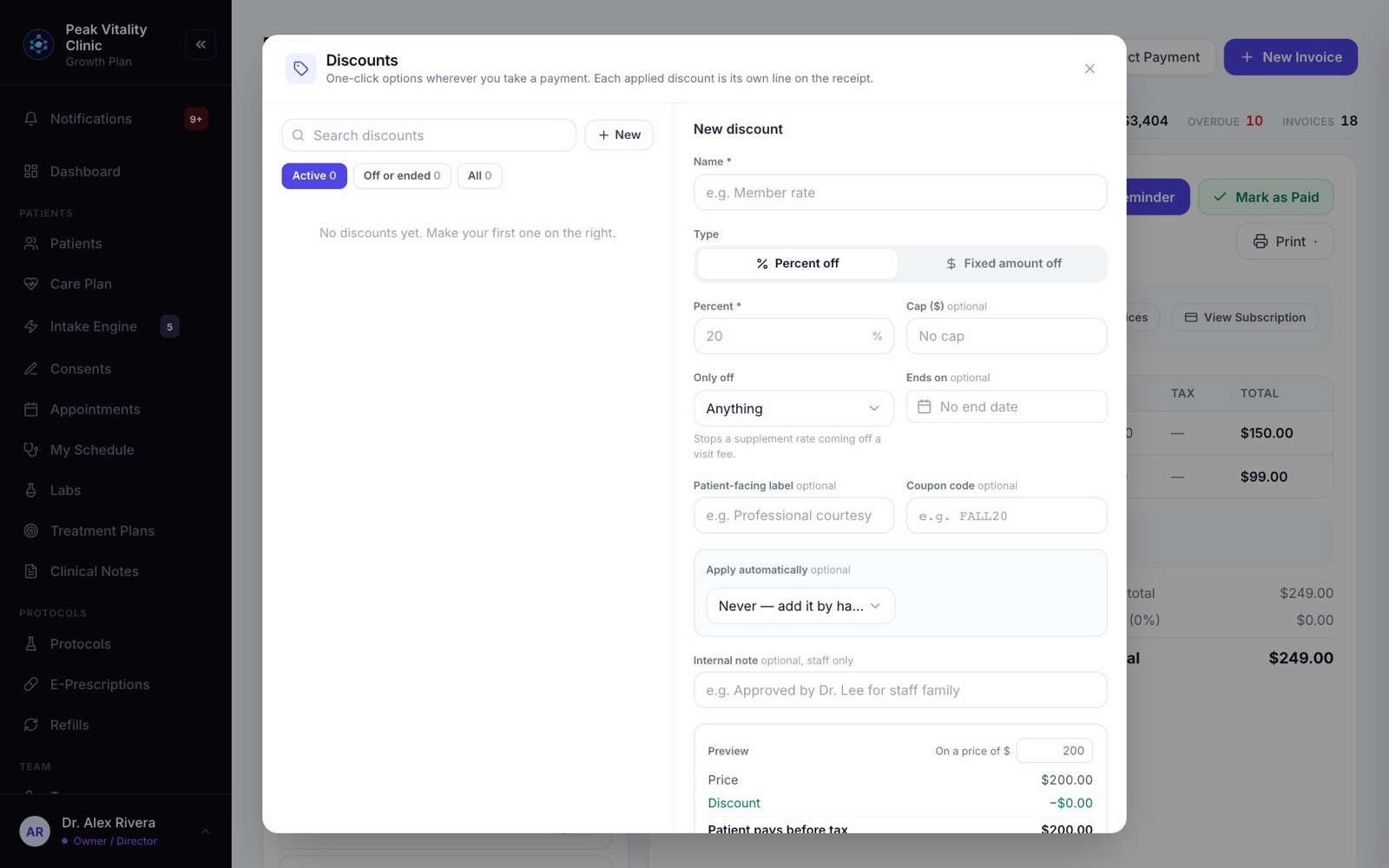
- 1Click Discounts. The form on the right makes a new one.
- 2Give it a Name. Choose Percent off or Fixed amount off, and the amount.
- 3If you like, choose what it comes off under Only off, when it Ends on, a Patient-facing label for the receipt, or a Coupon code.
- 4Under Apply automatically, choose who gets it on their own: everyone on a protocol, on a plan, or with a tag.
- 5Press Add discount. It’s now one click everywhere you take a payment. Use its switch to turn it off.
12Export the ledger
Export Ledger (CSV) downloads every invoice as a spreadsheet: subtotal, tax, total, refunds, status, dates and how each was paid.
13The Subscriptions tab
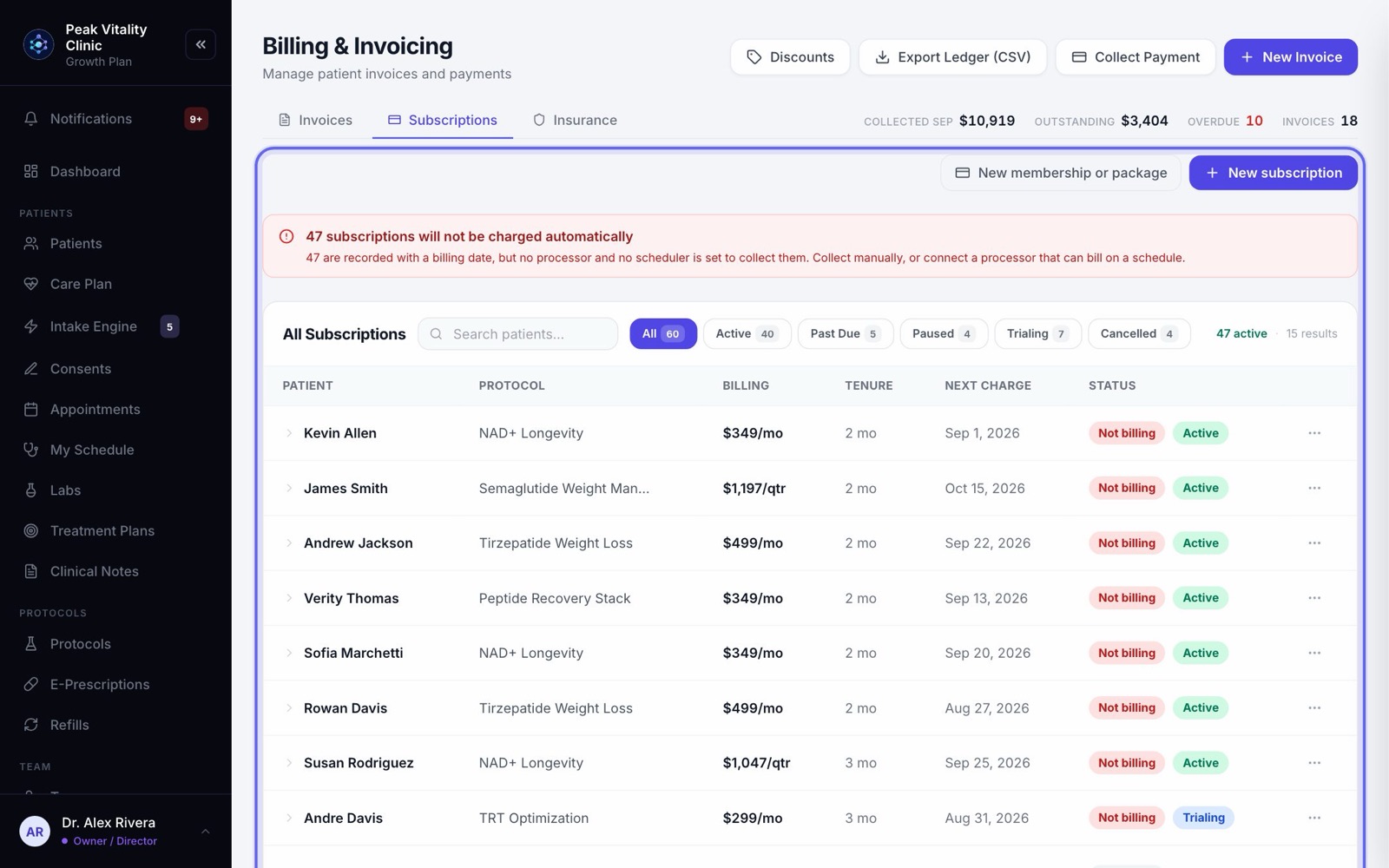
Every patient on a membership or recurring plan, with what they pay and their next charge. Filter by Active, Past Due, Paused, Trialing or Cancelled.
New subscription starts one for a patient. New membership or package makes a new plan, which is also listed in Products.
14The Insurance tab
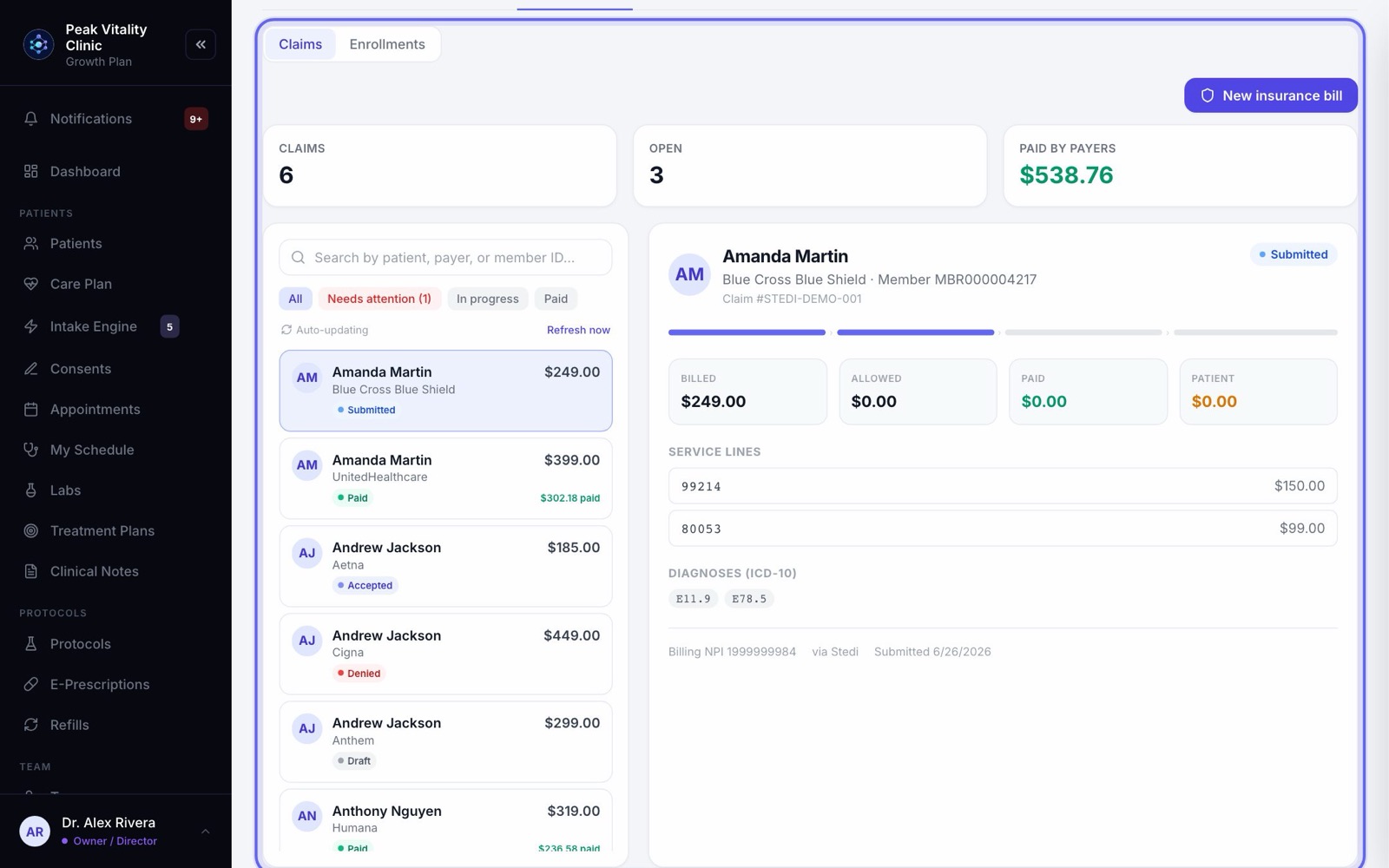
Claims lists every insurance claim and where it stands, from submitted to paid or denied. It updates on its own. To bill a patient’s insurance, press New insurance bill, pick the patient, add the codes and the amount, and press Create claim.
Enrollments shows which insurers are set up to pay you electronically, with a checklist of what’s left to do.
Keep going
Payments and checkout
Money from start to finish: the deposit when a visit is booked, the charge at the visit, the receipt, a refund if one is needed, and where it all shows up.
Read the guideTake card payments
Connect your card processor, add your card terminals, then set your payment rules: deposits, no-show fees, cash prices and your own payment types.
Read the guideAnalytics
How the clinic is doing: money, patients, visits and what’s selling. Pick a time frame, compare it with the one before, and take the numbers with you.
Read the guideMemberships and packages
Plans patients pay for: a membership that bills on repeat, or a package paid once that counts down. Build it once, give it to a patient, and their benefits track themselves.
Read the guideFor billing staff
Your day in billing: the money taken, invoices and payments, refunds and receipts, memberships, discounts, and the numbers in Analytics.
Read the guideRather be shown?
Inside Aminova, the tutorial walks you through every page, and the Getting started checklist shows you each task click by click. Or book a live training session with our team.